
In DISTRIBUTION / ORDERS you can create, edit, and account physical orders. Each order connects a Distribution Account (recipient) with a Stock Account (warehouse or source). Once created, an order guides you step-by-step through the process from setup to shipment and invoicing.
► Create a New Order
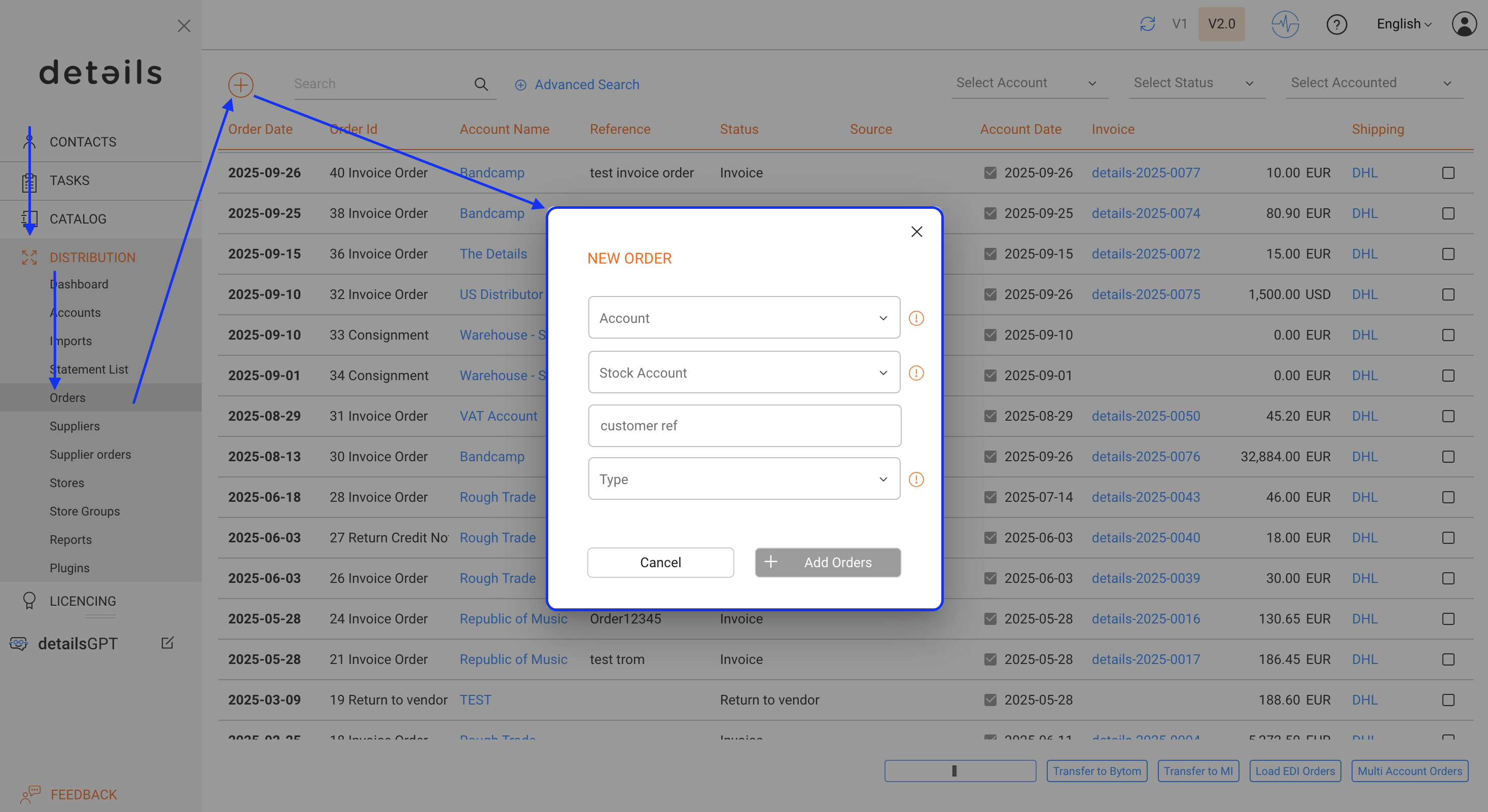
To start, click the [+] icon on the top left of DISTRIBUTION / ORDERS or open a Distribution Account and go to the ALL ORDERS subtab. Then click [+] to create a new order for this account.
In the modal window, choose:
- Distribution Account (recipient)
- Stock Account (source warehouse)
- Order Type (e.g. Invoice Order, Consignment, Return, etc.)
Confirm your selection with [OK] to create the order.
► Backorders
On the BACKORDERS subtab you ll find all open backorders of the selected account along with available stock. Click [AUTO SELECT] to automatically add all shippable items to the order. Any quantities that cannot be shipped now will be kept as backorders for the next delivery.

If a Distribution Account is not supposed to handle backorders, go to its SETUP tab and enable No Backorders. In this case, all shortfalls will be skipped automatically.
Backorders are updated as soon as an order is ACCOUNTED meaning that details checks all ordered quantities, compares them with current stock, and puts the shortfall automatically on hold for the next fulfillment.
► Order Lines
On the ORDER LINES subtab, you can add items to the order. Click [+] to open the product selection window, search and select the product(s), then define quantities and confirm with [OK].
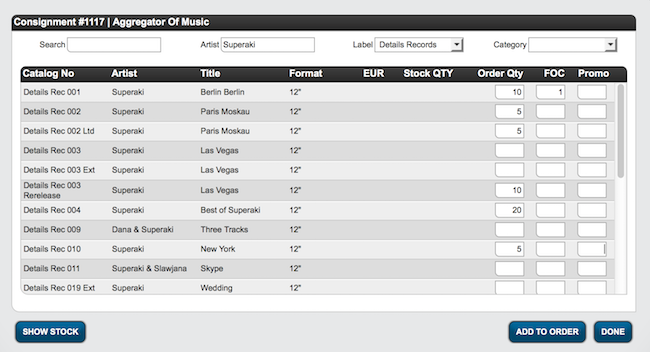
Prices will load automatically from your configured price lists. You can adjust individual prices or apply discounts directly in the list.
► Discounts on Orders
Discounts can be applied at different levels:
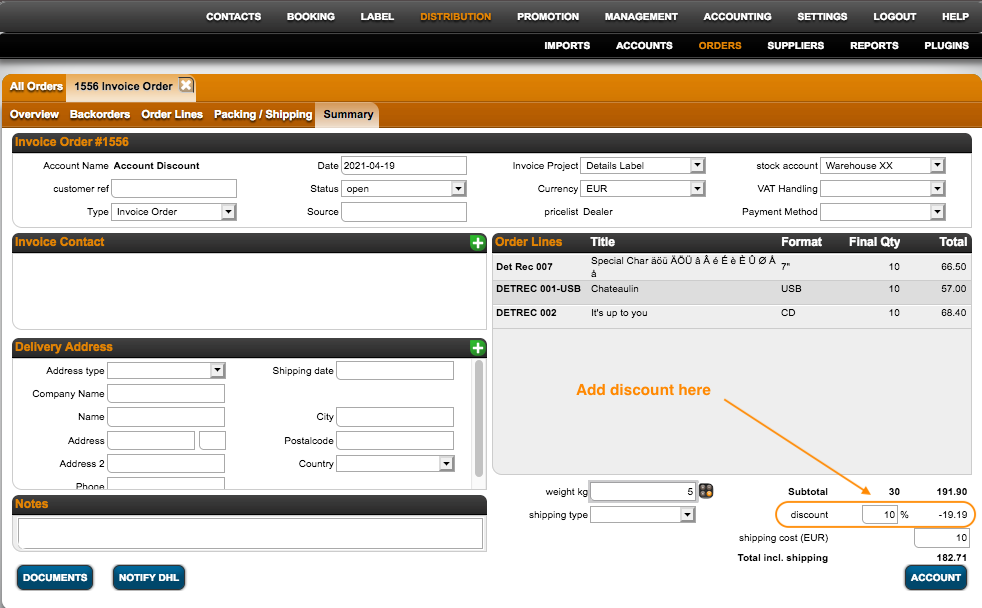
- Full Order Discount: Enter a percentage in the Discount field to apply it to the subtotal of the current order (shipping excluded).
- Default Account Discount: Set a default discount in the Distribution Account / SETUP tab. This will be applied automatically to all order lines of this account.
- Discounts by Price Code: Add custom rates by price code via the [+] icon. These overwrite the general discount rate for this account.
You can document special discount agreements in the Deal Memo field of the account s setup. These notes are displayed automatically during the order process.
► Packing / Shipping
The PACKING / SHIPPING subtab shows all items of the order with ordered quantity, final shipped quantity, and shortfall. If shortfalls occur and the account allows backorders, these are saved automatically.
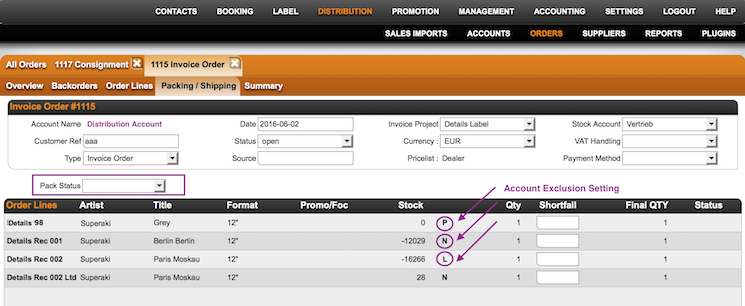
Next to each product, you might see letters such as P, N, or L:
- P = Product excluded for this Distribution Account
- N = Not available for this price list
- L = Label excluded for this Distribution Account
Enter the total order weight, choose a shipping type, and add shipping costs if necessary. Proceed with [NEXT].
► Summary and Accounting
The final subtab SUMMARY provides an overview of all order details. Review quantities, discounts, and shipping data carefully.
When everything is correct, click [ACCOUNT] to finalize the order. Stock movements are processed automatically, and an invoice is generated if the order type is set to Invoice Order.
| Order Type | Stock (Account) | Stock (Stock Account) | Invoice |
|---|---|---|---|
| Invoice Order | Neutral | Decreased | Yes |
| Consignment | Increased | Decreased | No |
| Return Credit Note | Neutral | Increased | Yes |
| Promo Order | Neutral | Decreased | No |
For a detailed explanation of all order types, see Explained: Order Types in Distribution.
Once accounted, all orders remain archived and searchable under DISTRIBUTION / ORDERS.