
Table of contents
Each Distribution Account can be linked to one or more Import Setups or Importers. An importer defines how a specific type of statement, such as digital sales, physical returns, costs, or performance income, is processed and categorized.
Setting up importers is what enables the system to correctly interpret and handle incoming data from your distribution partners or any outside source. This allows you to handle a wide range of data ingestions with precision and flexibility.
Common importer types include:
- Digital Sales
- Physical Sales
- Costs
- Performance Income
- Other Income (e.g. third-party income)
- Publishing Income (coming soon)
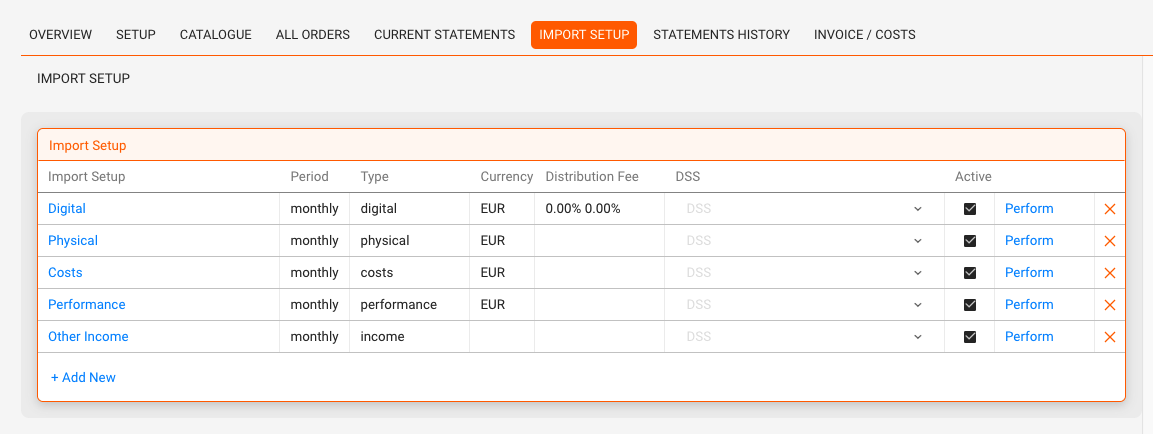
To import different types of income or costs for an account, you need to create multiple importers.
You can also create multiple importers for the same type, for example if you receive digital sales in different currencies, from different territories, or with different formats and conditions.
Where to Set Up an Importer
- Go to Distribution / Accounts
- Select the relevant distribution account
- Click on the Import Setup subtab
- Click + Add New to open the Import Setup modal
Import Setup Fields
The setup modal contains a number of fields. Depending on the selected Type, some fields may vary.

Mandatory Fields
| Field | Description |
|---|---|
| Description | Name the setup clearly (e.g. Spotify EUR, Word Of Sound – Vinyl PRO, Monthly Costs, etc.) |
| Layout | Select the layout format for the importer |
| Type | Choose from Digital, Physical, Costs, Performance, Income |
| Currency | Set the statement currency (e.g. EUR, USD). Only Cost Importers allow multi-currency imports. |
| Period | Select how often the statement is received (monthly, quarterly, etc.) |
Optional Fields
| Field | Description |
|---|---|
| Fix Country | Limit import scope to a specific country |
| From / To | Define a valid date range for imports |
| Sender | Indicate the original sender of the statement |
| Shared-Key | Used to identify matching statements across sources |
| Preset | Apply a pre-configured format if available |
| DSS | Select a DSS layout (if available for this partner) |
Advanced Fields (depending on Import Type)
- Fix Type Lock specific classifications (e.g. usage type, store)
- Fix Store Used for filtering by store, DSP, or platform (digital only)
- Distribution Fee Sales Fee % deducted from sales
- Distribution Fee Returns Fee % on returned items
- Return Handling Fee Optional fixed or % handling fee
Note: Distribution fees are only applied to PPD amounts, not to PPU-based statements.
After Saving the Importer
Once saved, your importer appears in the list under Import Setup in the distribution account view, where you can:
- Use the Perform link to import statements
- Edit or deactivate existing setups. To remove an importer from the list in the DISTRIBUTION / IMPORTS screen without deleting it, you can deactivate the importer. This will hide it from the import list, but preserve its configuration and data in the background. Do not delete an importer if it has already been used to import data. Use deactivation instead.
- Add multiple setups for different statement types or variations
The new importer now also appears in Distribution / Imports and you can start importing right away.
Need help configuring layouts or presets? Contact label_team@details.eu.