Table of contents
The DISTRIBUTION / ACCOUNTS module contains all partners you work with for physical and/or digital distribution: aggregators, logistics partners, individual shops, your own warehouse, and optionally artist accounts for tour stock. This article explains the interface and the purpose of each tab.
Distribution Account List
The ACCOUNTS OVERVIEW is the entry point to all distribution partners managed in details. It displays a list of all existing accounts, their status, and essential information at a glance.
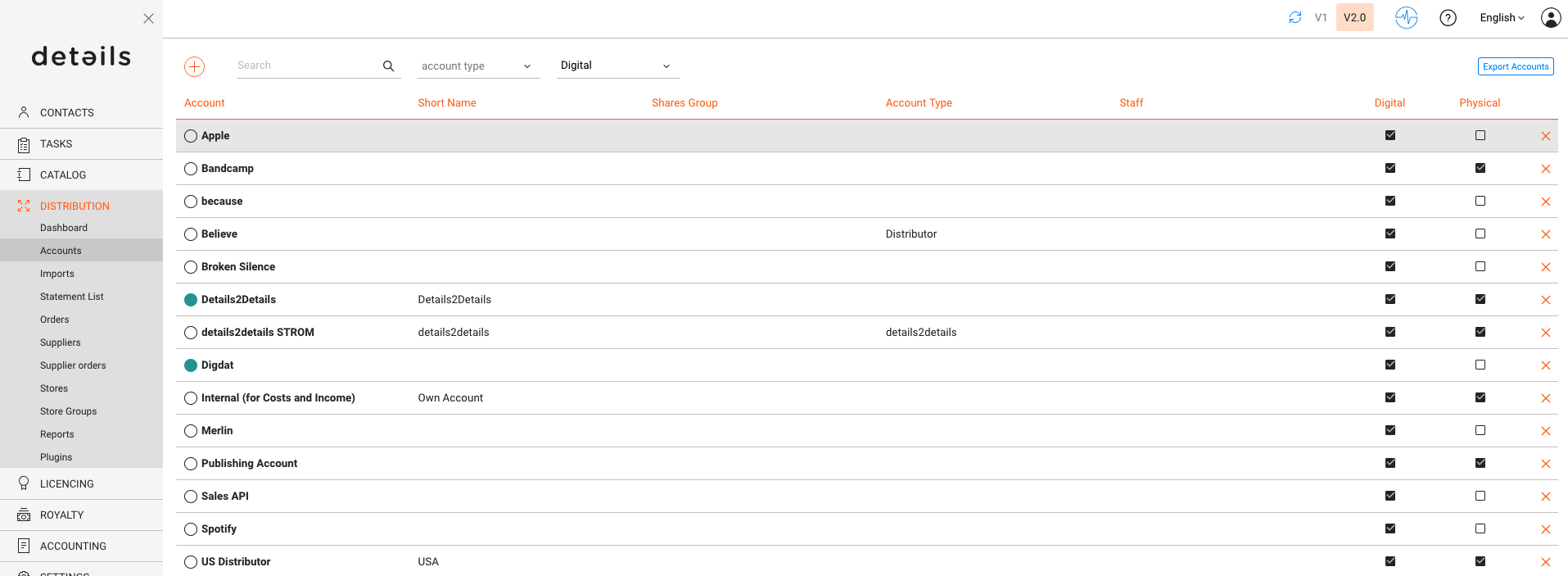
- Navigation: Open via DISTRIBUTION / ACCOUNTS. Use the search bar or filters (by name, account type, or digital/physical channel) to locate specific partners.
- Clickable Columns: The account name opens its detailed window. The Status color, Currency, or Staff column may also include quick filters or dropdowns.
- [+]: Creates a new account. Choose between shop, warehouse, distributor, artist, or promo partner during setup.
- [EXPORT]: Exports the current list view with all visible filters and settings applied.
- Icons and Links: Each entry includes clickable icons for editing, deleting (depending on permissions), and opening related documents or statements.
- Account Colors: Color labels help distinguish key partner types (e.g., physical vs. digital). These can be customized in SETTINGS ► ACCOUNTS.
Each account entry serves as a gateway to deeper detail. Clicking the account name opens its dedicated account window with multiple tabs explained below.
Account Window Tabs
Each tab within the account window focuses on a specific area, from general setup and catalogue management to financial data, imports, and statements. Together they provide a complete overview of how each partner interacts with your distribution workflows.

OVERVIEW
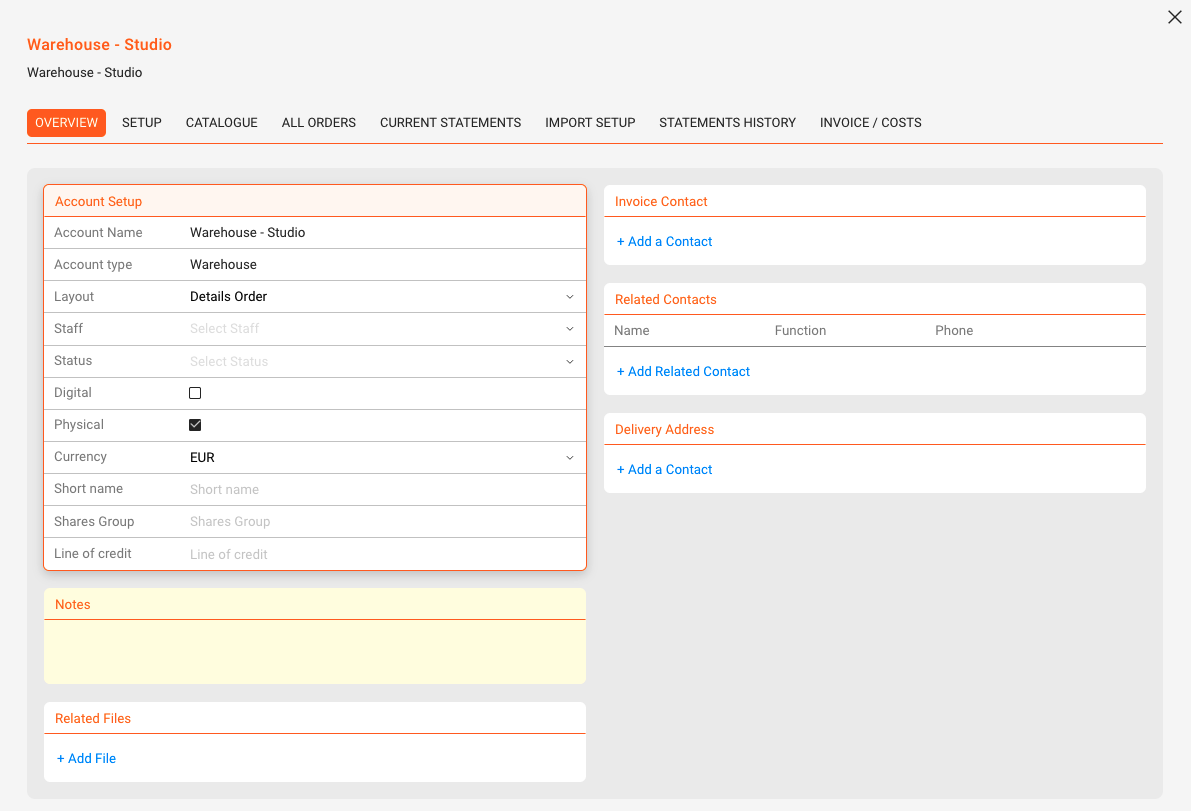
The OVERVIEW tab contains general data for each account.
- Identity & Billing: Set Account Type, Layout (invoice issuer), Status/Color, assigned Staff, and default Currency.
- Shortname: Optional short label used in selected UIs and exports.
- Invoice Contact vs Delivery Address: Choose who receives invoices and where goods are delivered. Delivery addresses appear on shipping and customs documents; both can differ from the office address.
- Related Contacts: Add additional roles (e.g., Accounting, Logistics, Promo) with phone/email for quick access.
- Related Files: Upload agreements, logos, price lists, or logistics notes.
- Line of Credit: Optional credit limit concept for outstanding order value before accepting new orders (rarely used).
- Shares Group: Groups this account for aggregated views in .shares. Use it to cluster revenue sources (e.g., B2C Webshops, Vinyl Stores, Retail Chains). In .shares, these groups appear in pie charts and summaries, letting artists and managers see which account clusters contribute what share of revenue over time.
SETUP
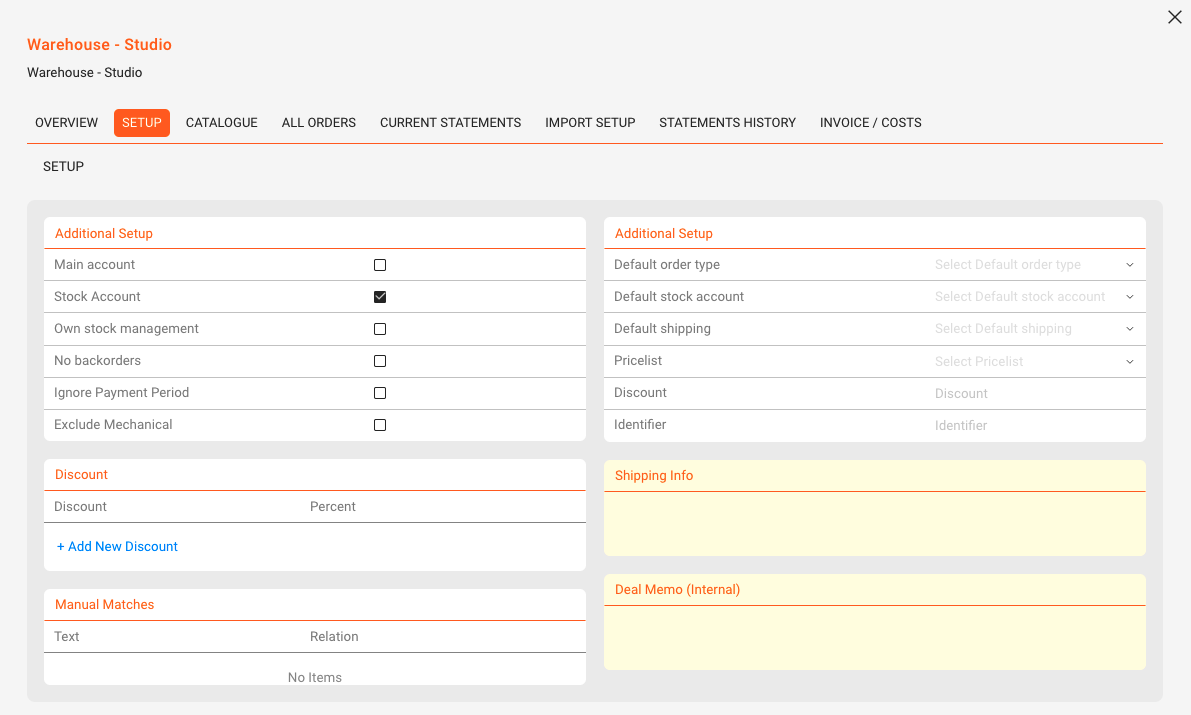
The SETUP tab defines how the account behaves in operations and accounting.
Core switches
- Main Account: Highlights this account in product stock and sales views to keep it top of mind in daily operations.
- Stock Account: Tracks stock movements (in/out) for this location. Required for consignment locations and warehouses.
- Own Stock: Marks accessible locations you can ship from (included in total available stock). Use together with Stock Account for your own warehouses.
- No Backorders: Prevents automatic carry-over of undelivered quantities into the next order.
Advanced options
- Ignore Payment Period (advanced): For royalty calculations, uses the sales date instead of the payment date, even if the artist’s contract is configured to pay on receipt. Typical for large retail chains where payment reliability is assumed; enables reporting and settlements by sales period regardless of when invoices are paid.
- Exclude Mechanical (advanced): Excludes this account’s sales from mechanical rights reporting (e.g., GEMA, Harry Fox). Useful for accounts like promo agencies or artist consignment where mechanical reporting would be inappropriate.
Defaults & pricing
- Default Order Type: Preselects how orders are booked (e.g., Invoice, Consignment, Return/Credit, Promo). Affects stock and/or value movements.
- Default Stock Account: Preselects the source warehouse for orders to avoid repetitive selection on every order.
- Default Shipping: Preselects the usual carrier/service for this account (e.g., UPS, postal service, freight forwarder).
- Price List (Price Code System): Assign the customer’s price list so prices are set automatically on order lines. Without a price list, automatic pricing will not apply.
- Discounts: Define account-specific discounts globally and/or per price code (these stack; e.g., 10% global + 5% on T-shirts).
- Identifier: Optional external shop code (often required by large chains) printed on documents and used in electronic transfers.
- Manual Matches (read only): Displays learned mapping rules from statement imports, showing how external references map to your product catalog.
CATALOGUE
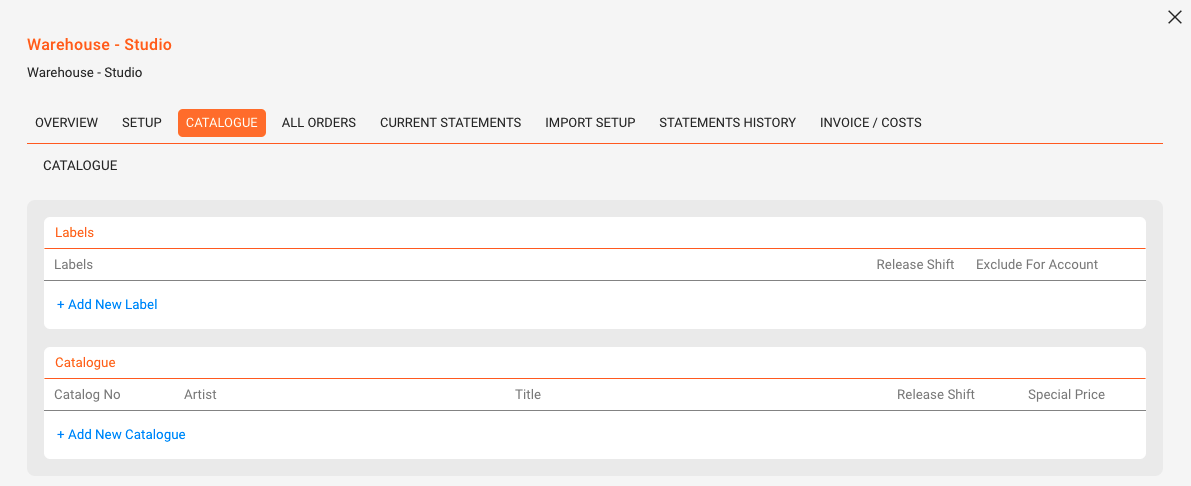
The CATALOGUE tab defines which labels and products are supplied through the account.
- Add or exclude Labels and assign Release Shifts per label (negative values for early delivery, positive for delayed availability).
- Add Products and define Special Prices or product-specific Release Shifts for this account.
ALL ORDERS
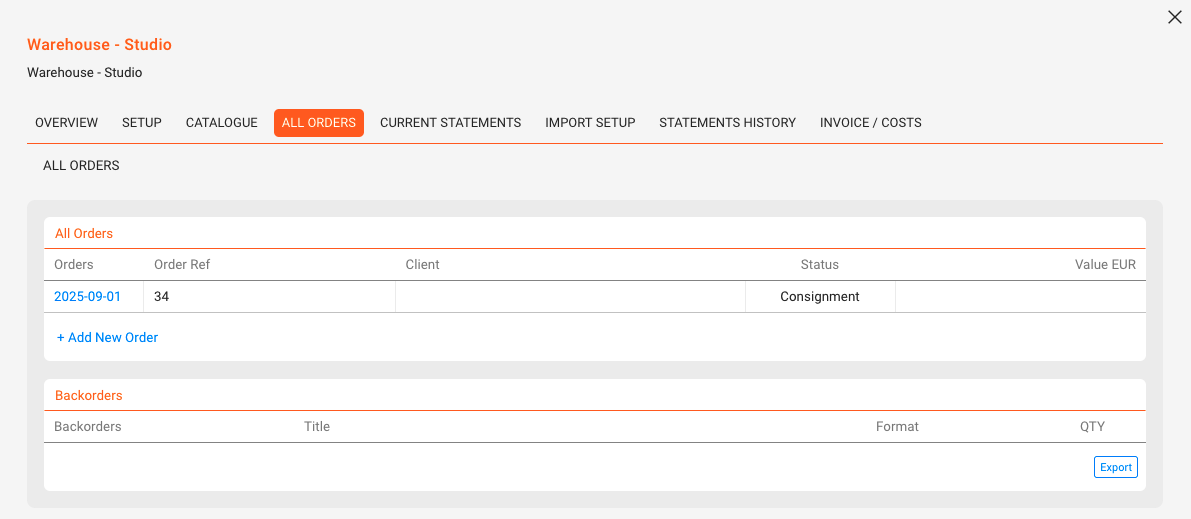
The ALL ORDERS tab lists every order linked to the account.
- Review current and completed orders; create a new one via [ADD NEW ORDER] (the account and default warehouse are preselected).
- Track and manage Backorders, items previously undeliverable that can now be fulfilled.
- Export the order list as an Excel file using [EXPORT].
CURRENT STATEMENTS
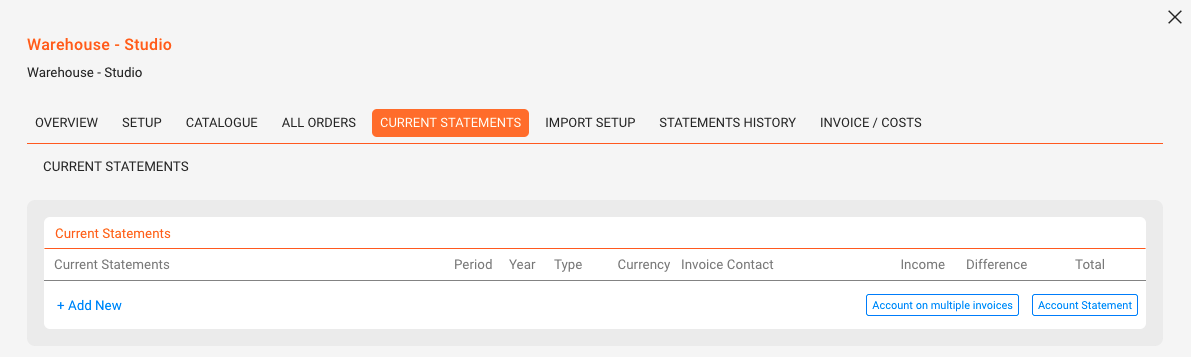
The CURRENT STATEMENTS tab displays recently imported statement files for quick verification prior to reconciliation.
- Review latest imports for accuracy and completeness of expected fields.
- Use this view for a fast sanity check after each upload.
IMPORT SETUP
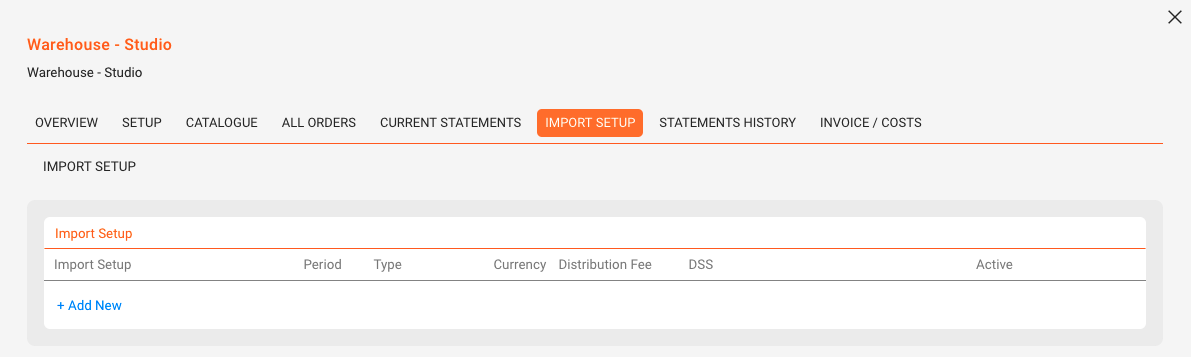
The IMPORT SETUP tab allows configuration of importers for different data types. Each importer appears in DISTRIBUTION / IMPORTS and defines the source, format, and currency for incoming data.
- Create importers for Digital Sales, Physical Sales, Costs, Performance Income, and Other Income.
- Use this area to assign formats, currencies, and import sources. Over time, manual product mappings become Manual Matches and will auto-apply in future imports.
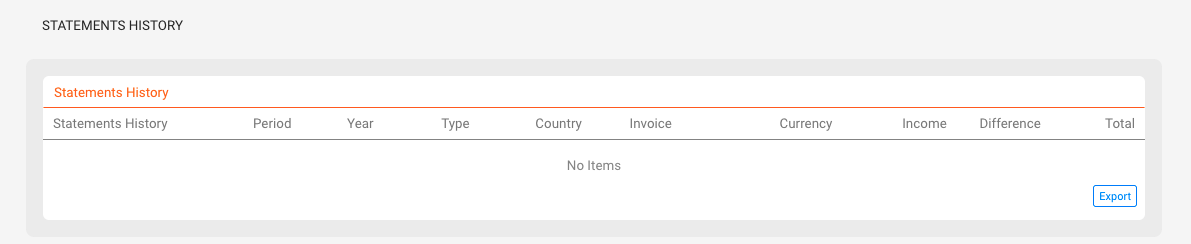
STATEMENTS HISTORY
The STATEMENTS HISTORY tab lists all previously imported statement records for long-term reference and audits.
- View older statement versions and cross-check invoice numbers and related uploads.
INVOICE / COSTS
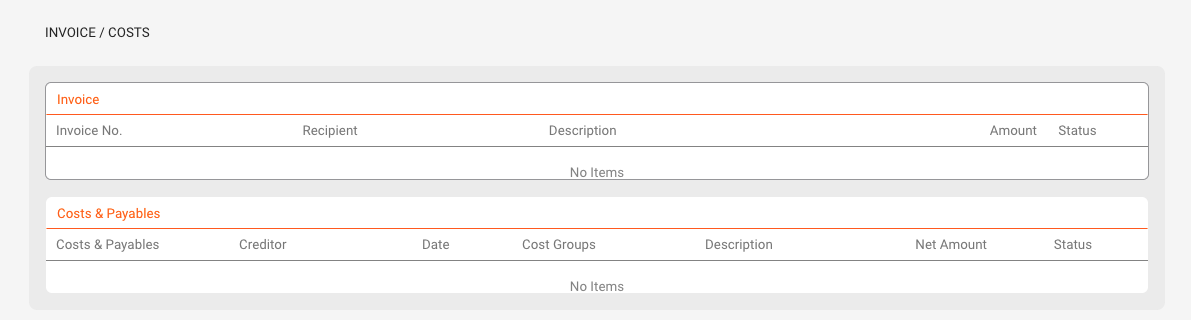
The INVOICE / COSTS tab provides an overview of financial documents linked to the account.
- Review all invoices and cost entries connected to this partner.
- Use this section for reconciliation and cross-checking against imported financial data and credit notes.