
In DISTRIBUTION / SUPPLIERS you manage supplier contacts, their catalogues, and all supplier orders (including manufacturing). This article unifies and updates the previous Distribution Supplier and How to create a manufacturing supplier order guides. It follows our standard workflow and UI wording in details.
Note: Button names and tabs are written as you see them in the UI. For example: [+], [OK], and the tabs Overview, Orderlines, Packaging & Shipping, Summary.
OVERVIEW
Suppliers are partners such as pressing plants and merchandise providers. Working with supplier orders gives you end to end control over stock, production quantities, direct deliveries, and costs. You will use the same order flow you know from distribution orders: create the order, add lines, pack/ship, then account/finish.
SUPPLIER INTERFACE
Go to DISTRIBUTION / SUPPLIERS. You will find the following:
- All Suppliers: View, add, and delete supplier contacts. Use [+] to create a new supplier.
- Supplier Orders: Create new supplier orders and review/edit existing ones.
Each supplier record contains these subtabs:
- Overview: Basic information and linked contacts/addresses (invoice and delivery).
- Catalogue: Add PRODUCTS that you procure from this supplier using [+].
- All Orders: Full list of past and open orders for this supplier; create a new order with [+].
- Invoices / Costs: Review invoices and cost entries related to this supplier.
CREATE & MANAGE SUPPLIERS
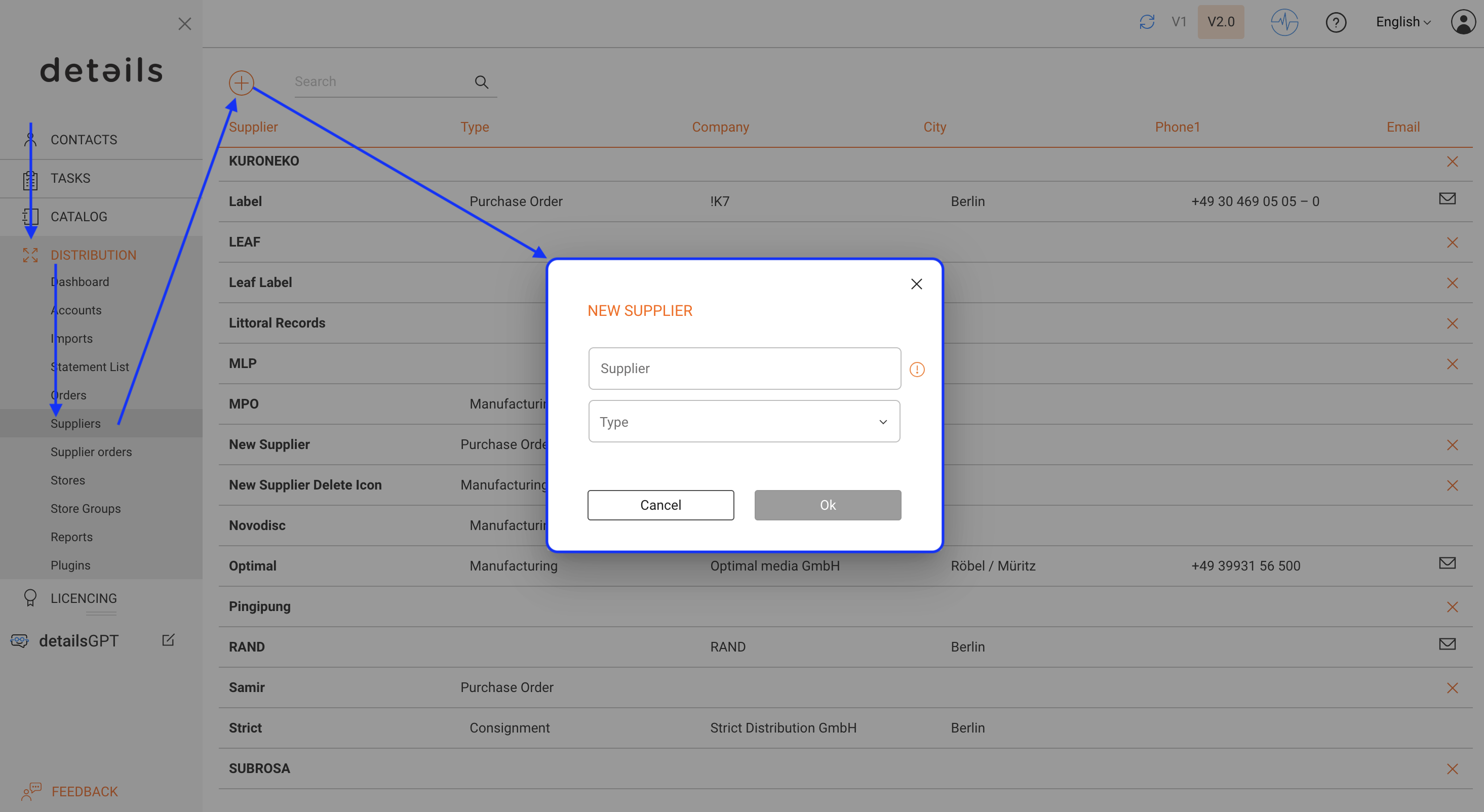
- Open DISTRIBUTION / SUPPLIERS and click [+].
- Enter a Name and (optional) choose a default Order Type (e.g., manufacturing, purchase, consignment). You can still change the order type per order.
- Link the Invoice Address and (if needed) a Delivery Address via your Contacts (company and people). This ensures correct data on documents and emails.
- Save with [OK]. You can always return to the supplier to update defaults, add products to the Catalogue, or review All Orders and Invoices / Costs.
CREATE SUPPLIER ORDERS (INCL. MANUFACTURING)
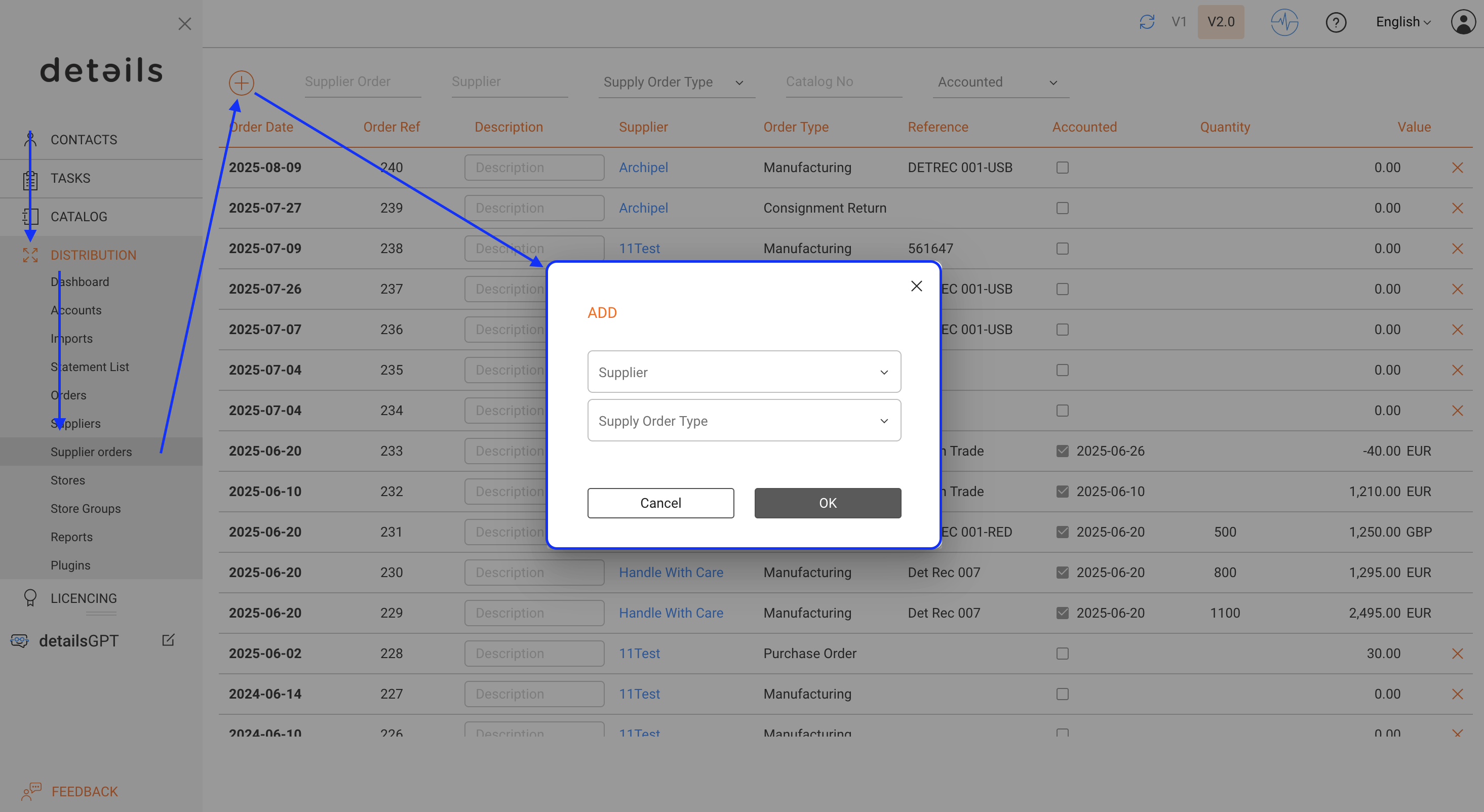
You can start a supplier order in two ways:
- From Supplier Orders: click [+], then select the Supplier and the Order Type.
- From within a Supplier (subtab All Orders): click [+]. Here, the supplier is already set; choose the Order Type.
The order window uses the standard tabs:
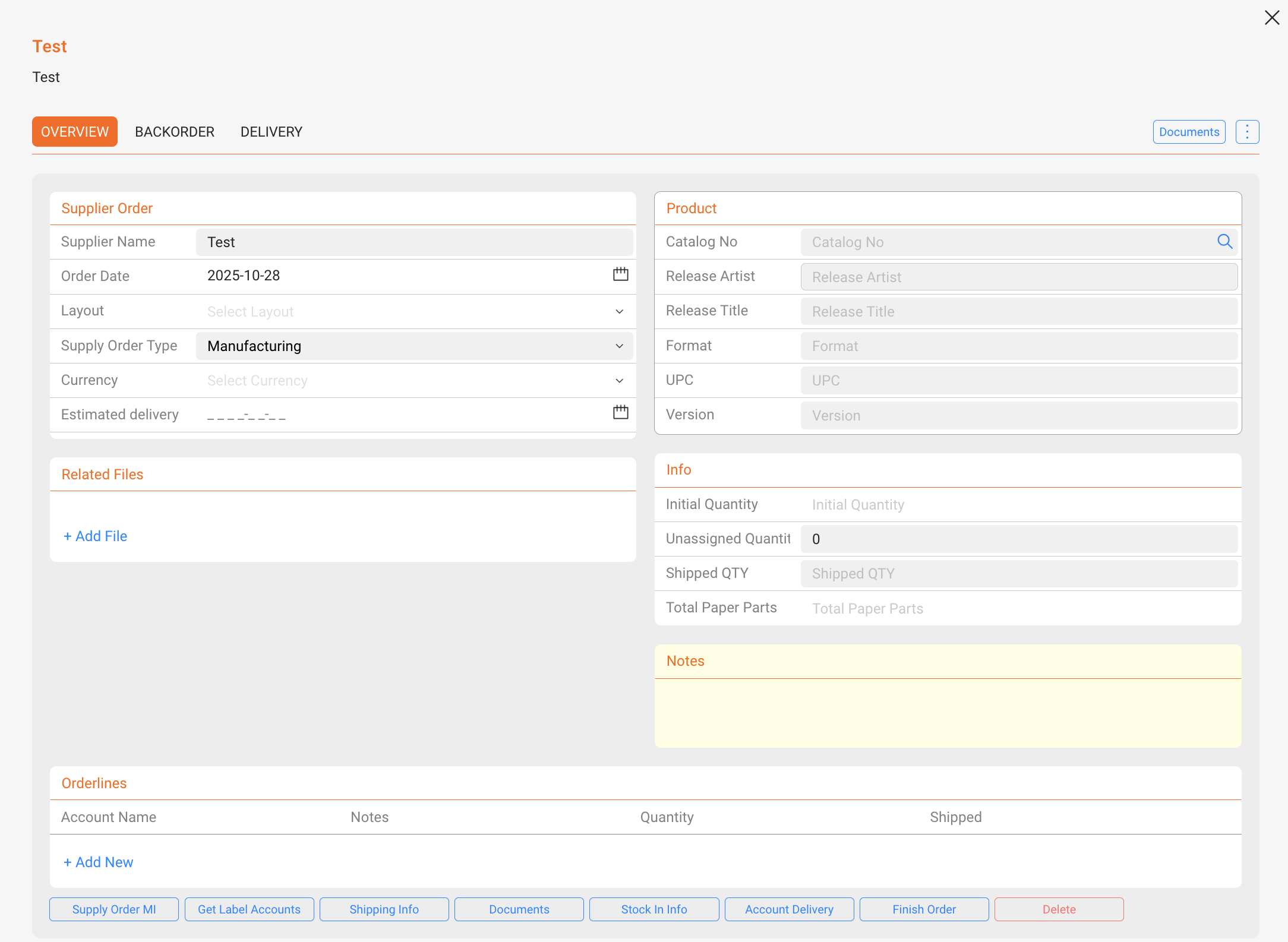
Overview
- Confirm the Invoice Contact, Delivery Address, and key info like Shipping Date (the planned shipment date).
- For manufacturing: select the PRODUCT to be manufactured, then enter Total Quantities and Costs.
- Attach Related Files (e.g., print specs) in Related Files.
- Optional: set Discount for this order (applies on top of any account/product pricing logic).
Orderlines
- Add all items to be produced or purchased. Use search to add multiple lines, then [Add to Order].
- For promos vs. free-of-charge (FOC): promos have price 0 and do not affect average price; FOC counts toward sold quantity at discounted value. Adjust per line if required.
- Line-level discounts are possible in addition to an order-level discount.
Packaging & Shipping
- Manage packing states (e.g., Reserved Packed) to control stock availability while preparing shipments.
- Enter Weight (kg) directly or use the calculator (based on per-format weights set in label settings).
- Add Shipping Type (carrier), Shipping Costs, and (if available) the carrier Shipping URL for tracking.
Summary
- Review all order details, dates, addresses, shipping info, and totals.
- Use Documents to generate paperwork (e.g., Proforma Invoice for customs).
- When ready, click [ACCOUNT] to finalize. This accounts stock movements and (for invoice type orders) creates the supplier invoice. VAT handling follows your order settings.
DIRECT DELIVERIES & BACKORDERS
If products from this supplier order should be shipped directly to specific distribution accounts, add those accounts and quantities in the order (Overview/Accounts box). Use the Backorders tab to include open backorders where quantities could not be delivered previously and should be delivered now.
DOCUMENTS & COMMUNICATION
- Proforma Invoice: Generate for customs declarations (values can be original or adjusted as needed).
- Documents: Export order notifications or other documents as required.
- Stock In Info: Summarize product and shipping totals for warehouse coordination.
- Shipping Info: Add delivery notes (e.g., access instructions or contact details) that appear on delivery docs.
FINISHING, INVOICES & REOPENING
- After [ACCOUNT], the order is completed. For invoice type orders, an invoice is created with number, dates, VAT, and discounts applied. Completed orders move to their final status and can no longer be edited.
- To make changes after completion, first cancel/void the generated invoice (if any), then Reopen the order, adjust, and account again.
GOOD PRACTICES
- Set per format weights in label settings to enable accurate shipping weight calculations.
- Keep supplier Catalogue up to date to speed up order creation and pricing.
- Use Backorders to handle partial deliveries cleanly and transparently.
- Prefer Documents and Proforma generation inside the order for consistent paperwork.
For access and account management, use app.details.eu. All internal links from legacy articles have been removed or replaced by current navigation descriptions.