
In details, you can handle physical stock movements both from suppliers and to distribution partners using Supplier Orders, Consignment Orders, and Physical Orders. These workflows ensure that inventory, accounting, and royalty processes remain aligned across all steps.
► Creating a Physical Order
Physical Orders represent the standard distribution workflow shipping products from your stock to clients, shops, or partners.
- Go to DISTRIBUTION / ORDERS and click [+] to create a new order.
- Select the DISTRIBUTION ACCOUNT, STOCK ACCOUNT, and ORDER TYPE (e.g., Invoice Order, Consignment).
- In the subtab OVERVIEW, set general parameters such as Currency, VAT Handling, and Payment Method.
- Proceed to BACKORDERS to auto-select or manually add any open backorders for this account.
- Continue to ORDER LINES and click [+] to add all items and quantities to the order. Adjust prices or discounts as needed.
- In PACKING / SHIPPING, check available stock, enter total weight, select a shipping type, and add costs if applicable.
- Finally, review the SUMMARY tab. If all details are correct, click [ACCOUNT] to confirm and process the stock movement.
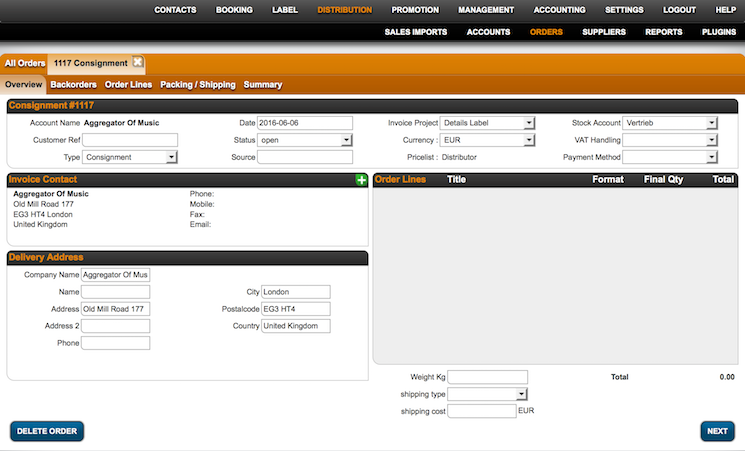
Once accounted, stock movements are executed, invoices are generated (if applicable), and backorders are updated automatically.
► Creating a Supplier Order
Supplier Orders are used to stock up on physical products for example, when a label or pressing plant delivers finished goods to your warehouse.
- Go to DISTRIBUTION / SUPPLIERS and select the supplier account from the list.
- Open the subtab ALL ORDERS and click [+] to create a new order.
- Select an Order Type (Manufacturing, Invoice, or Consignment).
- Add the Products and specify the quantities to be received.
- Confirm with [OK] to create the order.
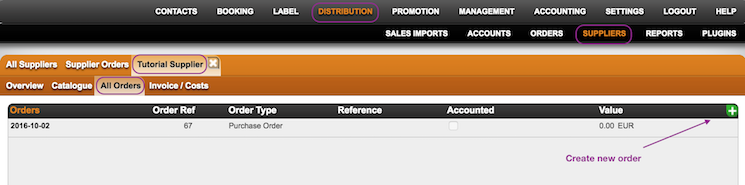
Once accounted, the stock levels in PRODUCTS / STOCK will automatically update. If changes are needed later, click [REOPEN] to reverse stock movements, adjust, and then [FINISH ORDER] again.
► Creating a Consignment Order
Consignment Orders allow you to manage goods that remain your property but are stored at another location typically a partner label or retailer.
- Go to DISTRIBUTION / SUPPLIERS and choose the relevant supplier account.
- On the subtab ALL ORDERS, click [+] and select Order Type: Consignment.
- Add the products and enter the quantity for each one.
- Assign the DISTRIBUTION ACCOUNT where the goods will be delivered.
- Confirm with [OK].
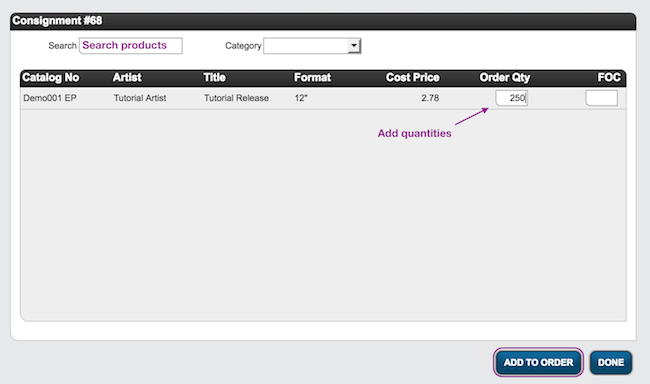
Once the goods are shipped, click [ACCOUNT] to finalize. The delivery will update stock levels and trigger the corresponding royalty logic for the supplier.
► Handling Returns & Reopening Orders
Returns and adjustments are part of regular warehouse workflows. When a return or correction is required:
- Click [REOPEN] on an accounted order to undo the stock movement.
- Adjust quantities, products, or order type as needed.
- Click [FINISH ORDER] to process the updated movement again.
For returned consignment goods, use the Return Consignment order type to move goods back into your stock account.
► Automating Royalty & Supplier Accounting
Each accounted Supplier or Consignment Order automatically creates the financial base for royalty settlements with suppliers or partner labels.
- Delivered stock from a Supplier Order is registered as incoming goods and triggers a payable in ACCOUNTING / COSTS.
- Delivered stock from a Consignment Order is tracked for royalty statements and will later appear in ROYALTY / RECOUPABLES.
- Accounted Physical Orders generate outgoing invoices and reduce warehouse stock automatically.
This automation ensures that physical stock movements always align with their financial implications without additional manual entry.
Using Physical, Supplier, and Consignment Orders efficiently helps maintain clean stock control and transparent financial reporting while minimizing manual adjustments.