
This guide explains everyday actions inside DISTRIBUTION / ACCOUNTS: creating and maintaining accounts, configuring setup, managing catalogue scope, handling orders, and checking statements. Use it when you onboard a new shop or partner, set up a warehouse or artist tour account, or adjust pricing and defaults.
► Create Account
To create a new distribution account:
- Go to DISTRIBUTION / ACCOUNTS and click [+].
- Enter Name, optional Short Name, and select the Sales Channel (Physical, Digital, or Both).
- Choose a default Currency and optionally assign an Account Manager and Status/Color.
- Confirm with [OK].
- Assign Invoice Contact and Delivery Address (these may differ).
- Upload Files such as agreements, terms, or logos.
► Edit Account
To modify an existing account:
- Click the account name to open its details.
- Adjust basic information like Name, Sales Channel, or Currency.
- Update Setup Options, Contacts, or Catalogue Assignments as needed.
- Save all changes with [OK].
► Delete Account
To remove an account:
- Click [x] next to the account entry.
- Confirm the deletion. Note: Deleting is not recommended if any related sales or imports exist.
► Configure Setup Options
The SETUP tab defines how the account behaves within distribution and accounting.
- Stock Account: Track stock movements for this partner or warehouse.
- Own Stock: Include this stock in your total available stock.
- Main Account: Highlight this account in PRODUCT / STOCK views.
- No Backorders: Prevent automatic creation of backorders.
- Ignore Payment Period (advanced): Uses sales date instead of payment date in statements.
- Exclude Mechanical (advanced): Excludes account sales from mechanicals reporting.
- Defaults: Define Order Type, Stock Account, and Shipping preferences.
Tip: The SETUP tab controls how an account behaves in ordering, stock tracking, and reporting from logistics settings to pricing defaults.
► Pricelist
The Pricelist defines the base pricing for this account.
- Select a pricelist to apply default rates and discounts.
- Individual product prices can still be adjusted in the CATALOGUE tab.
► Customer Discount
You can apply a general discount for this account.
- Enter a percentage discount valid across all applicable price codes.
- Use specific price-code discounts or product prices for exceptions.
► Manual Matches
Manual Matches store external identifiers for imported statement lines.
- Add or edit identifiers like shop or distributor codes.
- Delete outdated matches to maintain accurate mappings.
► Manage Catalogue Labels
Manage which labels are connected to the account.
- Click [+] to add a label to the account.
- Set a Release Shift (in days, use negative values for early delivery) or choose Exclude to block a label from supply.
- Remove entries using [x].
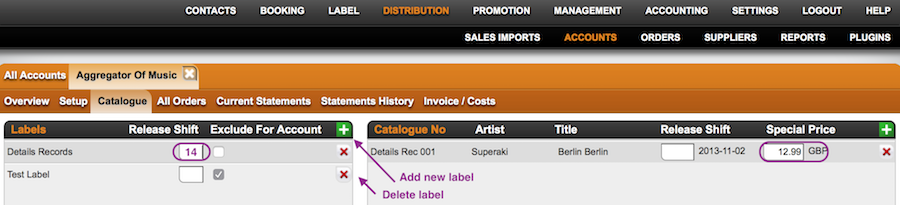
► Manage Catalogue Products
Add or edit products that are distributed through this account.
- Click [+] in the Catalogue No box to add a product.
- Define Special Prices or Release Shifts (in days, negative = earlier, positive = later) for individual products.
- Remove entries using [x].
► Orders & Backorders
Manage all physical orders and backorders linked to the account.
- Create new orders using [+ New Order].
- Review current and completed orders.
- Export the order list as Excel via [EXPORT].
- If No Backorders is enabled, missing quantities will not carry over automatically.