
In details, the term Store refers to any place or source where income is generated and reported. This concept goes beyond the common understanding of online shops or streaming platforms it covers all relevant revenue sources that appear in your statements.
Typical examples include:
- Digital Service Providers (DSPs) such as Spotify, Apple Music, Deezer, Amazon Music, or YouTube
- Collecting Societies such as GVL, SENA, PPL, SABAM
- User Generated Content (UGC) Platforms such as YouTube, SoundCloud, TikTok, or Instagram
- Physical Sales Sources such as distributors or retail partners
Remember: In details, a Store is not limited to digital platforms. Any channel through which income flows into your system physical, digital, or rights-based is considered a Store. This broader definition ensures that your royalty data remains transparent and comparable across different sources.
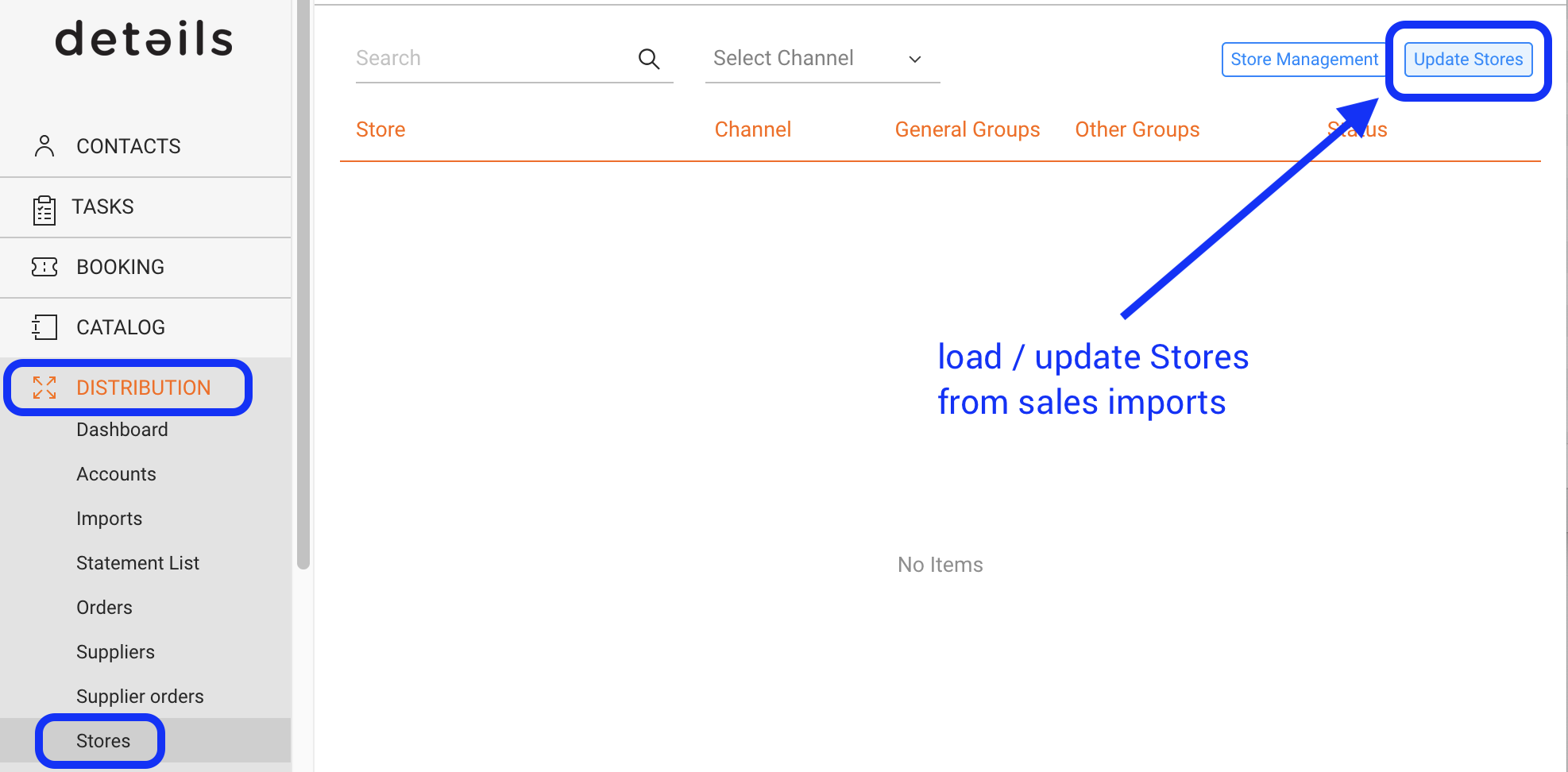
You can access all Stores via DISTRIBUTION / STORES. From there, you can manage naming consistency, merge duplicates, or create store groups to keep your income data structured and accurate.
Note: Stores are created automatically from imported sales and royalty data. After importing new files, update your list with [Update Stores] in the top right corner.
► STORE MANAGEMENT
The Store list helps you keep names consistent and reporting accurate. You can:
- Rename Stores to fix misspellings or align naming.
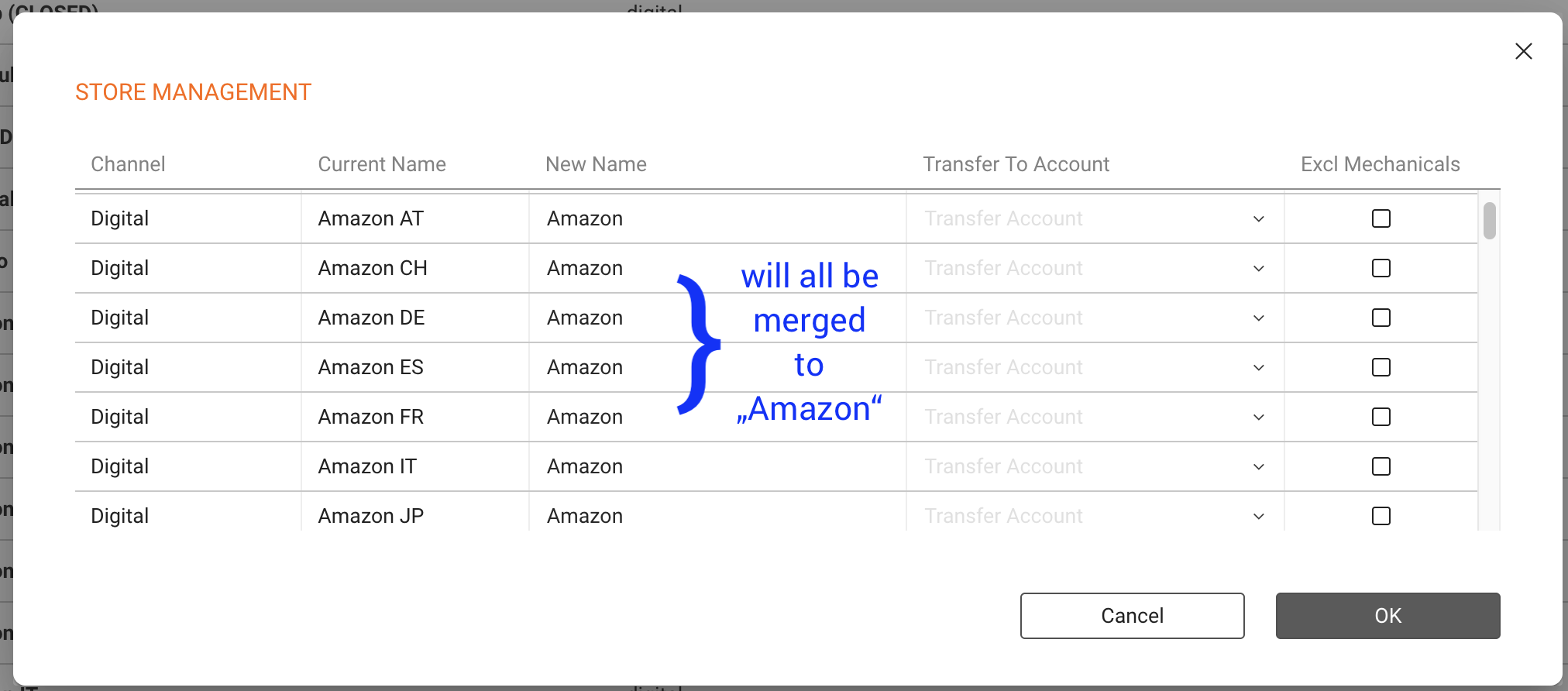
- Merge Stores by renaming multiple entries to a single unified name.
- Transfer to Account to reassign sales from selected Stores to a different distribution account (use only when necessary).
- Exclude Mechanicals to remove selected Stores from mechanical calculations.
► RENAME & MERGE STORES
Open Store Management
Click [Store Management] (top right). Loading may take time if there are many millions of rows.
Rename a Store
- Select the Store you want to change.
- Enter New Name.
- Confirm with [OK].
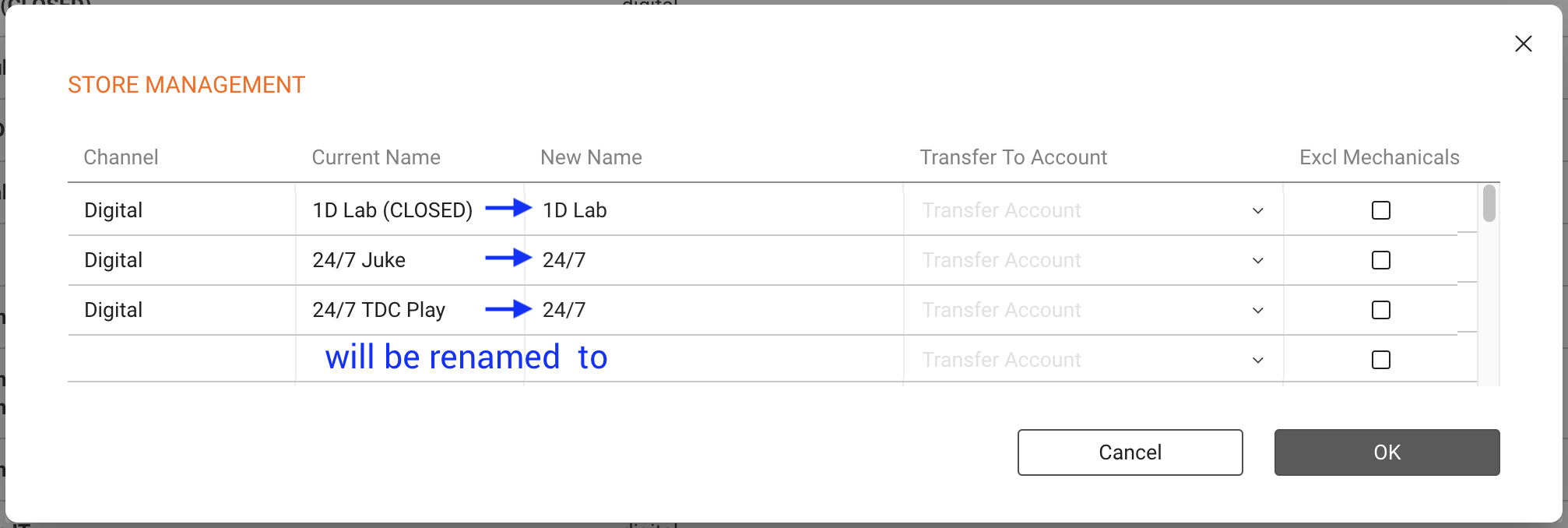
Merge multiple Stores
- Select each duplicate or variant Store name.
- Rename all of them to the same New Name.
- Confirm with [OK]; entries will consolidate under the unified name.
► TROUBLESHOOTING
- Misnamed Stores (e.g., Credit Card , AAAA ): Likely caused by an import mapping issue. Review the source file and mapping, correct the import, and then standardize the Store names via [Store Management]. Contact support if you need help tracing the source.