
Table of contents
The DISTRIBUTION / REPORTS section in V2 is a dedicated space to generate customized reports on your digital and physical distribution activity.
To keep things fast and stable, each report has a clear structure and limited flexibility. Instead of making one report cover every possible case, details provides focused reports tailored for real-world use in distribution, licensing, and reporting to artists or partners.
You can find this feature under DISTRIBUTION / REPORTS.
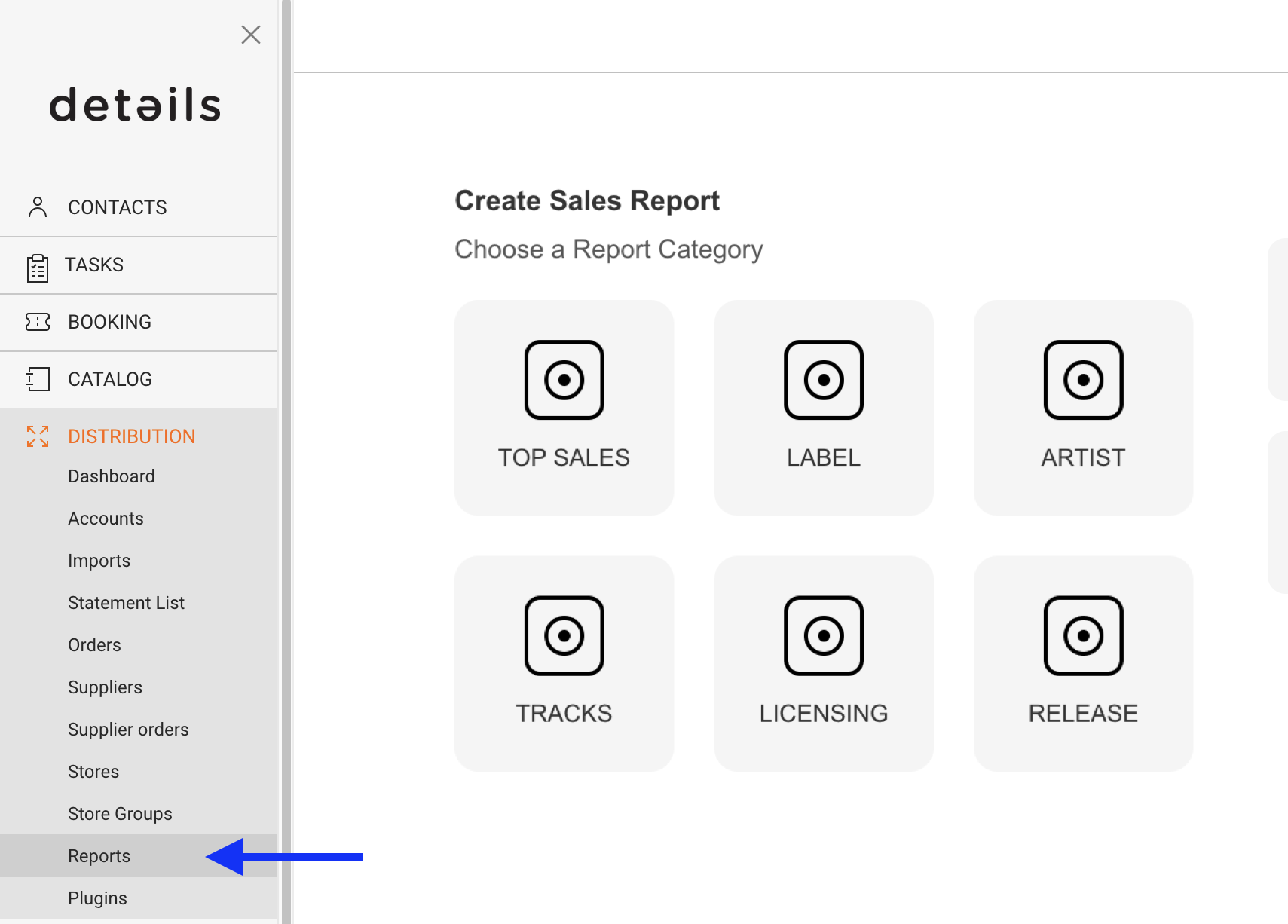
How It Works
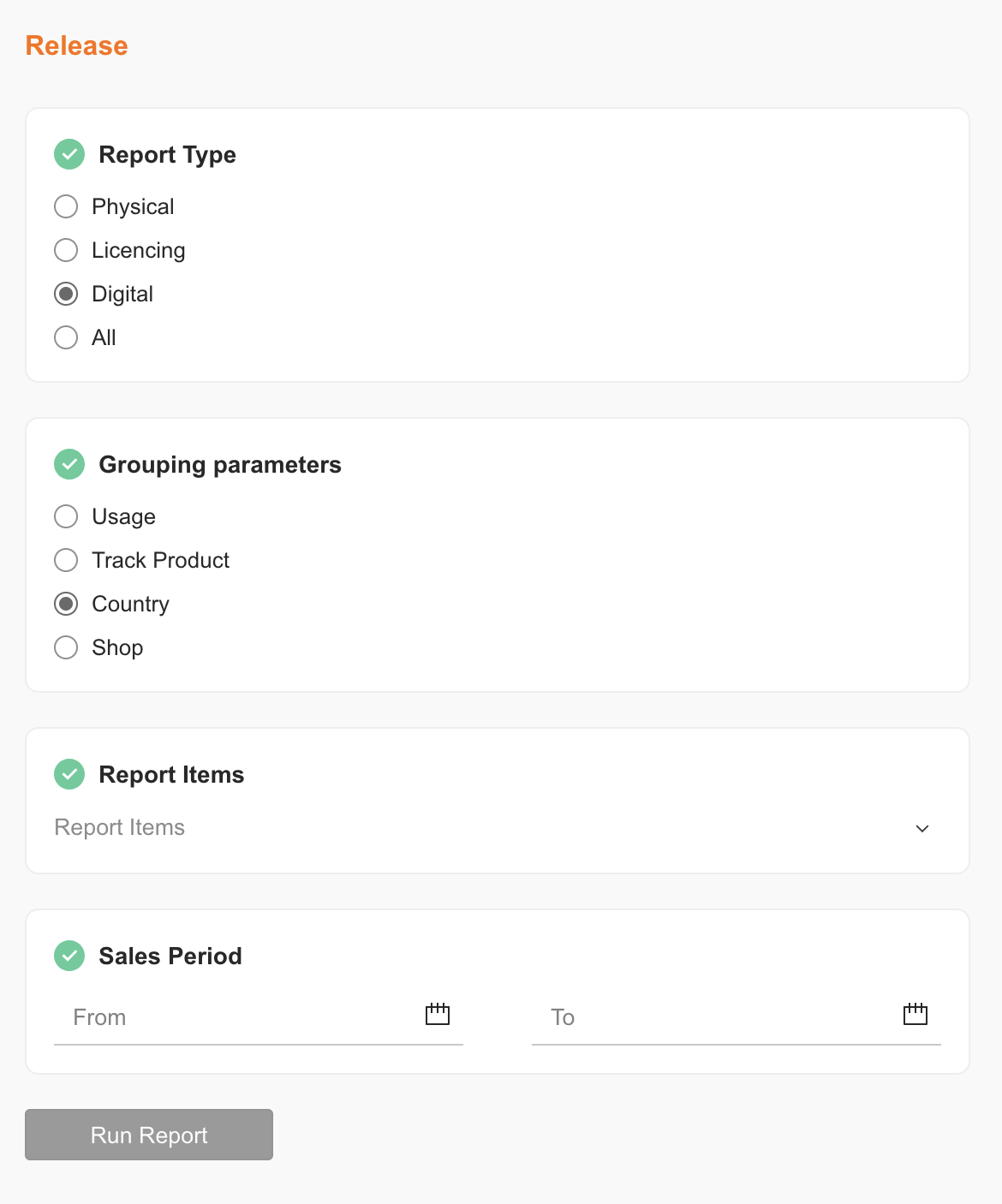
In details, reports are created using a simple step-by-step assistant. You’ll be guided through five stages to configure your report:
- Select a Report Class (e.g. Artist, Label, Licensing, Release)
- Choose a Report Type based on what kind of data you need
- Choose a Grouping (e.g. by release, track, shop, or usage)
- Enter Filters and Period such as artist name or a sales date range
- Select Output Format (CSV formatted according to your country settings)
Each step unlocks the next, depending on your previous selection. You’ll only see valid options for your chosen report path.
What’s a Report Item?
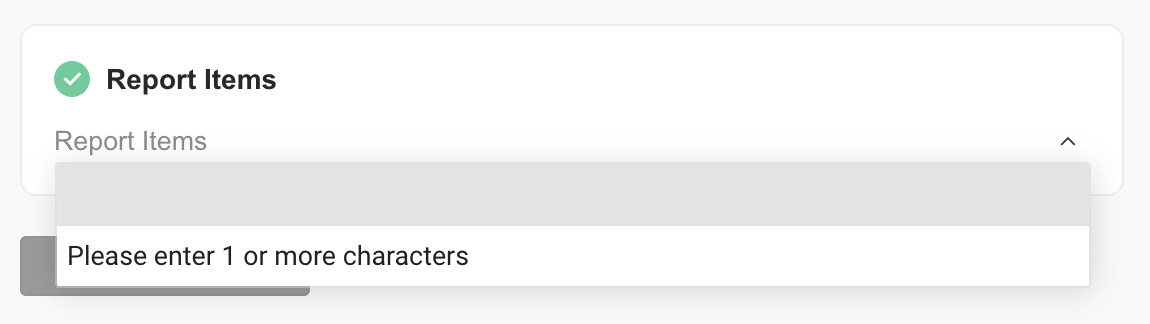
In Step 4, you’ll be asked to enter a Report Item. This is the key filter your report will be based on. What counts as a report item depends on the report type:
- Artist Reports: enter an artist name
- Release Reports: enter a release title or code
- Label Reports: enter the name of the label
- Licensing Reports: may not require a filter or may ask for a deal or usage type
If you’re unsure what to enter, start typing — the field will suggest matching entries from your catalog.
Where Do the Reports Come From?
Each report is generated from a pre-configured SQL query in the system, automatically selected based on your choices. You don’t need to handle any report logic yourself — simply choose what you want to see, and details generates the correct results in the background.
Most reports are delivered via email as downloadable files. If the result set is small, it may be displayed directly on screen in future updates (feature coming soon).
Tips Before You Start
- You can always go back and adjust your selections before generating a report.
- Make sure to enter a valid reporting period (start and end date).
- Some reports require specific filters (e.g. artist name or release ID).
- If a report takes longer to process, check your inbox — it will be delivered via email.
details continuously improves this section to make reporting more powerful, flexible, and easy to use. If you have suggestions or feedback, feel free to contact our label team.