
Table of contents
The DISTRIBUTION / ORDERS section is where you manage all physical orders created within details. This area serves as the central workspace for handling outgoing shipments, invoices, and account-based logistics.
You can use this section to sell physical products such as vinyl, CDs, or merchandise directly to shops, distributors, or individual customers. If your business only handles digital products or if you import sales exclusively through SALES IMPORTS, you won’t need to use this tab.
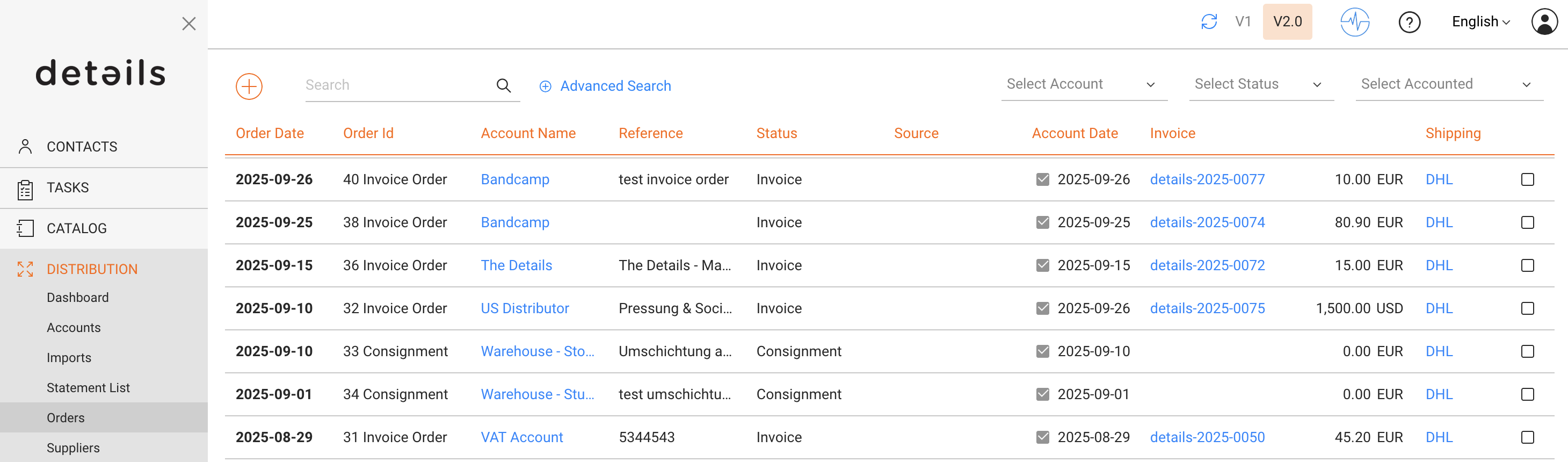
The list view displays all existing orders along with essential information such as order date, client, type, value, and status. Orders that have already been accounted are marked accordingly.
Navigation and Search
To find a specific order, use the available dropdown filters or the free-text search bar at the top of the list. Clicking on the bold order date opens the selected order. Clicking on the bold invoice number opens the related invoice.
You can create new orders directly from this view by clicking the [+] icon in the top-right corner. This opens the order creation dialog, where you select the Distribution Account, Stock Account, and Order Type.
Accounts and Stock Accounts
Each order connects two sides: the Account (recipient) and the Stock Account (source). The Account represents the customer, shop, or partner receiving goods. The Stock Account defines the warehouse or inventory source that provides the stock.
Depending on your configuration, details may or may not track stock for an Account. For example, if the Account is not configured for own stock, only the Stock Account will show stock level changes.
Order Status and Actions
Orders progress through several stages depending on your workflow. After creation, you can edit order lines, adjust prices, or add shipping details before confirming and accounting the order. Once accounted, all stock movements and invoices are automatically processed.
Related Functions
In this area, you can also access connected actions such as:
- Generating invoices from accounted orders
- Reviewing stock movements in related PRODUCTS / STOCK
- Accessing the Backorder list for incomplete shipments