
details supports automated ingestion of sales statements from various digital service providers (DSPs), including all DSPs covered by MERLIN and Amazon.
By default, these ingestions are scheduled to run automatically twice per week. However, if an import is missing, outdated, or shows incorrect amounts, you can manually trigger a new ingestion any time.
Step-by-step: Manually Trigger a Sales Ingestion
1. Go to Distribution / Imports
Navigate to Distribution / Imports in the left menu. Find the row corresponding to the account and importer you want to re-trigger.
2. Click on the Account Name
Click on the blue account name in the left-hand column. This will take you directly to the selected Distribution Account.
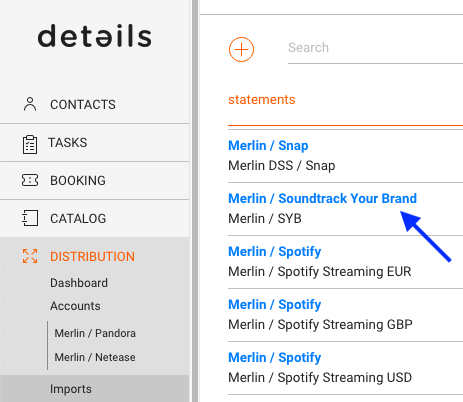
Example: Clicking “Merlin / Soundtrack Your Brand” will take you to that specific account.
3. Go to the Import Setup tab
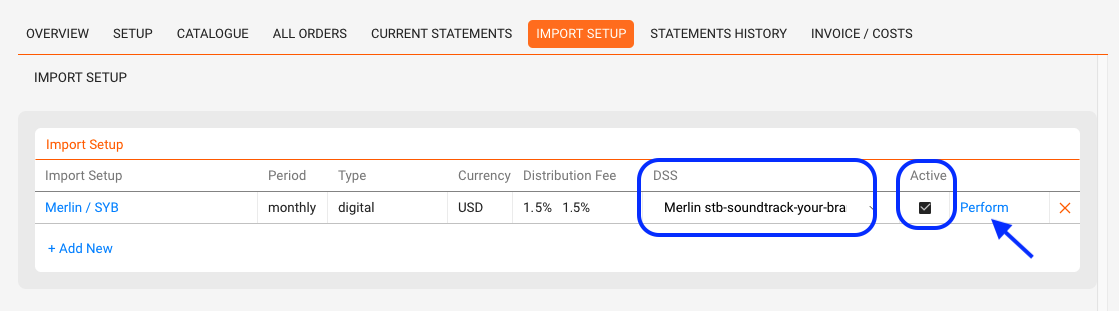
Once you’re in the account view, open the Import Setup tab.
Look for the active importer you want to trigger. Make sure it has a DSS value this indicates that the importer is connected to an automated ingestion service.
4. Click “Perform”
On the right side of the Import Setup box, click the Perform link.
5. Select the Year and Period
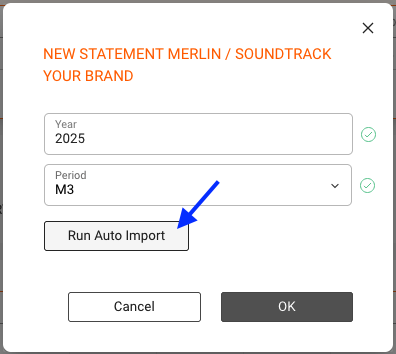
In the modal that opens, select the Year and Period (e.g. M3 for March) for the statement you want to re-import.
6. Click “Run Auto Import”
Click the Run Auto Import button. This will trigger our system to connect to the distributor and request the latest available version of the file for that period.
7. Confirmation
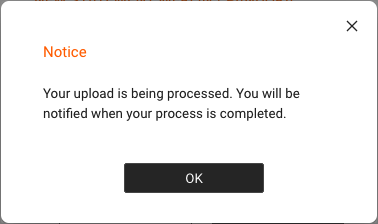
You ll see a confirmation message:
“Your upload is being processed. You will be notified when your process is completed.”
What Happens Next
- If the request is successful, the updated file will be processed and matched automatically.
- Once matching is complete, the correct statement amount will be displayed in the Imports overview.
Please Note
Depending on the size of the file and the statement contents, the process can take a few minutes.
During this time:
- You may initially see a 0.00 amount in the tile.
- The actual amount will appear once the file has finished processing.
- Let the system work in the background and check back later.
If you encounter persistent issues with automated ingestion, feel free to contact label_team@details.eu.