
Table of contents
You can easily download multiple invoices as a batch PDF export from the Accounting > Invoice List section. Just follow the steps below:
1. Navigate to the Invoice List
Log in to details and go to Accounting > Invoices.
2. Use the Advanced Search to Filter Invoices
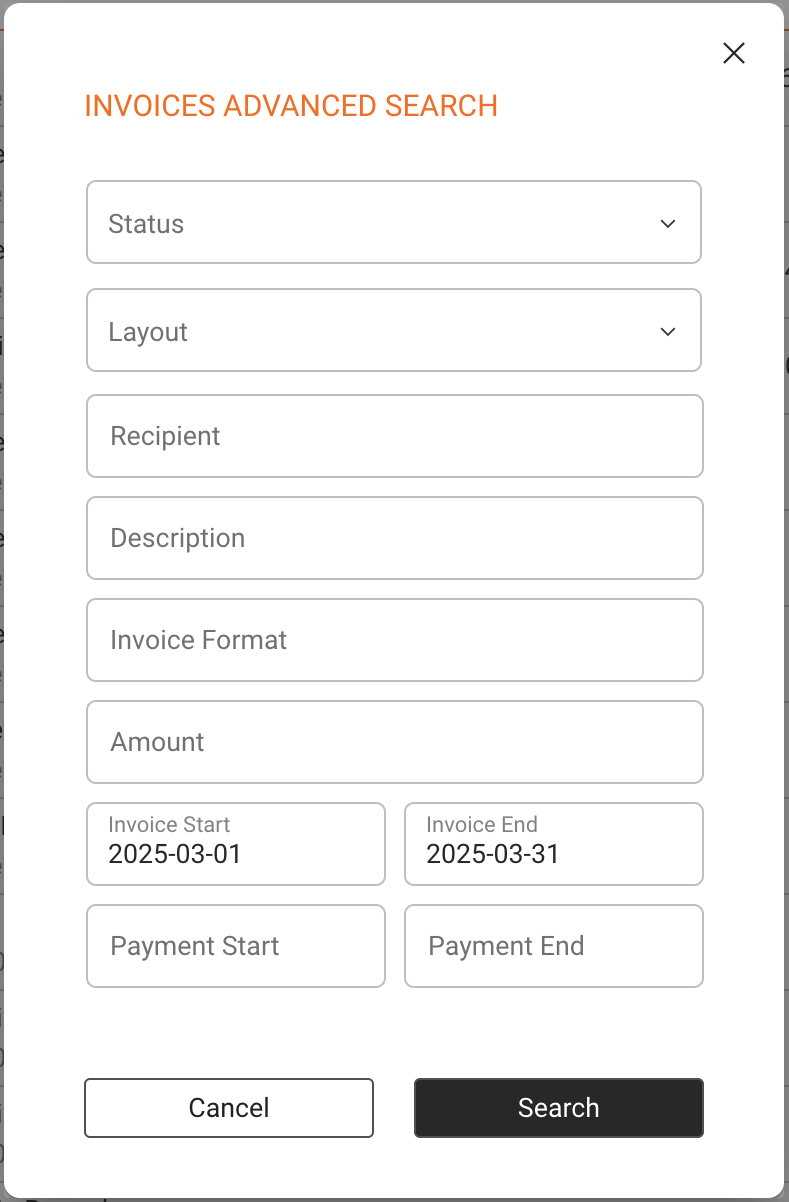
Click the Advanced Search option on top of the list.
Use the filters to narrow your results by:
- Invoice Status
- Layout
- Recipient
- Description
- Format
- Amount
- Invoice Date Range
- Payment Date Range
Once your filters are set, click Search to load the results.
3. Select Invoices
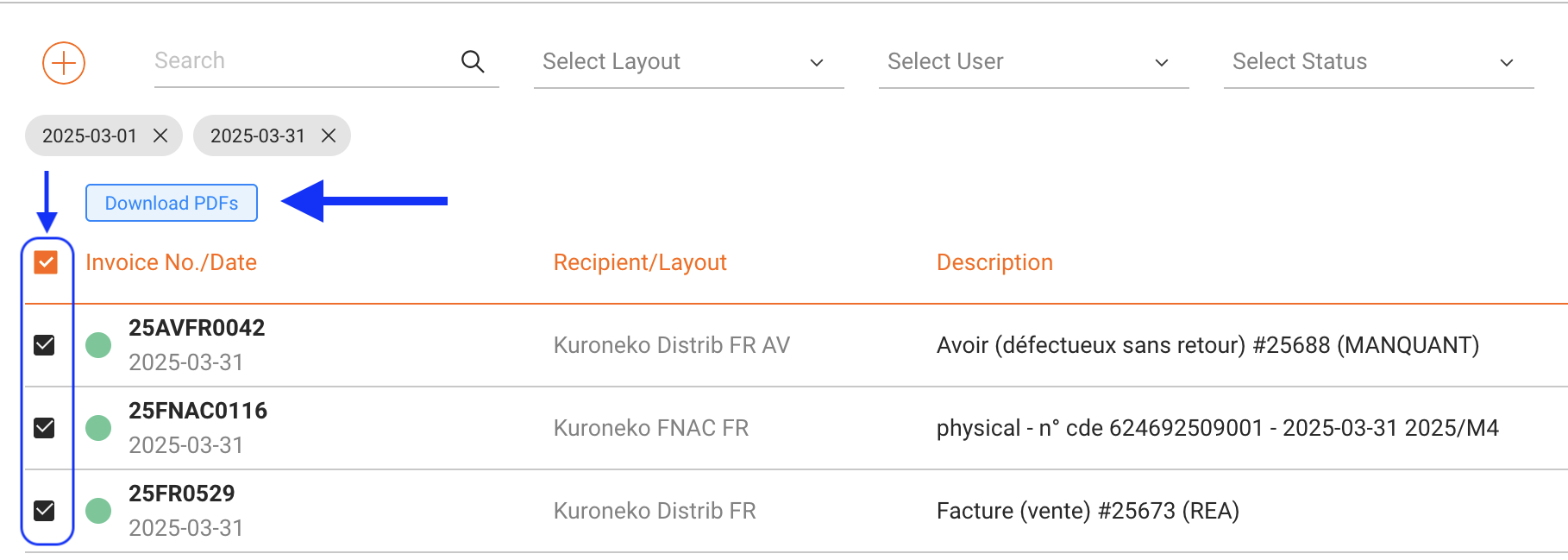
Click the orange checkbox icon in the top-left corner above the invoice list to select all results, or manually tick the boxes next to specific invoices.
Once more than one invoice is selected, a blue Download PDFs button will appear above the list.
4. Download the PDFs
Click the Download PDFs button. A notification will confirm that your request is being processed.
Note: The platform will render the selected PDFs in the background and send a download link to your user email address once ready.
What Happens Next?
You will receive an email with a download link as soon as the batch is complete. Click the link to download your ZIP file containing all selected invoice PDFs.
Need Help?
If your PDF batch doesn’t arrive or seems incomplete, please contact label_team@details.eu or booking_team@details.eu respectively, with the list of invoice numbers or a screenshot of your filter settings.