
We re currently working on an automation to transfer catalog data between details databases.
Until then, you can use the following manual workaround to move releases, products, and track metadata from one client account to another.
Thanks for your patience and stay tuned for a streamlined solution soon!
Step-by-Step Guide
1. Enable the details metadata export template
In the sending database, make sure the details metadata export template is activated for Product Groups. This template ensures the export follows our standardized metadata structure.
If you don t see this template, please contact our support team.
2. Create a Product Group
Go to
CATALOG Product Groups,
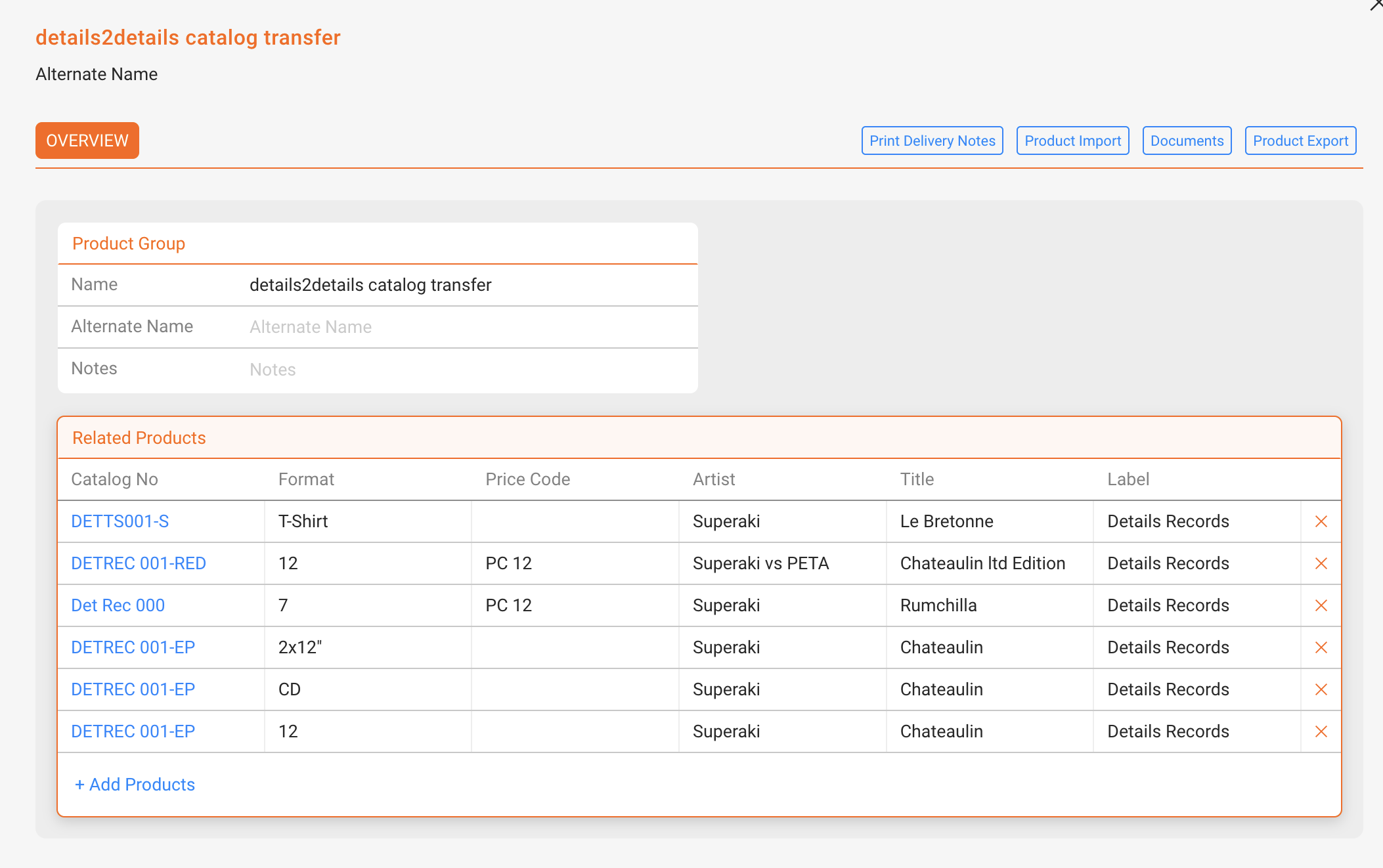
and click + New Group to create a group for the items you want to transfer.
You can add products by selecting + Add Products within the group interface.
3. Export the Metadata
Once your group is ready:
- Click the Documents button (top right of the Product Group screen in V2).
- In the modal that opens, select the template details metadata from the left-hand side.
- The preview will show your selected product group formatted with standard metadata columns.
You can now:
use the “Copy to Excel” button to copy the data whch you can then paste into any open Excel sheet
or
Download the export as a CSV file and convert it into Excel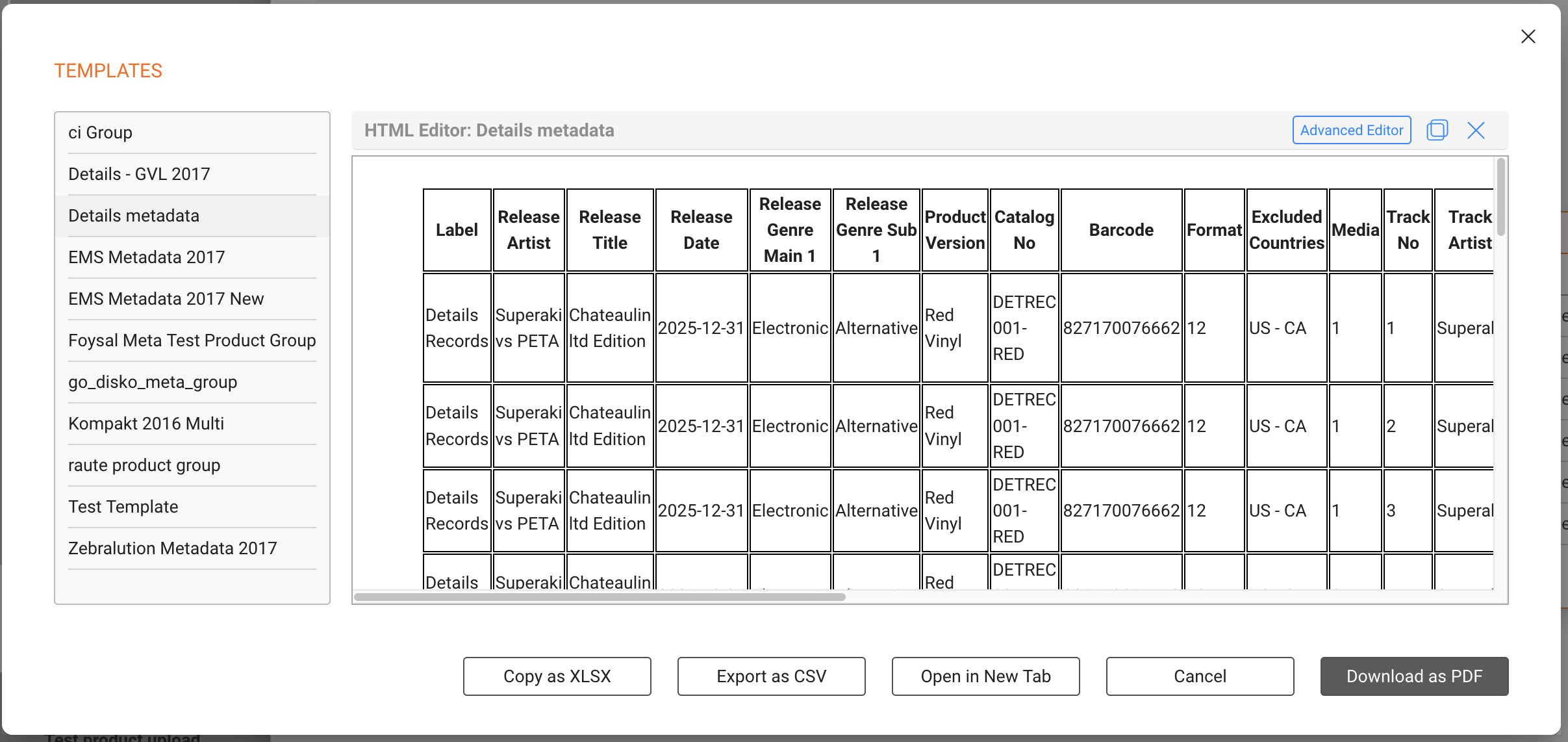
4. Import into the Receiving Database
Switch to the receiving database, and go to:
CATALOG MANAGEMENT (V2) Excel Upload
There, upload the metadata sheet just like any other catalog import.
Need help?
Feel free to contact our support team if you have questions or want us to enable the export template for you.