
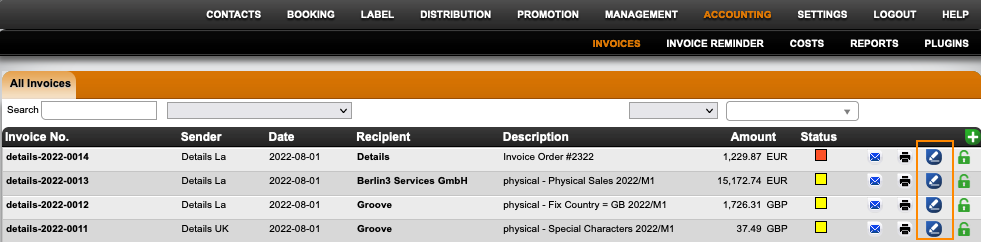
To set your invoice to paid, go to ACCOUNTING / INVOICES and click the PEN icon on the right side of the list.
In the Invoice Status modal select Set Fully Paid.
In case you received partly payments, you can select Set Partly Paid and add the amount. Whenever you receive the additional payment, you can set the invoice to fully paid in the same modal.
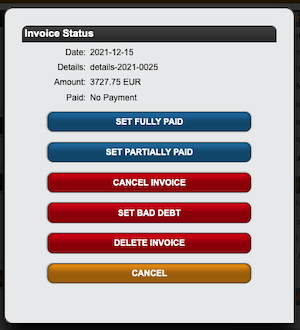
If you need to revert or correct a payment, click the Pen icon and select DELETE PAYMENTS AND SET OPEN to enter new payment details.
Read here to handle foreign currency payments.