
To set your invoice to paid, go to ACCOUNTING / INVOICES and click the PEN icon on the right side of the list.
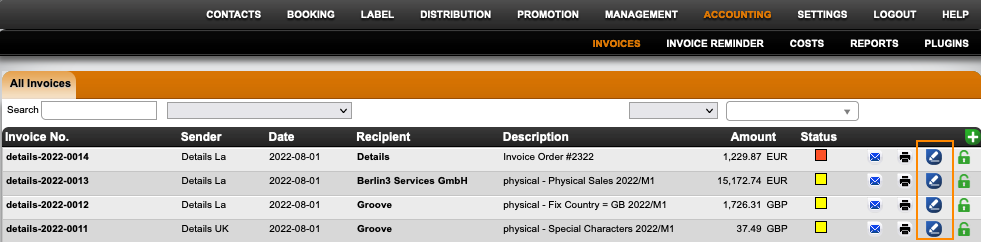
In the Invoice Status modal select Set Fully Paid and add the amount you received in your details system currency.
Please note, if you account royalties on Payment Period, the payment date added here will the royalty relevant date.
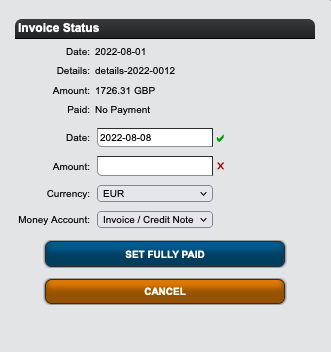
If you like to work with exchange rates instead, please change the currency to the invoice’s original currency, add the amount that got paid and add your exchange rate.
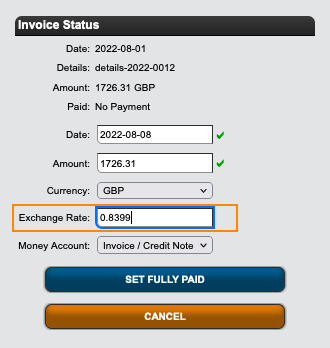
In case you received partly payments, you can select Set Partly Paid and add the amount. Whenever you receive the additional payment, you can set the invoice to fully paid in the same modal.
If you need to revert or correct a payment, click the Pen icon and select DELETE PAYMENTS AND SET OPEN to enter new payment details.