
Table of contents
When managing a booking, you can add tasks in two ways: either by loading a Task Group (a set of predefined tasks) or by adding a Single Task.
Below are the detailed steps for each method, accompanied by screenshots for clarity.
1. Adding a Single Task
To add a single task to your booking, follow these steps:
1. In a Booking, navigate to the Tasks Tab:
Open the booking details for the event you want to manage.
Click on the Tasks tab.
2. Click on +Add Task:
In the Tasks section, click on the +Add Task button.
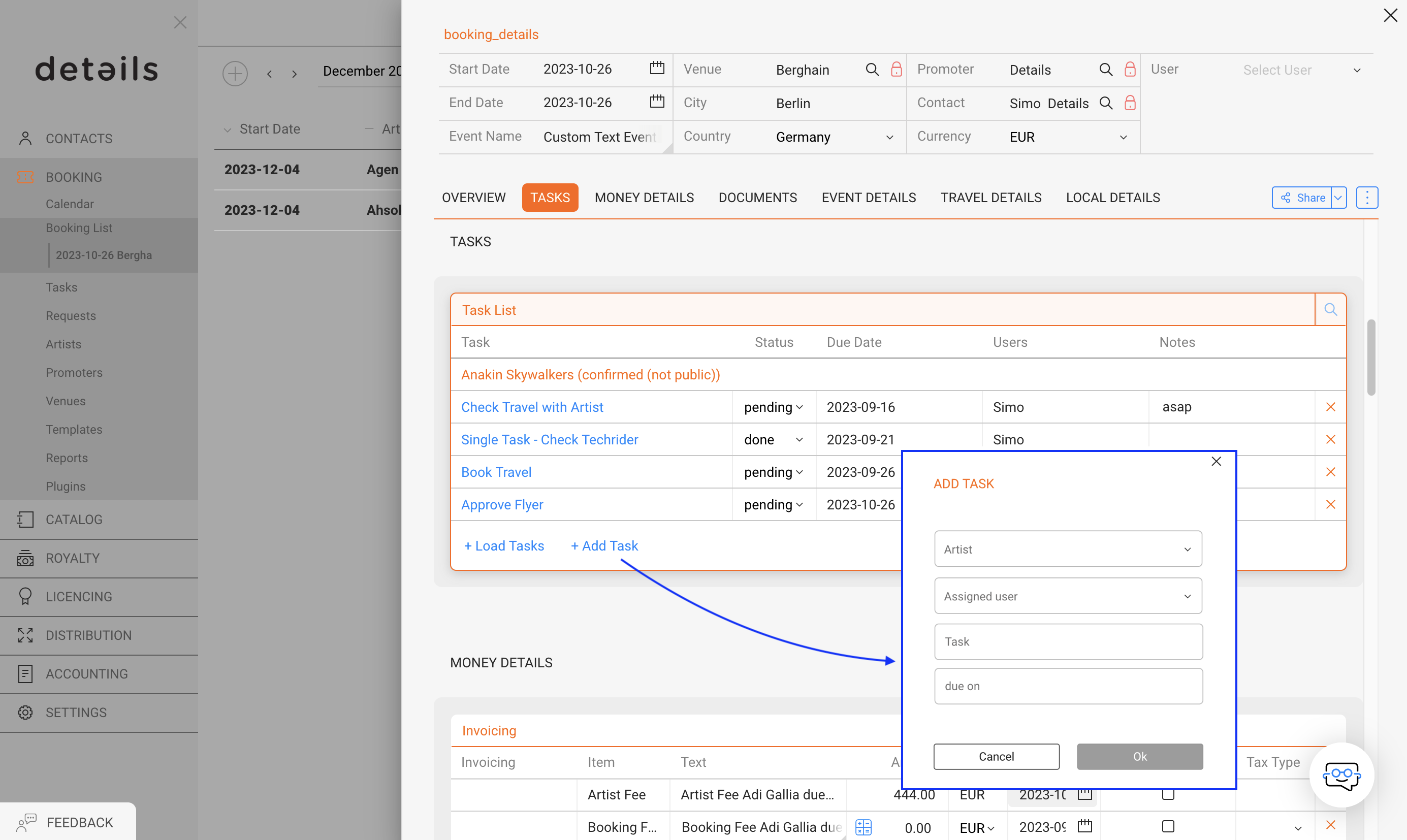
3. Fill Out the Required Information:
Artist: Select the artist.
Assigned User: Choose the responsible user.
Task: Enter the task (e.g., book flight).
Due On: Set the due date.
Click OK to save.
This method allows you to create and assign individual tasks tailored to your booking.
2. Managing Task Groups for Booking
Task Groups are predefined sets of tasks that can be loaded into a booking to streamline your workflow.
1. Click on +Load Tasks:
In the Tasks section, click on the +Load Tasks button.
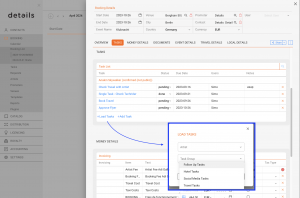
2. Choose an Artist and Task Group:
Artist: Select the artist.
Task Group: Choose a predefined group (e.g., Travel Tasks, Social Media Tasks).
Click OK to load all tasks.
This approach is ideal for recurring workflows, allowing you to assign multiple tasks quickly.