
Table of contents
This article explains how Hide Module Sections works in SETTINGS / USERS and how to configure user access correctly, including a recommended setup for booking-only users.
Important:
Checked items will be hidden from the user.
To allow access to a module or section, leave it unchecked.
Before configuring access and permissions, make sure the user is created and properly set up.
See User Management & Profile Settings .
► WHAT HIDE MODULE SECTIONS DOES
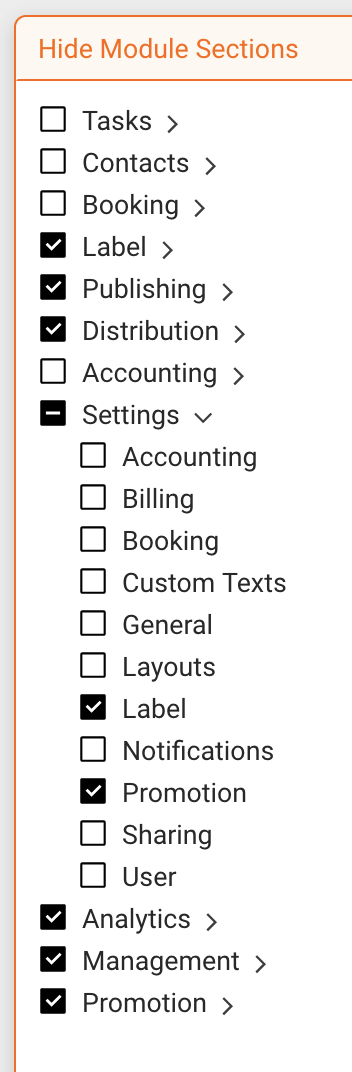
Hide Module Sections controls which parts of the interface are visible to a user.
- Checked = the module or section is hidden
- Unchecked = the module or section is visible
This setting does not grant permissions. It only controls what the user can see in the interface.
► MAIN SECTIONS AND SUBSECTIONS
Modules are structured in two levels:
- Main sections (for example Booking)
- Subsections inside a main section
Even if a main section is unchecked and therefore visible, individual subsections may still be checked and hidden.
This allows precise control. A user may see a module, but only selected parts of it.
► BOOKING-ONLY USER: RECOMMENDED SETUP
A booking-only user should only have access to booking-related workflows.
Main sections that remain visible
Leave these unchecked:
- Contacts
- Booking
- Accounting
- Settings
Main sections that should be hidden
Check these to hide them:
- Label
- Distribution
- Publishing
- Promotion
- Management
- Analytics
Within visible modules, you can optionally hide individual subsections, depending on the user s role.
► SAVING YOUR CHANGES
Important:
Changes to user permissions are not saved automatically.
After adjusting Hide Module Sections, you must click [SAVE] to apply the changes.
This differs from many other areas in details, where changes are stored immediately.
► WHERE TO CONFIGURE THIS
User access is managed by administrators under:
SETTINGS / USERS
Open a user profile, adjust Hide Module Sections, and click [SAVE] to confirm your changes.
Related:
Learn how to create and manage users in User Management & Profile Settings .