Table of contents
In details, you have the option to manage the relationships between contacts.
You can either manually add contacts related to another contact or automate the process by using the Update Related Contacts Using Bookings feature.
Adding Related Contacts Manually
1. Go to the Contact / Overview page.
2. In the Related Contacts section, click the + Add Contact Relation button.
3. Search for and select the contact you want to associate with the contact.
This option is useful when you want to link specific contacts to another contact without reviewing all existing bookings.
Automating Contact Updates with Bookings
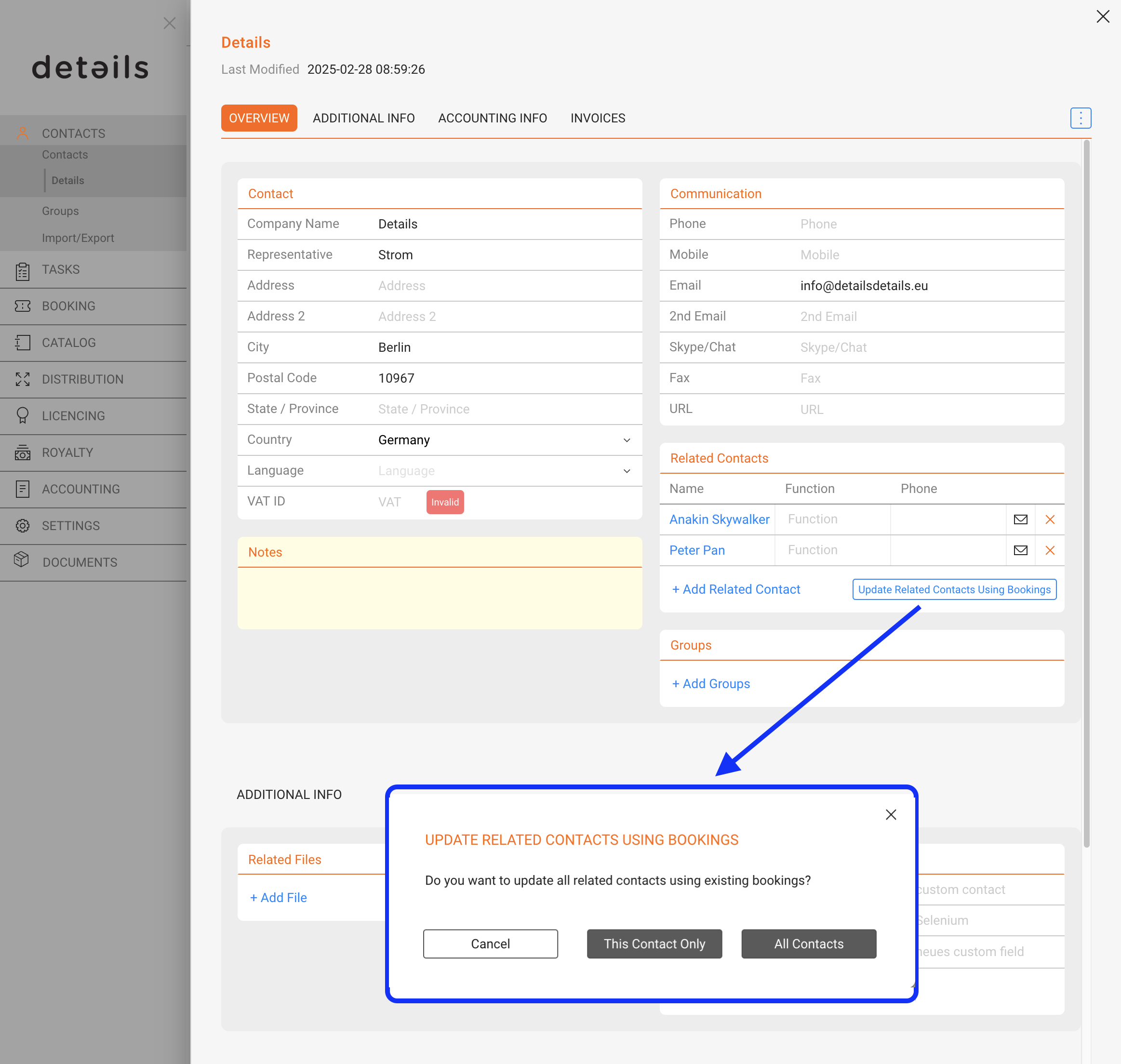
If you prefer to automatically update contacts based on past bookings, you can use the Update Related Contacts Using Bookings button. This feature allows details to analyze all your previous bookings and pull relevant contact information, saving you time and ensuring that contact associations are up-to-date.
1. Go to the Contact / Overview page.
2. In the Related Contacts section, click the Update Related Contacts Using Bookings button.
3. A modal window will appear, allowing you to choose between two options:
• This Contact: Updates contacts based on bookings associated with the selected contact only.
• All Contacts: Updates contacts across all contacts, based on bookings with any of those contacts.
4. After making your selection, details will process the bookings and add all associated contacts to the Related Contacts section for the selected contact(s).
The contacts that can be pulled from bookings include:
• Promoters
• Contacts linked to the booking (such as agents or partners involved in the event).
This feature is particularly helpful for large databases with numerous contacts and bookings, ensuring that all relationships are accurately represented without manual entry.