
This feature is designed to streamline payment tracking and management for royalty statements.
Up until now, details focused on calculating royalty statements with amounts either due for payment or carried forward as closing balances for any given royalty account and period.
As a general enhancement and in preparation for future integrations with external payment systems we have now added a feature to record specific payment information on royalty statements.
The new Statement Payments function allows you to record payment dates, amounts, and other details, making it easier to track if and when statements have been paid (or not).
To add payment information, look for Edit icons next to statements in the Statements List or within the Royalty Account.
Steps to Set a Statement Payment
1. Locate the Statement:
In the ROYALTY section, go to the Statements List or Royalty Account to view statements.
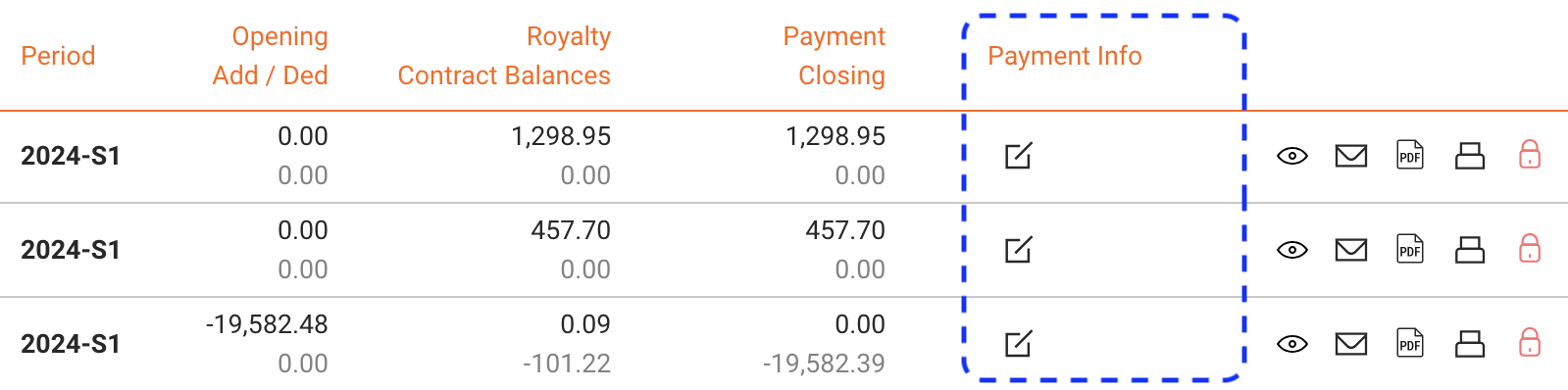
2. Click the Edit Icon:
If available, click the Edit icon next to the statement to open the payment entry form. To understand when the icon is available or not, read the section below titled When Can Payment Info Be Added?
3. Enter Payment Details:
In the form, you can add:
” Payment Date: The date the payment was made.
” Payment Amount: The amount paid.
” Payment Method: Choose from available methods (e.g., bank transfer, credit card).
” Payment Reference: Any reference or transaction ID for the payment.
” Notes: Additional comments.
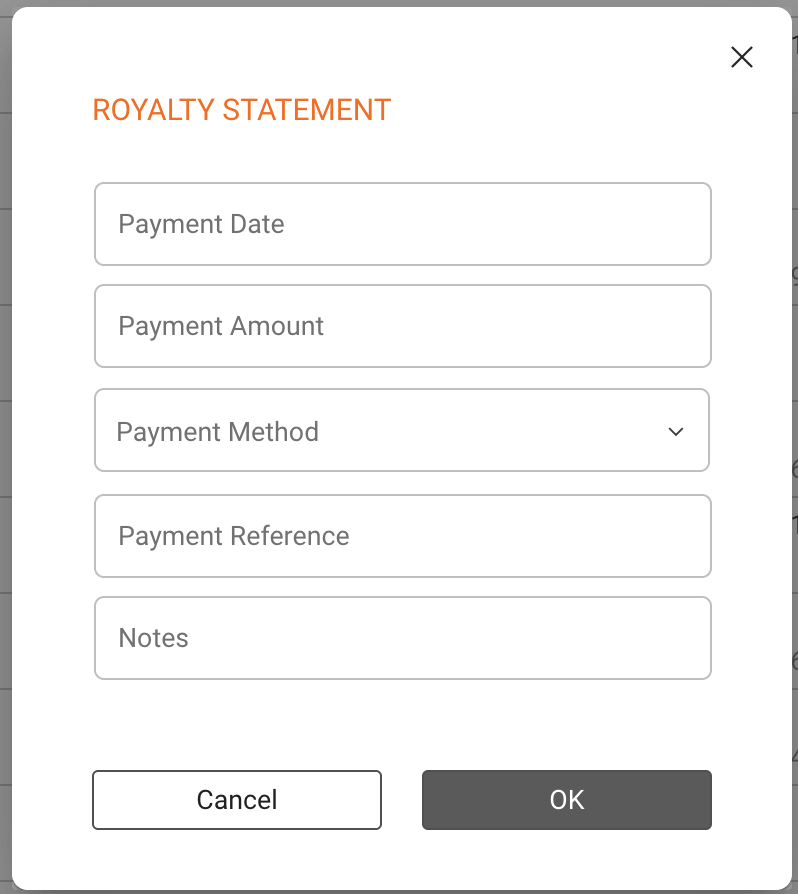
Special Fields available on demand:
” Display Currency: Optional different currency to display statement / in which the payment is made
” Exchange Rate: Exchange rate if payment was made in a different currency.
4. Save Changes:
Click OK to save the payment information.
When Can Payment Info Be Added?
You can add payment info directly to a royalty statements as long as the relatd statement layout is NOT set to create credit notes.
To check or adjust this setting, go to SETTINGS / LAYOUTS. A statement layout is set to create credit notes if the Format field contains a numbering series (and is not set to manual ). In this case, credit notes can be created automatically in a batch or added manually.
If credit notes are generated for royalty statements, you ll need to handle payments within those credit notes instead. The process for credit notes hasn t changed!
You can mark them as paid in the Payments section of the credit note, accessible in ACCOUNTING / COSTS or by clicking on the credit note number.
Automatic Payments
As we continue to develop the system, our goal is to integrate with external payment systems so that payment data can automatically sync, reducing the need for manual entry.
For further assistance, please contact label_team@details.eu.