
Royalty scales are a smart way to implement variable royalties based on sales units or turnover of specified products. Essentially, you set different thresholds (or scales), and when sales hit those marks, different royalty rates kick in.
In details, you have the flexibility to set up scales based on either the number of units sold (Quantity Scales) or the revenue generated (Turnover Scales).
These scales allow you to tailor royalty rates to different levels of sales or earnings, providing a dynamic way to account based on sales performances.
Key Guidelines
When setting up Quantity or Turnover Scales in our application, there are four essential rules you should follow:
1. Include Previous Sales in the Base Amount:
If there were any sales before implementing the scales, make sure to include those quantities in the Base Amount field.
2. Start from the First Threshold:
Up until the first threshold, the standard royalty rate (as specified in the royalty rates box) applies. You don t start at zero; instead, you begin at the first quantity threshold where a new rate needs to be applied.
3. Set the First Unit for Each New Scale:
For subsequent scales, always enter the first unit of the new scale where a new rate should be applied.
4. Enter Additional Rates:
In the scale rates field, input the rates that should be added to the base royalty rate (without the scale). These rates are not cumulative but should be set as an addition to the base rate.
5. Enter Turnover Thresholds correctly:
It s important to note that these thresholds are based on turnover, not royalties.
A threshold will be reached when the revenue calculated as base for the royalty calculation multiplied with the contract items shares reaches the indicated turnover.
Quantity Scales (for Physical Products)
Quantity Scales are ideal for physical products where royalties are typically based on the number of units sold. This setup allows you to create multiple thresholds, each with its own royalty rate, which adjusts as sales volumes increase.
Let’s say you want to set this Example for an album CD (excluding Vinyl)
” Threshold 1: 0 – 1.000 units = 5% royalty
” Threshold 2: 1.001 – 5.000 units = 8% royalty
” Threshold 3: Over 5.000 units = 10% royalty
How to Set Up Quantity Scales in details
1. Define the Scale Thresholds:
Start by determining the tipping points that will trigger different royalty rates.
Example:
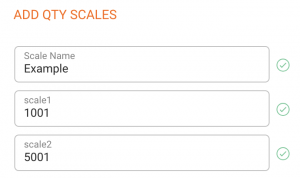
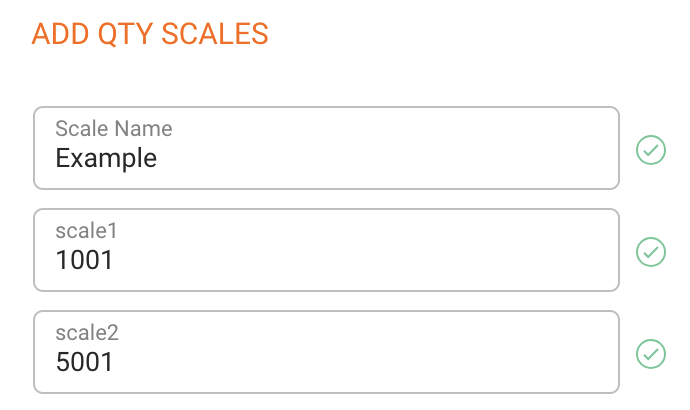
” Base Rate : 0 – 1.000 units
” Scale 1: 1.001 – 5.000 units
” Scale 2: 5.001 units and more
2. Assign Royalty Rates:
Once you ve determined your tipping points, assign a royalty rate to each scale. Remember, the first level uses your base royalty rate from the Royalty Rates section, and any additional percentages should be added on top of this base rate.
For example, if your base royalty rate is 5%, you might set the rate to 8% for sales above 1,001 units and 10% for sales over 5,001 units. This means the additional royalty would be the base rate 5% + 3% for the first scale and the base rate 5% + 5% for the second scale.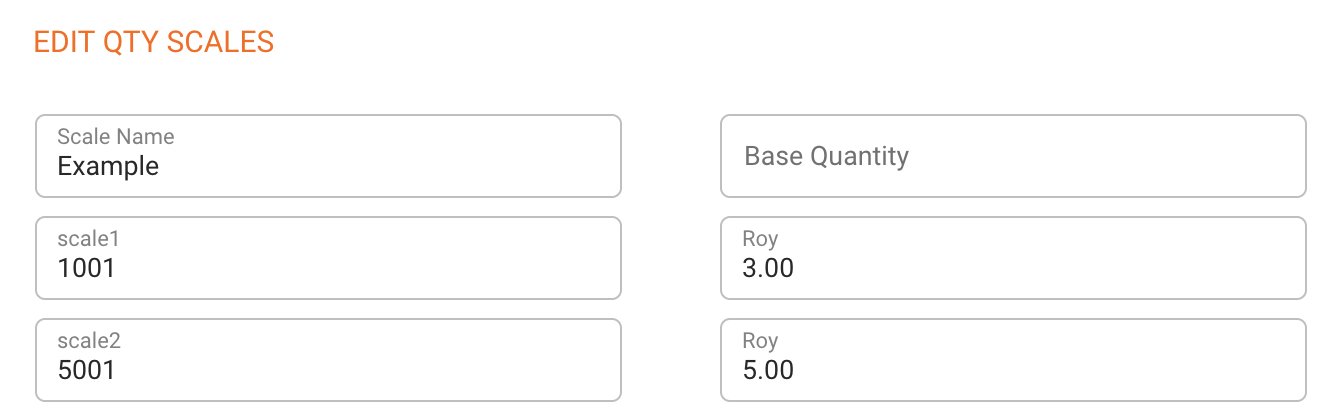
3. Adjust the Base Quantity:
This example assumes there were no previous sales. However, if you had sales before using the Details application, you need to include those quantities as the Base Quantity. This ensures that your previous sales are factored into the scale calculation.
If the Base Quantity field is left empty, the Details application will only calculate based on sales imports and orders recorded within the application itself.
4. Select the Relevant Products
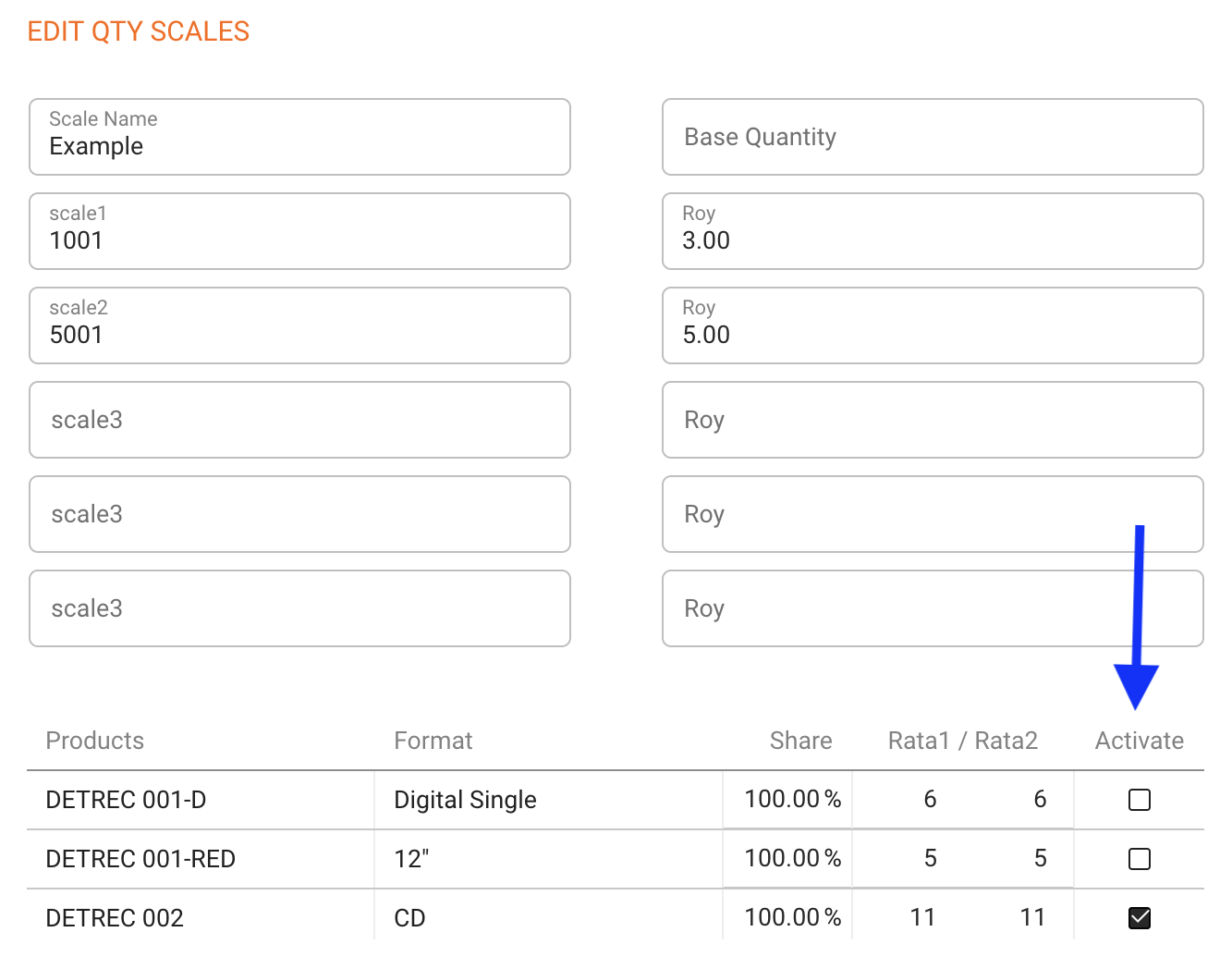
Finally, make sure to select the products that should be included in the scale calculation.
Keep in mind that if you don t select the related products, the scales won t be applied, as the system won t know which sales to include in the calculation
Turnover Scales (for Digital and Physical Products)
Turnover Scales are more used for digital products or mixed scales of digital and physical products, where royalties are based on the revenue generated rather than the number of units sold.
Unlike Quantity Scales, you can only set up one Turnover Scale per contract, but it can be just as flexible and effective.
How to Set Up Turnover Scales
1. Determine the Turnover Thresholds:
Identify the revenue benchmarks that will trigger different royalty rates. These thresholds are based on overall cumulative revenue over time, rather than revenue within a specific period.
It s important to note that these thresholds are based on turnover, not royalties.
In other words, you re calculating thresholds based on the revenue used as the base for royalty calculation, such as net revenue, fixed price, or another selected royalty base not on the royalties earned themselves!
Also note: The turnover scale calculation takes contract shares into account.
For example, if your contract represents a 50% item share, it would require 2,000/ in total turnover to reach a 1,000/ threshold on your scale!
2. Assign Royalty Rates:
Just like with Quantity Scales, you ll assign additional royalty rates to each revenue threshold.
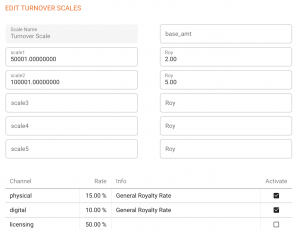
For instance, if for digital sales you want to set a 10% royalty for revenue up to $50,000, 12% for revenue between $50,001 and $100,000, and 15% for revenue over $100,000, this – in details logic translates into a base royalty plus two scales :
” Base Royalty = 10%
” Scale 1 : $50.001 = 10% + 2% additional royalty
” Scale 2: $100.001 = 10% + 5% additional royalty
Note: If you include physical products in the Turnover scale and those physical sales have a different royalty rate, details will calculate the additional rates proportionally to the base rates for each channel!
For example, if your digital sales have a base rate of 10%, the rates might be 10% + 2% or 10% + 5%. For physical sales with a base rate of 15%, the corresponding rates would be 15% + 2% or 15% + 5%.
Considerations on Base Royalty Rates :
When we talk about Turnover in the context of Turnover Scales, it s important to understand that this term does not have a universal definition across all contracts. The turnover figure used in your scale calculations can vary significantly depending on how it s defined in the base settings in your contract.
The actual turnover could be based on net income, which accounts for the revenue after all applicable deductions like discounts or returns. Alternatively, it might be based on PPD (Published Price to Dealer) income, which can either be imported or be fixed in the products as price, multiplied by the units sold. Another possibility is that turnover is calculated using fixed prices multiplied by the number of units sold, offering a straightforward approach where each unit sold contributes a set amount to the total turnover.
For this reason, the specific definition of turnover in your contract determines the basis on which royalties are calculated. This means that the turnover you use in your scales isn t just a generic revenue figure but one that s deeply tied to the contractual royalty base, whether that be net income, PPD income, a fixed price or any other another base.
Summary
Here s a summary of the most important points to remember about how to handle Scales in details:
1. Threshold Settings:
The amounts entered in the scale fields should align with the lower limit of the thresholds. Additionally, the rate percentages should be considered as increments added or deducted to the base royalty rates specific to each channel.
3. Turnover vs. Royalties:
It s crucial to understand that in details the turnover is the starting point for determining royalties, not the result of past royalty calculations. In other words, the set thresholds are earnings, not royalties!
2. Turnover Calculation:
The turnover within a scale is directly influenced by the selected royalty base:
” Net Revenue: Turnover equals the net revenue received.
” PPD: Turnover is determined by multiplying the number of units sold by the PPD (imported or Product PPD).
” Fixed Price: Turnover is calculated by multiplying the quantity sold by the fixed price per unit.