
This article explains how to configure Tax Types and Tax Groups in details. You can define your own VAT, withholding, or deduction rates and apply them to invoices, cost invoices, and royalty accounts.
Tip: Go to SETTINGS / ACCOUNTING / TAXES to manage all tax types and groups. Rates can be positive (VAT) or negative (deductions).
► CREATE TAX TYPE
Overview
Tax Types define single tax rates used throughout details. These can be standard VAT, reduced VAT, or withholding rates.
Steps
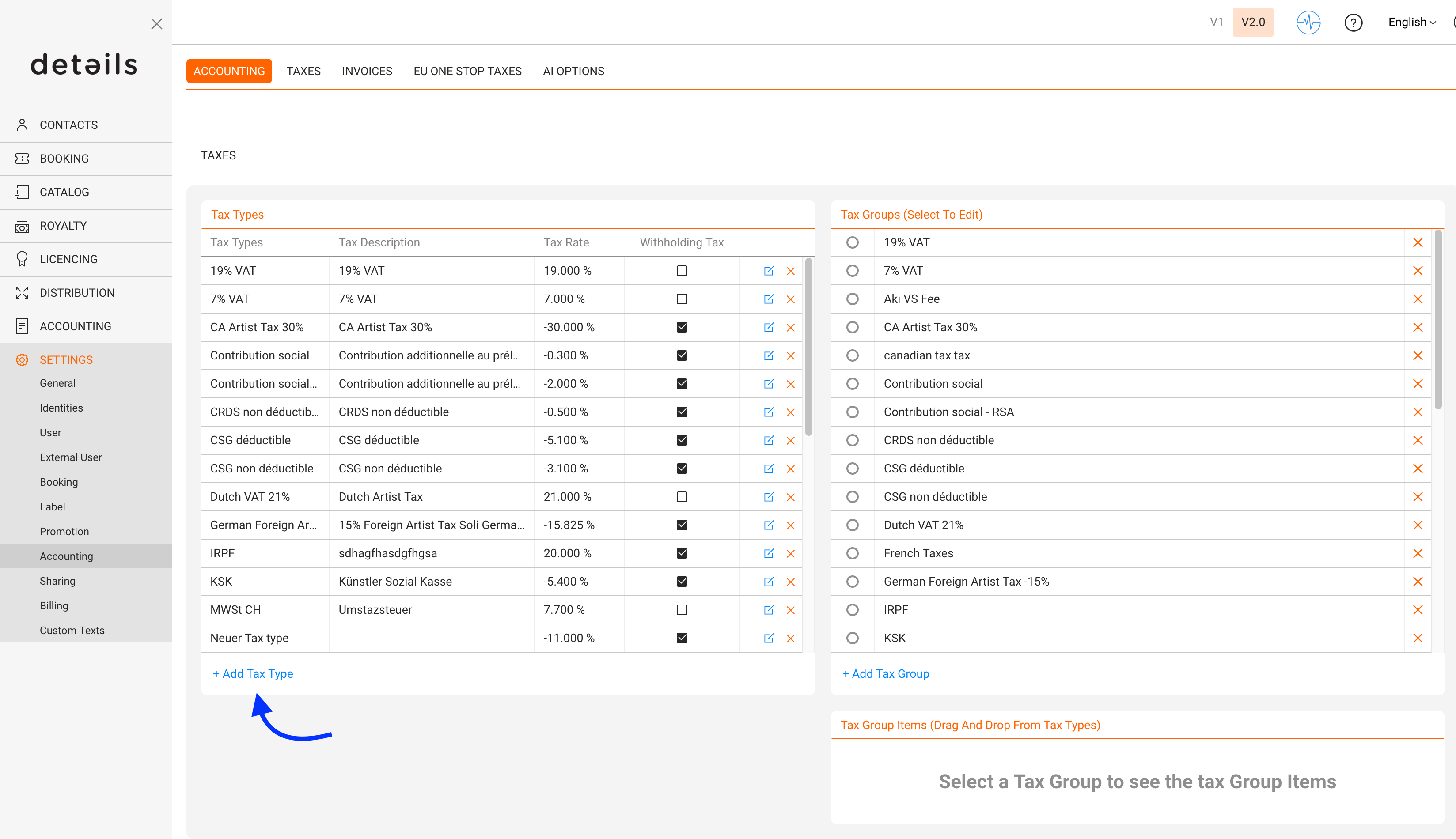
- Go to SETTINGS / ACCOUNTING / TAXES.
- Click [+] to add a new Tax Type.
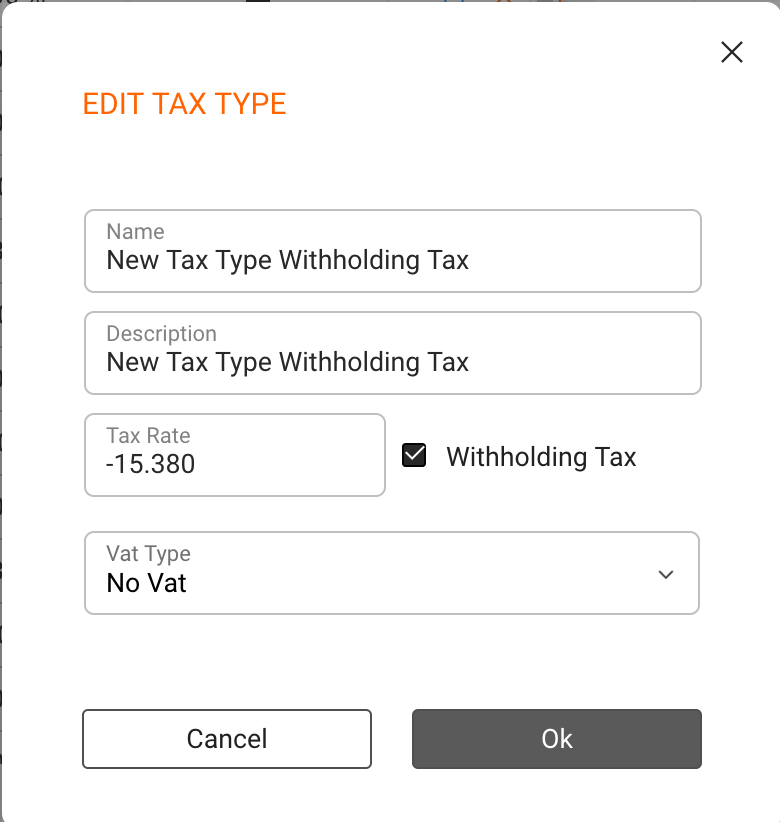
- Enter a clear name, such as VAT 20% or Withholding 15%.
- Set the Rate:
- Use positive values for added taxes (e.g. 20).
- Use negative values for deductions (e.g. -15).
- Select a VAT Type if relevant:
- VAT1 = full VAT rate
- VAT2 = reduced VAT rate
- no VAT = not applicable
Note: The VAT Type field is only used in countries with multiple VAT levels. Once created, Tax Types are available for all accounting modules.
► CREATE TAX GROUP
Overview
Tax Groups combine multiple Tax Types into one logical unit. This is useful for complex deductions (e.g. withholding + solidarity) or bundled tax rules.
Steps
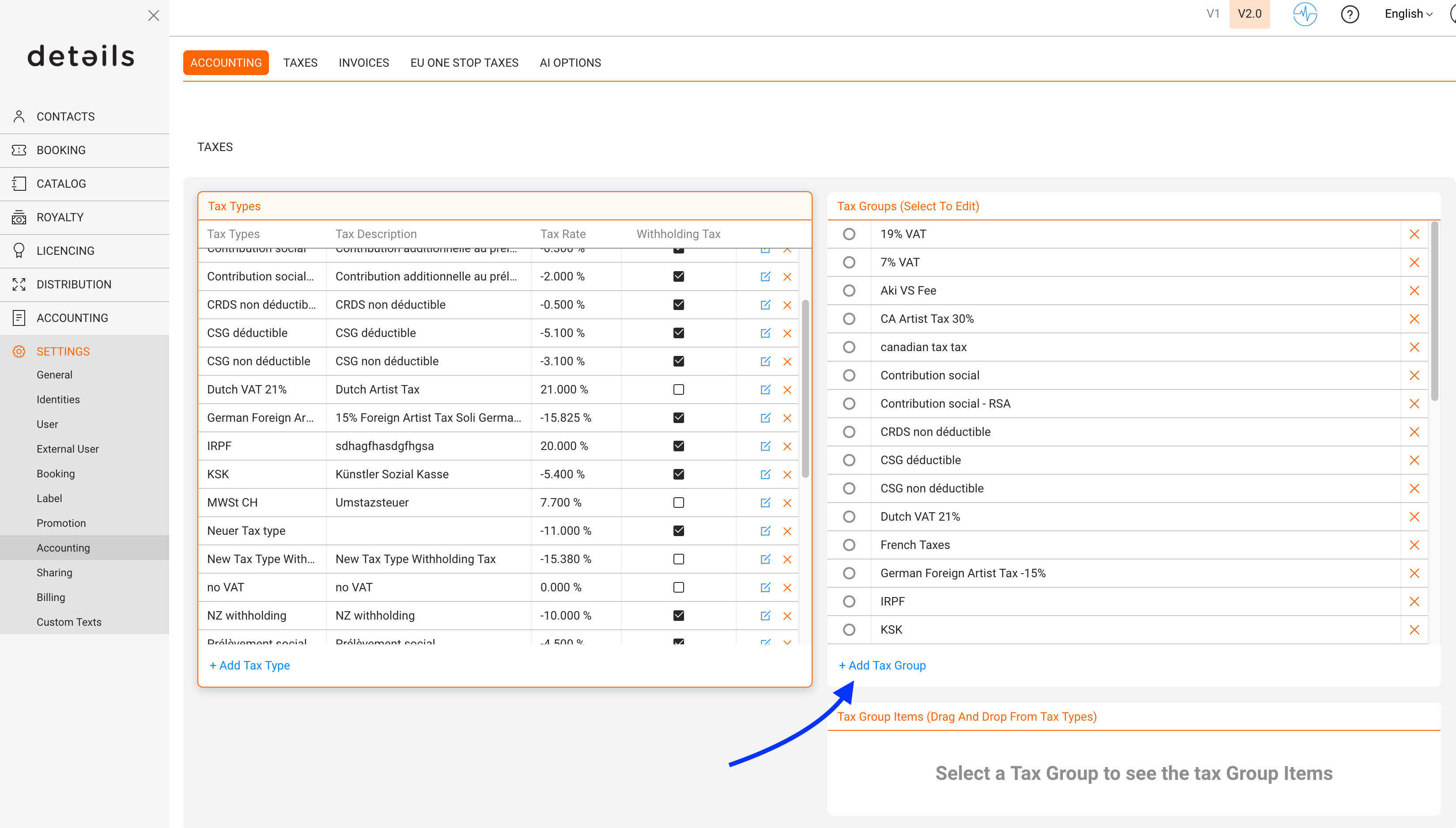
- Go to SETTINGS / ACCOUNTING / TAXES.
- Click [+] to add a new Tax Group.
- Name the group. If it contains only one Tax Type, you can reuse the same name.
- Drag and drop existing Tax Types into the Tax Group Items box.
Tip: You can group positive and negative taxes together to show combined totals in invoices.
► USE TAX GROUPS IN DETAILS
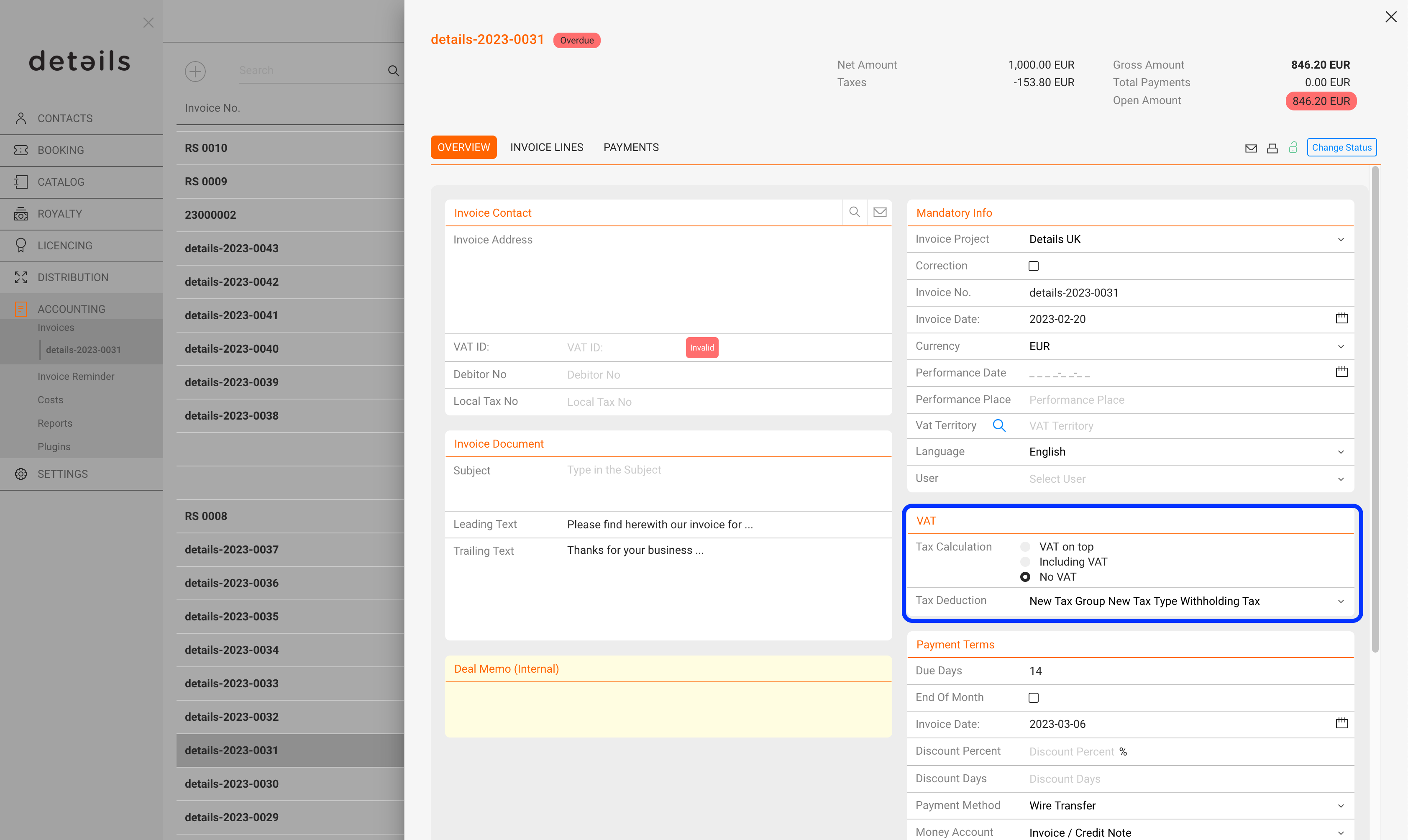
Once created, Tax Groups appear in multiple areas of details:
- Invoices to apply VAT or combined taxes.
- Cost Invoices to record incoming invoice deductions.
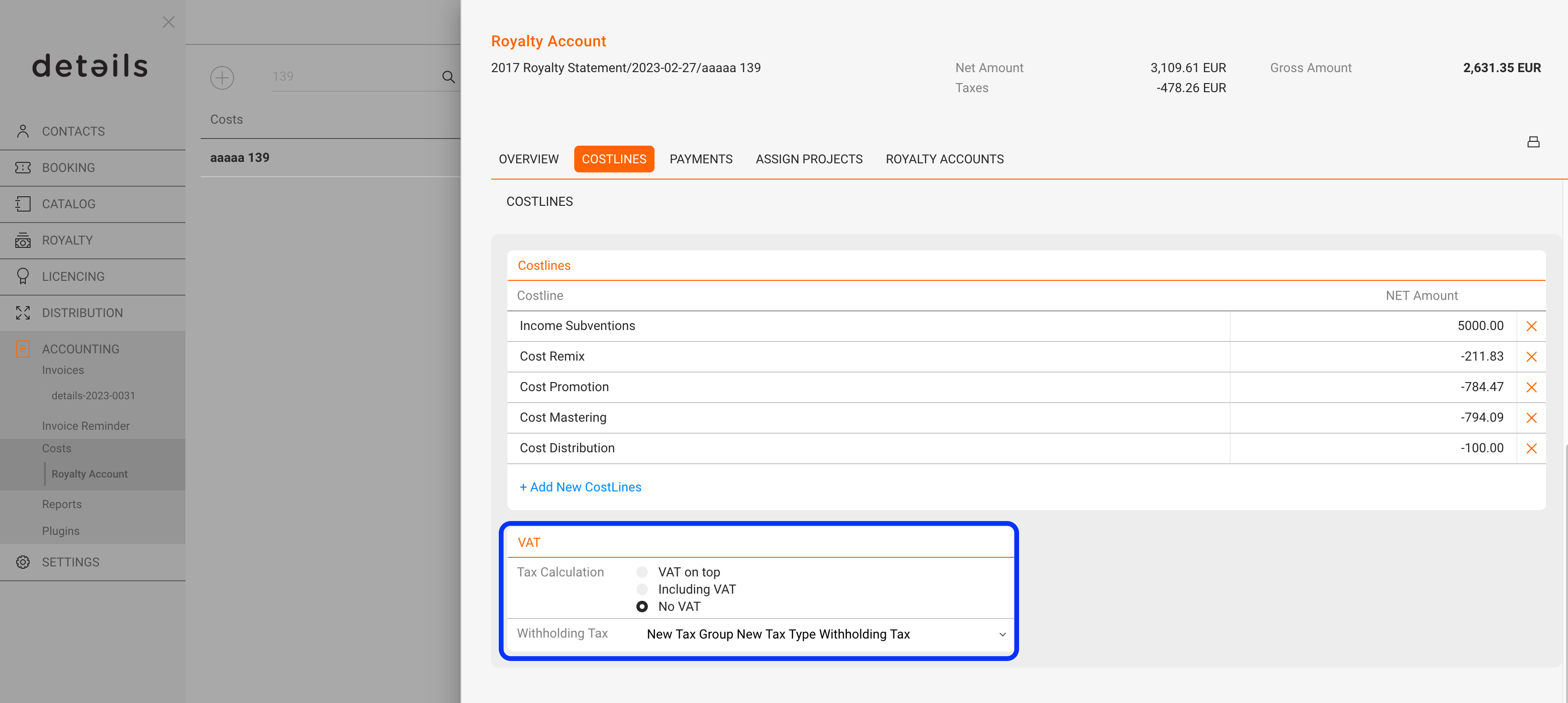
- Royalty Accounts to set up automatic withholding tax calculations.
► CONFIGURATION DES PRLVEMENTS SOCIAUX (FR)
Contexte
En France, certains revenus (notamment droits voisins ou assimil’s) peuventre soumis des prlvements sociaux prcompter sur les royalties etreverser l URSSAF.
La composition et le taux global applicables dpendent de la situation fiscale de l ayant droit et des rgles en vigueur pour l anne concerne. Vrifiez toujours les taux auprs de votre expert-comptable.
Exemple de ventilation applicable en 2025 (total 18,6 %) :
- CRDS non dductible : -0,500 %
- CSG dductible : -6,800 %
- CSG non dductible : -3,800 %
- Prlvement de solidarit : -7,500 %
Important : Chaque taux doittre cr comme Tax Type distinct avec une valeur negative et avec no VAT.
►tape 1 Crer les Tax Types
- Aller dans SETTINGS / ACCOUNTING / TAXES.
- Crer un Tax Type pour chaque ligne de prlvement.
- Entrer le taux en valeur ngative (ex. -6.800).
►tape 2 Crer le Tax Group
- Crer un nouveau groupe (ex. 2025 Prlvements Sociaux).
- Ajouter tous les Tax Types correspondants dans le groupe.
►tape 3 Appliquer l ayant droit
- Ouvrir la fiche de l ayant droit.
- Aller dans l onglet CONFIGURATION.
- Dans Paramtres fiscaux, slectionner le groupe dans Autres Charges.
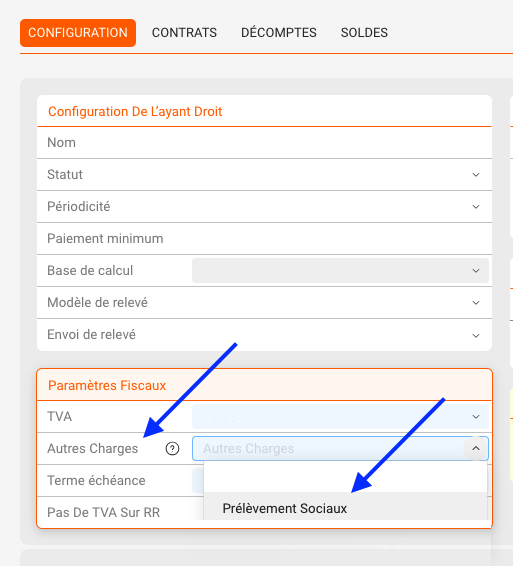
Resultat : Lors du calcul des royalties, les prlvements sociaux seront automatiquement dduits du montant brut et affichs distinctement sur le relev.
► EDIT OR REMOVE TAX TYPES
You can edit existing Tax Types and Tax Groups at any time in SETTINGS / ACCOUNTING / TAXES.
- Editing updates all future calculations.
- Deleting a Tax Type or Group removes it from selection menus but keeps existing invoice data intact.
Tip: Regularly review your tax setup when tax laws or VAT rates change.
► SUMMARY TABLE
| Element | Description |
|---|---|
| Tax Type | Defines one rate (positive = VAT, negative = deduction). |
| Tax Group | Combines one or more Tax Types for complex rules. |
| VAT Type | Defines the national VAT category (VAT1 / VAT2 / no VAT). |
| Location | SETTINGS / ACCOUNTING / TAXES |