
The exclusivity feature allows you to set conditions around an artist s bookings to help ensure compliance with any contractual exclusivity clauses.
Why Use the Exclusivity Feature?
Exclusivity settings help manage and monitor shows with exclusivity clauses, ensuring that the artist doesn t perform in nearby venues within a set period before and after a specific show. This feature is especially useful for avoiding conflicting events that might violate an artist s agreement with a promoter or venue.
Here s a step-by-step guide to setting and managing exclusivity for an artist.
1. Open the detailsGPT BETA Chatbot
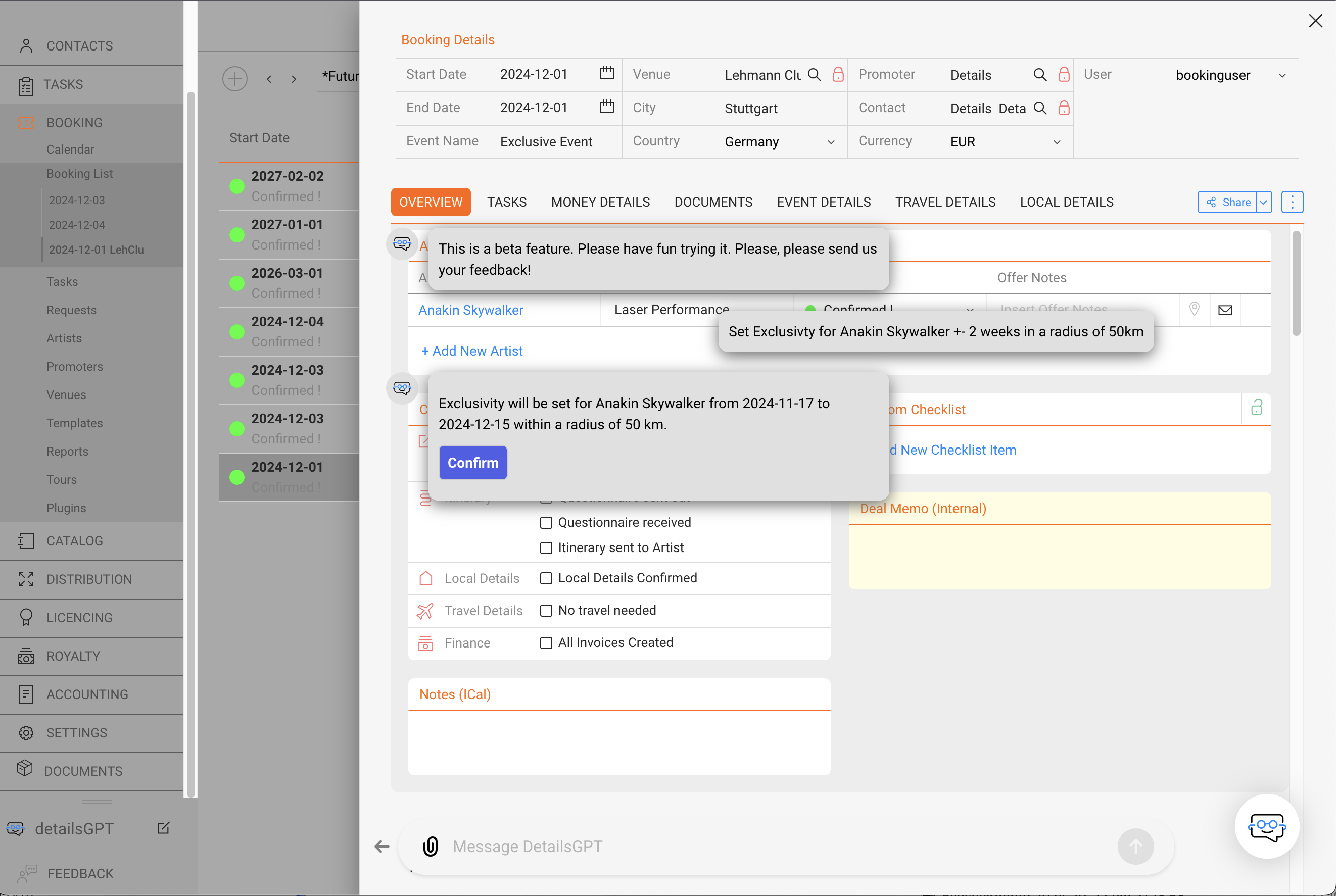
” In the bottom left corner of your screen, you ll see the detailsGPT chatbot. It will help you set exclusivity parameters with simple, conversational commands.
NOTE : The detailsGPT chatbot is a new feature currently in BETA. It s designed to allow users to prompt a variety of requests within the application. Feel free to experiment with detailsGPT, and we welcome any feedback!
2. Input the Exclusivity Command
” Type in the desired exclusivity details, such as the time period (+- showdate) and radius around the venue.
For example, type:
Set exclusivity for Anakin Skywalker for +-2 weeks, radius 50km.
3. Understanding the Settings
- Timeframe: The exclusivity period begins a specified number of days or weeks before the show date and extends for the same amount after the show date.
- Radius: The exclusivity radius restricts the artist from performing at other venues within a set distance (in km or miles) of the selected venue.
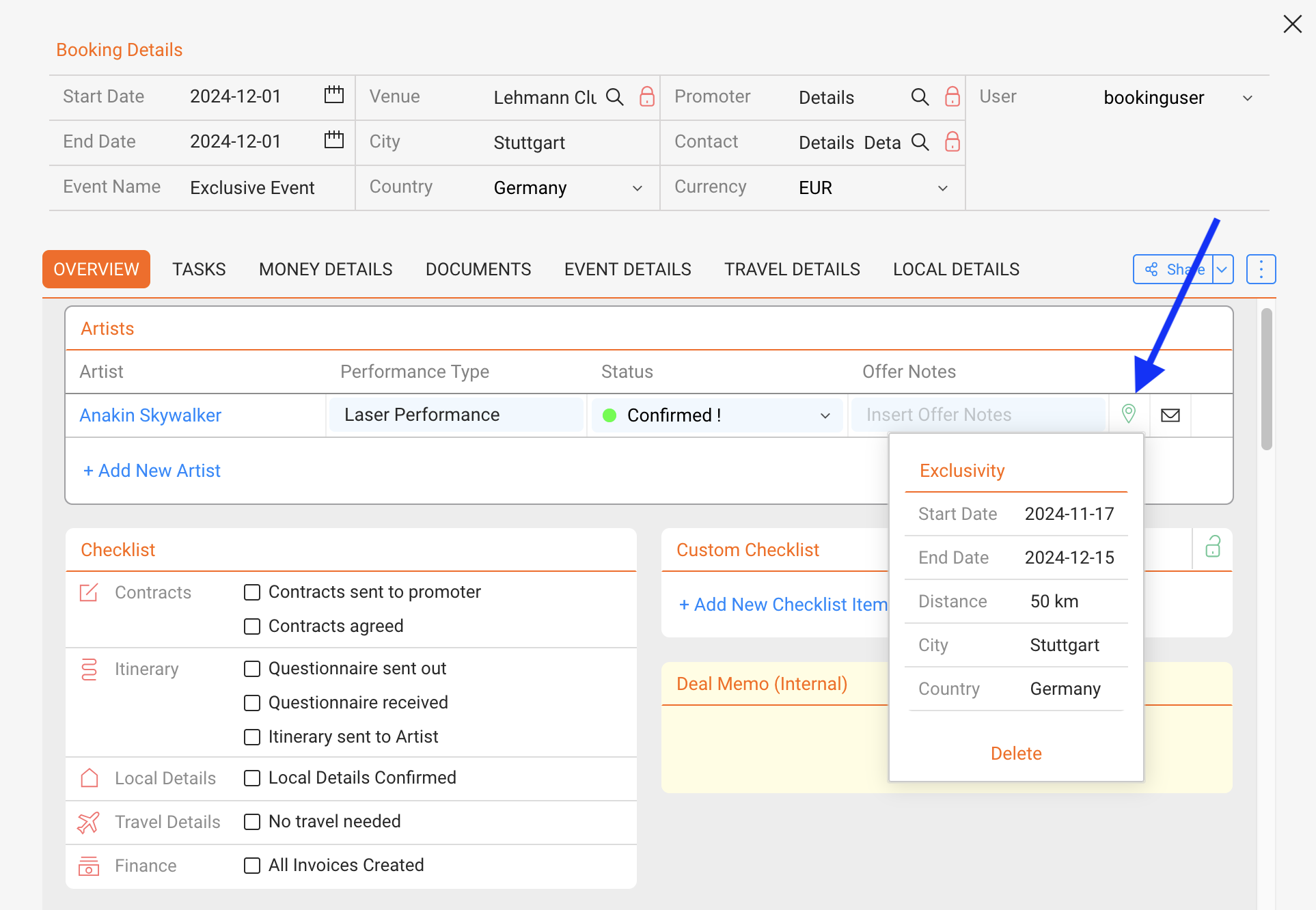
In the example, it will set the exclusivity around Lehmann Club in Stuttgart from 17.11.24 to 15.12.24 with a radius of 50km.
4. Automatic Display of Conflicting Events
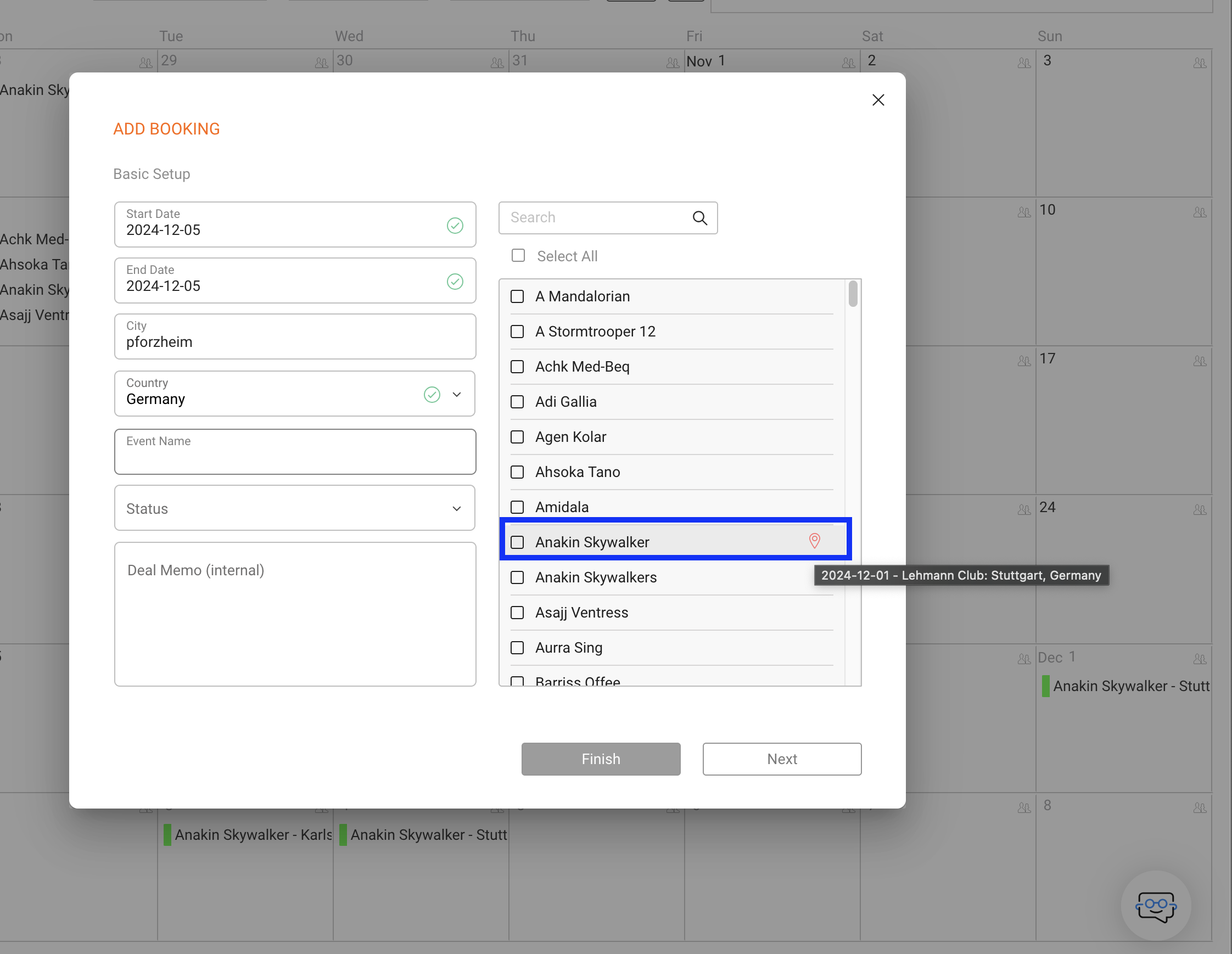
Once the exclusivity is set, any existing or future events that fall within the specified timeframe and radius will display a red exclusivity icon. This icon indicates a potential conflict, helping you manage bookings with clear visibility into exclusivity restrictions.
The icon is displayed both in the Artist section of a Show or in the Event creation wizard.
exclusivity icon in a show:
exclusivity icon in the Event Creation Wizard:
” Adjusting Parameters: You can always return to detailsGPT to modify exclusivity settings if conditions change, such as expanding or narrowing the timeframe or radius.