
Run Autofetch All Contracts is an additional feature within details for distribution companies. It adds all new RELEASES, PRODUCTS & TRACKS of a LABEL to the corresponding royalty contract in one click.
Before creating royalty statements for your distribution labels, all new catalogue items set up after the last statement need to be added to the existing royalty contract.
You can either add them manually in the royalty contract one by one.
Or you can use the ‘Run Auto fetch All Contracts’ feature.
This loads all catalogue items (RELEASES, PRODUCTS, TRACKS) into existing royalty contracts.
First you need to set up the autofetch type within the royalty contract.
To do so, go to ROYALTY and select the royalty account & go to the royalty contract’s subtab SPECIAL.
Click [+] on top right of the Autofetch box.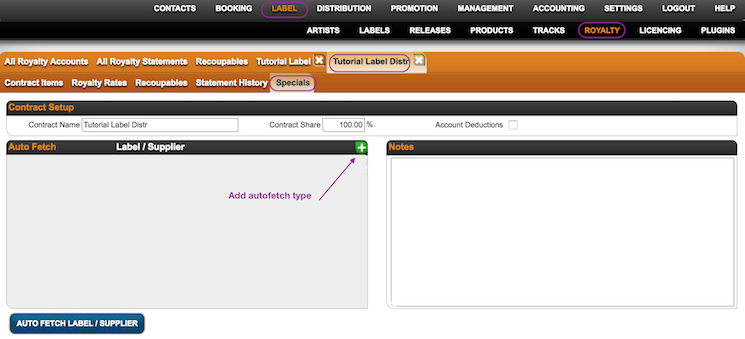
Here you can select the label.
::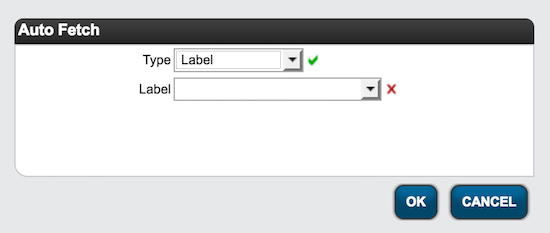 ::
::
All new releases, products and tracks of that label will be assigned to the existing royalty contract automatically each time you run autofetch.
You can run autofetch for a single royalty contract here by clicking the button Autofetch Label / Supplier at the bottom of the page.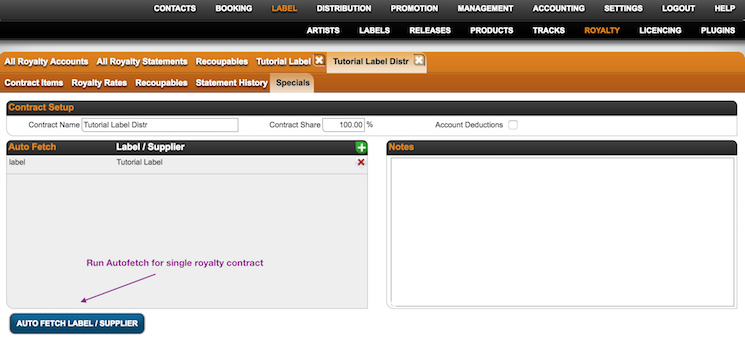
Once you have set up autofetch types for the concerning royalty contracts, you may run the autofetch for all royalty contracts in one go.
Go to Royalty / All Royalty Statements and click the button Run Autofetch All Contracts at the bottom of the page.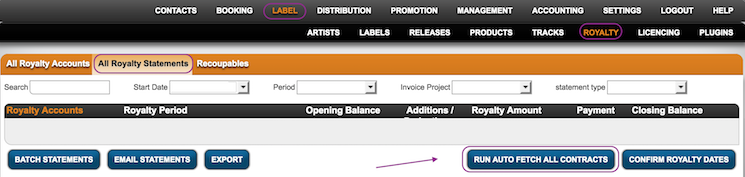
All catalogue items will be loaded into the royalty contracts according to your autofetch setup.
If you add an autofetch for the relevant royalty contracts once & run autofetch all contracts each time before you start creating royalty statements, you ensure all catalogue items will be added to the correct royalty contracts and accounted to your label accounts accordingly.
Run Autofetch All Contracts
Recently Viewed
Your recent pages