
How to start with details – manual
read previous step here – how to Import Costs
Set up Royalty Accounts
Business partners (artists, labels, etc) which you licence music FROM (i.e. licensors) we call Royalty Accounts. To account royalties to these business partners, you will will need to add them as royalty accounts.
You can just add multiple contracts Bto one royalty account. All Royalty Accounts and related contracts are on LABEL / ROYALTY.
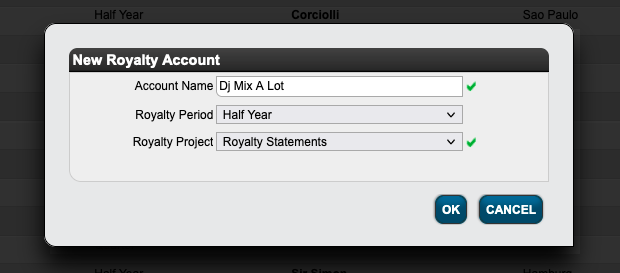
To create a new Royalty Accounts go to LABEL / ROYALTY and click the green PLUS icon on top right of the list. Enter the Account Name, Royalty Period and select royalty statements as invoice project.
Click [OK] and you will be directed to the account’s Set Up tab.
On the Royalty Accounts setup tab add a main contact & minimum payment and select the Account Base.
The Account Base defines the period the income of a sale is collected to and hence accounted to your royalty statements. Attention: The Account Base cannot be changed after the first statement has been sent.
There are three Royalty base options,
- Sales Period: All income of sales will be collected to the period of the actual sale.
- Payment Period: All income of sales will be collected to the period in which the invoice related to sales income has been paid.
- Invoice Date: All income of sales will be collected to the period in which invoice has been created.
Set up Contracts
Now you can start adding artist album contracts.
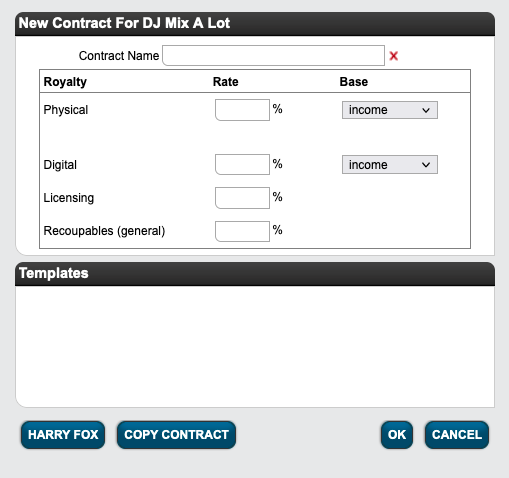
First go to Royalty Account s subtab Contracts and click [+] to add a new contract.
In the module window, enter your Contract Name and main royalty rates. You can always add additional / change existing royalty options later on.
Read here how to set up a compilation contract.
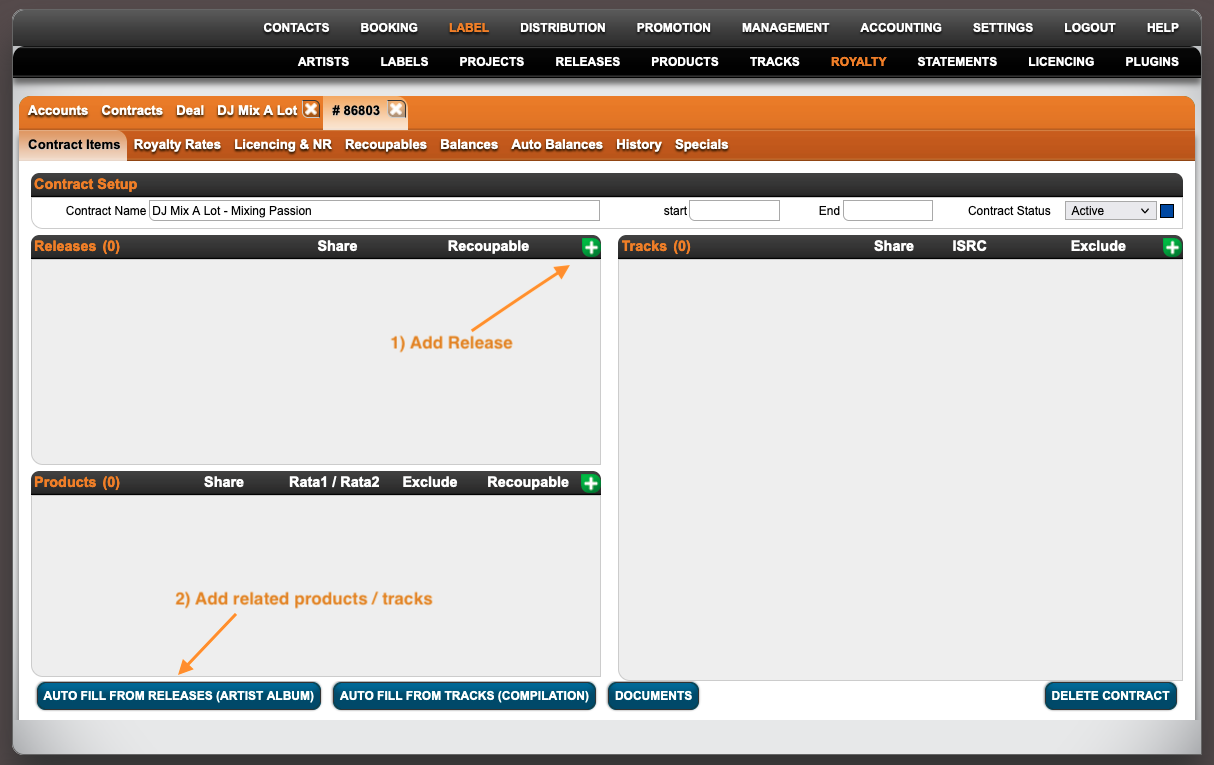
You will be directed to the Contract s subtab Contract Items where you add the contract s releases, products & tracks.
We distinguish royalty contracts based on artists, for example for artist albums & royalty contracts based on tracks, for example as compilation contracts.
For Album Artist Contracts select the release that is part of this contract in the Release box by clicking the green PLUS and searching for release title/artist or release code.►
Then click Auto Fill From Release (Artist Album) which will fill in all related products and tracks with their specific rata to the contract.
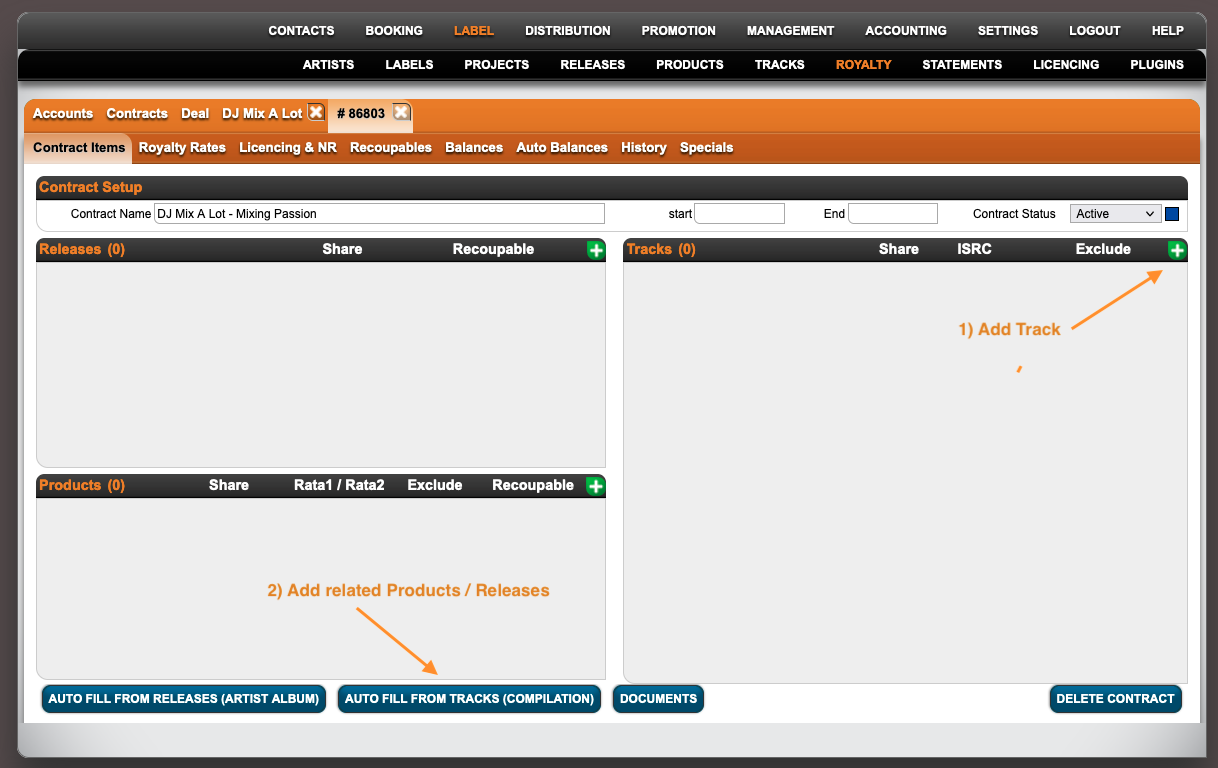
For Compilation Contracts select the tracks that are part of this contract in the Track Box by clicking [+] and searching for track title/artist.
Then click Auto Fill From Tracks (Compilation) which will automatically fill in all related products and releases with their specific ratas and shares to the contract.
On the subtabs Royalty Rates & Performance & Licencing you find the royalty rates you have previously entered. If necessary you are able to adjust or extend these by clicking Edit in the particular line or adding additional options by clicking [+].
Attention: If you have more than one royalty option on one channel (physical / digital / licencing / etc), make sure to go from the particular as royalty option 1,2,…. to the general option as last option.

Add Recoupables
The last step is to set up the contract’s Recoupable settings.
Go to the Recoupables tab and select the Recoupable Status General Recoupables and add your percentage.
Please Note: Cost Group Advance are always accounted with 100%.
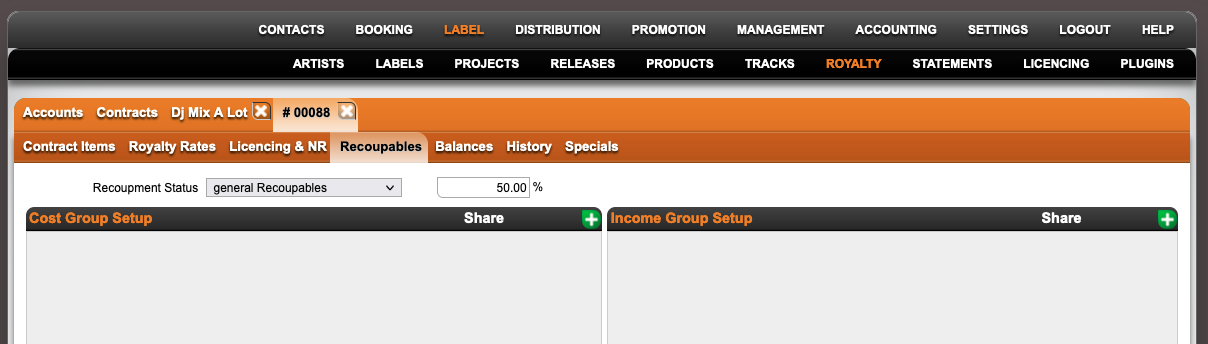
If your contract does not include any cost recoupments, select No Recoupment.
For more recoupable setting options check here.
read next step here – how to Account Recoupables