
Table of contents
In the PRODUCTS section, you can manage all items and services that you want to sell or account for physical or digital, musical or not. This includes CDs, LPs, digital albums, merchandise like T-shirts or posters, and even services like mastering or shipping.
To understand how products fit into the overall structure of details, it is important to look at their relationships:
- Releases are the central unit. Each release belongs to exactly one label.
- Products are always linked to a release and represent the concrete commercial item (physical or digital). A release can contain multiple products.
- Tracks are the musical works. Tracks can appear on multiple products (e.g. a track on both a CD and a digital album).
Each product consists of various details and is structured across multiple tabs. Below, you’ll find an overview of the general layout and the specific functionalities of each tab.
General Layout
PRODUCT LIST
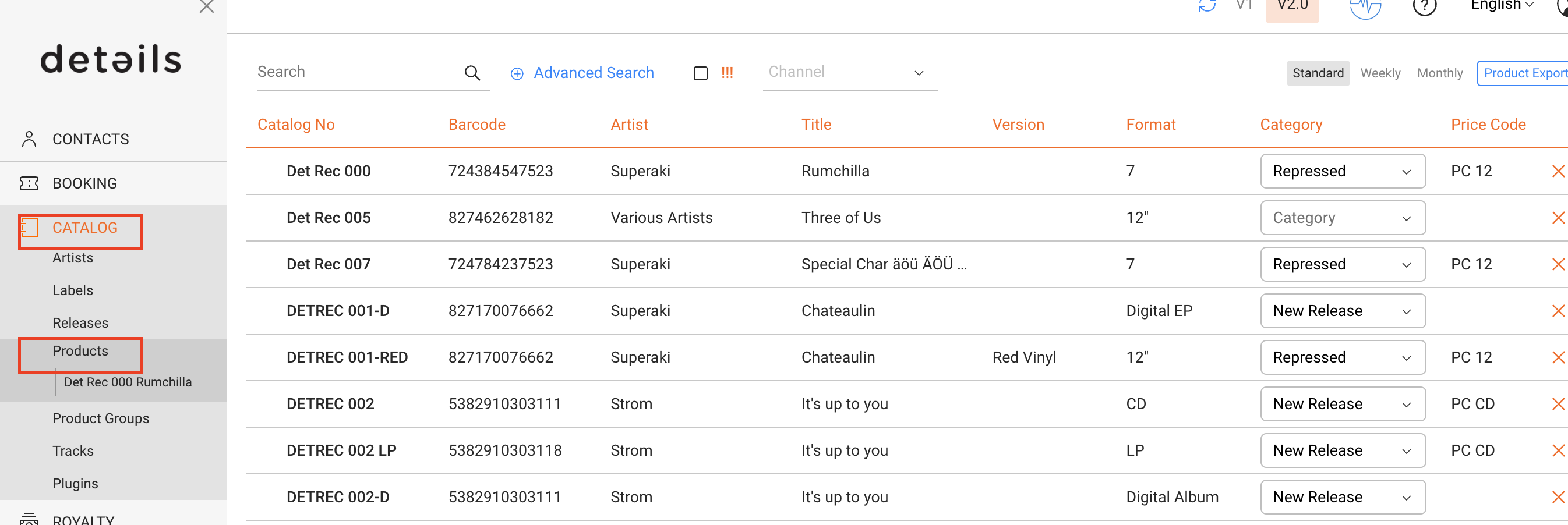
This is the default view under CATALOG / PRODUCTS and shows all available products in your database.
- Search by catalog number, artist, title, version, or barcode
- Advanced Search allows combining fields (e.g. format, label, channel, release date range, categories, price codes, accounts, stock locations) and exporting the results as an Excel file.
- Barcode checks help to identify duplicate UPCs and Catalog Numbers. These are shown by [!!!] and can be filtered separately.
PRODUCT GROUPS
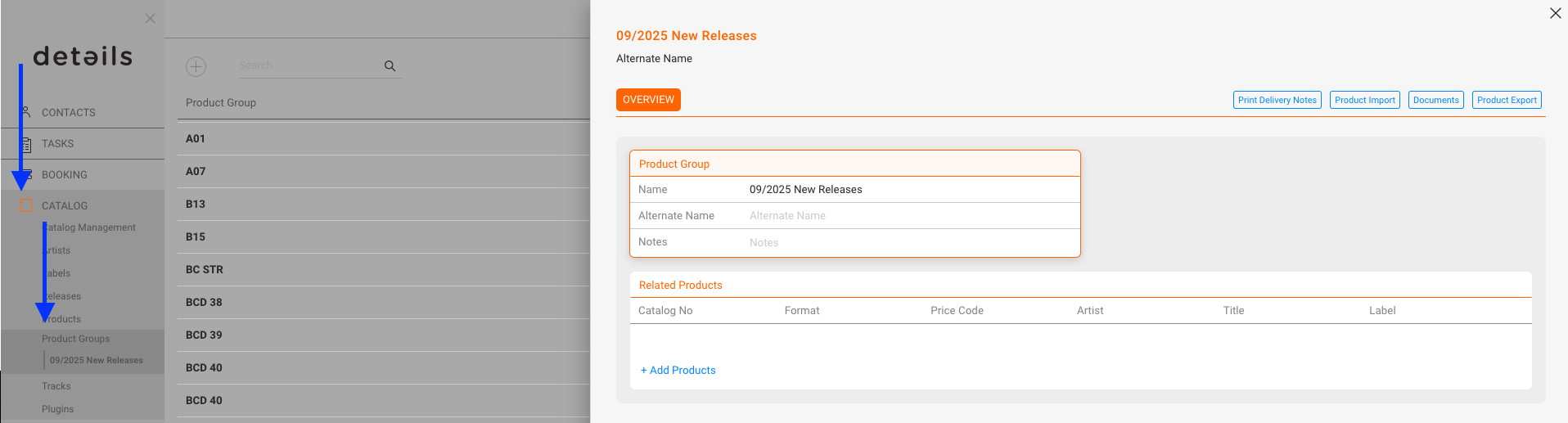
Product Groups let you organize products into collections (e.g. New Releases, Compilations, Limited Editions). Groups can be exported as lists, including price lists or metadata sheets, and used for sales materials or newsletters. A product can belong to multiple groups at once.
Product Layout
OVERVIEW
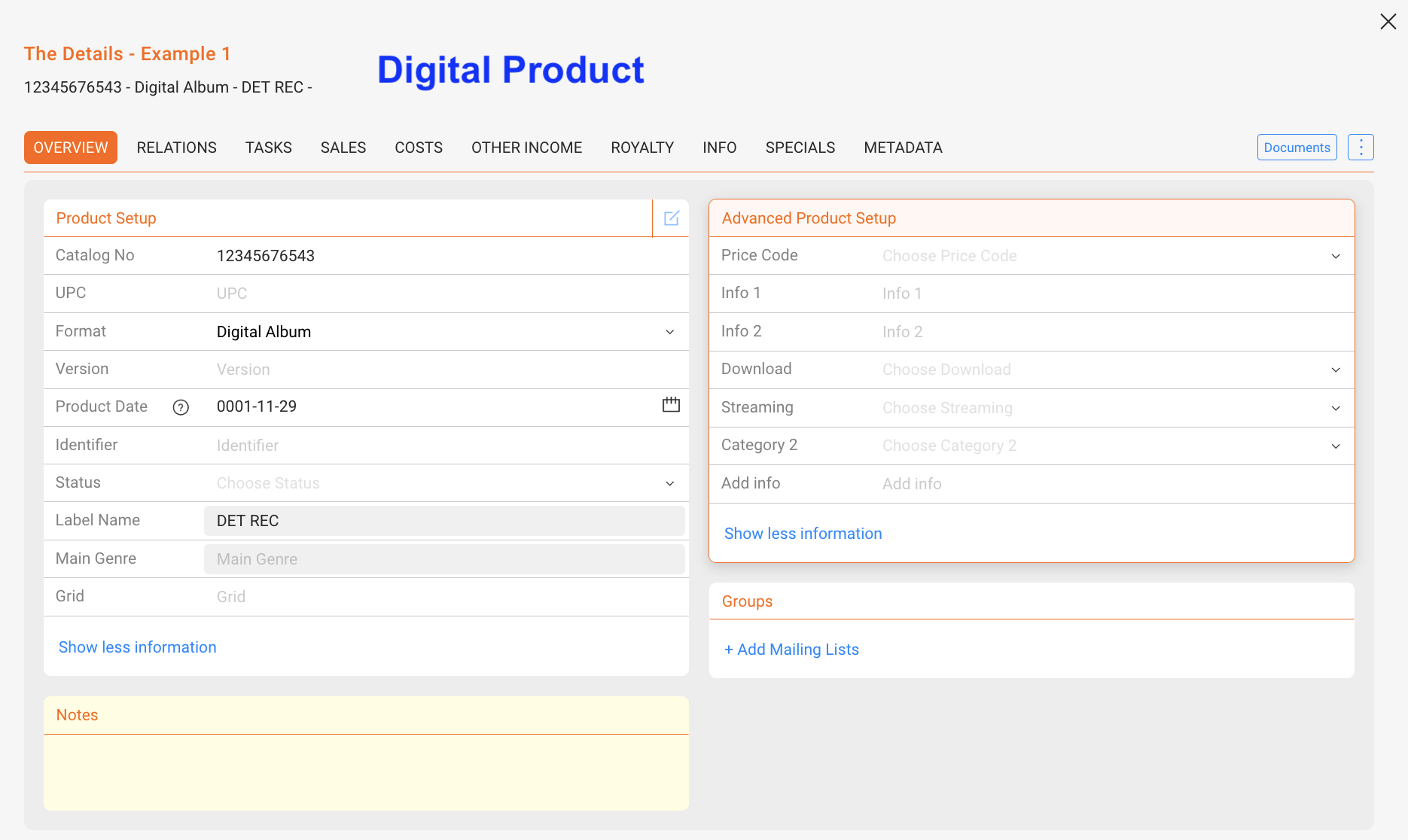
The OVERVIEW tab contains the core setup of a product. While digital and physical products share some common elements, there are also product-type-specific fields and sections.
Product Setup (all products)
- Catalog No: Internal identifier, often printed on artwork or packaging
- UPC: Barcode number for distribution and sales matching
- Format: Defines type of product (e.g. CD, Vinyl, Digital Album); formats are created in SETTINGS / LABEL
- Version: Differentiates editions (e.g. limited edition, colored vinyl)
- Product Date: Specific availability date of the product (can differ from Release Date)
- Identifier: Additional code for internal or accounting purposes
- Status: Color-coded product status for filtering
- Label Name: Connected label (redundant, as the release already belongs to one label)
- Genre: Shown from the related release; can be displayed for quick reference
- Grid: Optional industry identifier, rarely used outside large distributors
Advanced Product Setup
The advanced setup contains additional parameters for pricing, distribution, and classification. The fields differ slightly between digital and physical products.
Product Setup (digital products)
- Price Code: Links the product to a predefined price list. Used mainly for auto-filling prices, though often less relevant for digital products.
- Info 1 / Info 2: Free text fields. Can be used flexibly for internal remarks, marketing notes, or additional classification.
- Download: Defines if the product is available for download.
- Streaming: Defines if the product is available on streaming platforms. Often used for compilations where streaming rights are not licensed.
- Category 2: Secondary categorization for internal structuring, in addition to the main category. Managed in label settings.
- Add Info: Another free field for internal use (similar to Info 1/2).
Product Setup (physical products)
- Price Code: Same logic as for digital, but more frequently used for auto-filling physical prices.
- PPD (Published Price to Dealer): The base price charged to dealers before distribution margins (basis for dealer pricing; differs from PPU shown in the SALES tab).
- Cost Price: Internal cost or manufacturing price of the product. Useful for profit calculations.
- Supplier: Defines the supplier or manufacturer (e.g. pressing plant).
- Category 2: Secondary categorization for internal structuring, in addition to the main category. Managed in label settings.
- Weight: Physical weight of the product (in grams). Important for shipping and logistics.
- Language: Relevant for media products such as books, films, or multilingual editions.
- Size: Physical size (e.g. T-shirt sizes, or package dimensions).
- Colour: Used for colored vinyl, merchandise variants, or packaging details.
- Add Info: Additional free text field for custom information.
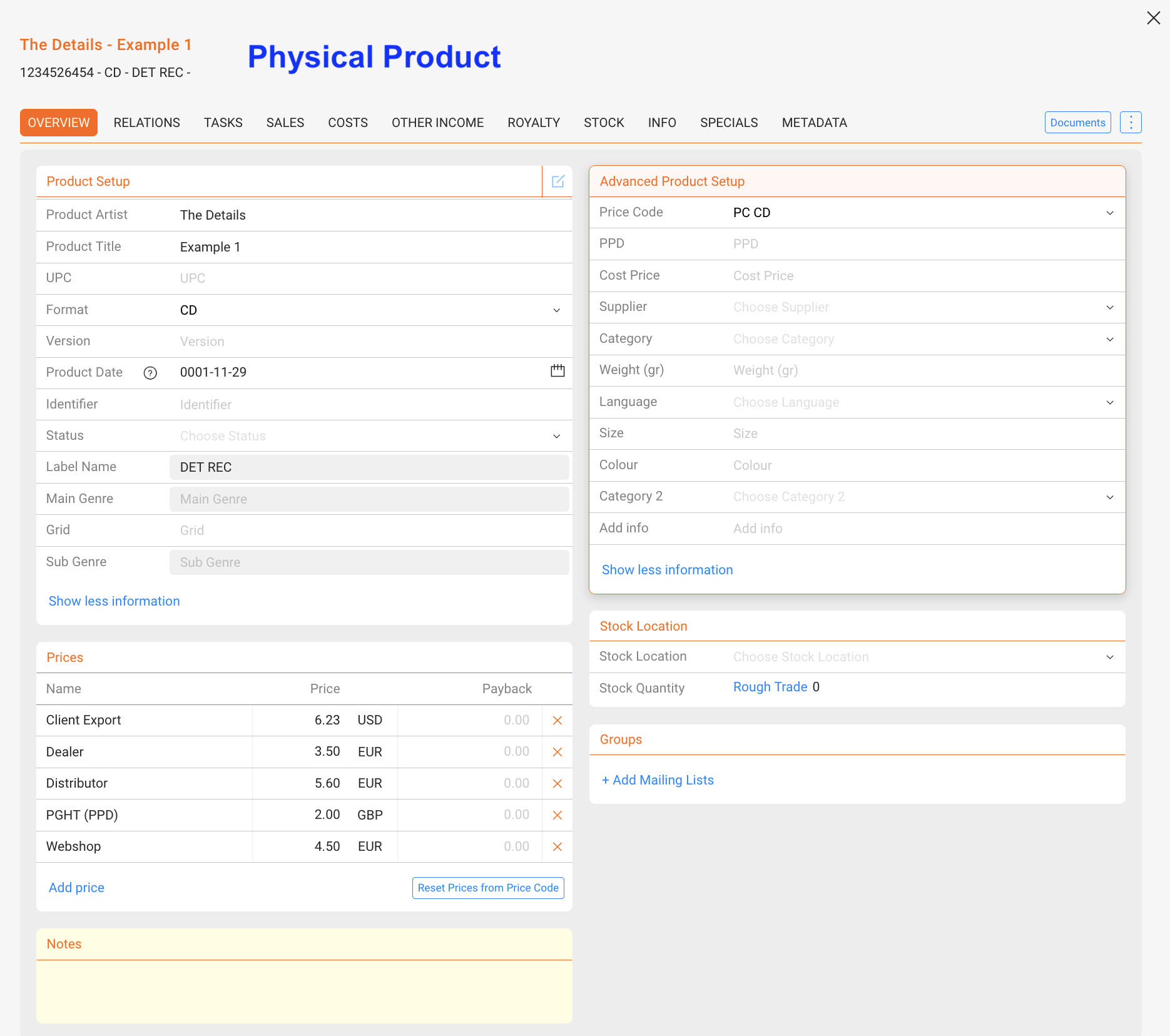
Prices (physical only)
Defines sales prices per channel or partner (e.g. Dealer, Distributor, Webshop). Prices can be auto-filled from Price Codes or overridden at product level for exceptions.
Stock Location (physical only)
Shows stock quantities per location. Stock is calculated automatically from manufacturing and sales transactions, not edited manually. Supports multi-warehouse setups and helps optimize logistics.
Groups & Notes (all products)
- Groups: Products can be assigned to groups (e.g. for exports, mailing lists, sales campaigns)
- Notes: Free text field for internal notes and comments
RELATIONS
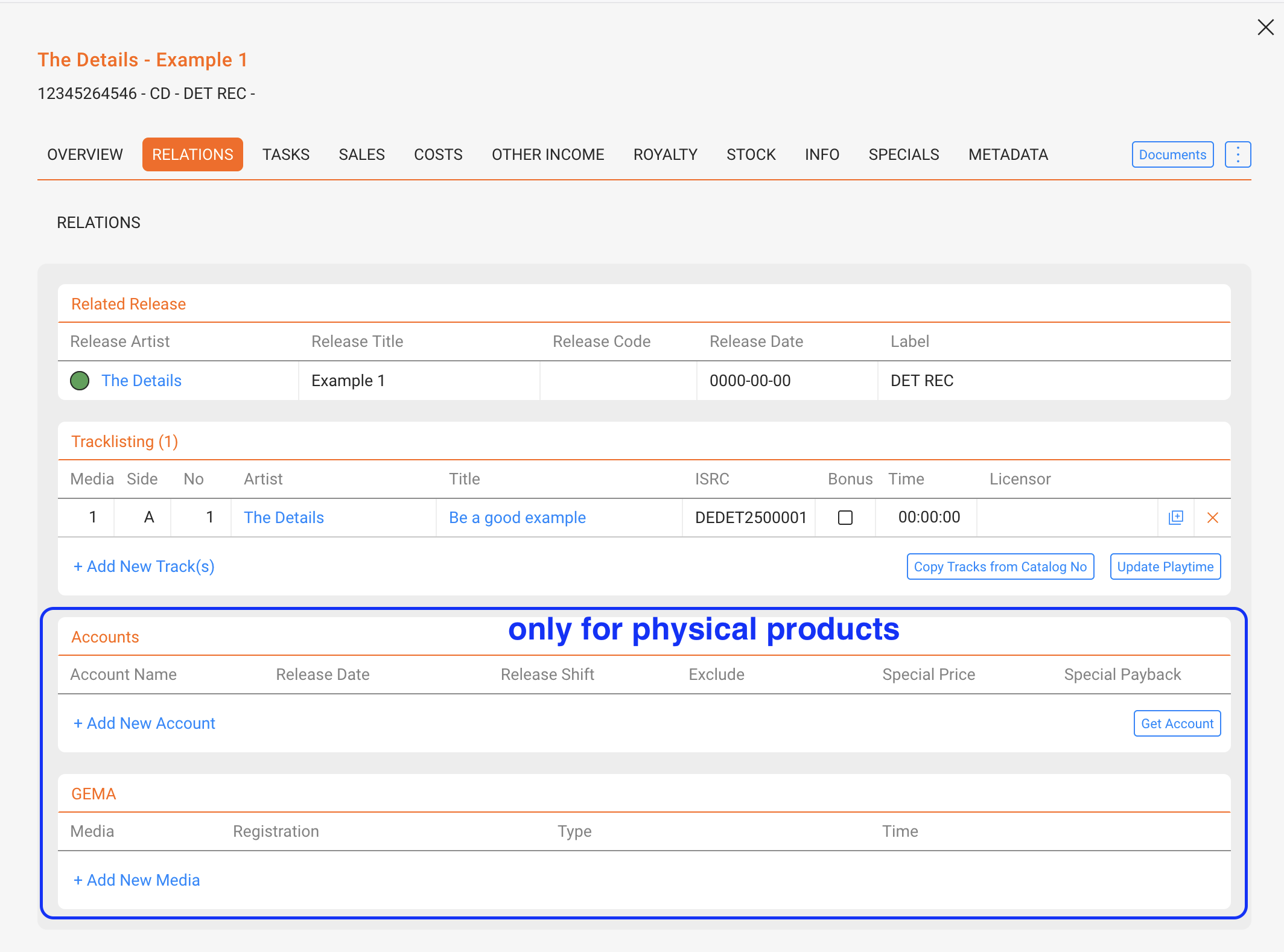
Shows the product’s connections:
- Release: Each product is linked to exactly one release
- Tracklist: Products can contain multiple tracks; bonus tracks can be flagged and are excluded from prorata calculations
- Playtime: Can differ per product/track relation; the [UPDATE PLAYTIME] button syncs values
- Manual Matches: Store distributor-specific identifiers for the same product
- Physical Products only: Accounts (special pricing, release shifts, exclusions) and GEMA registrations
TASKS
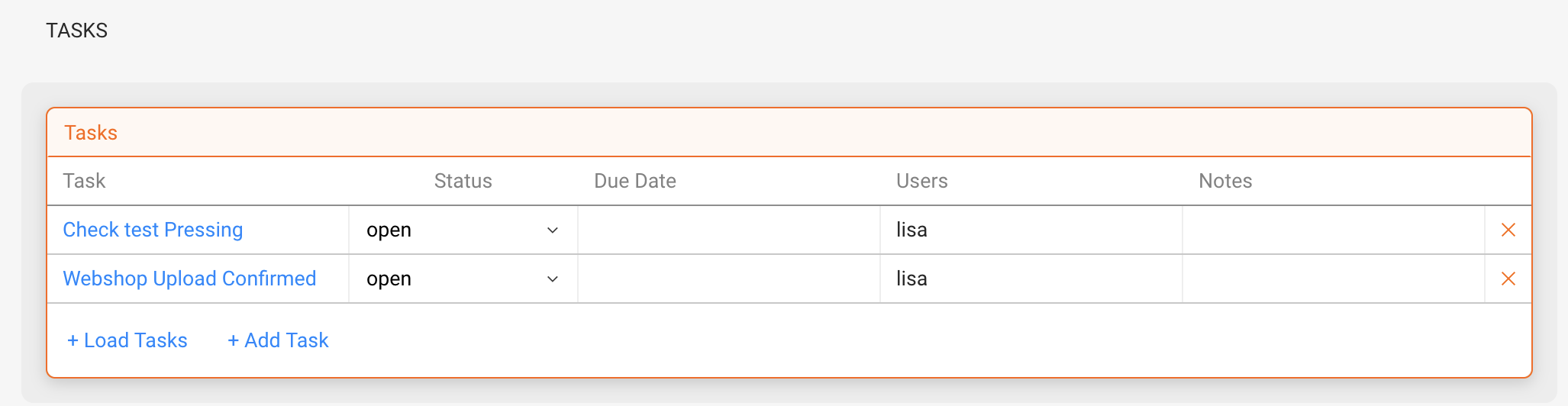
Link tasks to products (e.g. check test pressing, confirm webshop upload). Tasks can be assigned to team members and managed within the product context.
Read more about how Tasks works and how to set it up.
SALES
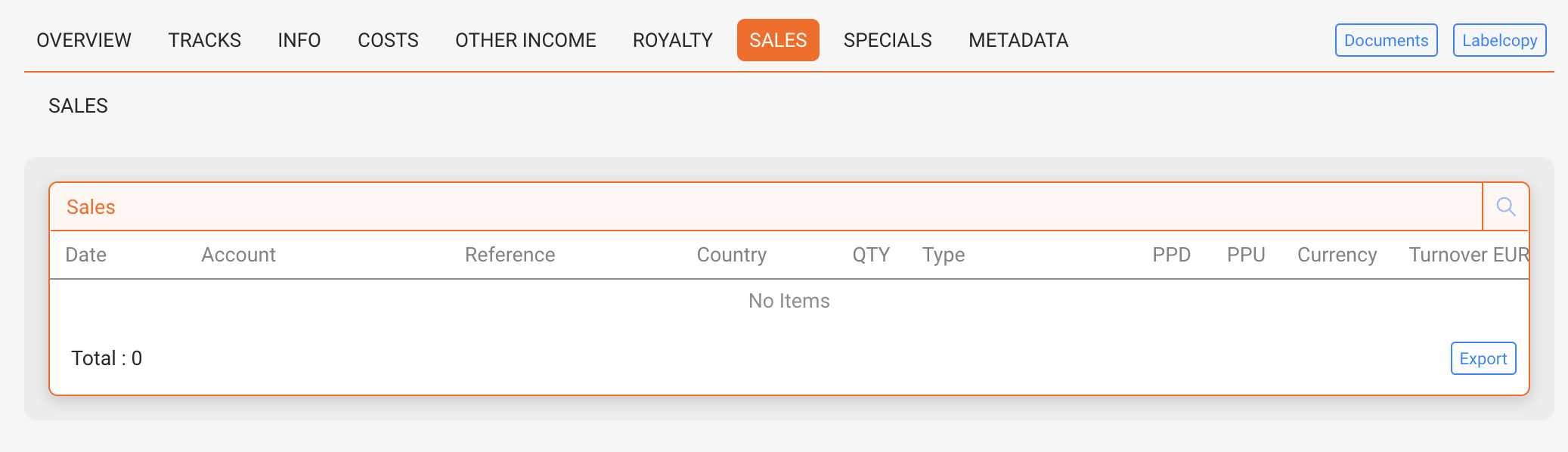
Displays sales data per product, including sales account, quantity, PPD (price to dealer), PPU (net price after distribution fee), turnover, and more. Includes filtering, export options, and links to invoices.
COSTS
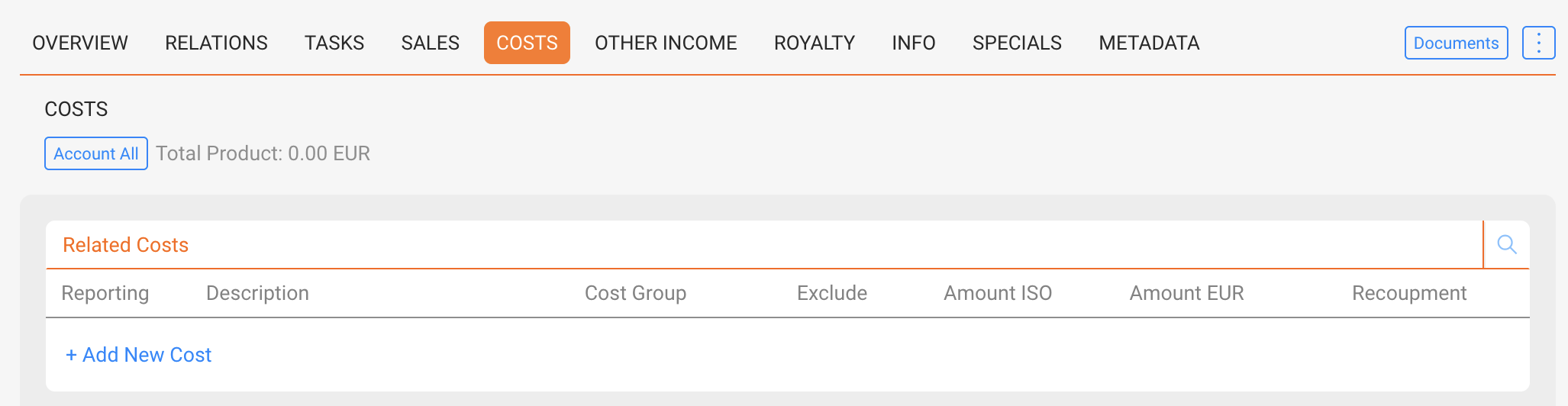
Enter costs manually or import via Excel. Costs can be categorized (e.g. manufacturing, artwork), linked with invoices, and marked as recoupable or excluded for royalty calculations.
OTHER INCOME
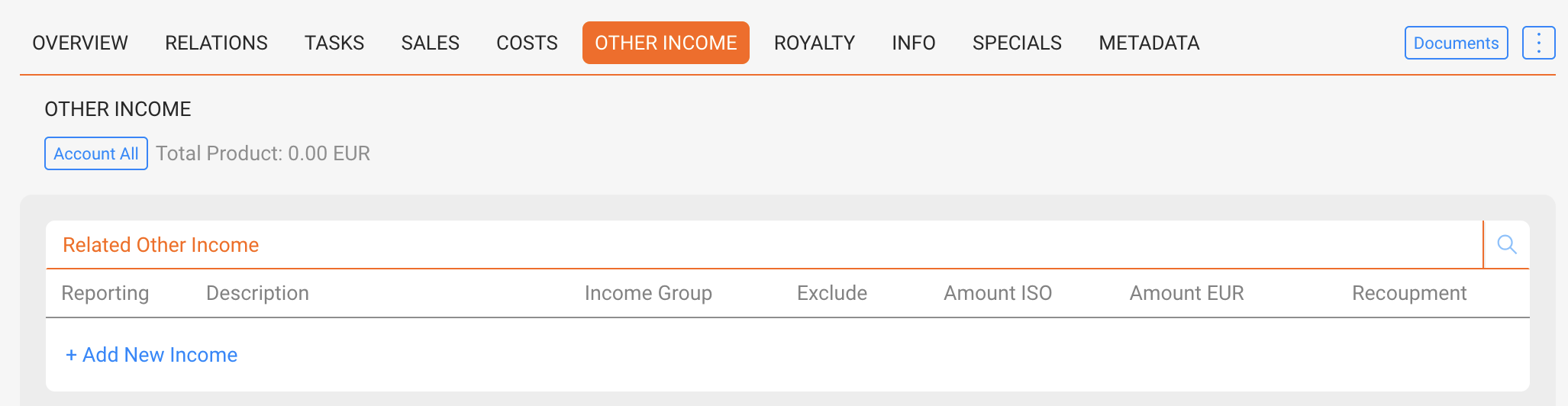
Enter additional revenues such as grants or subsidies. Other income is added to the project balance and shared with artists if defined in contracts.
ROYALTY
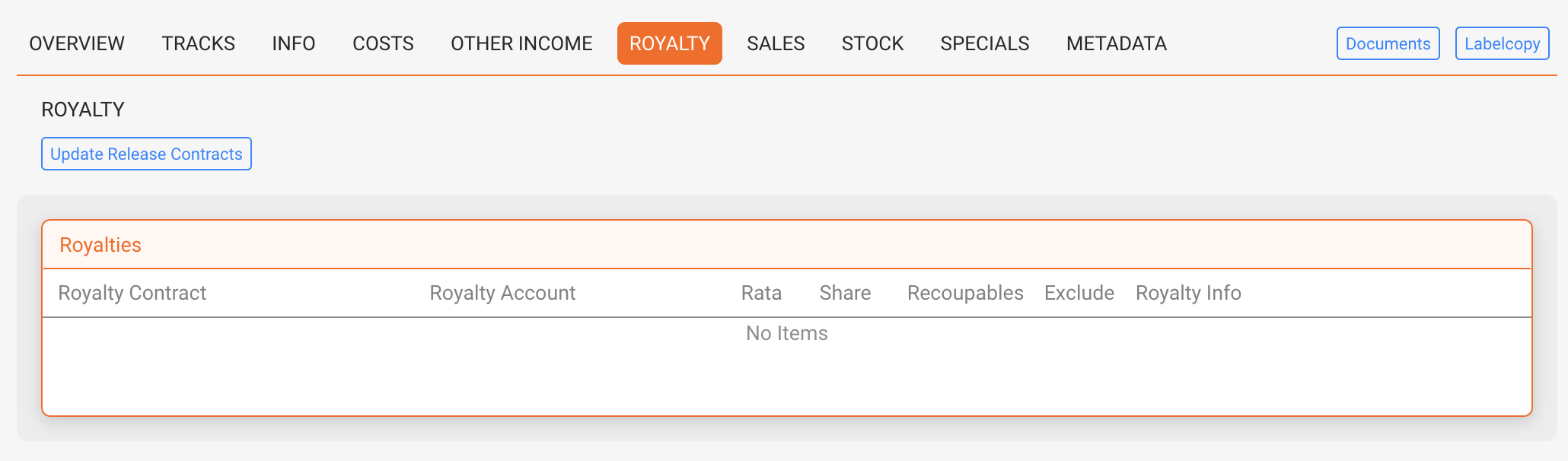
Shows all royalty accounts linked to the product. Displays shares, pro rata allocations, and recoupables. Compilations may include many contracts, while most products have only a few.
STOCK (only for physical products)
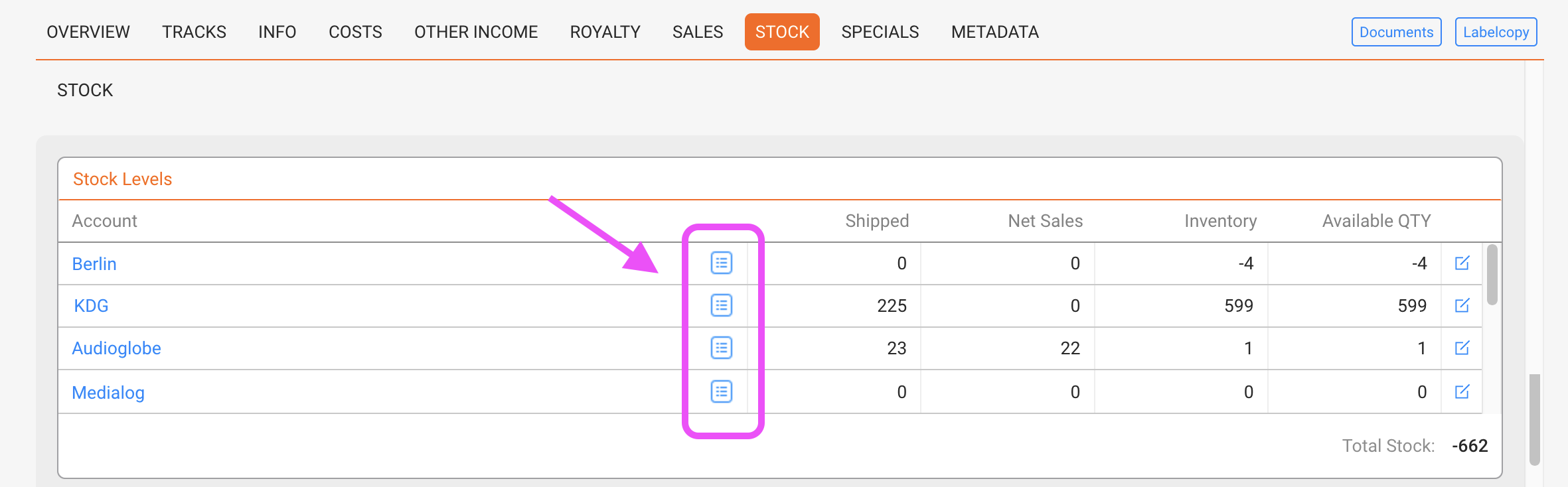
The STOCK tab is available only for physical products. It shows current stock levels, manufacturing orders, supplier deliveries, backorders, and open orders. It helps manage logistics, track inventory, and optimize warehouse flows.
Stock Levels
Displays stock quantities per account or warehouse location. The table shows:
- Shipped: Total units shipped to the account
- Net Sales: Units sold after returns
- Inventory: Physically available units in stock
- Available Quantity: Units available for sale (inventory minus reserved quantities)
Manufacturing
Lists all manufacturing orders linked to this product. Each order includes Order Date, Supplier, Status, and Quantity. Use [ADD NEW MANUFACTURING] to record a new production batch.
Supplier Orders
Shows orders placed with suppliers (e.g. pressing plants). Supplier orders are displayed while they are open, meaning the goods have not yet arrived and are still in transit.
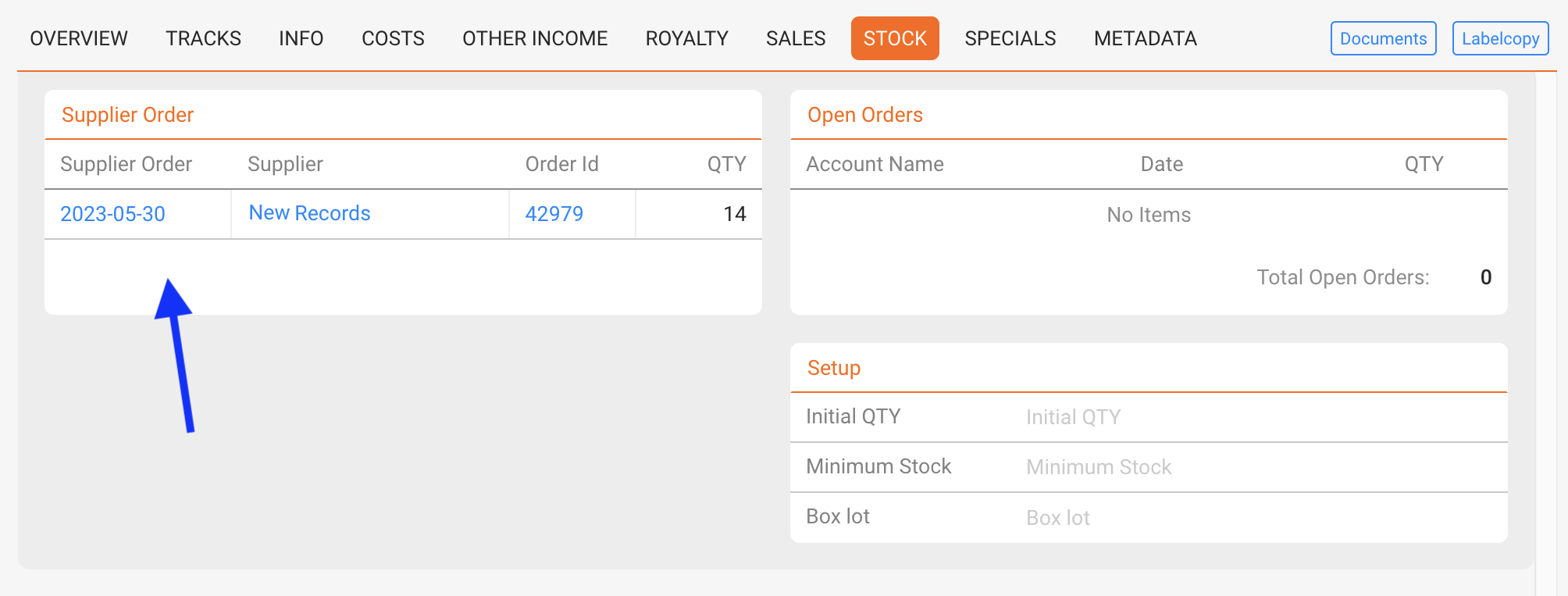
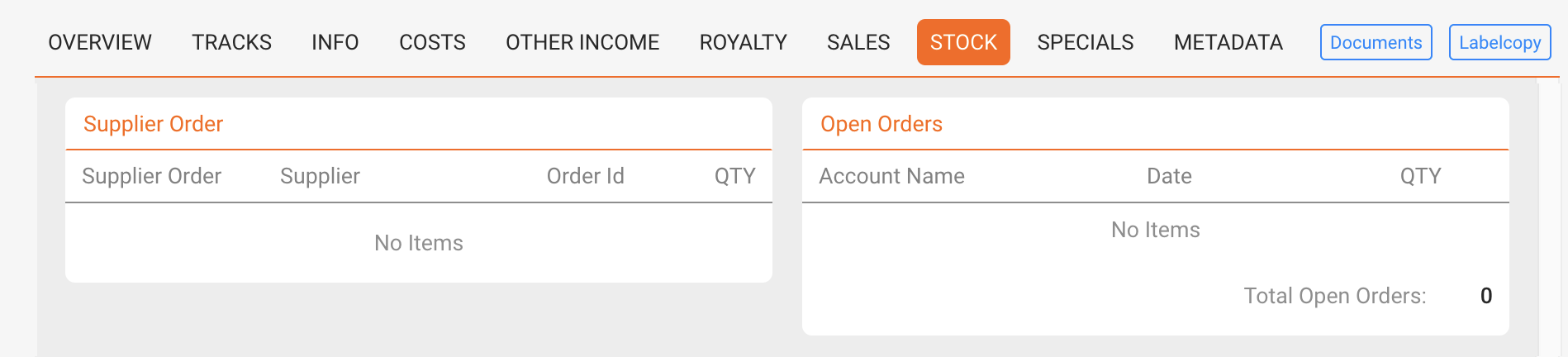
Once a supplier order is accounted, it is no longer displayed here. At that point, the goods are considered delivered and become part of available inventory.
Backorders
Displays unfulfilled customer orders. Each entry contains Account Name, Date, and Quantity. Use [ADD NEW BACKORDER] to record pending requests.
Open Orders
Lists ongoing product orders that are not yet completed. Each order includes Account Name, Date, and Quantity. Orders can be exported via [Export Excel].
Setup
Defines product-specific stock settings:
- Total Order Quantity: Aggregated quantity from all open orders
- Minimum Stock: Threshold to trigger reordering
- Box Lot: Packaging unit size (e.g. 25 CDs per box, 15 vinyl per box)
These parameters help to plan production, prevent stock-outs, and manage packaging logistics.
INFO
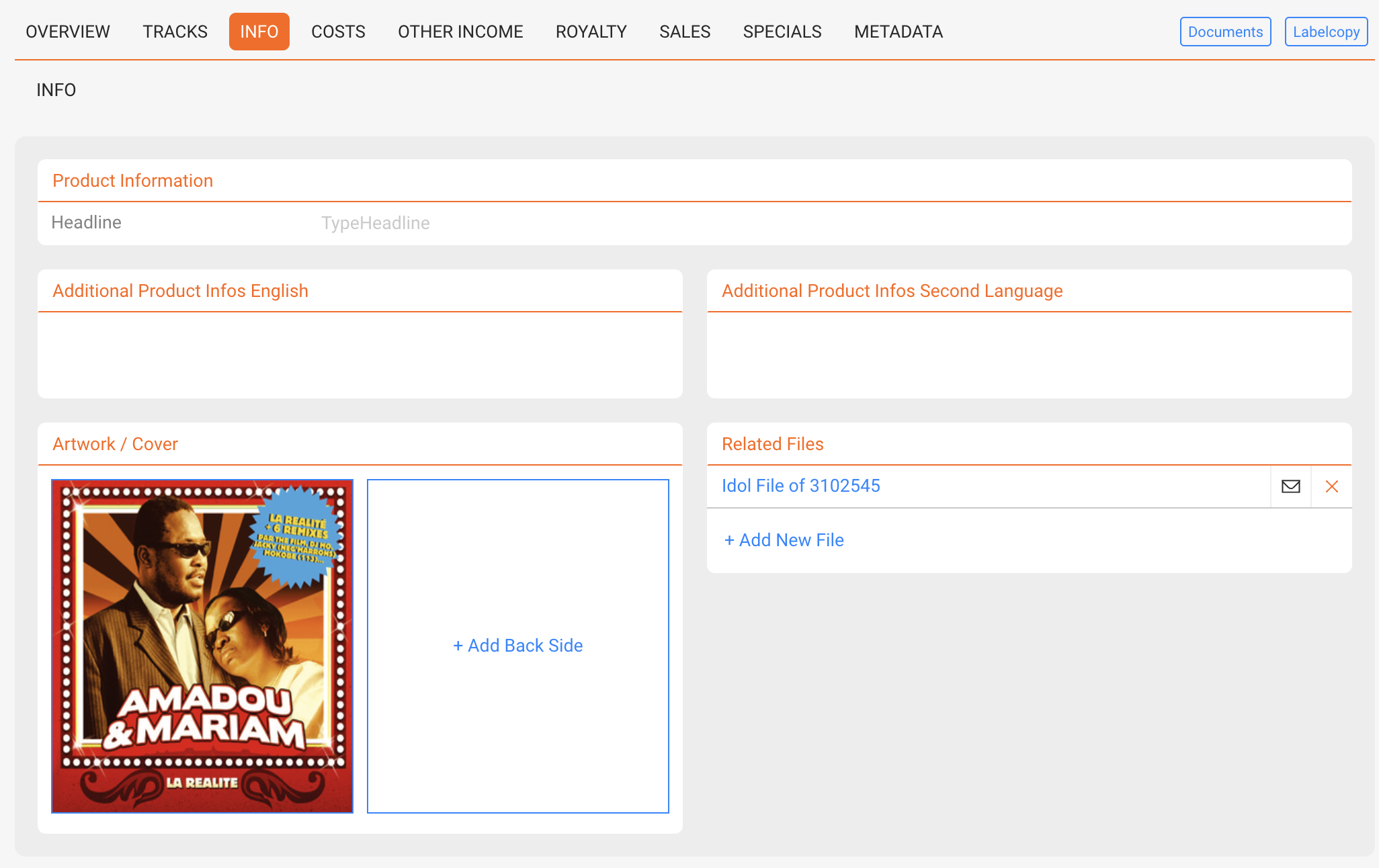
Store product descriptions in multiple languages, upload artworks and files. Product-level information overrides release-level information.
SPECIALS
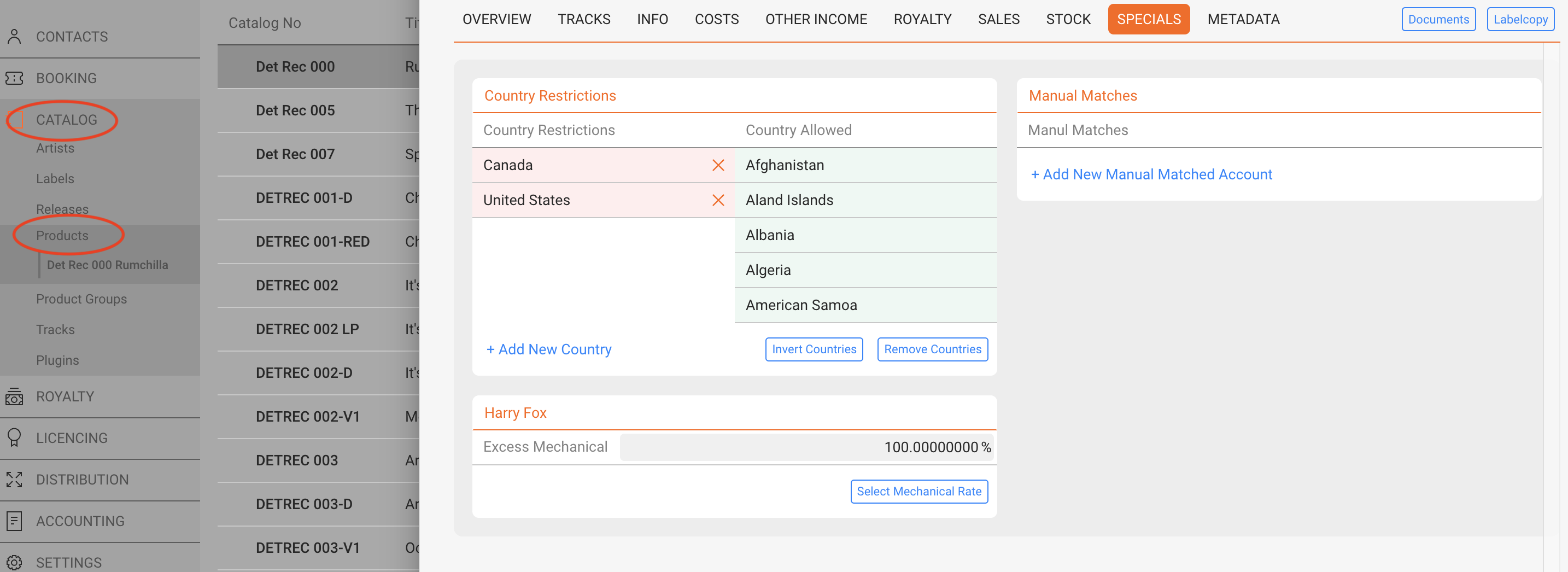
Manage country restrictions and special cases (e.g. Harry Fox mechanical rights for the US). These functions are mostly relevant for physical products.
METADATA
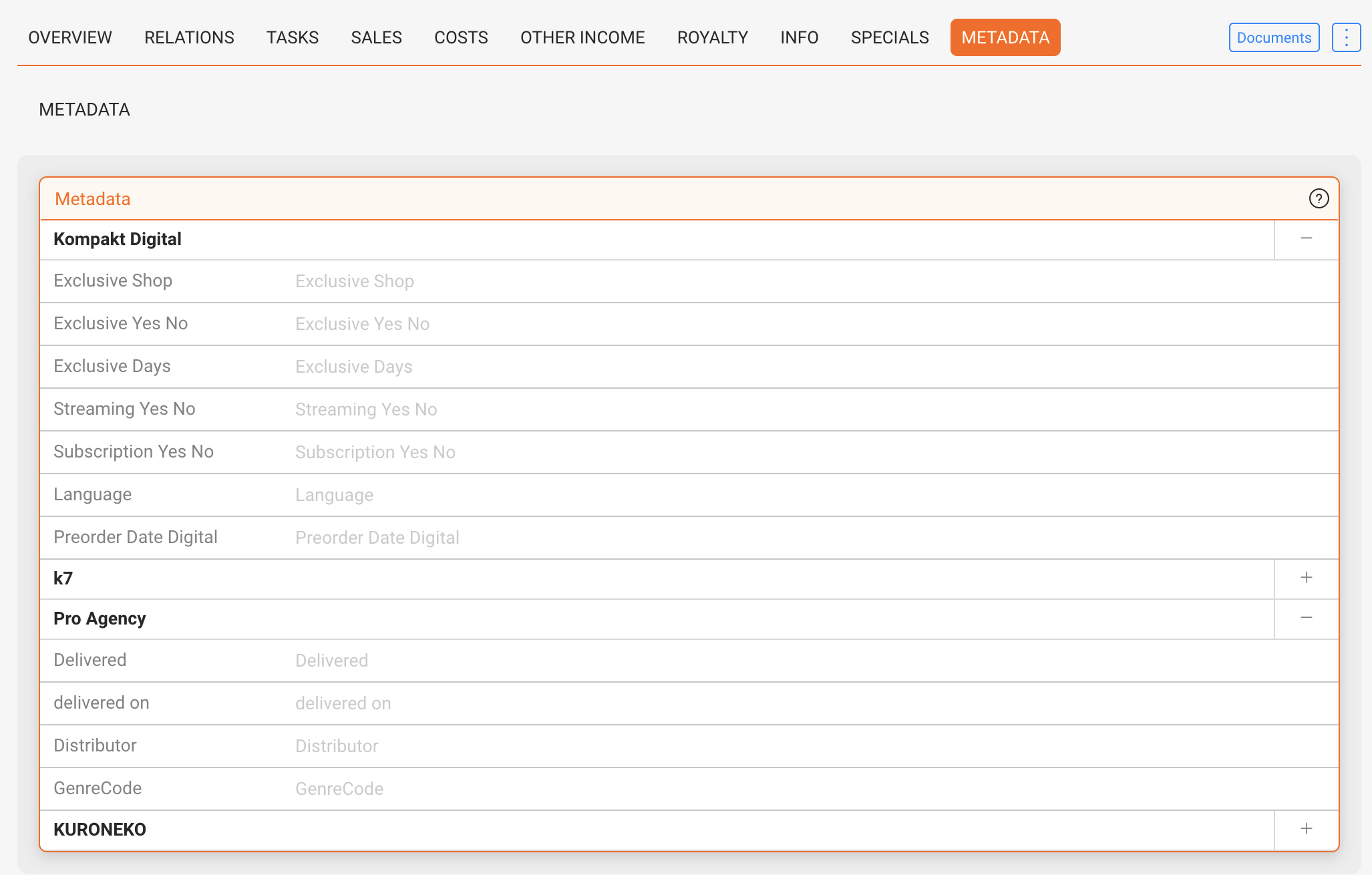
Custom metadata sets can be enabled per customer (e.g. GVL, Publishing, K7). These provide additional text fields for storing client-specific information. Metadata is optional and mainly relevant for specialized workflows.
TOP-BAR ACTIONS
- [DOCUMENTS] Opens a list of HTML-based templates configured by details (e.g., one-sheets, product info sheets, manufacturing orders). Preview and export (PDF/CSV/Excel) or copy the rendered document.
- Label Copy Creates a ready-to-send email via your local mail client with a static label copy: product metadata plus the complete track list.
- Stock Move Quickly move on-hand units between stock accounts/warehouses for the selected physical product (decreases the source, increases the destination; no order, no shipping documents, no invoice).
