
If your contact list includes duplicates, it’s best to merge them instead of deleting them. This way, you keep all useful information and make sure your contact database stays clean and consistent.
Deleting duplicates can lead to losing important details or CONTACT RELATIONS that are only linked to one of the contacts. Since CONTACT RELATIONS are used in many places in details, we recommend merging instead of deleting.
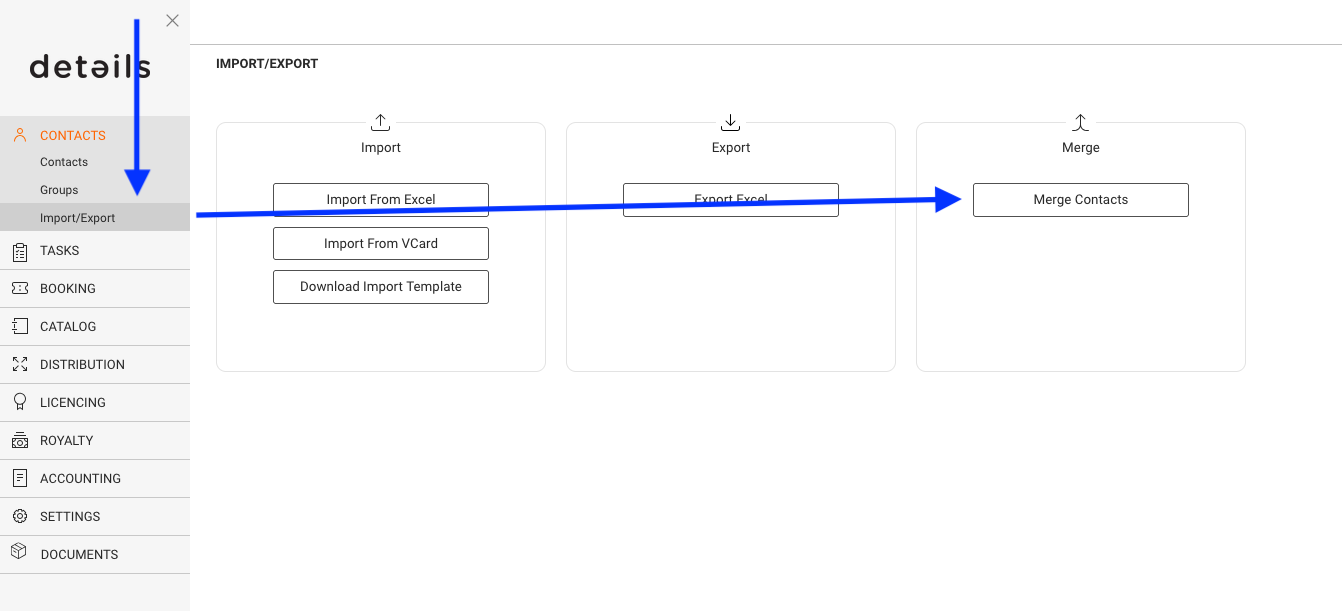
1. To start the process, choose IMPORT/EXPORT in the side menu of CONTACTS. Click there on the► [MERGE CONTACTS] button.
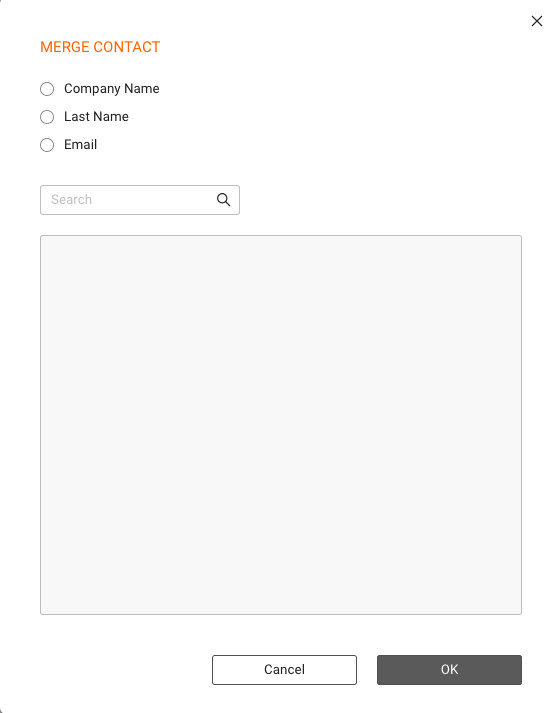
2. Find contacts to merge: A pop-up window will open. You can enter a name or keyword in the SEARCH field, or use the checkboxes to filter for duplicate entries:
- [Company Name] shows contacts with the same company name
- [Last Name] shows contacts with the same last name
- [Email] shows contacts with the same email address
Note: Sometimes companies and individuals share the same email address. If you want to keep them separate, avoid using email as your only filter.
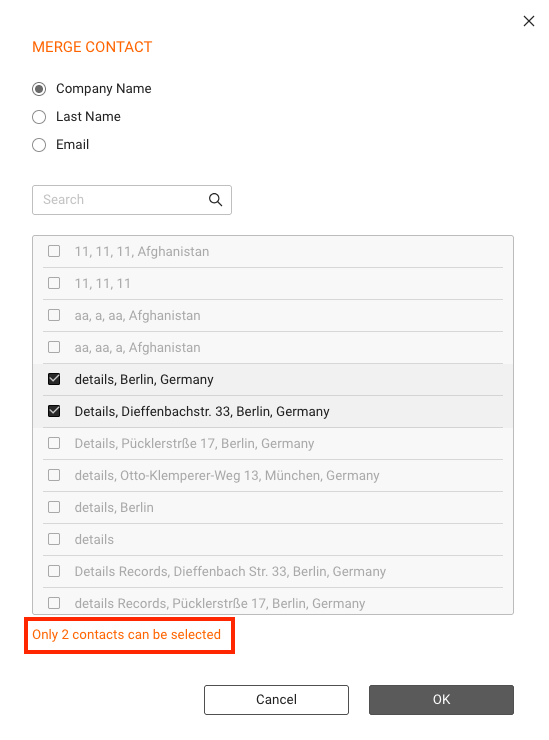
2. Select contacts to merge: From the filtered list, select exactly two contacts by ticking the checkboxes next to them. Then click [OK].
3. Choose which contact to keep: You ll now see both selected contacts side by side. Choose the one you want to keep usually the one with more complete or updated info. Click [SELECT].
Tip: If needed, you can then still copy individual details from the contact being removed before completing the merge.
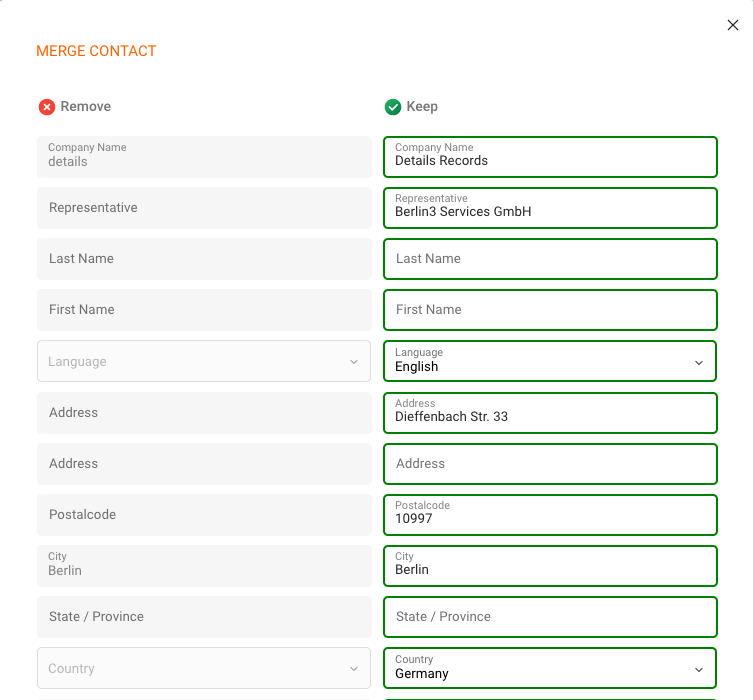
4. Confirm the merge: Click [OK] to complete the process. All related data and links from the other contact will be moved to the one you keep. That second contact will then be removed.