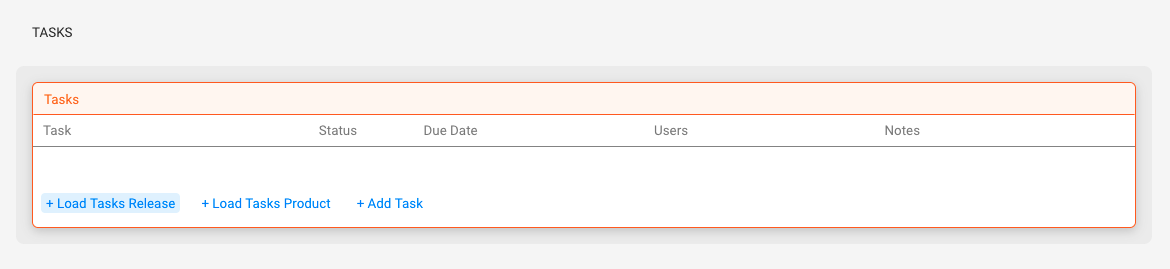
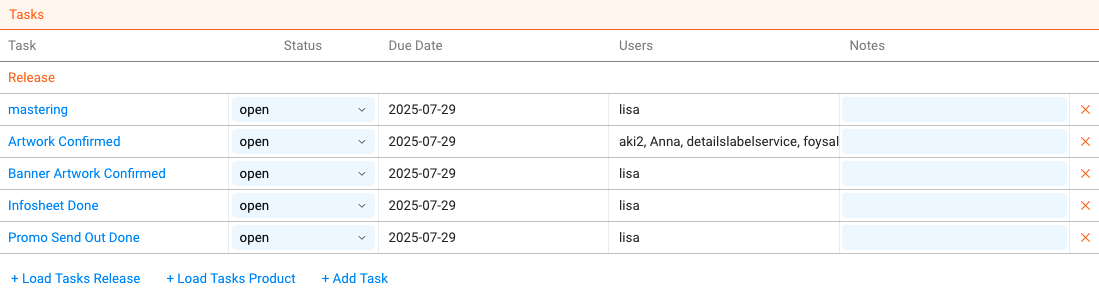
In the SETTINGS / TASKS section, you can manage task templates across various categories. These templates define reusable task structures that can be applied repeatedly to different projects, bookings, or releases. This guide will walk you through creating task templates, understanding their parameters, and organizing them into task template groups to represent entire workflows.
Task Template Categories

The TASKS section is divided into several categories, each focusing on different operational areas. These categories are:
” General Tasks
” Booking Tasks
” Licence Tasks
” Release Tasks
” Product Tasks
” Contract Tasks
Each category allows you to define task templates specific to that operational area, providing a consistent and organized approach to task setup.
Managing Task Templates
Single Task Templates
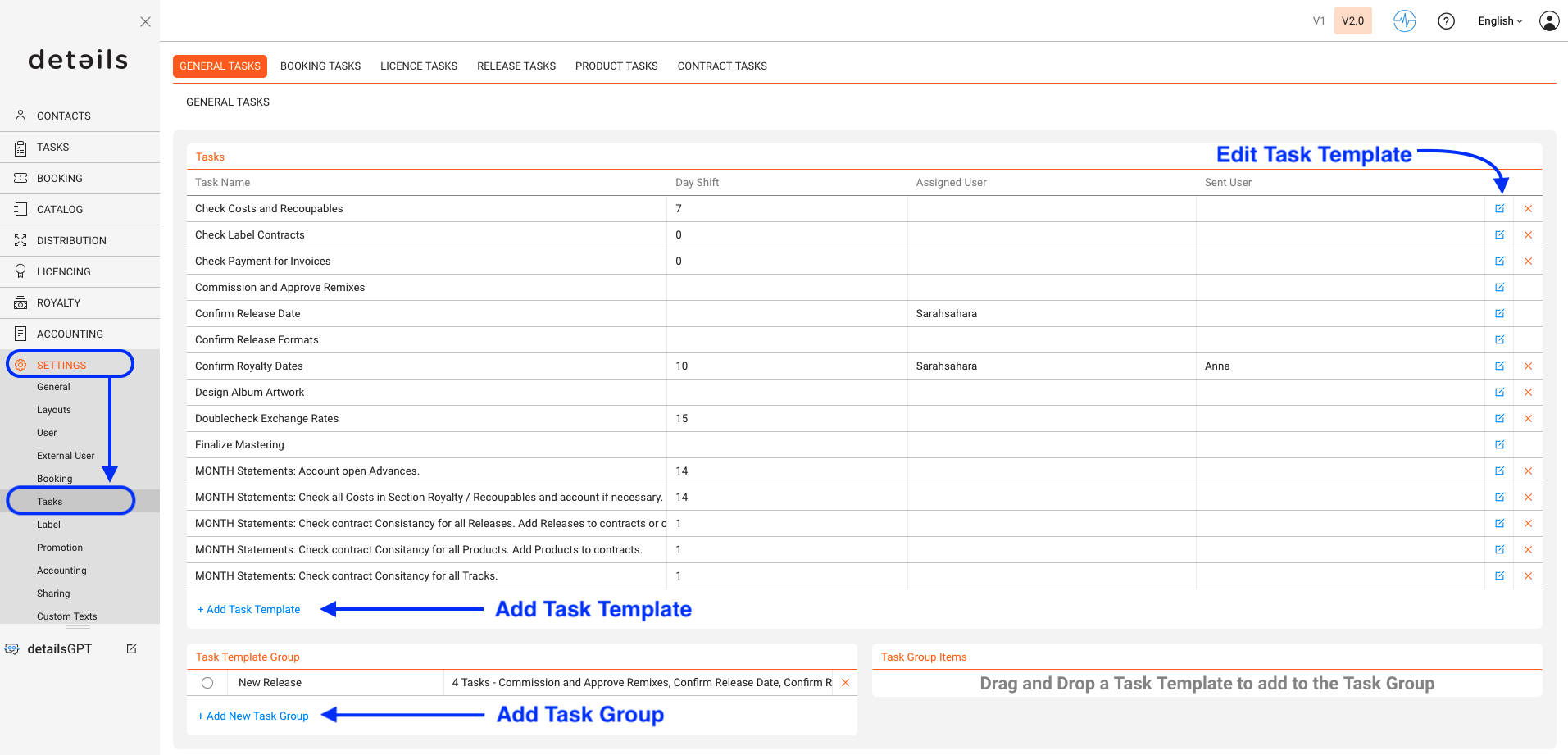
Single task templates define individual tasks that can later be applied to real-world situations such as a specific booking, release, or licence. These templates include default settings like deadlines, responsibilities, and optional metadata.
► Access the TASKS section
- Navigate to SETTINGS in the left-hand menu.
- Click on TASKS under SETTINGS.
- Select the tab of the relevant task template category (e.g. GENERAL TASKS, BOOKING TASKS).
► Create a new task template
-
- Click on [+] Add Task Template.
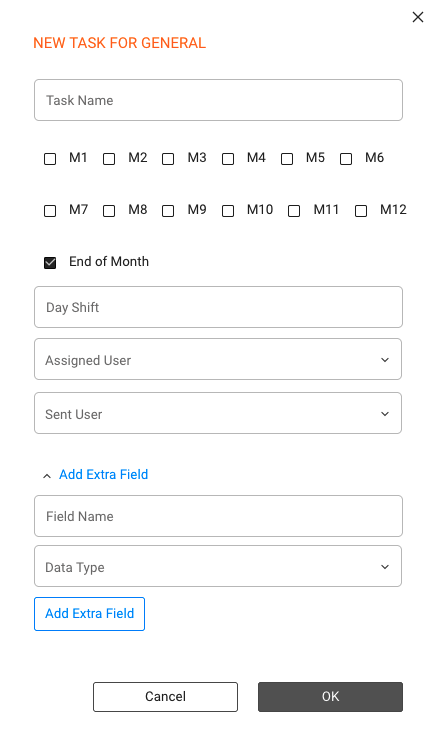
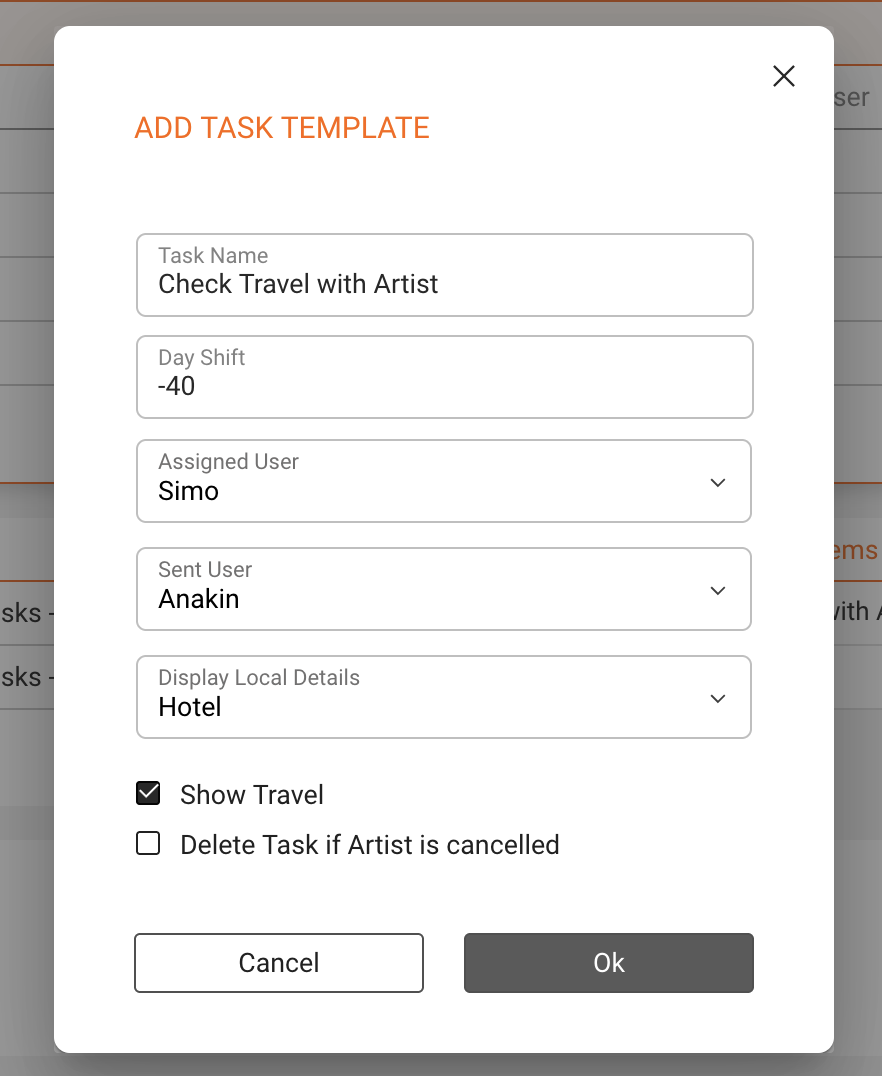
- Fill in the required fields:
-
- Task Name: Enter a name that clearly describes the task.
- Timeframe Selection: If applicable, select the relevant months or periods for this task (as shown by the month checkboxes).
- End of Month: If this task is due at the end of the month, ensure the “End of Month” checkbox is selected.
- Day Shift: Define the relative deadline (e.g. -30 days before event, +5 days after).
- Assigned User: Default user who should carry out this task.
- Sent User: If the task is being sent from another user, select the appropriate person from the “Sent User” dropdown menu.
- Extra Fields (Optional): If additional fields are needed, click “Add Extra Field,” enter the field name and data type.
► Additional options for BOOKING TASKS
- Display Local Details: Show local context for better coordination.
- Display Travel Information: Add logistical data like pickup or travel schedules.
- Delete Task if Artist is Cancelled: Automatically remove the task if no longer relevant.
Task Template Groups
Task template groups allow you to combine multiple task templates into one structured workflow. This is especially useful for setting up standardised processes for entire projects like tours, album releases, or licensing campaigns.
► Create a Task Template Group
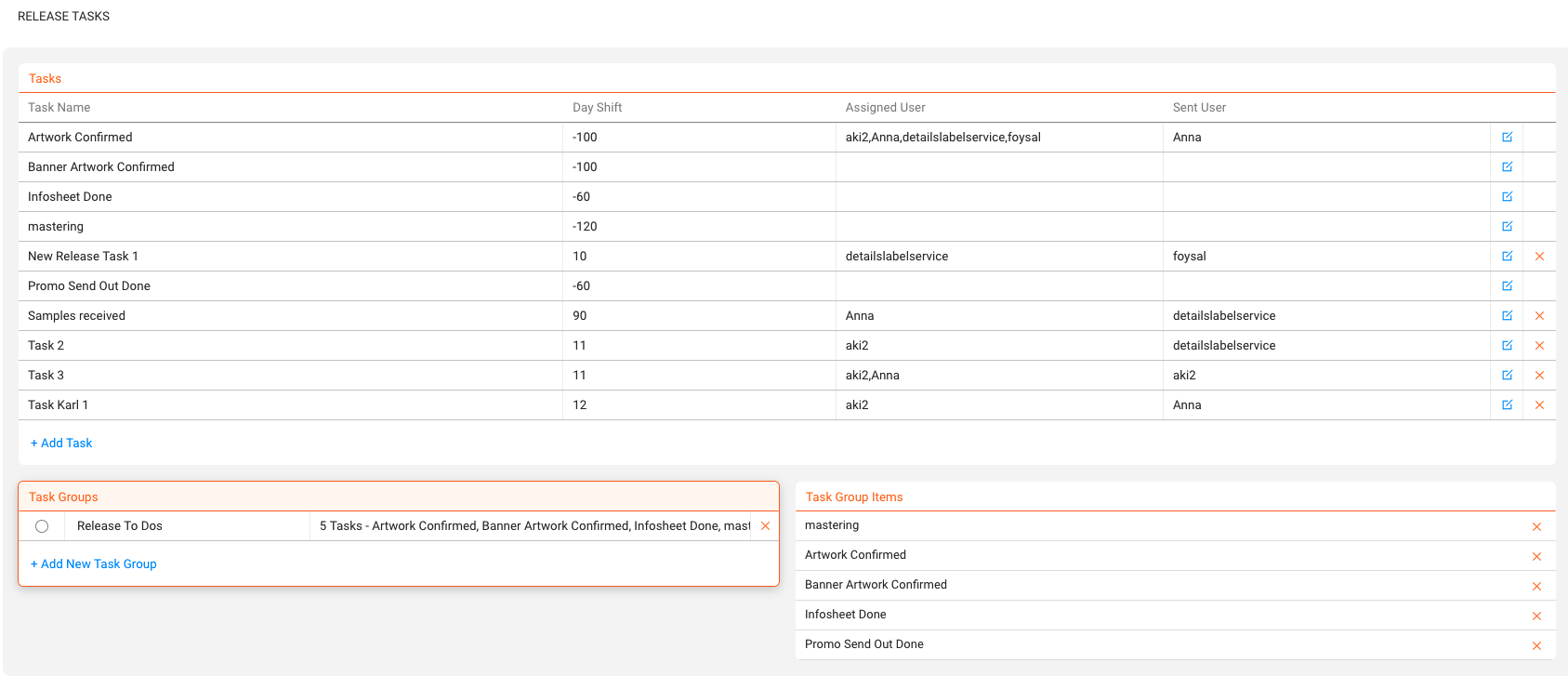
- Scroll down to the TASK TEMPLATE GROUPS section.
- Click on [+] Add New Task Group.
- Give your group a name and assign one or more existing task templates to it.
► Manage Task Template Groups
- Each group displays its included templates. Click to expand and review them.
- Use the [edit] or [x] icons to update or remove task templates from the group.
► Apply a Task Template Group, e.g. to a Release
- Open the relevant release in the RELEASES section.
- Click on [+ LOAD RELEASE TASKS] at the top of the task panel.
- In the pop-up window, select one of your saved Task Template Groups.
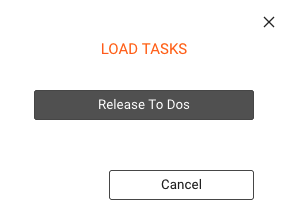
- All tasks from the selected group will be inserted into the release automatically.
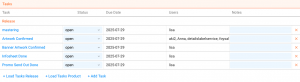
- Tasks with predefined responsibilities will retain them. Tasks without a default assignee will be assigned to the person performing the insertion.