
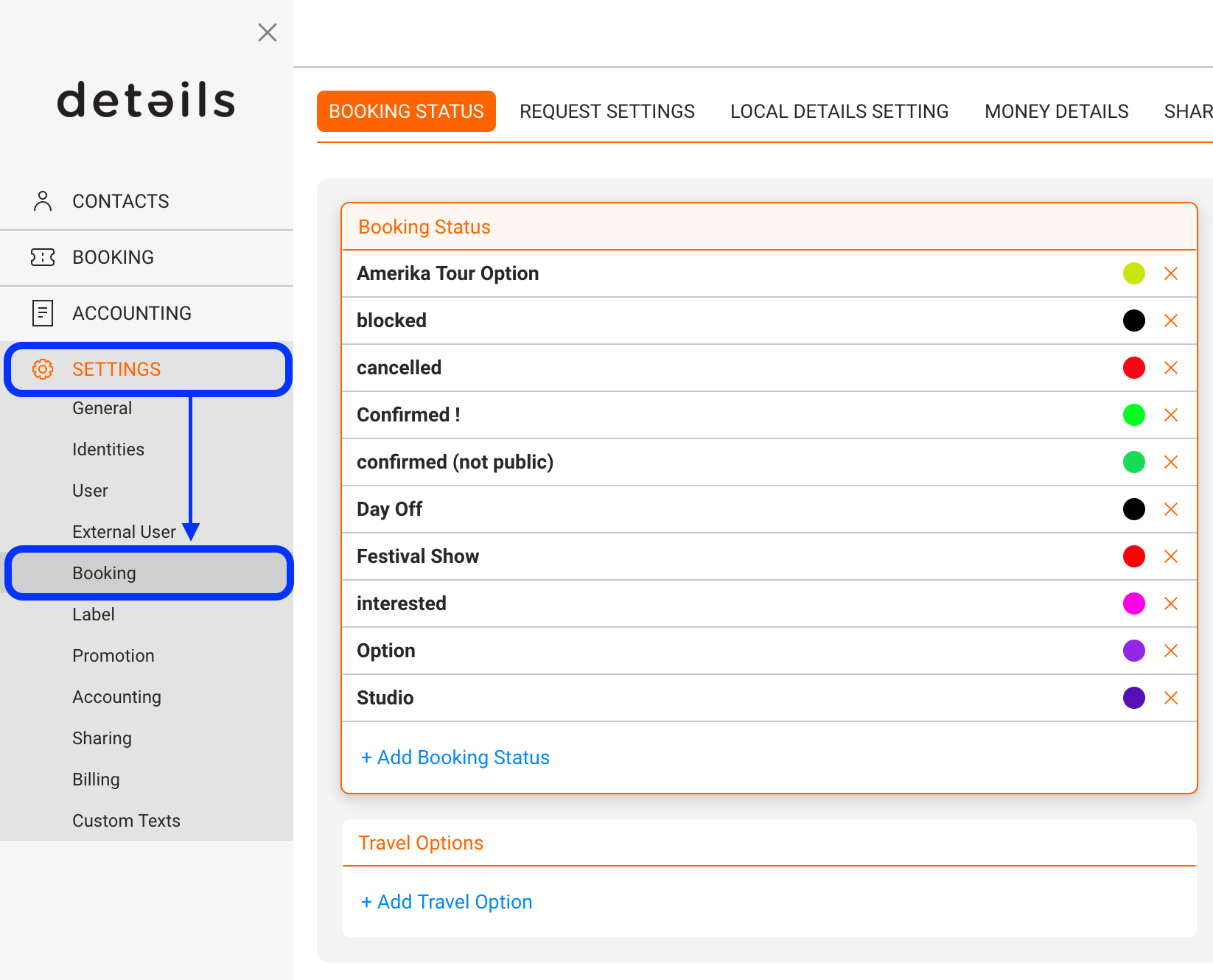
Any user may customize the client’s booking settings in SETTINGS / BOOKING / BOOKING SETTINGS.
You might ADD, EDIT or REMOVE any booking setting:
* to ADD a new status click the +Add Booking Status on the bottom of the display box.
* to EDIT an existing status click on the status name.
* to REMOVE an existing status click on the X icon on the right of the status.
A status can have the following states, where you can choose an individual color for each state:.
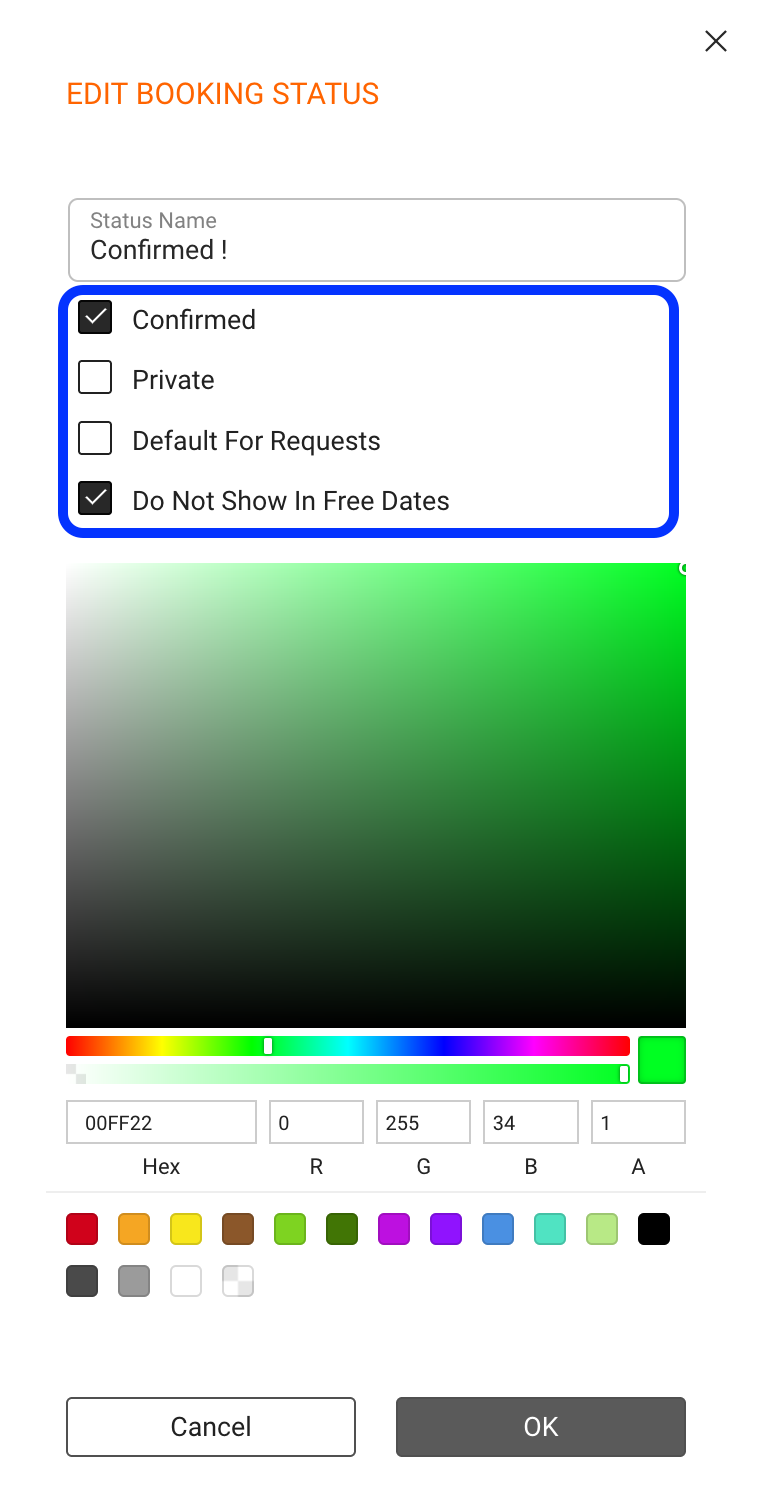
Confirmed dates will:
- will BE published to the RSS feeds (to your websites etc.) and
- will BE published to the Artist App.
- will not be displayed in the available artist message (in the calendar)
Private
Any status clicked as private, will NOT be published to the RSS feeds. Some artists only want to have their next 1 or 2 months online in their streams. In that case, that private feature does exactly this but you still have the full control internally over the booking.
Default for Requests
When a new booking request is processed over the website or request form, a status can be set as your new booking requests. Our default for that is request – any bookingrequest coming in will be marked as
Do not show in Free Dates
To avoid display in our show free dates function in the calendar, click “Do Not Show In Free Dates”. Confirmed dates or holidays f.e. should be marked with this status.
Note:
To be published in the RSS feeds, a booking status must be set as “confirmed”, but NOT as “private”.
Any status clicked as private, will NOT be published to the RSS feeds.