
On SETTINGS / LABEL different settings concerning the label modul on ”details” can be added and customized. There are the subtabs Label Settings & Licencing Settings.
On the first tab Label Settings you can add, edit and remove:
* Formats: such as CD, 12″, t-shirt etc.
* Categories: product types such as Current, Back Catalog, iTunes Exclusive, etc.
* Price Lists: list of multiple price codes, that can be selected for distribution accounts
* Price Codes: prices for single products or a product groups (based on formats, labels etc)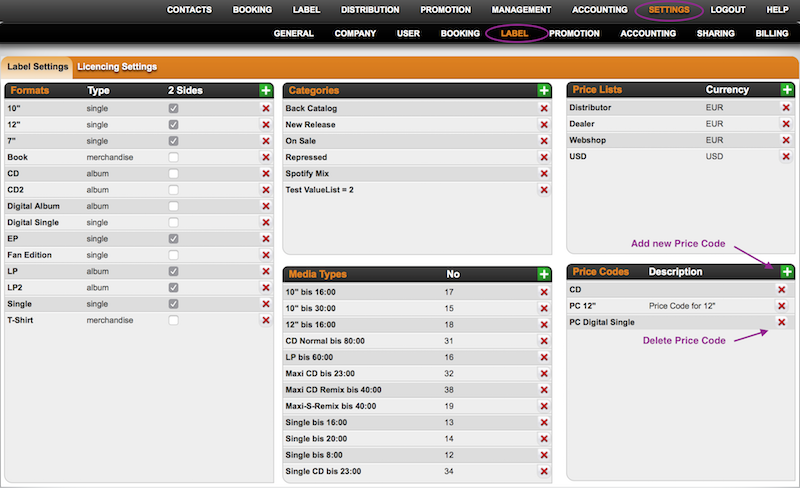
To add a new format, click on the green PLUS icon top right of the Format box.
You can now enter format name, weight, vat type etc. and click ADD NEW FORMAT to confirm.
By clicking on the BOLD format title in the list, you can EDIT an existing format.
To DELETE a format you need to click a red x icon in the list.
Product formats can now be set on PRODUCTS / OVERVIEW.
To add a new category, click on the green PLUS icon top right of the Category box, enter the name and click ADD NEW PRODUCT TYPE to confirm.
By clicking on the BOLD category title in the list, you can EDIT an existing category.
To DELETE a category you need to click a red x icon in the list.
Categories can now be chosen for your product on PRODUCTS / OVERVIEW.
To add a new price list, click on the green PLUS icon top right of the Price List box, enter name and currency and click OK to confirm.
If price codes have been assigned to the price list already, you can load them by clicking ALL PRICE CODES.
To edit an existing price list click on the BOLD price list title.
Click the red x icon to DELETE a price list.
You can assign price lists to distribution accounts on DISTRIBUTION / ACCOUNTS.
To add a new price code, click on the green PLUS icon on top right of the Price Code box, enter name & description, and add the price code and price list. Click OK to confirm.
All price codes related to a price list will be loaded in your price lists.
To edit an existing price list click on the BOLD price list title.
Click the red x icon to DELETE a price list.
You can assign price codes to products here.
On the second tab Licencing Settings you can add, edit and remove Licencing Statuses which can be customized as whished, e.g. the status of the company such as ‘Black Sheep’ or the status of the Licence deal such as ‘High Advance’, ‘No Advance’ etc
To add a new Licence Status, click on the green PLUS icon on top right of the box, enter name & click OK to confirm.
To edit an licence status click on the BOLD title in the list.
Click the red x icon to DELETE a licence status.
You can now choose a status for your LICENCE ACCOUNTS on the list to be found on ”details”/LICENCING.
Label Settings
Recently Viewed
Your recent pages