
This article explains how details uses layouts to define the structure, numbering, and default behaviour of financial documents.
The focus of this article is on layouts used for invoices & credit notes.
Layouts for royalty statements are explained in a dedicated article.
Access & security:
Layout management is restricted to users with ADMIN rights. When opening the layout section, admins are required to confirm their login again for security reasons.
► WHAT ARE LAYOUTS USED FOR
Layouts define how financial documents are generated and displayed in details. The same layout system is used for two main outputs:
- Invoices & credit notes
- Royalty Statements
A layout combines both the visual structure of a document and the business defaults that apply when new documents are created.
► ENTRY POINT: SETTINGS / LAYOUTS
All layouts are managed in SETTINGS / LAYOUTS. This overview lists every layout available for the selected client.
For each layout, the list shows key information at a glance:
- Layout name
- Default currency
- Country
- E-invoice status (where applicable)
- Invoice numbering format
Click a layout to open its configuration. Use [+] to create a new layout, or [x] to remove an unused one.
► DEFAULT LAYOUTS
Each client starts with a small set of predefined layouts that can be edited or duplicated:
- Main invoice layout
Used for official outgoing invoices and credit notes. - Internal layout
Used for internal documents or self-billing scenarios where no external invoice is required. - Royalty layout
Used for royalty statements and related royalty credit notes sent to rights holders.
These defaults act as templates. You can create additional layouts at any time for different brands, businesses, or use cases.
► LAYOUT STRUCTURE
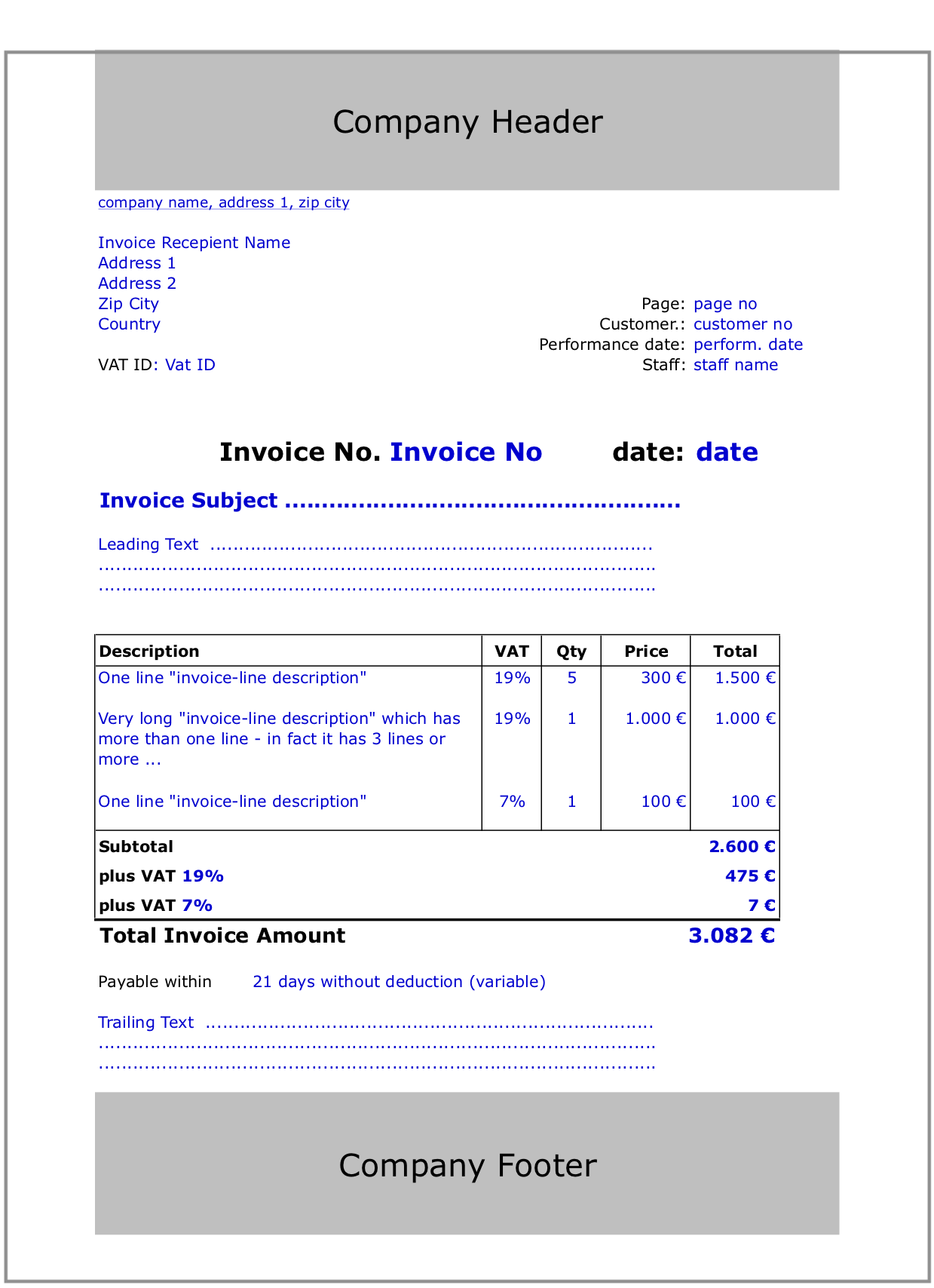
Every layout is composed of three main document sections:
- Header logo, company identity, address
- Body document content and line items
- Footer legal text, bank details, payment instructions
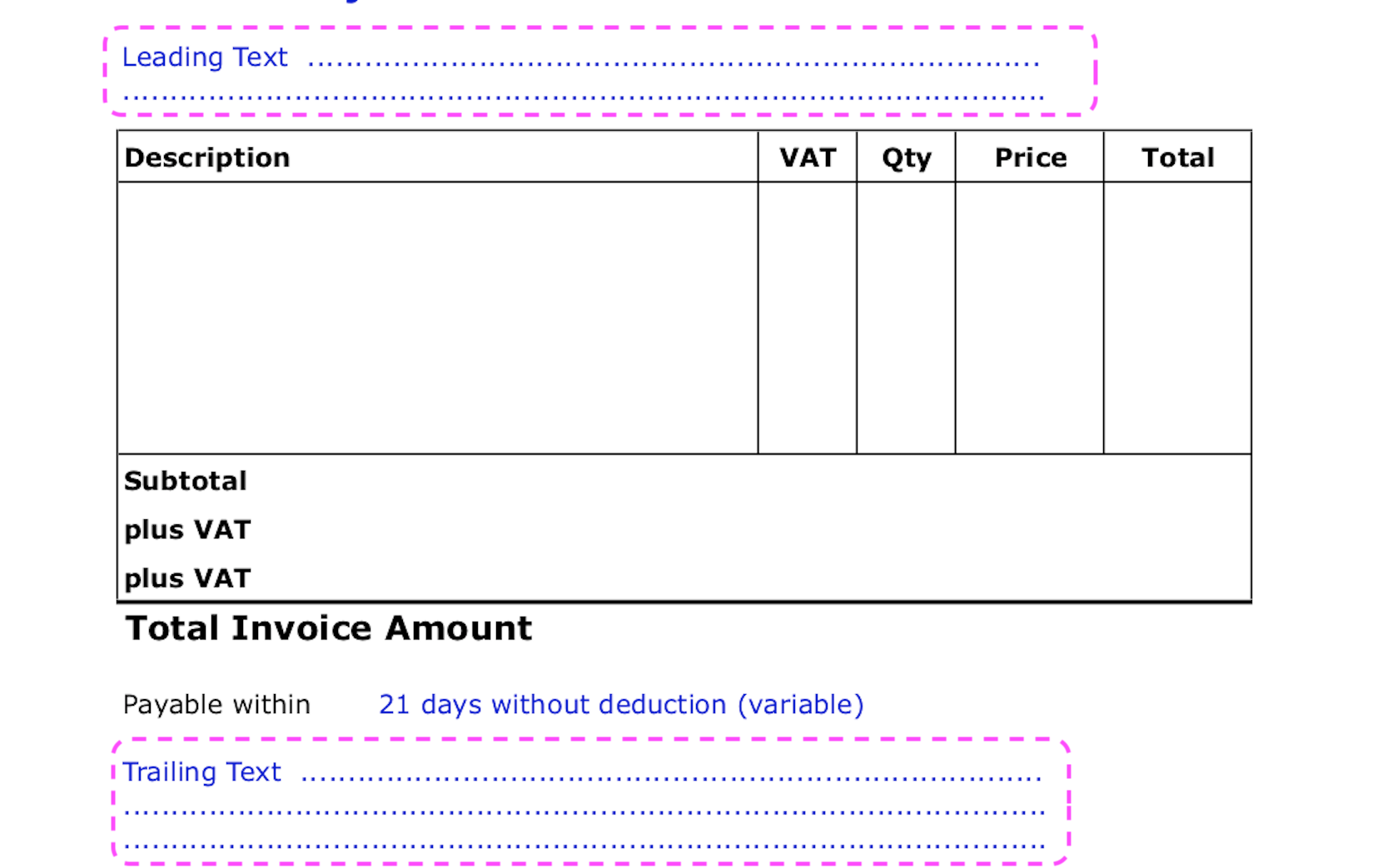
Within the body, details follows a fixed structure:
- Leading text
- Invoice or statement lines
- Trailing text
► SETUP & INVOICE NUMBERING
The LAYOUT SETUP tab defines the structural and financial defaults of a layout.
In the General section you configure:
- Layout name
- Invoice, cost invoice, and royalty numbering formats
- Country and default currency
- Default payment method
- Whether the layout is marked as a royalty layout
Numbering formats can combine fixed text with variables.
Common variables:
#yyyy# four-digit year
#yy# two-digit year
#nr#, #nr2#, #nr3# sequential numbering with different padding
Number counters increase automatically for each new document created with the layout.
Important note on invoice numbering:
Invoice numbers in details are generated using an internal, automatically incremented counter per layout and year. This counter always moves forward and does not follow changes to the invoice date or displayed invoice number.
In practical terms:
- If you create invoices in a new year and later change their invoice date to the previous year, the numbering will still continue from the current counter.
- If you delete an early invoice while newer invoices already exist, the skipped number will not be reused.
This behaviour is intentional and ensures consistent, audit-safe invoice numbering. If you need the numbering to be reset for a specific invoice layout (for example after year-end adjustments), please contact the details support team and tell us which layout is affected.
Resetting the internal counter is currently not possible from the user interface.
► PAYMENT & VAT DEFAULTS
Each layout also defines default financial behaviour, including:
- Default money account
- Payment terms and due days
- Optional discounts
- Standard and reduced VAT rates
In rare cases where national VAT rates change, VAT Rate 1 and VAT Rate 2 can be adjusted directly in the layout. These defaults apply to newly created documents.
► EDITING HEADER, BODY & FOOTER
The remaining tabs allow you to edit the document content itself:
- Header branding, logo placement, company information
- Invoices / Cost Invoices document body and line presentation
- Footer legal notes and payment instructions
Content is edited using a rich-text editor and may include variables or conditional logic. Changes affect all newly generated documents using the layout.
Tip:
If a layout is already in use, create a copy of the existing layout before making changes. This allows you to test your adjustments safely. Afterward, always create a test invoice or statement to review the result before using the layout live.