
To import multiple contacts including entire contact groups you can either use our Excel template or upload a vCard file. Both options are designed for bulk import.
If you want to add a single contact instead, simply use the [+] button in the CONTACTS view.
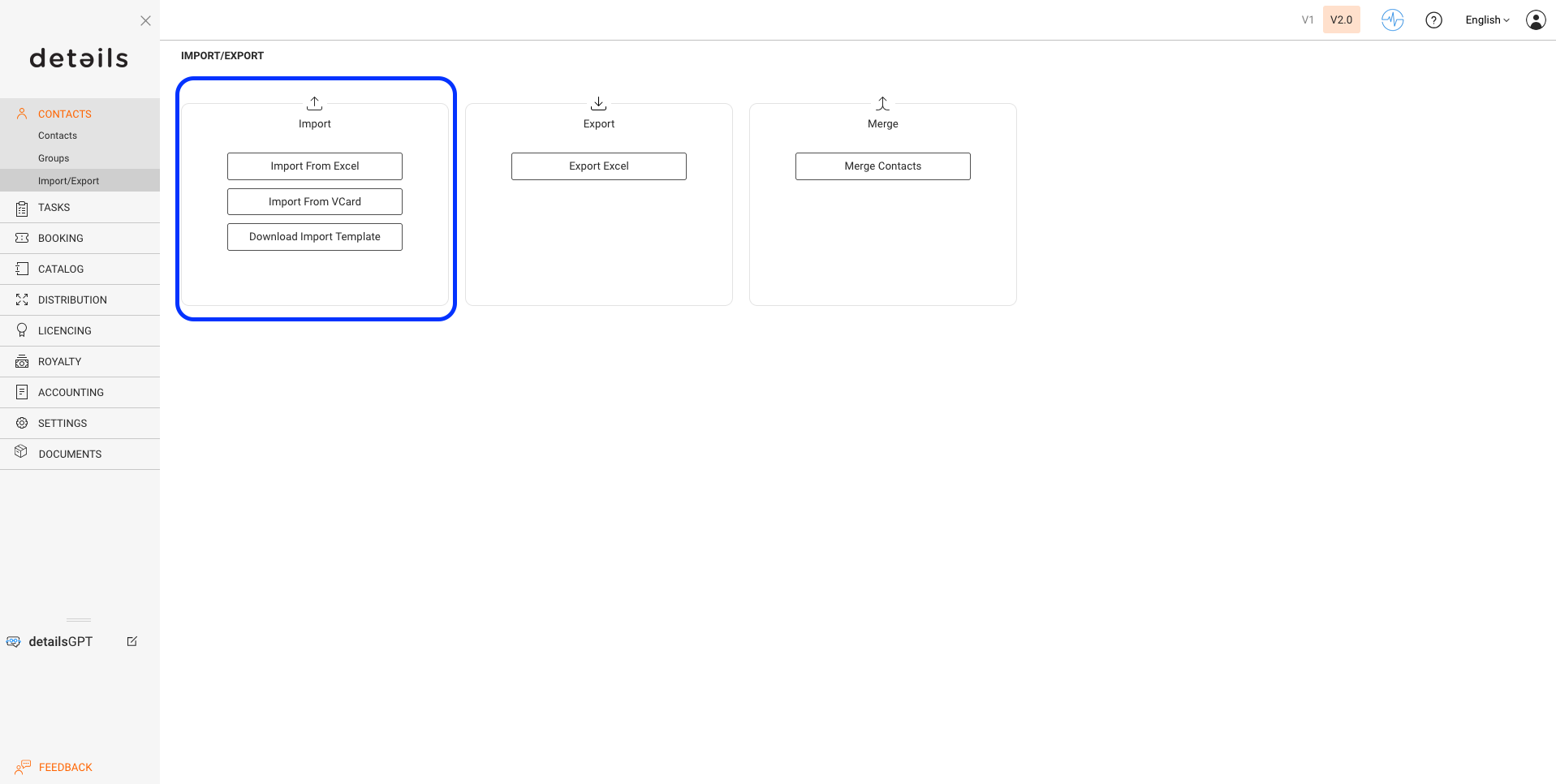
► Import from Excel (.xls / .xlsx)
To import contacts from an Excel file, follow these steps:
- Download the import template from CONTACTS / IMPORT or directly here.
- Enter or copy your contact data into the template. Make sure to use the correct columns.►
At least one of the following must be included:- Company name
- First name and last name
- Add as much additional information as possible to make the contact entries more complete:
- Address
- City
- Country
- Phone number(s)
- Email address(es)
- To automatically create related accounts during import, enter x in the following columns:
- Column T: create royalty account
- Column U: create distribution account
- Column V: create supplier account
- Save the file as .xls or .xlsx.
- Go to CONTACTS / IMPORT in details and upload your file via the import section.
► Import from vCard (.vcf)
The vCard format (.vcf) is a standard for digital contact files and is supported by many address book applications. You can use it to import both individual contacts and entire contact groups into details.
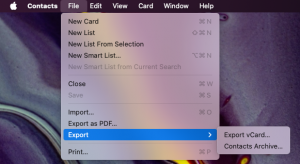
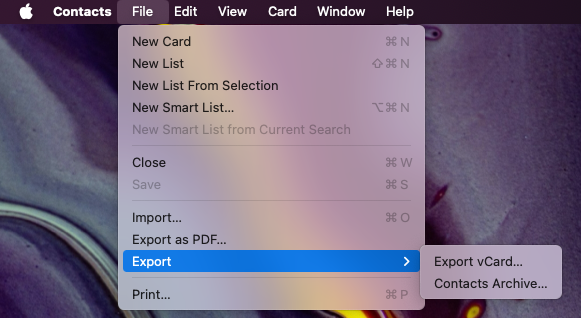
If you’re using the Mac Contacts app, you can select a group and export it as a vCard file. Most other contact tools offer similar export options.
If your tool doesn t support vCard export directly, you can convert a CSV file to vCard using an online converter such as this one.
Once you have your vCard file ready:
- Go to CONTACTS / IMPORT in details.
- Click [IMPORT FROM VCARD] and select your file.
details will automatically assign imported contacts as Companies or Individuals, based on the content of the vCard.
If you need assistance at any point, feel free to contact us we re here to help.