
How to start with details – manual
read read previous step here – how to Import Sales
You can easily import your costs via excel sheet import just as sales imports.
To import costs you can compile an excel file with the following mandatory columns:
- Identifier: This is the matching identifier; Release Codes will be matched on Releases, Barcodes & Catalog Numbers will be matched against Products
- Cost Date: Day or month you want to have these costs imported to (if date is blank, the last day of the import month is used as cost date).
- Cost Group: Select a matching Cost Group from Settings / Accounting (all your cost groups are managed here)
- Description: Free text
- Cost Amount: The cost amount in your system currency; must be positive for costs.
Optionally you can add artist / title information. You can download a sample cost import template here
If you receive cost files from your partners and they include all mandatory info, you can also import these as described.
Now go to Distribution / Accounts and select the account you want to import costs for. On the Current Statements tab you create a new import setup for costs. Click [+] on top right of the Statement setup box
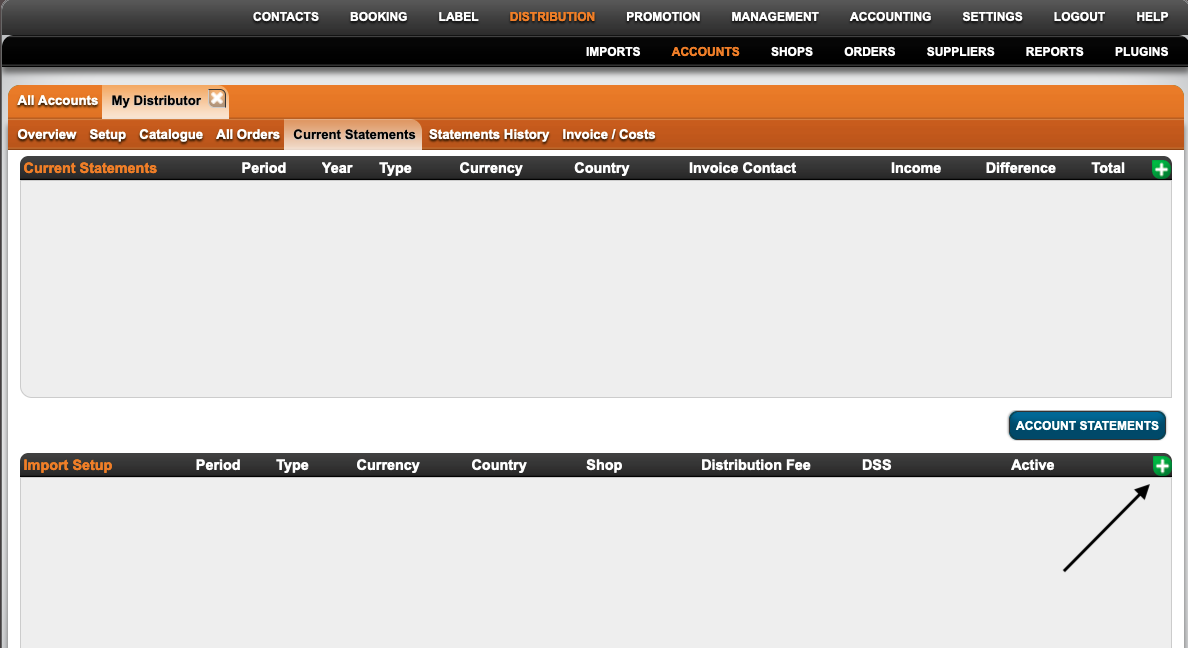
Now enter a description such as “Label Costs” and select invoice project, type costs, currency and period.
Click [OK] to confirm and select an invoice contact if applicable (you can skip that if you set up label costs).
Once the cost import setup has been created you can import your cost sheet on Distribution / Imports on the relevant tile. Assign the import headers from the drop down menus. All column headers need to match with the headers of the file you have imported.
Please note: To save the configuration for your future imports, click on the Save Configurations button. Then click Proceed.
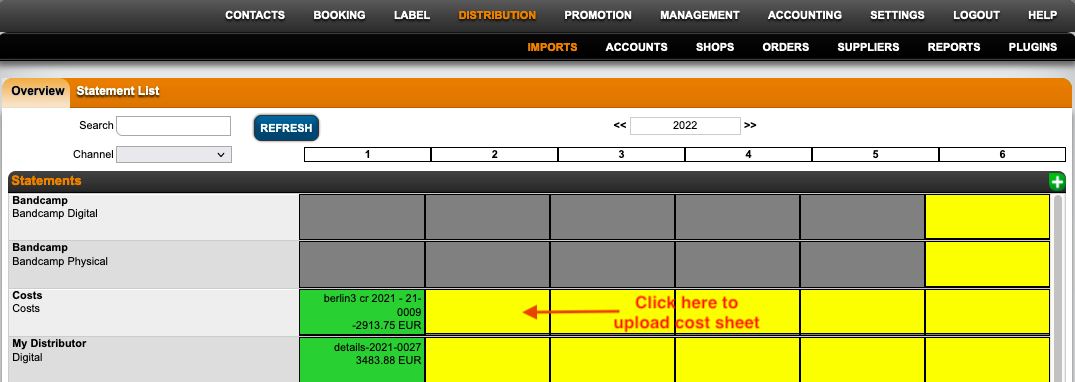
You will be notified by mail when the import process is complete. Once the import is complete, go back to the statement by clicking on the orange import tile on Distribution / Imports.
Attention: If there are products / releases that could not be matched automatically by identifier (such as catalog number, barcode etc), these need to be matched manually with scrutiny on the Import Matching tab.
To match costs, click on the bold text in the first column and select the correct product/release you want to add the costs to. All manual matches will be saved for future statements.
If all lines have been matched, go to Import Result. At the bottom you find your total costs amount. Click Account Statement to create your cost invoice.
This is a crucial & sometimes challenging task, feel free to double check with your details support team.
Alternatively you can upload costs manually. See here how to add costs manually to Releases and Products.read next step here – how to set up / add Royalty Accounts, Contracts and Recoupables.