
To create royalty statements for your distributed label, you first need to setup a royalty account and contract.
Here you can add an automatism that ensures that all releases, products & tracks of the label will always be included in the royalty contract.
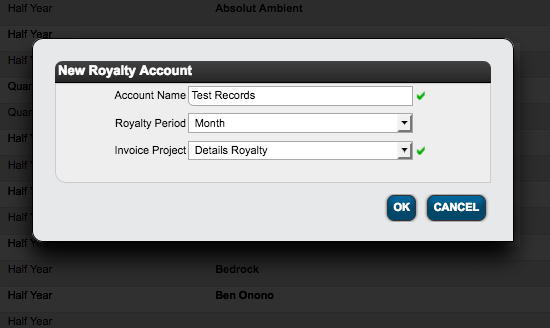
1) Go to LABEL / ROYALTY and create a new royalty account with [+] and enter all info in the module window.
::
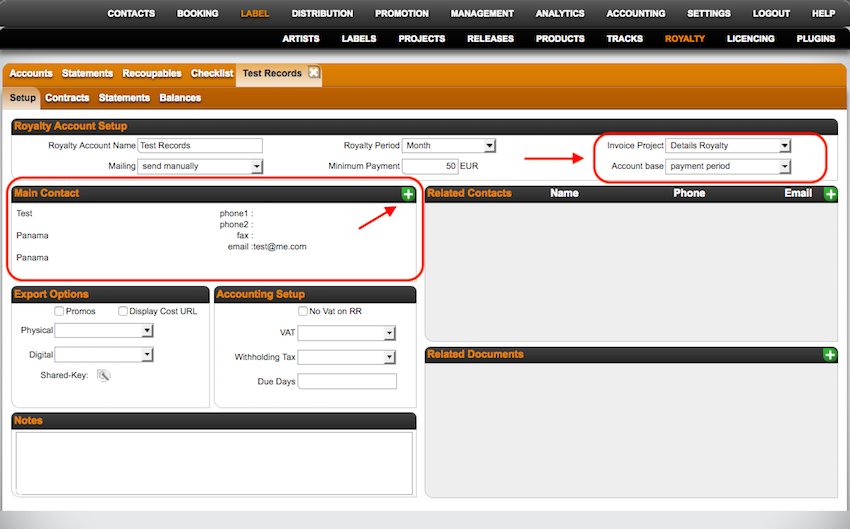
2) Once set up you can fill out additional fields, e.g. minimum payment, export options etc
Make sure you add:
*Main Contact
*Invoice Project
*Account base
::::
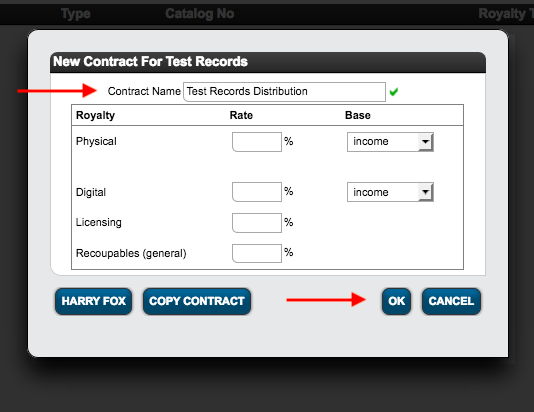
3) Go to subtab CONTRACTS and add a new contract. You can ignore the settings in the module window, just enter a contract name and proceed.
:: ::
::
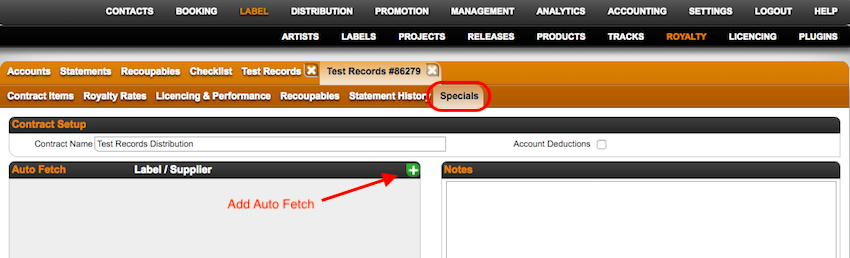
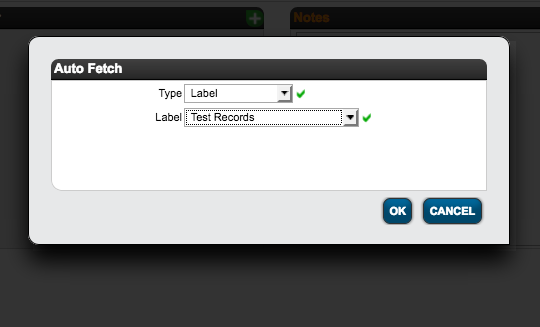
4) To add all label related contract items, go straight to the subtab Specials and add an auto fetch option. Select type: ‘Label’ and the label we just up the contract for.
Then click the button Auto fetch.
NOTE: The button does not confirm action, preferably do not click multiple times.
::
 ::
::
5) Go to the subtab CONTRACT ITEMS and doublecheck the items that have been added to your contract. If this is all correct, you can add you royalty rates and recoupables.
Make sure you run the ‘Auto Fetch All Contracts’ each time before you start creating statements, to ensure all items will be added to the related contracts.
Related articles:
Run Autofetch All Contracts
How to account physical sales on special payback prices