
There are different ways that labels and distributors send royalty statements to their rights holders. Below are the main options available:
1. Print and Send on Paper
If you prefer to print statements and send them physically:
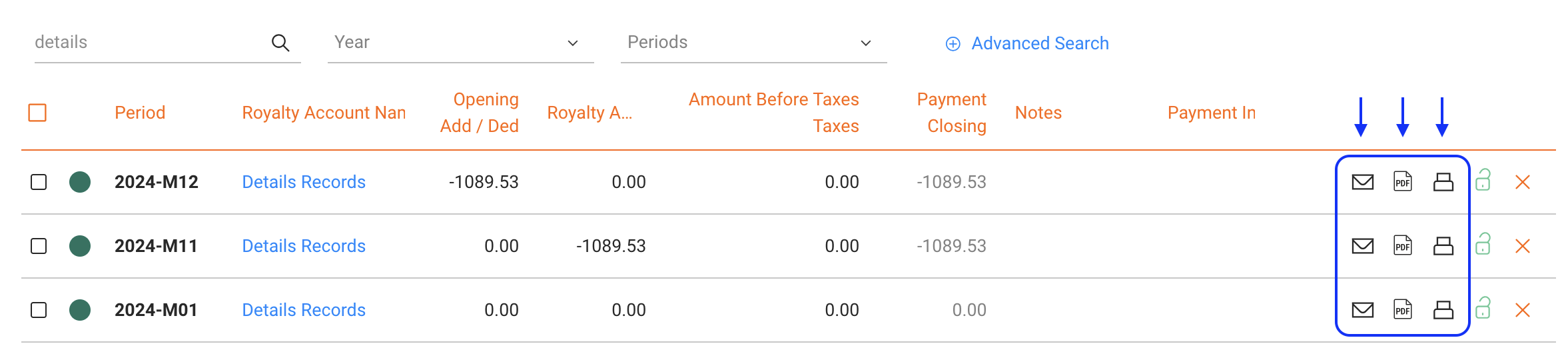
- Go to ROYALTY / Royalty Statements
- Use the printer icon to print directly or click the PDF icon to generate a printable PDF
2. Send Statements Individually by Email
To send one statement at a time:
- Go to ROYALTY / Royalty Statements
- Search and select the statement you wish to send
- Click the email icon to open a pre-filled email with a statement link, or
- Click the PDF icon to download the file and send it manually via email
3. Send Statements in a Batch (Recommended)
To efficiently send multiple statements at once, we recommend batch sending. You have two options:
Option A Classic Email Batch
Each royalty account receives an email with a link to their specific statement only.
Option B Dashboard Notification
Each royalty account receives an email notification that new statements are available in their online dashboard. They can log in to see all current and past statements, credit notes, and basic analytics.
How to Send a Batch Email
- Go to ROYALTY / Royalty Statements
- Filter the royalty period you want to send
- Click Send Statements at the bottom right of the page
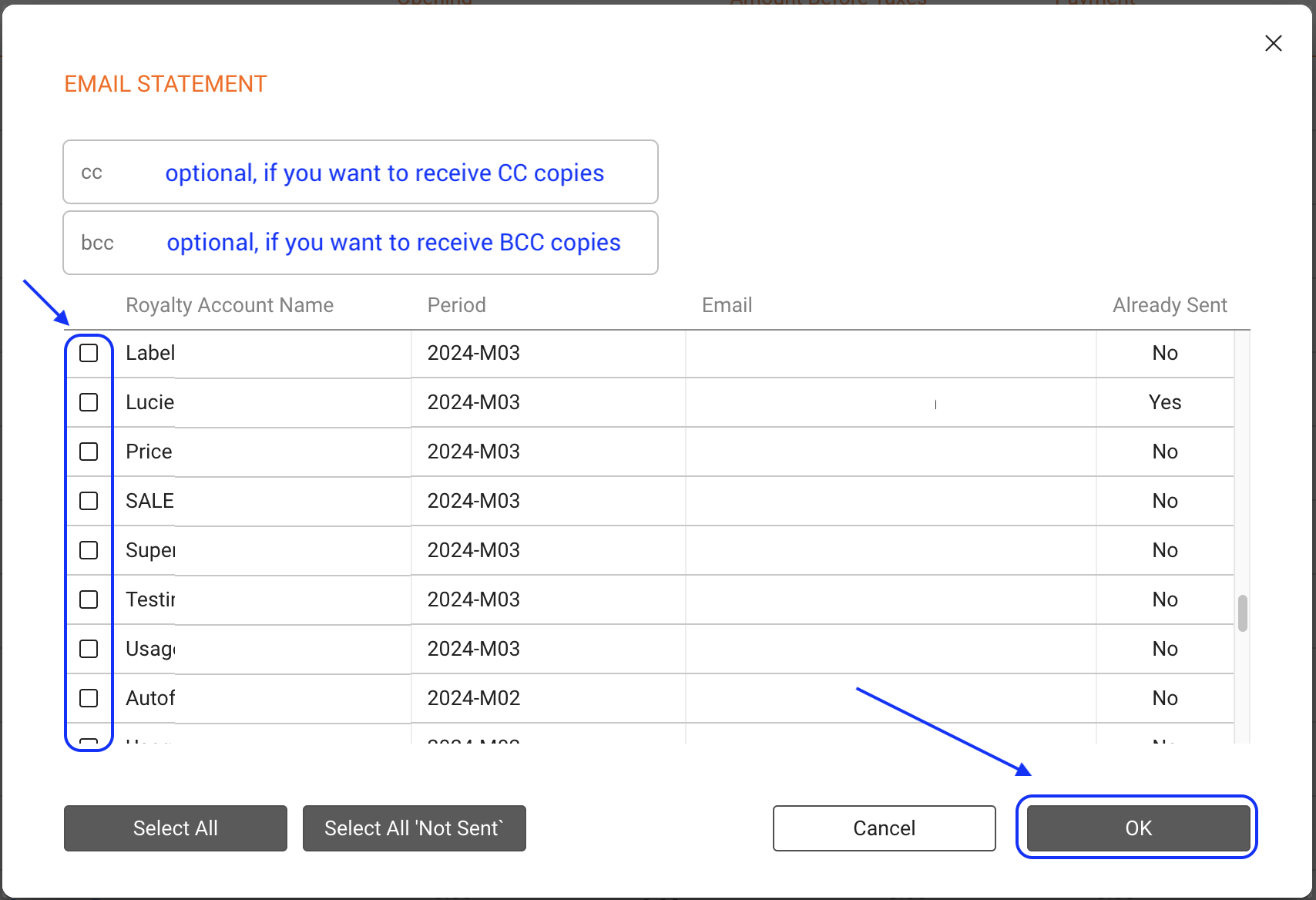
In the modal that opens:
- Add a CC or BCC email address if you want to receive copies
- Select statements manually or use quick filters:
- SELECT ALL selects all statements in the current view
- SELECT ALL “NOT SENT” selects only statements not yet sent
- Click Send Emails to deliver them to all selected contacts
If you added yourself in CC or BCC, you will receive copies of the emails.