
Table of contents
If you’ve forgotten your password, you can request a reset directly from the login screen.
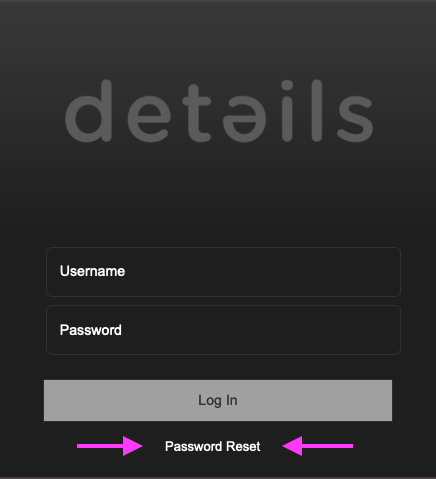
Click [RESET PASSWORD] to open the password recovery page.
Set your password
On the next screen, you’ll see simple instructions explaining how to request a password reset:
- Enter your user name or email address.
- The system will send a recovery link to the associated email address.
If you don’t see the email, please check your spam folder. - Use the link to create a new password.
For security reasons, the system does not confirm whether a user name or email address exists. If a matching account is found, a recovery email will be sent automatically.
Once you’ve set a new password using the recovery link, you’ll see a confirmation and can log in again as usual.
To ensure you receive recovery emails, make sure your user account has a valid email address.
If you’re an admin, you can add or update user email addresses under SETTINGS > USERS.