
You may wonder what the SHARES Royalty Dashboard looks like for a specific royalty account before sending out the login credentials, just to make sure you are on the safe side.
Fortunately, DETAILS allows logged in users to preview the dashboard quickly and hassle-free.
You do not need to know the link, login, or password; you only need to have access to the royalty section and the royalty account in details.
Accessing Your Royalty Account Preview
Log into details: Only users logged into details with access to the ROYALTY section can benefit from the direct access.
Select Royalty Account: Navigate to the ROYALTY section and within the ROYALTY ACCOUNTS, select the royalty account you wish to check.
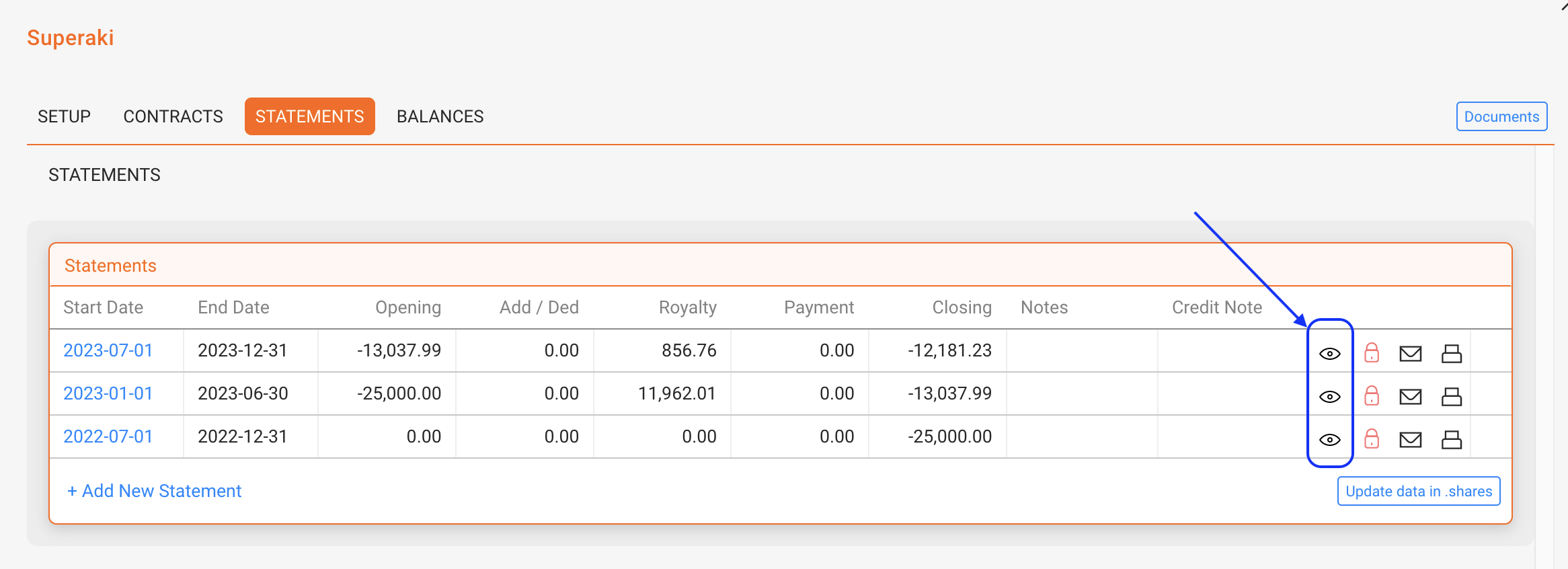
Click the [Eye] icon: In the “Statements” section of the royalty account, look for the eye icon. Click on the icon to access a selection of external users you may select from for your preview.
Preview Your Account: Upon selection, a preview window will open, displaying exactly what is being shown to the selected external user.
What You Can Expect to See
When previewing a royalty account in the SHARES royalty dashboard, you can:
- Evaluate the data visualization and overall visual impression.
- See the financial overview of your royalty account, including the most recent statements and a 24-month royalty graph.
- Check the current year or previous years, including graphs on revenue generated from digital and/or physical sales, depending on your royalty account display settings.
No Password Required: Accessing an account preview does not require knowing their password if and as long as you are a logged-in details user with access to the royalty section. The preview function provides a secure way to access a SHARES account without compromising the account security.
But do not change their passwords: While previewing your account, do not change the account’s password unless requested by the account. Only alter their password if you want to provide a new password or to block access.