
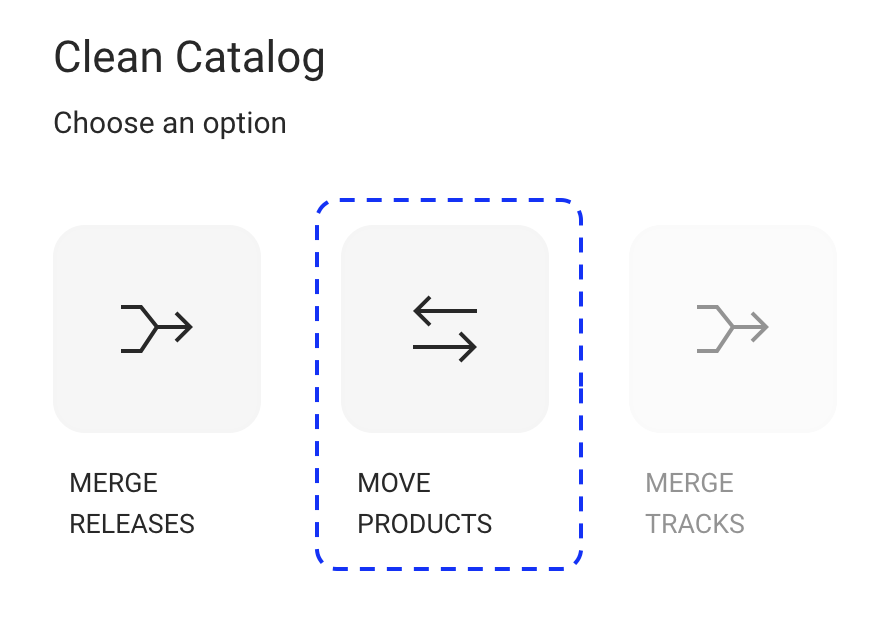
This article explains how to move a product from one release to another in CATALOG MANAGEMENT.
Moving a product is useful if a product was assigned to the wrong release or if releases need to be reorganized for catalog or royalty reasons.
This action affects catalog structure and contract relations. details will always validate the move before anything is changed.
► When to Use This Feature
Use Move Product if you need to:
- Move a product that is linked to the wrong release
- Group products under a different project or release
- Align products with the same releases and royalty setup
This feature moves one product at a time.
► Start the Move Product Action
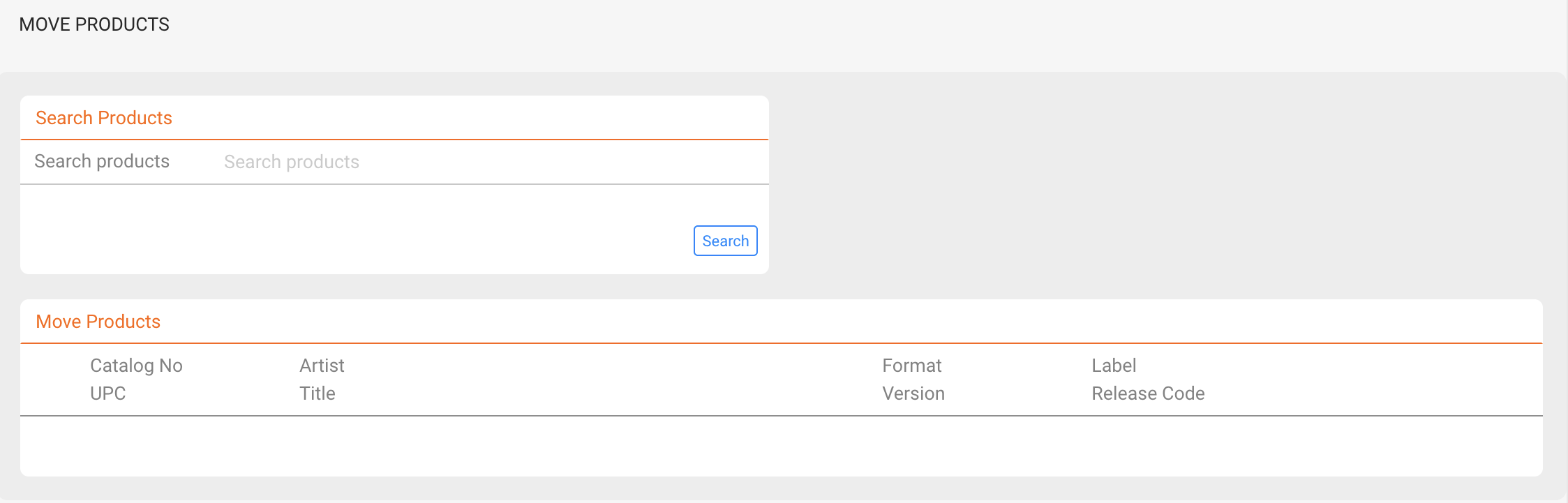
In CATALOG MANAGEMENT, search for the product you want to move using the Search Products box. You can search by artist, release title, barcode, or catalog number.
From the result list, select the product you want to move to another release.
► Select the Target Release
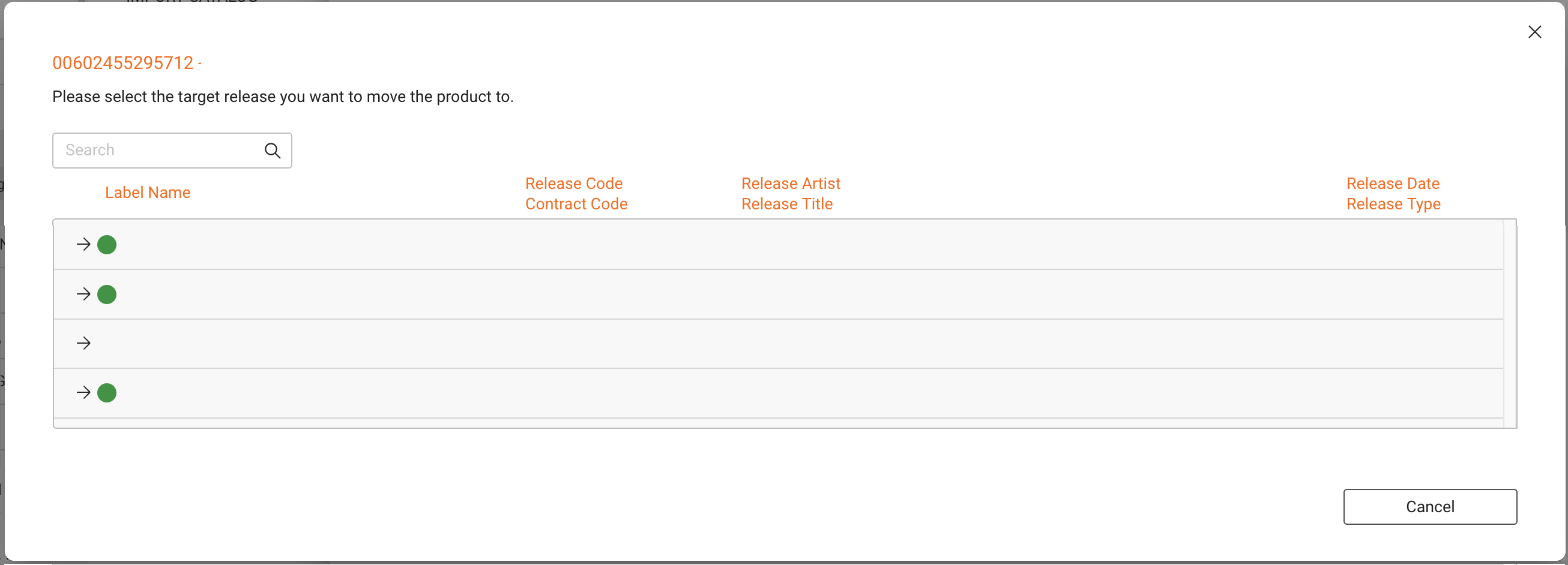
In the first modal, search for the release you want to move the product to.
You can search by artist, release title, or other identifiers.
Selecting a release immediately triggers automatic validation in the background.
► Validation and Blocking Rules
Before the move is allowed, details checks whether the product can be safely moved.
- The move is blocked if the product is linked to contracts with track-based rata shares and the target release already has active contracts.
- If conflicts exist, the system stops the process and explains why the move cannot continue.
No data is changed if validation fails.
► Review Contract Relations
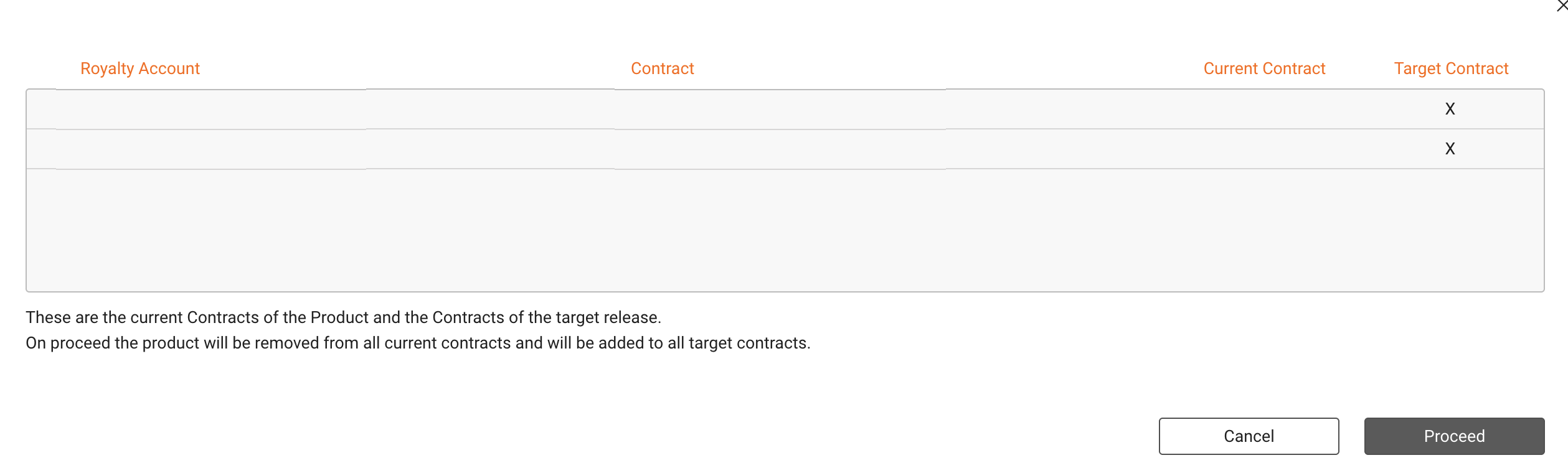
If validation succeeds, a second modal opens showing how contract relations will be affected by the move.
The table compares:
- Royalty accounts
- Contracts
- Current contract relations of the product
- Target contract relations of the selected release
This gives you full transparency before confirming the change.
If neither the product nor the target release has any contract relations, the system explicitly indicates that the move is safe.
► Confirm and Execute
Review the information carefully before proceeding.
- [CANCEL] stops the process without any changes
- [PROCEED] moves the product and updates all related data
On confirmation, the product is reassigned to the new release and all related catalog, contract, and reporting links are updated automatically.
► What This Feature Does Not Do
- It does not merge release metadata
- It does not change royalty shares manually
- It does not fix invalid or conflicting contracts automatically
The feature only performs the move if all validation rules are met.
Important:
Even if the move is validated and completed successfully, we strongly recommend reviewing the product s ROYALTY tab afterwards.
If the product had existing contract relations, you should double-check that all contracts, shares, and rata settings are still correct after the move.