
Table of contents
The Labelcamp Import feature is available in the Catalog Management section of details.
It allows you to connect your IDOL Labelcamp account and ingest new catalogue entries into your database with a single click.
This import tool is designed to simplify catalogue updates and eliminate manual data entry. It supports automatic matching for products and tracks to prevent duplicates.
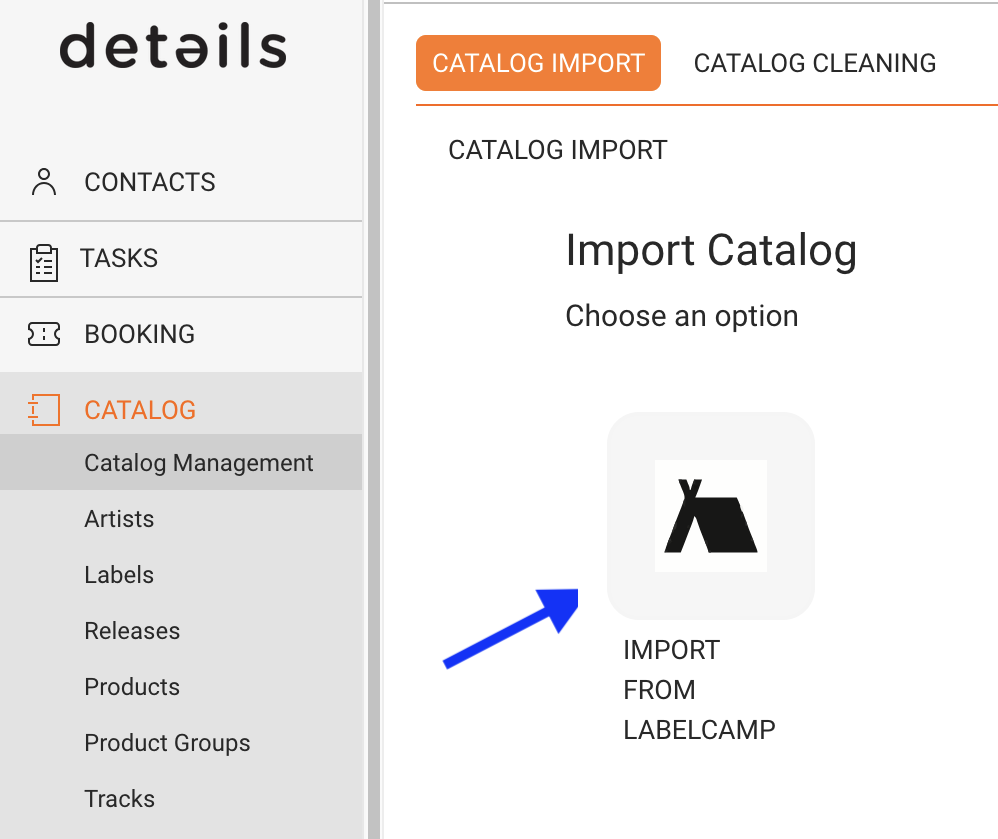
► How to Import Your Catalogue
Steps
- Go to CATALOG > MANAGEMENT.
- Select Labelcamp Import.
- Click Import Catalog to start the import process.
The system will connect to your Labelcamp account and load all labels connected to your account, plus the available product statuses (e.g. Draft, Reviewing, Active, Archived).
As a user, you can select one, multiple, or all labels from your account.
You should also decide whether details should retrieve only Active products (recommended), or also Draft, Reviewing, or Archived products.
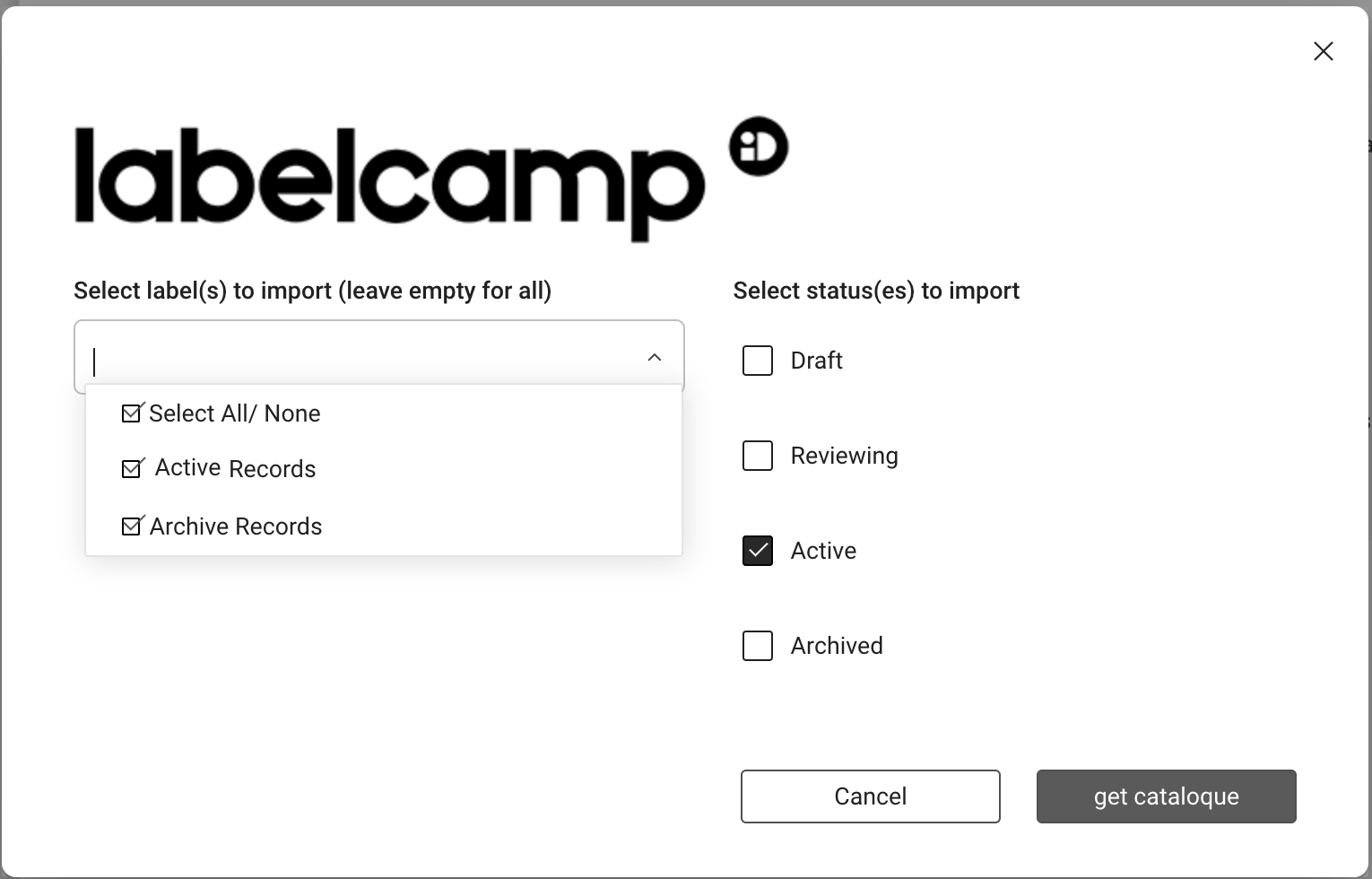
Once your selection is complete, click Get Catalogue. The system will then retrieve all new products and tracks not already loaded into details.
Depending on your catalogue size, this may take a few minutes or longer.
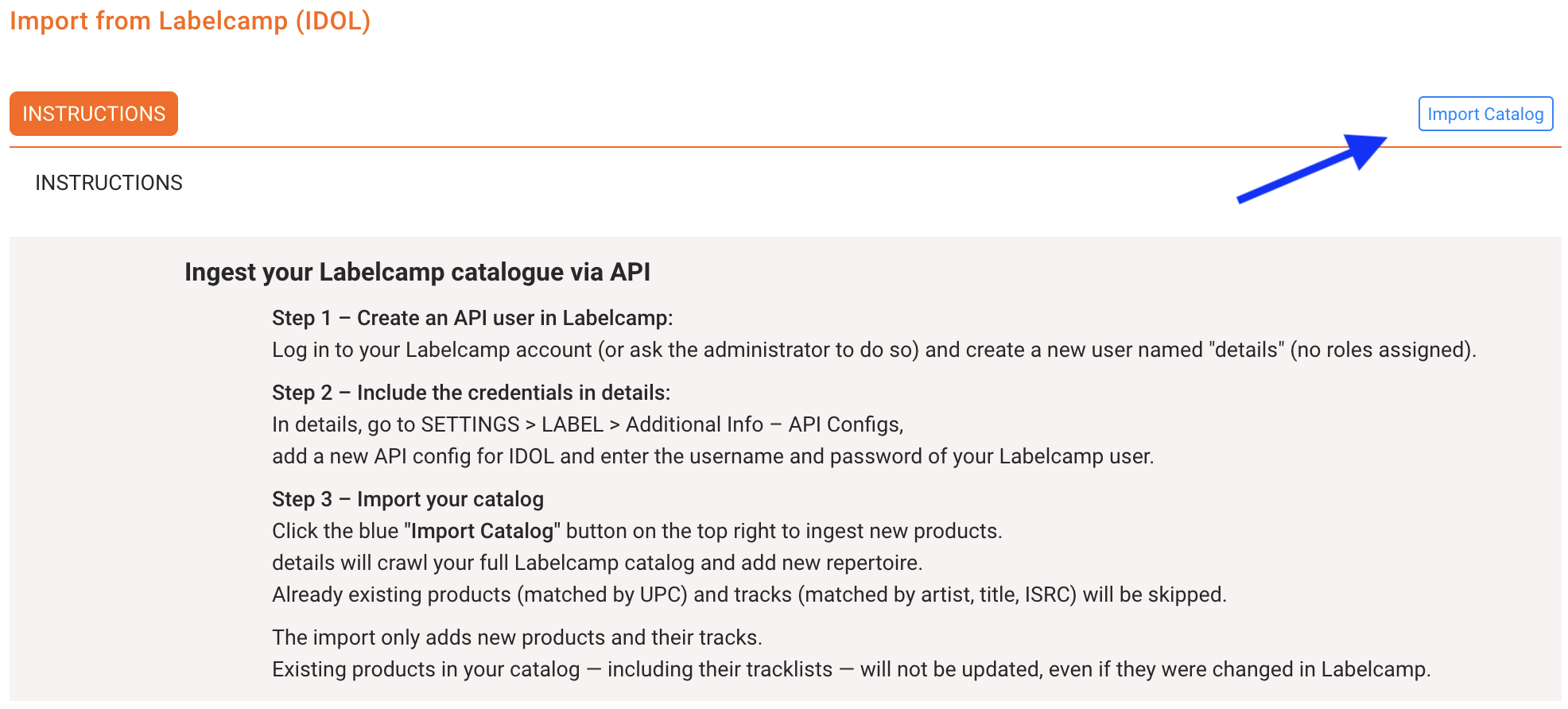
Keep your Labelcamp credentials saved in SETTINGS > LABEL > Additional Info API Configs to allow faster imports in the future.
► Import Logic
Matching Rules
- Products are matched by UPC (barcode).
- Tracks are matched by Artist, Title, and ISRC.
- Only new products and tracks will be added; existing items are skipped automatically.
- Metadata from existing products or tracks is not updated during import.
► Initial Setup Required
One-Time API Connection
Before using the import feature, a one-time API setup is required to connect details with your Labelcamp account.
- Create an API user in Labelcamp:
An administrator from your team must log in to Labelcamp and create a user nameddetails. This user should have no assigned roles or permissions. - Enter credentials in details:
In SETTINGS > LABEL > Additional Info API Configs, create a new configuration for IDOL and enter the username and password of the Labelcamp user. - Activate the plugin:
Go to LABEL > PLUGINS > API and activate Auto-Ingest new products from idol.io. This enables the secure API connection.
► Support and Further Tools
If you need assistance during setup or encounter issues with the import process, our support team is available to help.