
Table of contents
details offers a range of options to manage product prices. Some are more static, others more variable. Some are for buying, others for selling, and all can be used in royalty calculations or be affected by discounts in purchase orders and invoices.
Because prices affect multiple workflows (sales, royalties, logistics), it’s important to understand the basics before using automation with Price Codes.
Static Prices: PPD & Cost Price
For physical products, the two core fields on the OVERVIEW tab are:
- PPD (Published Price to Dealer): A fixed selling price agreed with your dealers. PPD is also included in royalty settlements as Product PPD.
- Cost Price: A fixed buying or manufacturing price, e.g. from a pressing plant. Useful for profit margin and cost control.
Both fields are typically stable over time. They are best used when prices are negotiated once and don’t change often.
Automating with Price Codes
Price Codes allow you to standardize prices across many products. Instead of filling PPD and Cost Price manually every time, you assign a Price Code to a product and let it autofill the values.
Setup
-
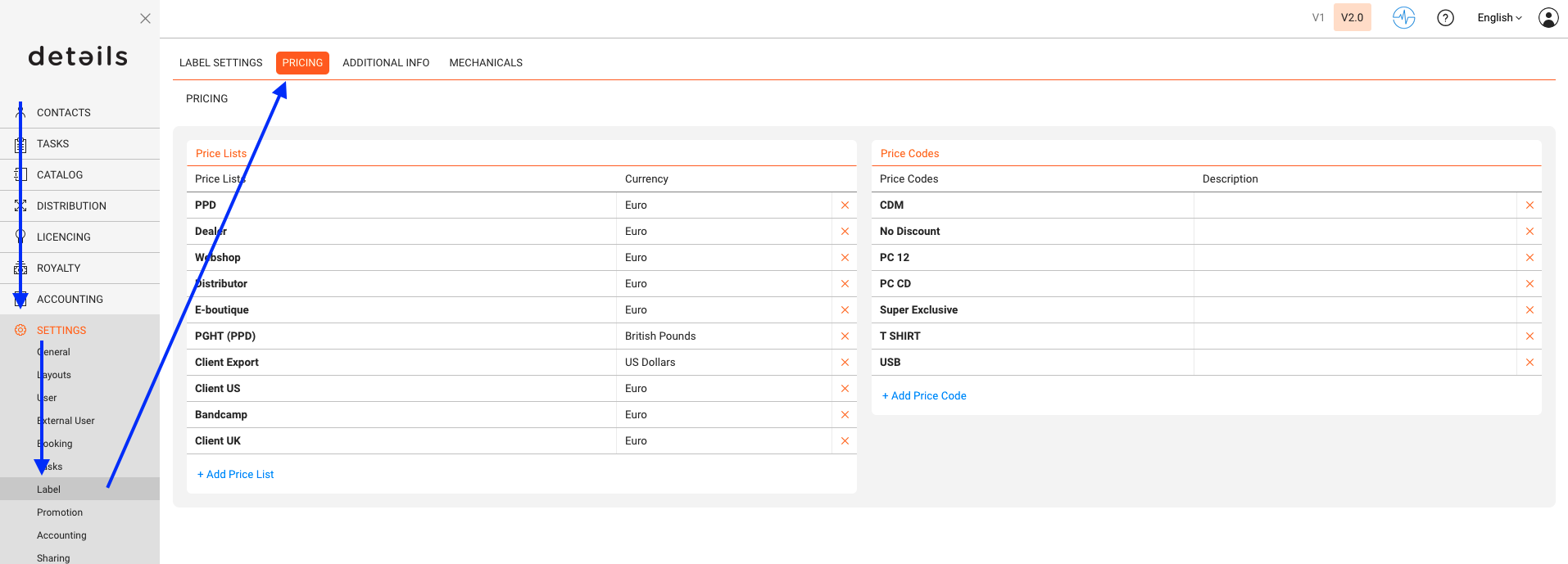
Go to LABEL / SETTINGS ► Price Codes.
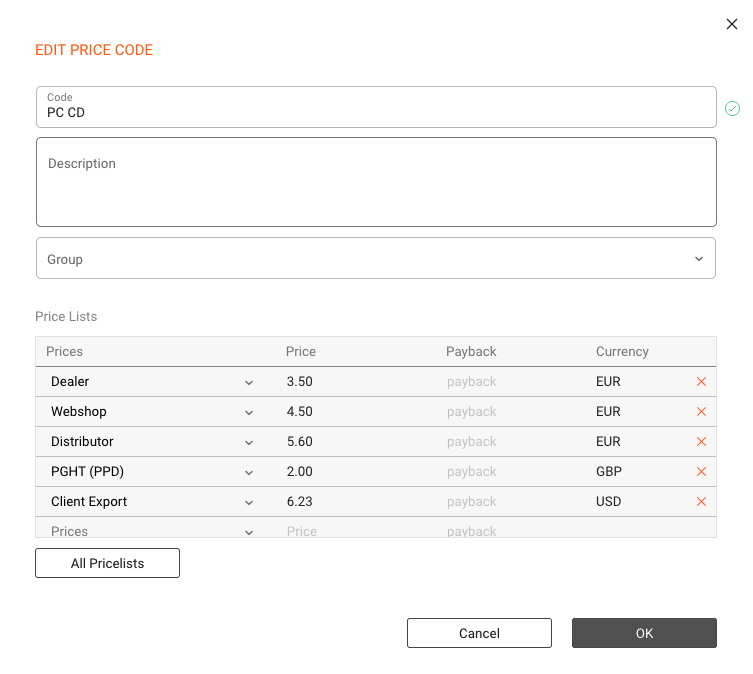
- Create a new code with predefined PPD and Cost Price.
- Optionally add channel-specific or partner-specific variations.
Apply in Products
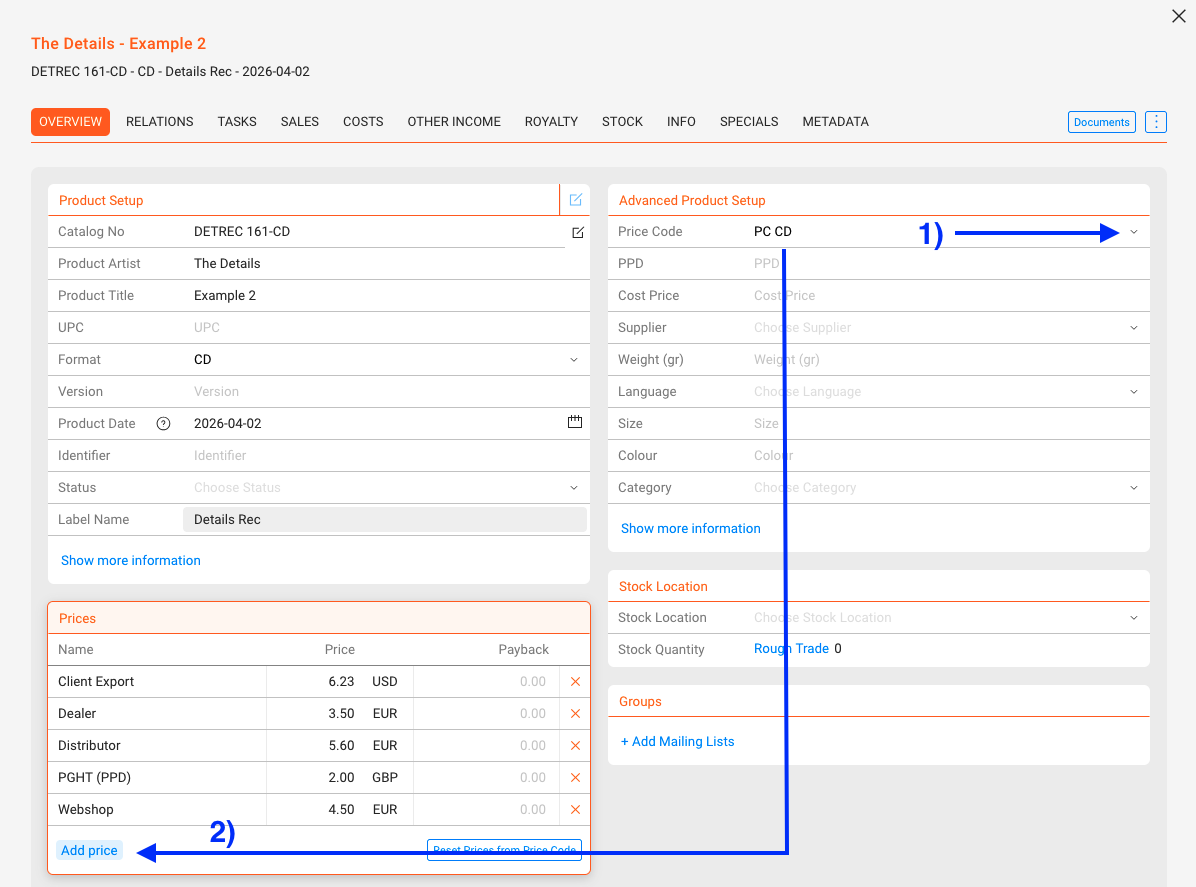
- Open the product’s OVERVIEW tab.
- Select the relevant Price Code in the Advanced Setup section.
- Click [ADD PRICE] to insert predefined values.
- Click [RESET PRICES FROM PRICE CODE] to overwrite manual entries.
Best Practices
- Keep your Price Codes list short and descriptive (e.g. “VINYL STD”, “CD JEWEL”).
- Use Price Codes for formats with stable pricing. For ad-hoc cases, fill values manually.
- Update Price Codes centrally when your label adjusts prices across the board.
- Test a new Price Code on a few products before rolling it out to the full catalog.