
This article will show you how to use the PayPal direct payment option for your invoices.
This feature will allow you to have payments go directly to YOUR PayPal account.
It will also notify you once the transfer was successful and automatically set invoices as paid in details.
The feature works for invoices of all modules, but will be particularly useful for BOOKING agencies.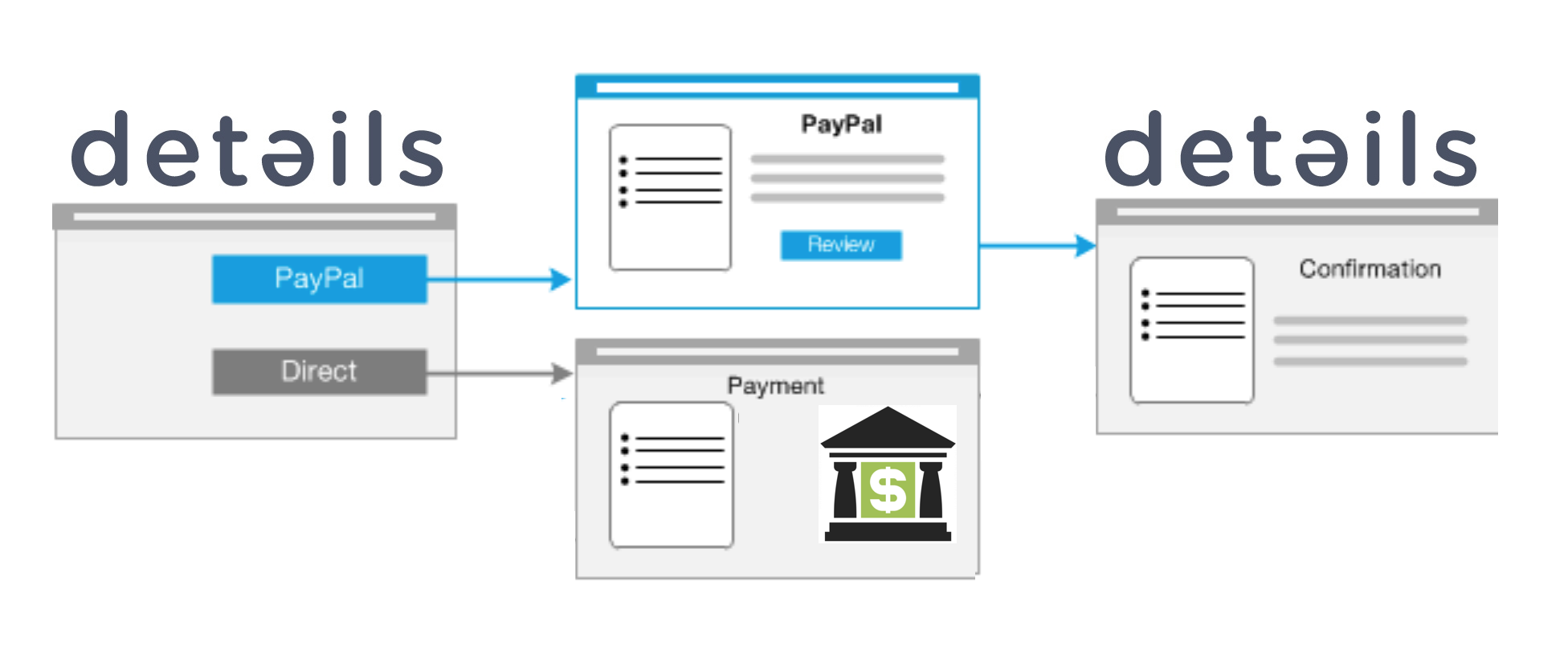
===1) Setup===
To make this option available, first go to SETTINGS > COMPANY and log in.
Note: You may need the permission to do so.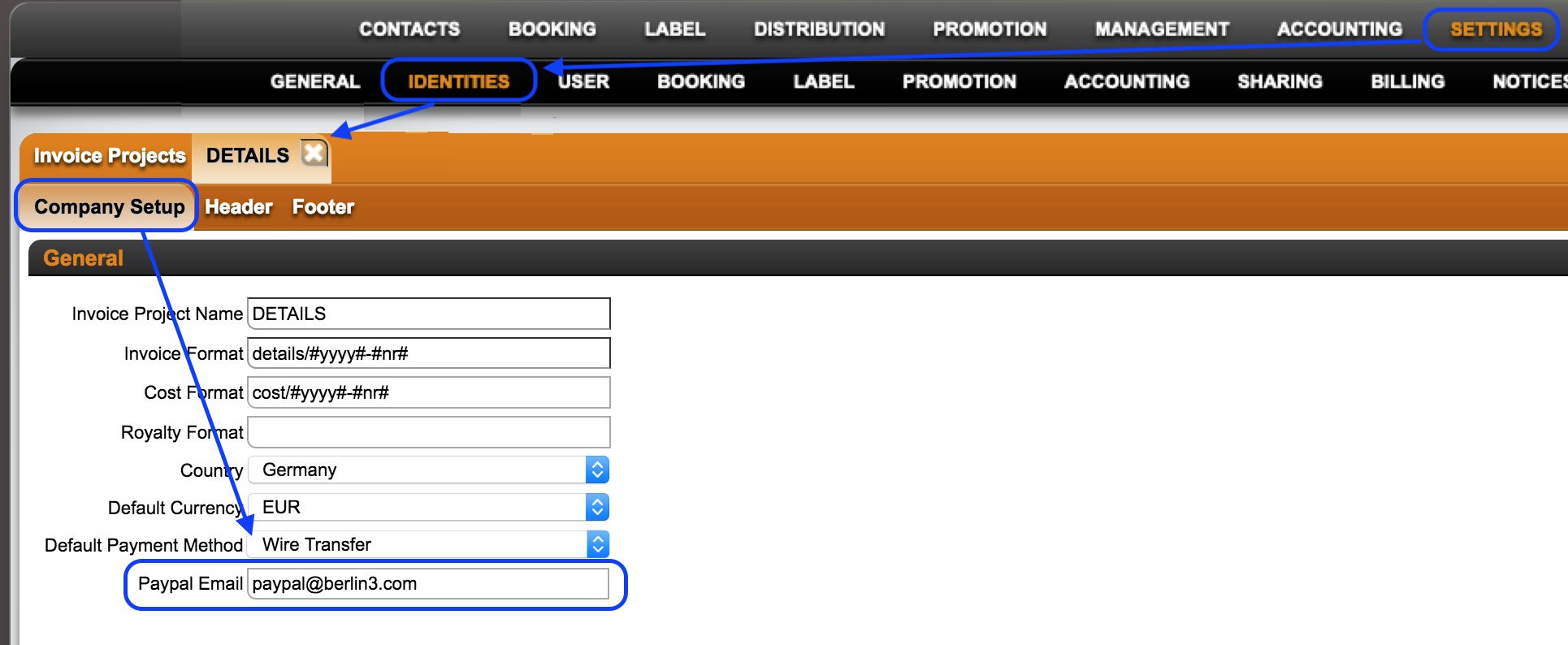
Select the INVOICE PROJECT that should include the Direct-to-PayPal option.
On the left side of the subtab COMPANY SETUP you will see a field for the PAYPAL EMAIL.
Here is where you want to specify your company’s PayPal Account, meaning the Paypal account a payment should go to.
This is the only setting you need, but it is necessary to specify the payment recipient.
===2) SEND AN EMAIL===
details allows you to forward any invoice to the recipient via email.
You can find the blue MAIL icon to send invoices both in the list of ALL INVOICES and on the OVERVIEW tab of any invoice.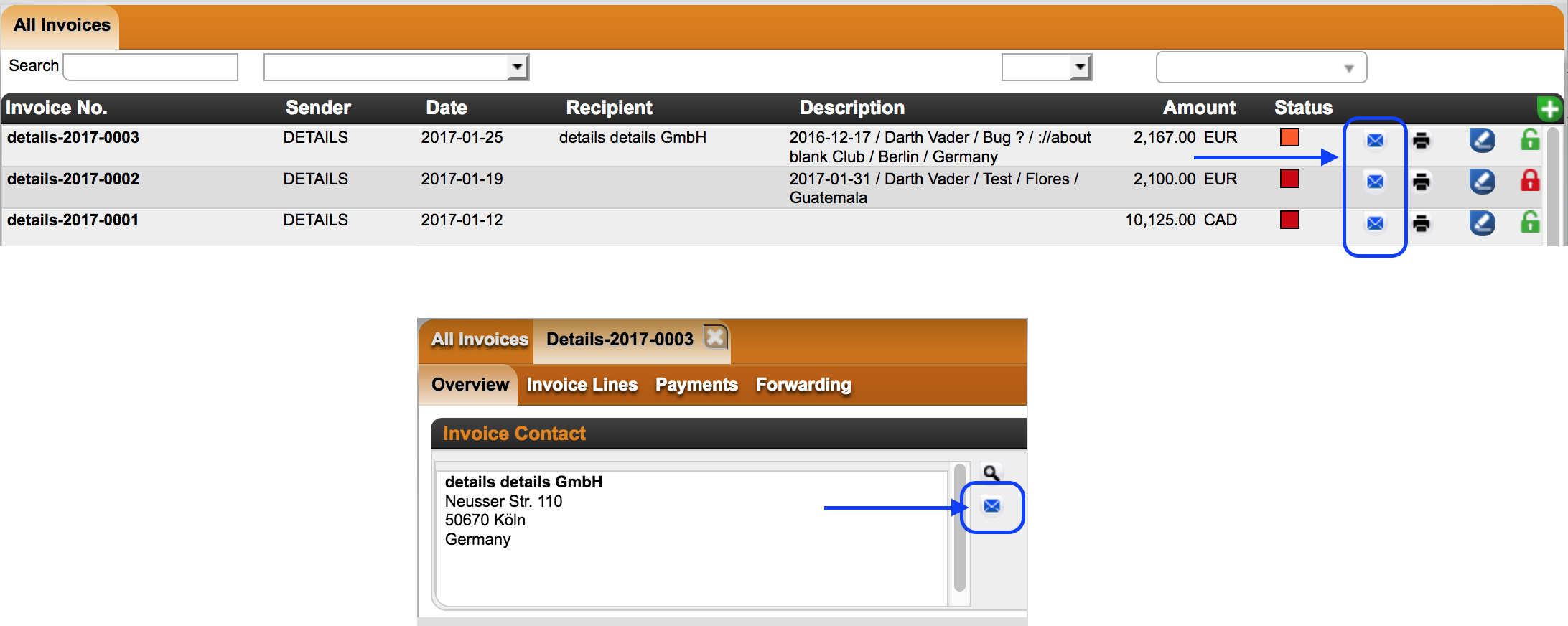
Included in the email is a LINK which will take the recepient directly to your invoice. 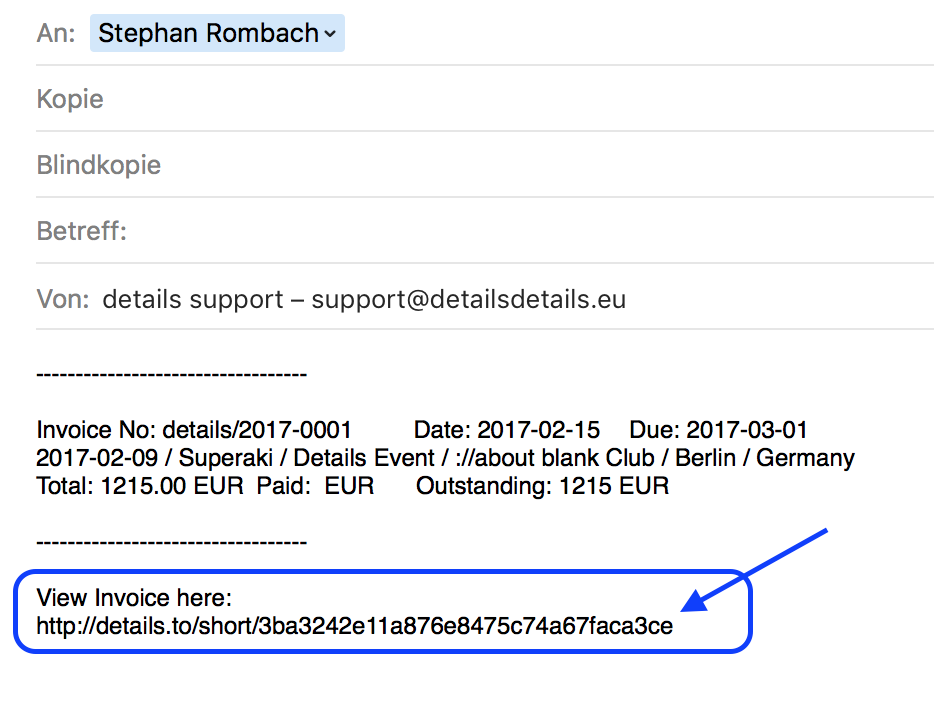
Note: This part is available regardless of whether or not you want to enable the PayPal direct payment option.
===3) ENABLE PAYPAL PAYMENT===
Once you click the blue MAIL icon to send an invoice, a message will ask you whether or not you want to enable the PayPal payment option.
Note: For this to happen you need to have the COMPANY (Invoice Project) to be connected to a PayPal account (see 1) above).
If you agree, the LINK generated with the email will display a PayPal icon once clicked.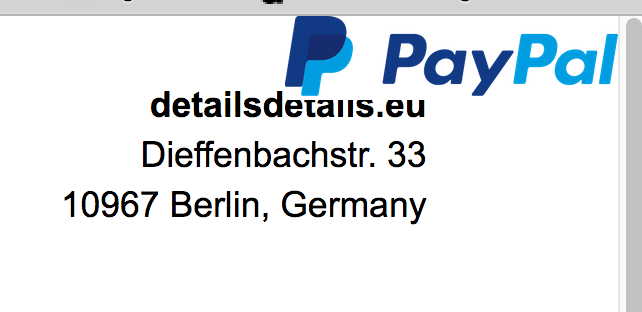
When clicking the LINK, the recipients of the invoice will find an animated PayPal logo on the invoice.
Clicking on the logo will automatically redirect them to the the PayPal page, where they can login with their own account and complete the transfer.
Once the payment went through, the responsible details user (accountant or booking agent) will be notified that the invoice was paid.
DETAILS will also display the invoice as paid in the BOOKING and ACCOUNTING.
Enable the PayPal direct payment option for invoices
Recently Viewed
Your recent pages