
A core functionality of our BOOKING module is to pull data from your bookings into TEMPLATES for contracts, itineraries etc.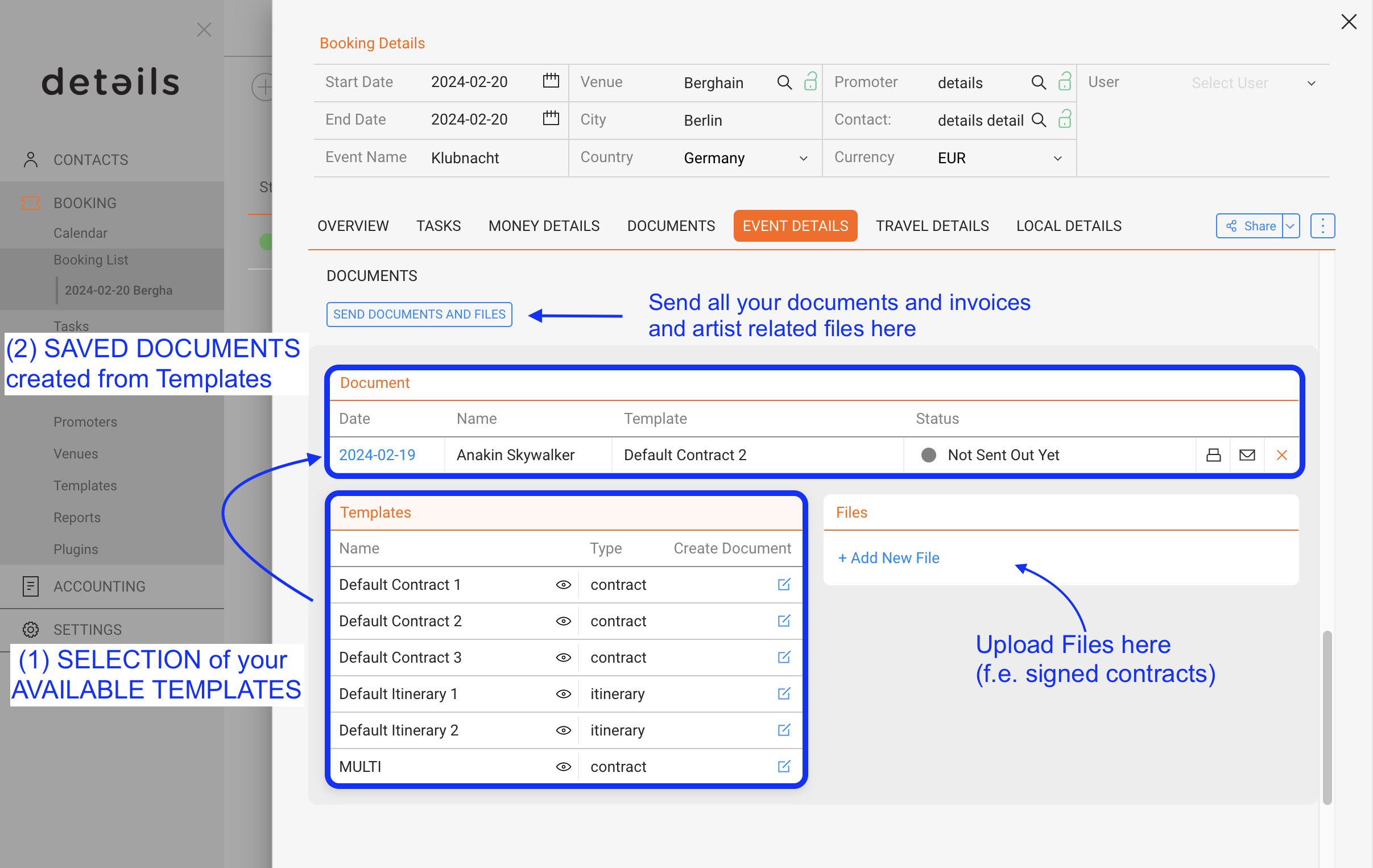
This article will explain the workflow how to pull data into any selected TEMPLATES on the DOCUMENTS subtab of your booking.
On the bottom you will find your available TEMPLATES.
Those templates are 100% fully customizable. For more information on how to create a fully featured contract template please click HERE.
There are two options to use the templates:
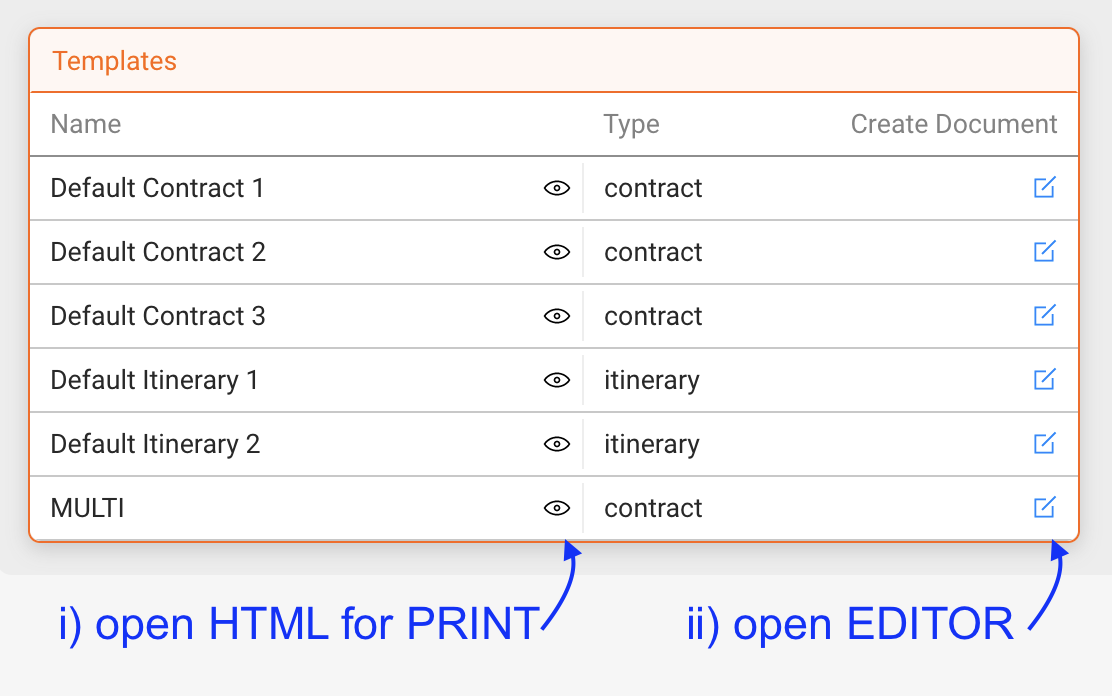
i) You can either see & print directly from the template with a click on the black EYE icon.
This will open your template and include all datapoints from variables as is.
You can now print the document on paper or as PDF.
ii) If you need to change something to the document for this specific booking, you can alternatively open the template in the HTML EDITOR included in details.
If you choose to use the Editor, there is a specific workflow you need to do in order to edit, save and print or send out the final documents.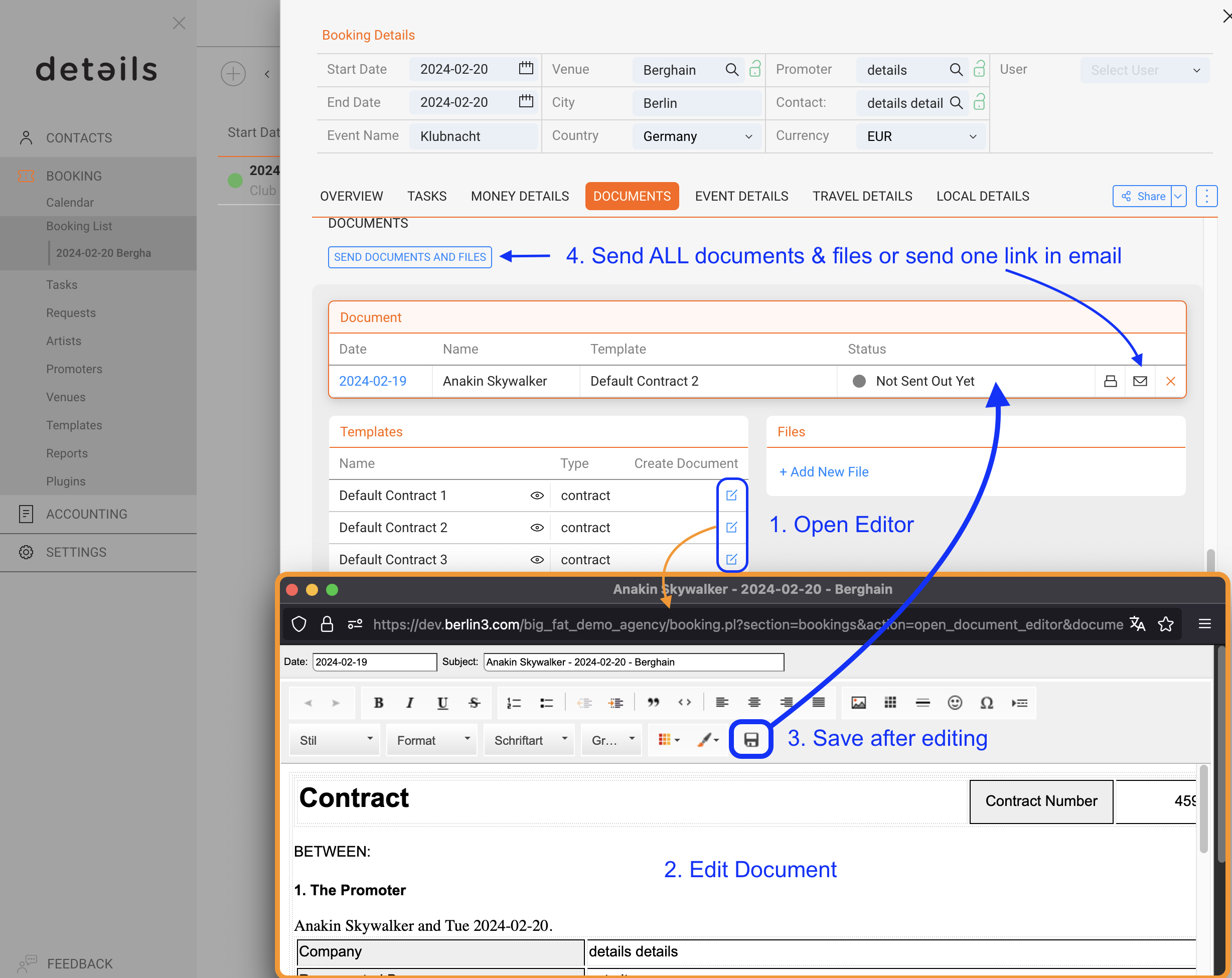
When you opened the HTML EDITOR you will find your template filled out with the data from this specific booking.
Here you can edit all text with the available Editor menu.
The available options in the Editor menu are adaptable and may change over time as we add more options.
One feature our clients use a lot is to add, edit or remove rows and columns from tables.
This feature can be found when you right-click on the respective table.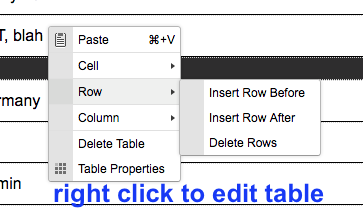
Once you completed editing your document, you need to SAVE the document.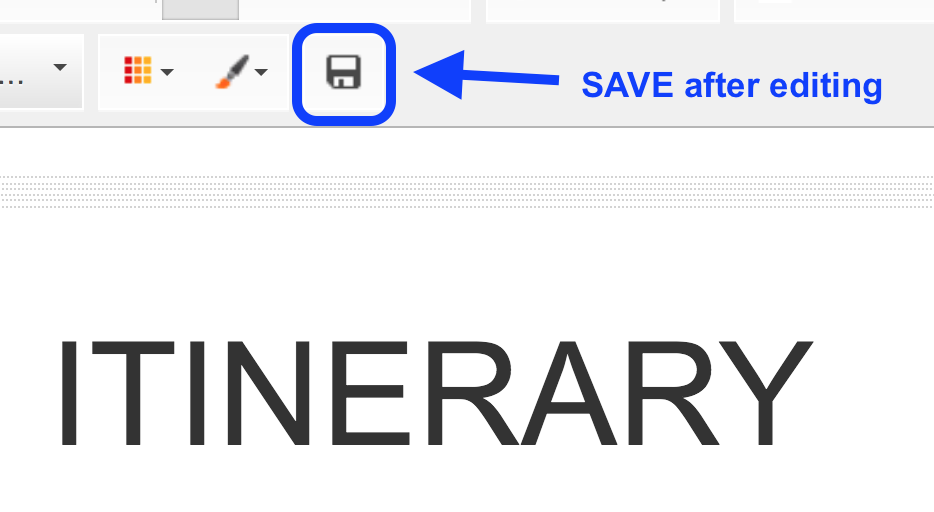
Your document will now appear in the Box in the middle of the screen.
You now have multiple optional actions to choose from:
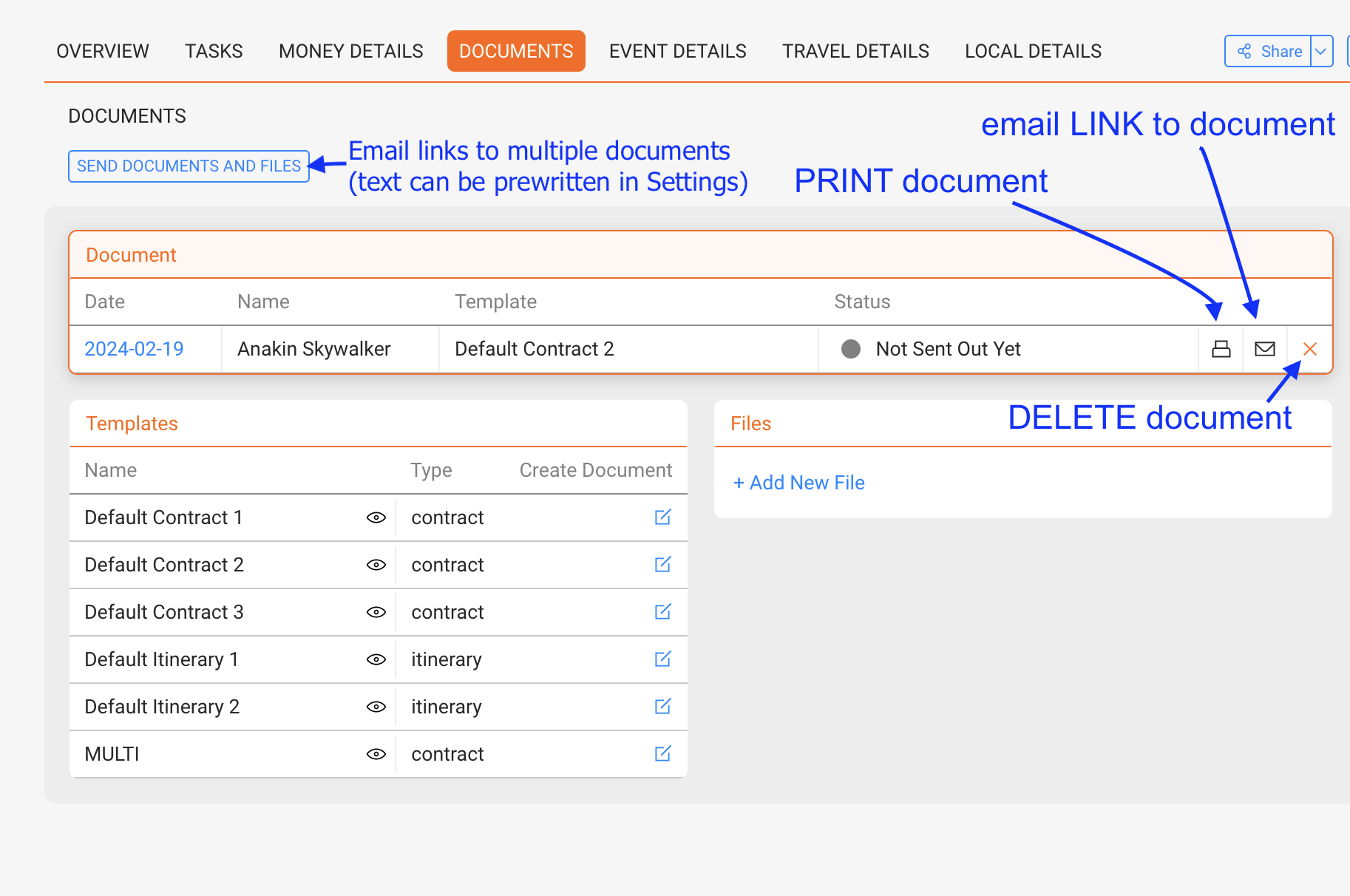
* Click on the date to EDIT the document again.
New changes will be saved when you exit the document on the SAVE icon (see above).
* Click on the black PRINT icon to print the document on paper or as PDF.
* Click on the EMAIL icon to send out a link to this document. When doing this you may enable the ONLINE AGREEMENT option.
* Click the X icon to delete this document. The icon will dissappear once this contract has been agreed to with our ONLINE AGREEMENT option.
* Click the button SEND DOCUMENTS AND FILES to send out links to multiple documents and files at the same time. Please note that these emails can be prewritten in Settings -> Custom Texts