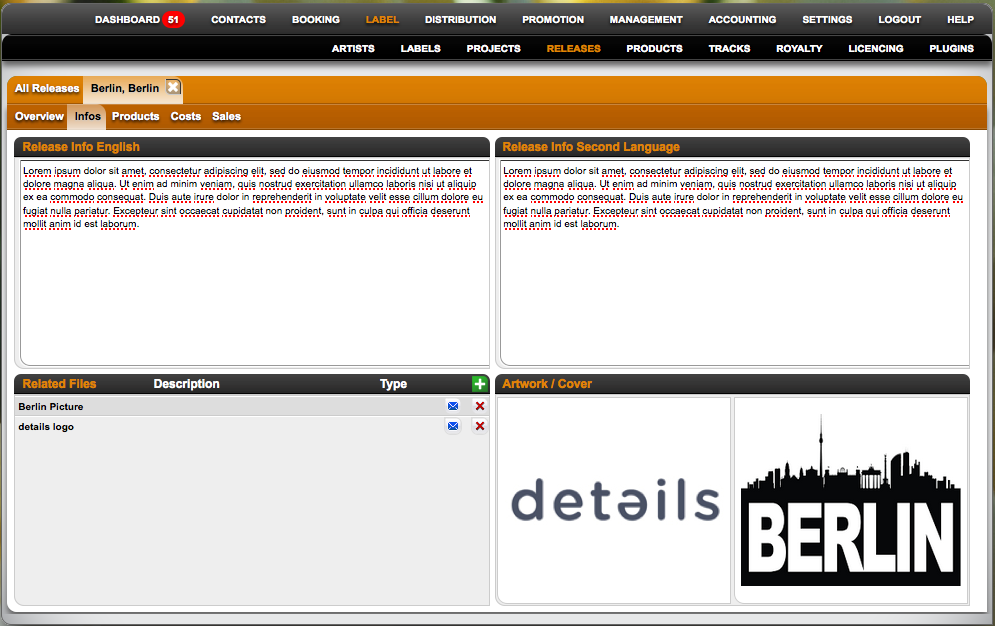
On Contacts / Files you are able to upload different files such as images, audio files & documents.
To upload a new file click [+] on top right of the list.
These can then be related within the details modules later such as tracks, accounts, etc.
The workflow is the same in all cases, read here how to relate picture files such as Cover artwork, logos or artist pictures to Artists, Labels, Releases or Products.
1) go to the INFO subtab of LABEL Artists, Labels, Releases or Products
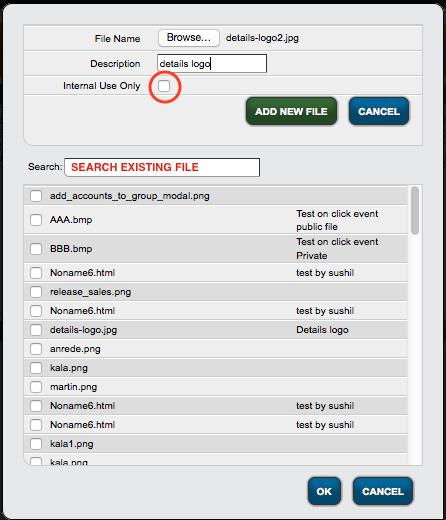
2) In the Related Files Box at the bottom left, either upload a file or add a previously uploaded file to this section by clicking [+] on top right.
3a) Select a previously uploaded file via the SEARCH field and relate it to the current section OR
3b) Upload a new file by browsing your computer or network and uploading the file to your details database.
If you are aiming to upload images, make sure pictures are uploaded in a format that can be displayed by Firefox. JPEG or PNG files will work fine.
Also note that files must NOT be uploaded as Internal, if you want to share them with people outside of details. Internal files will be inaccessible for anybody without access to your database.
:: ::
::
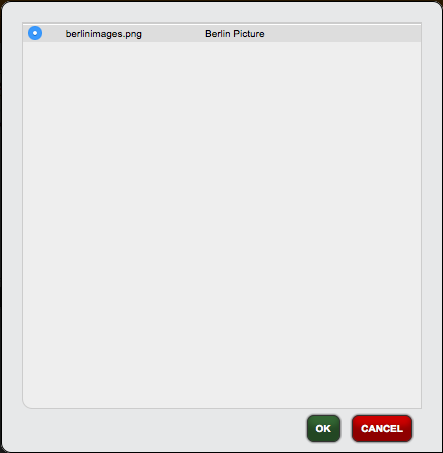
4) On the right side next to the Related Files Box, you will see two squares to display image files. To display your uploaded image files, click on one of the fields and select which one of your previously uploaded image files you want to display.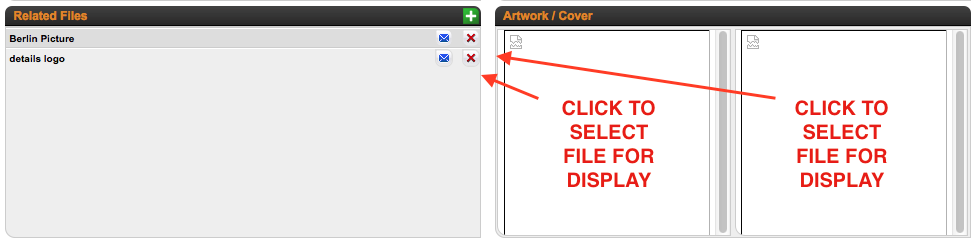
:: ::
::
NOTE: Once uploaded, files will be available for this Artists, Labels, Releases or Products regardless of the display in the Artwork / Cover Box. The display will give you a visual context, but no additional functionality.