
The ”Overview” tab of a booking offers a lot of valuable information for both agents and logistic people: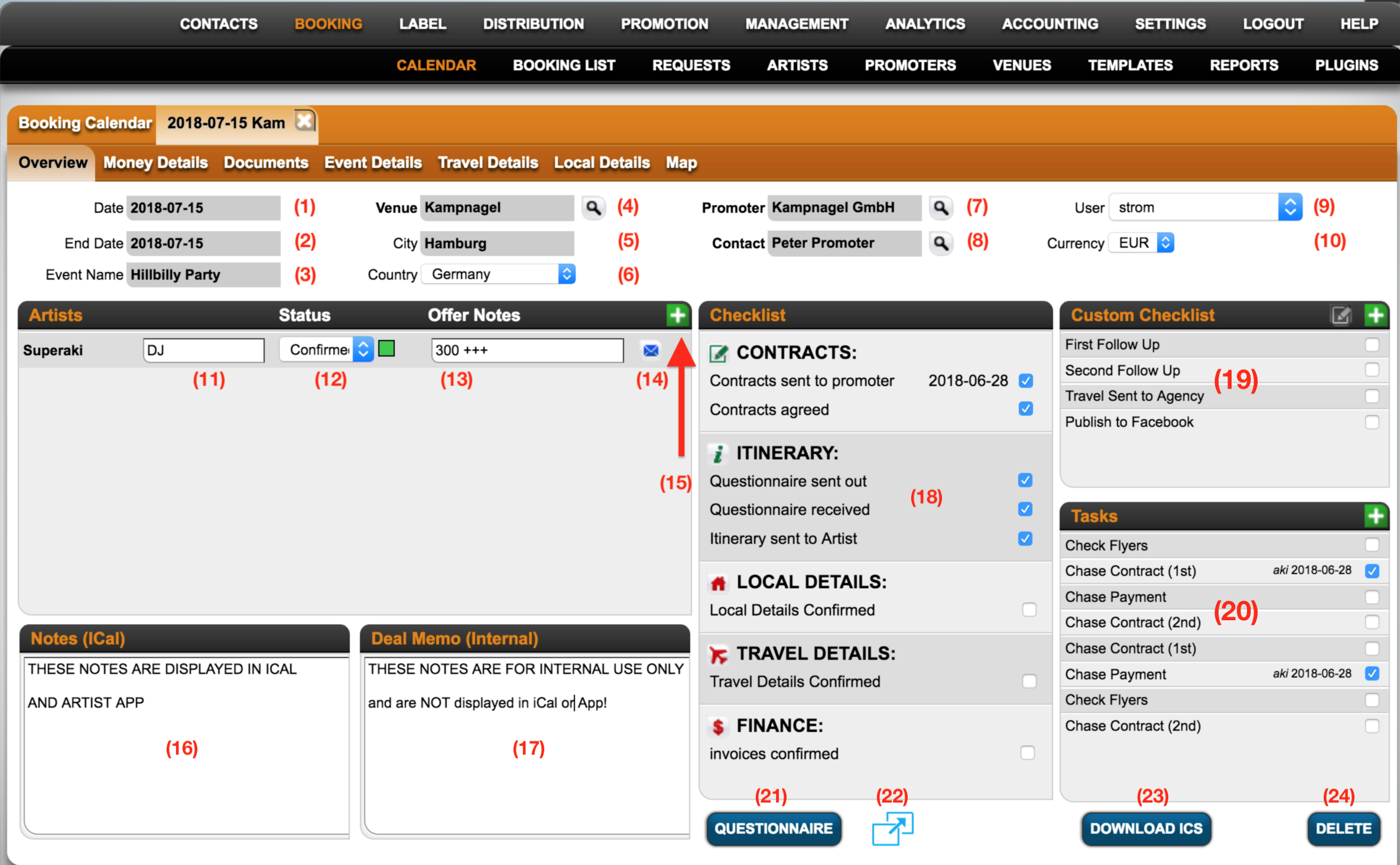
(1) DATE
: the start date of the selected event
(2) END DATE
: the end date of the selected event
This is set to start date per default, but available for change if you have an event that spans over multiple days. Multiple day events will be displayed with coloured bars in the calendar.
NOTE: Make sure the end date is not before the start date!
(3) EVENT NAME
: any given party or festival name or other description
NOTE: Venue names and artist names don►t need to be repeated in the event name as it might cause redundant text in contracts, itineraries and invoices.
(4) VENUE
: the location, club, venue or festival this booking is taking place at.
Select a venue from your venue list by clicking the magnifier icon on the right.
To access and modify the selected venue, click on the word “venue“.
To quickly display venue information in a tooltip, hold your mouse over the selected venue name.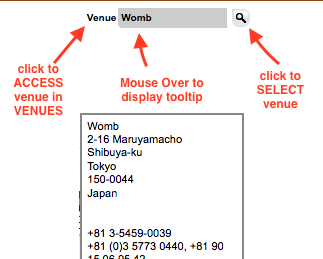
(5) CITY and (6) COUNTRY
: of the booking locarion are filled automatically from the venue selection
(7) PROMOTER
: the contract partner for the event.
The promoter will probably be included in contracts, itineraries and invoices, therefore it would be best to have full postal address and VAT ID available in your database. If you are missing those infos, send them a questionaire => see (19).
Promoters can be companies or persons.
Select a promoter from your promoter list by clicking the magnifier icon on the right.
To access and modify the selected promoter, click on the word “promoter“.
To quickly display promoter information in a tooltip, hold your mouse over the selected promoter name.
(8) CONTACT
: the person you talk to about this event.
This is not necessarily the same person as your promoter (7)
Select a contact person from your contacts by clicking the magnifier icon on the right.
To access and modify the selected contact, click on the word “contact“.
To quickly display contact information in a tooltip, hold your mouse over the selected contact name.
(9) AGENT
: the user responsible for this booking.
Most probably an agent. The available values for this selection are your user logins.
NOTE: To make sure automated email notifications will reach the selected user, make sure the user►s email is propperly set in the user settings.
(10) CURRENCY
: the main deal currency of this booking.
You can manage available currencies in SETTINGS / GENERAL
(11) PERFORMANCE TYPE
: the type of performance played by your artist at this booking.
The description will be loaded from the default from the artist setup in ARTIST / OVERVIEW.
It can be edited manually in this specific booking without changing the default.
(12) BOOKING STATUS
: the booking status per artist
Changing the booking status from an optional or cancelled status to a “confirmed” status or vice versa will trigger a change of the automated RSS feed. Confirmed bookings will be automatically included and cancelled or optional bookings will be excluded from the RSS feed.
(13) FIRST OFFER NOTE
: a free text field which you could use to enter the promoter►s offer to the artist.
This text will be included in the first offer email (14) and also in the iCal subscription of the artist.
NOTE: the first offer note is pure optional text and will NOT be used anywhere in deal calculations (see MONEY DETAILS), in invoices or reports.
(14) FIRST OFFER EMAIL
: the email icon triggers an email with ome basic infos about the upcoming booking.
It could be used to send the artists or managements a first idea of an optional booking.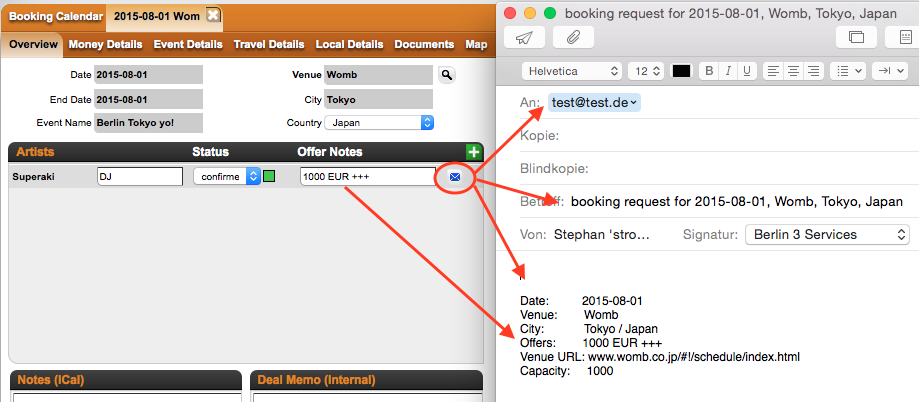
Read HERE how to customize the email SUBJECT and BODY for this email.
(15) ADD ARTISTS
: to add more artists to the selected booking click the green PLUS icon.
To remove artists from an event click the red X icon.
(16) NOTES (ICAL)
: a free notes field which WILL be displayed to the artist in the ARTIST APP and iCal feed.
(17) DEAL MEMO (INTERNAL)
: a free text field which will NOT be displayed to the artist.
Instead it will appear in the “Internal Notes” field of related invoices. 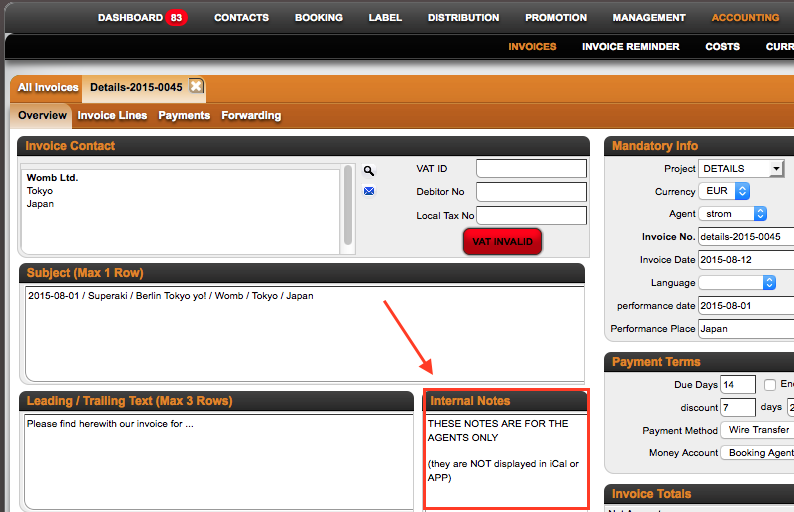
(18) CHECKLIST
: a list of checkboxes to monitor the progress of this booking’s workprocess.
The checklist is highly related to the icons on the BOOKING LIST which will help you to stay organized throughout a multidude of bookings.
Checking the various checkboxes will change the status colour of the different sections from RED (not done) to YELLOW (in process) to GREEN (done).
NOTE:
– TRAVEL DETAILS will be displayed only if at least one travel has been added to the booking.
– FINANCE will only turn GREEN when ALL related invoices are confirmed as paid.
(19) CUSTOM CHECKLIST
: a customizable checklist open to your own checklist requirements.
NOTE: The custom checklist is currently not related to the filters in the booking list, but wil be eventually.
(20) CUSTOM TASKLIST
: a customizable tasklist that allows you to set standard tasks which may be assigned to yourself only or to somebody else in the team.
Fine more information on the custom task list HERE.
(21) and (22) QUESTIONAIRE
: access to your customizable webform questionaire used to fill all specific booking information for your contracts and itineraries.
There are two ways to use the Questionaire:
a) Send a link to the promoters and push them to fill out all necessary information for you: to get the link in an email click on the “Questionaire” button (21)
b) You may also use the questionaire to verify or complete relevant information yourself via the direct access icon (22)
(23) DOWNLOAD ICS
: a quicklink to download an iCalendar file for the selected booking.
(24) DELETE
: button to click ONLY if you are sure you want to remove the selected booking from the database.
If you click this button you will be asked to confirm that you really want to delete this booking and all the data included. “OK” will remove the booking from the database.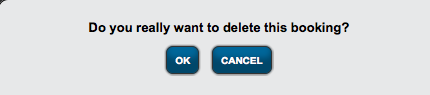
NOTE: Deleting a booking is final. To retrieve deleted bookings from a previous backup is billable support.
Booking – Overview
Recently Viewed
Your recent pages