
This article explains the basic actions you can perform when working with contacts in details. It covers how to edit, delete, filter and navigate your contact data.
► Creating a new Contact
To create a new contact in CONTACTS / CONTACTS, follow these steps:
- Click on the CONTACTS module or go to the CONTACTS tab.
- Click the [+] button to start a new contact entry.
- Choose whether you are creating a Person or a Company.
- Fill in all the required fields.
- If you are creating a company contact, make sure to add the Legal Suffix to the company name.
- Select a Group if one already exists and is relevant for this contact.
- A detail subpage will open.
- Here you can add any additional information as needed.
► Editing a Contact
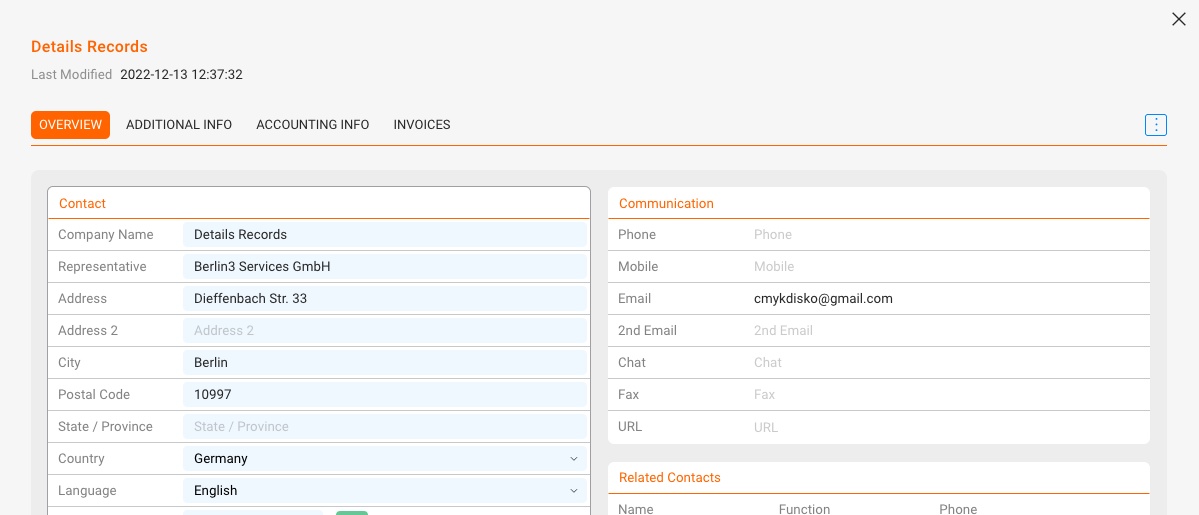
In CONTACTS / CONTACTS, click on any contact entry to open its detail page.
Use the individual tabs like OVERVIEW, ADDITIONAL INFO, or ACCOUNTING INFO to make edits. All changes are saved automatically.
► Deleting a Contact
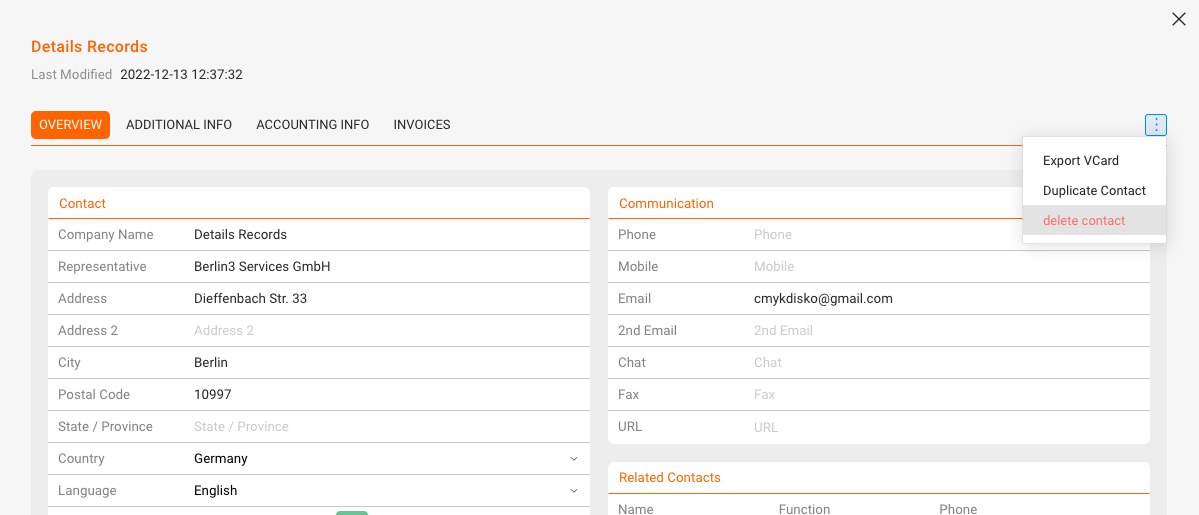
Open the contact you want to delete and scroll to the bottom of the OVERVIEW tab.
Click on [DELETE] to remove the contact from your database. You will need to confirm this action.
► Filtering and Searching Contacts
In CONTACTS / CONTACTS you can use the advanced filter panel at the top:
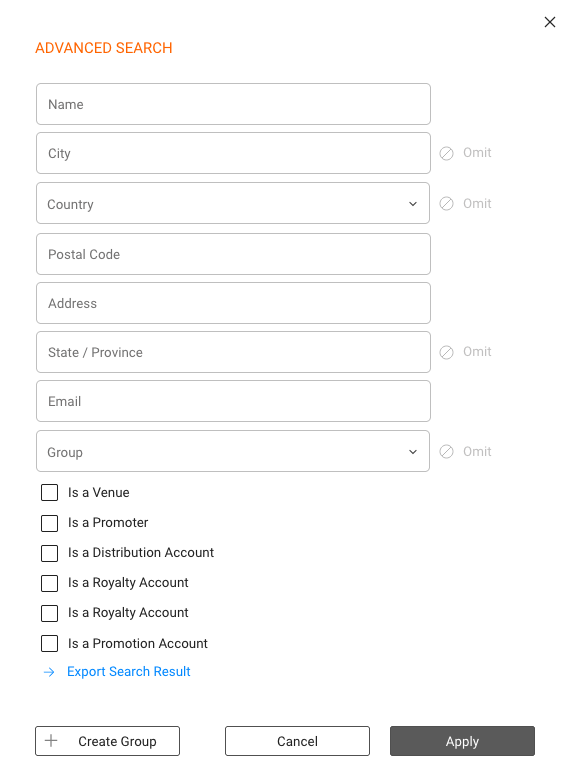
Use the search field at the top to quickly look up names, cities or companies.