This article explains the basic actions you can perform when working with contact groups in details. It covers how to edit, delete, export your group data and create group mailing.
► Create A Group
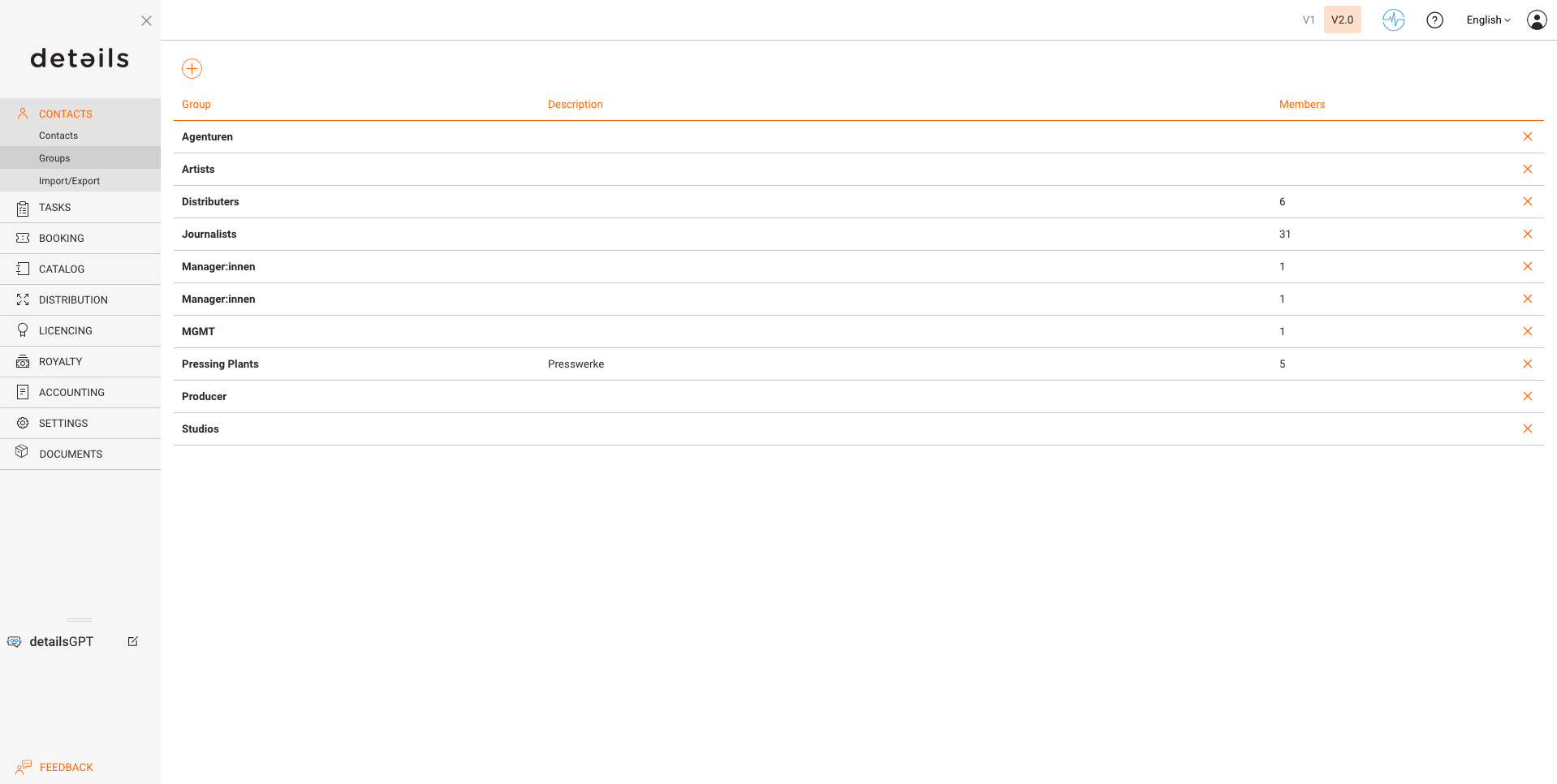
To categorize your contacts, go to CONTACTS / GROUPS.
Examples of useful groups include:
- Artists
- DJs
- Promoters
- Labels
- Venues
- Record or digital shops
Use the [+] button at the top right to create a new group. You ll be redirected to the group detail page where you can add contacts via [+] and select them from the database.
► Editing a Group
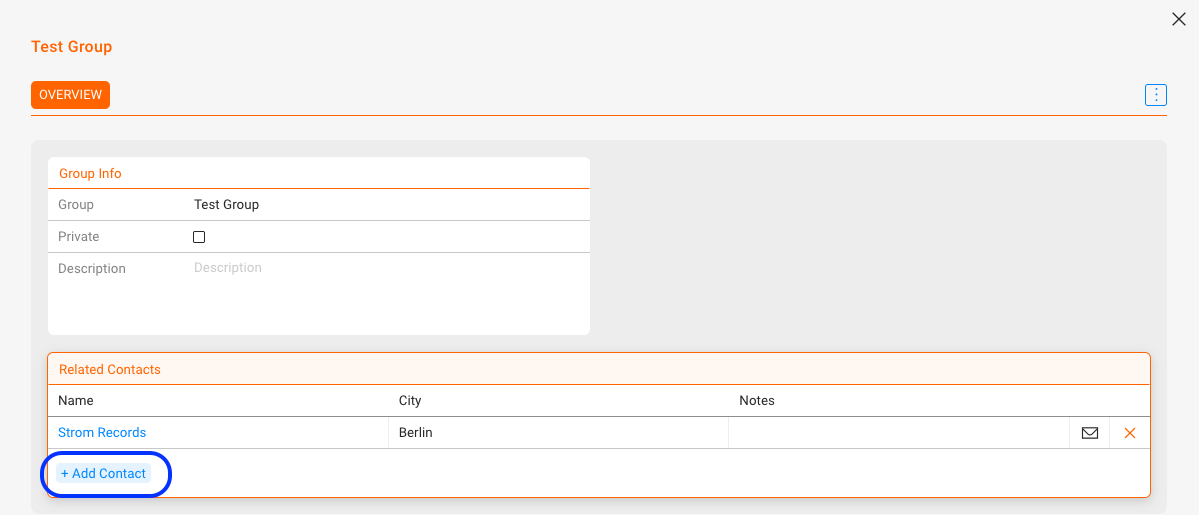
Go to CONTACTS / GROUPS and select the group you want to edit.
On the group detail page, you can:
- Change the group name
- Add contacts via [+] and search.
You can also add them in bulk by using the checkboxes.
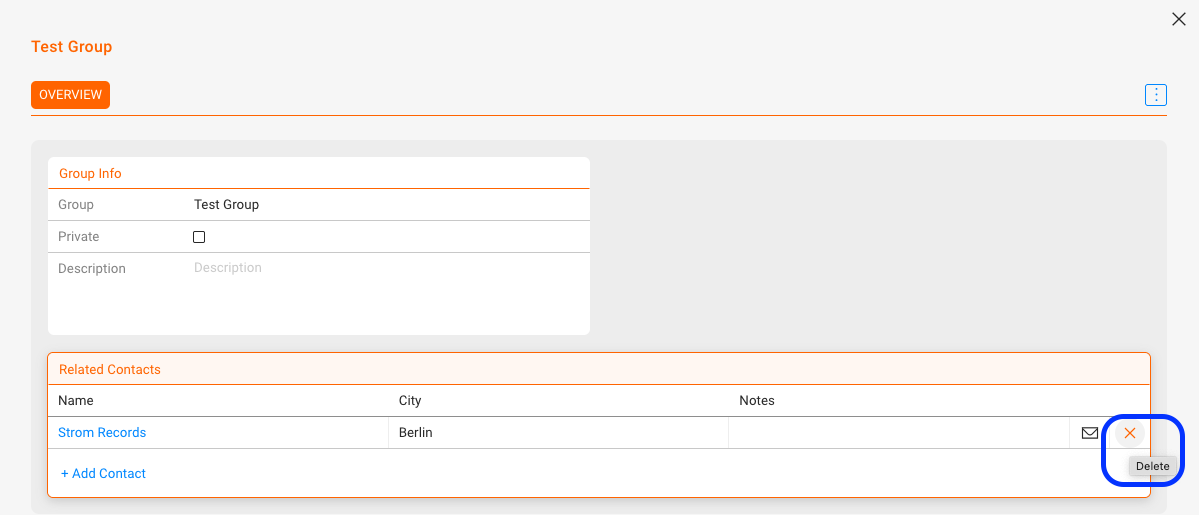
- Remove contacts using [x]
► Deleting a Group
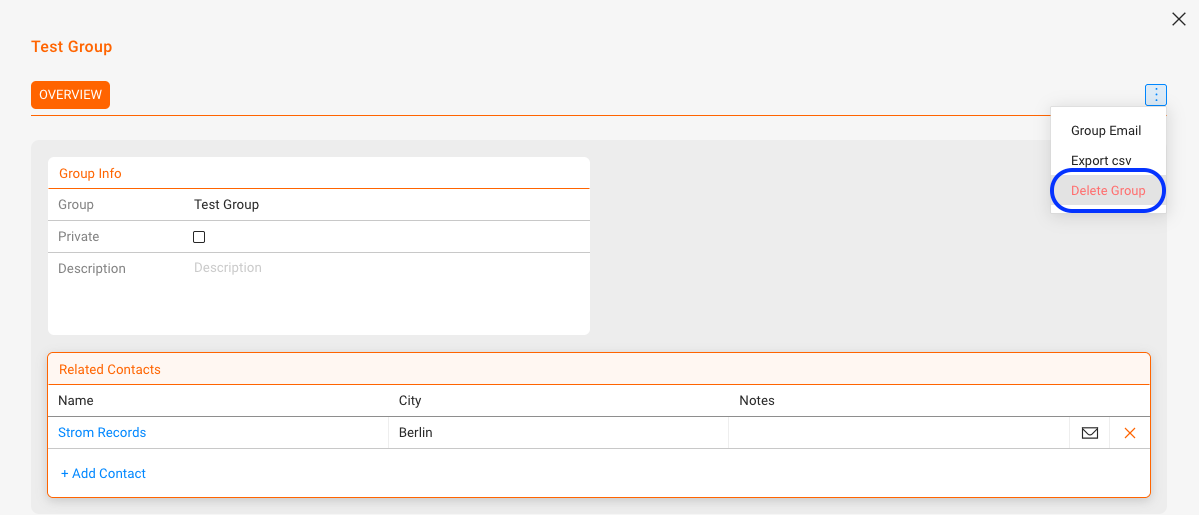
On the group page, click [DELETE GROUP] to remove it. This does not delete any contacts, only the group itself.
► Export as CSV File
You can select multiple contacts in the list view to export as CSV File.
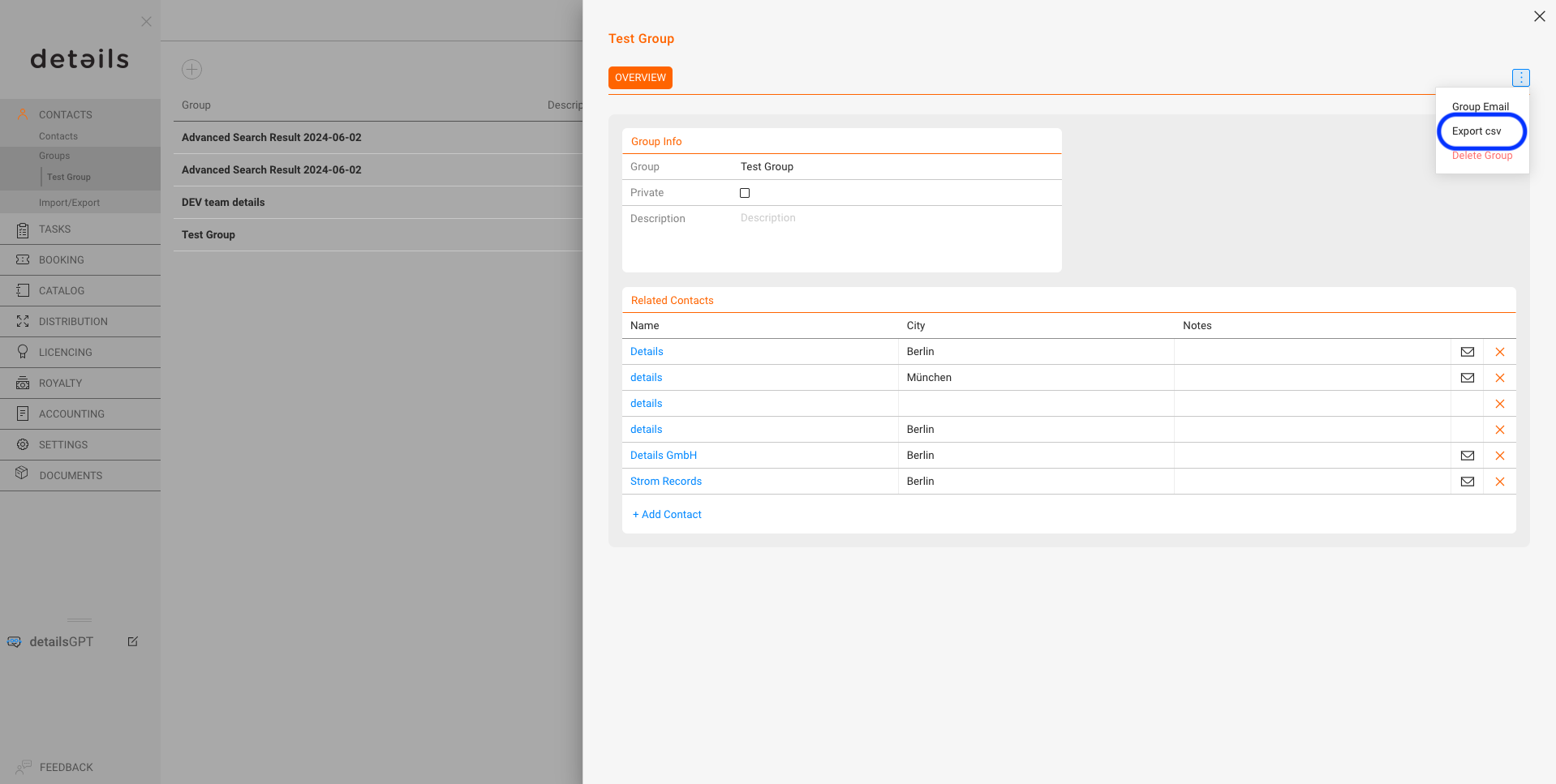
On the group page, click [EXPORT CSV] to download the file.
► Generate copyable email list
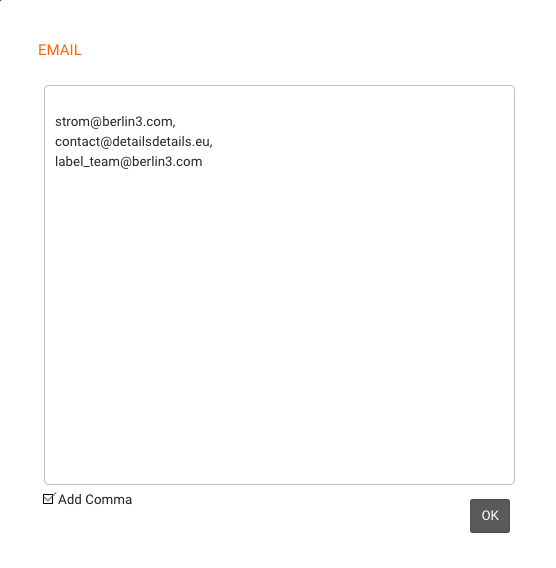
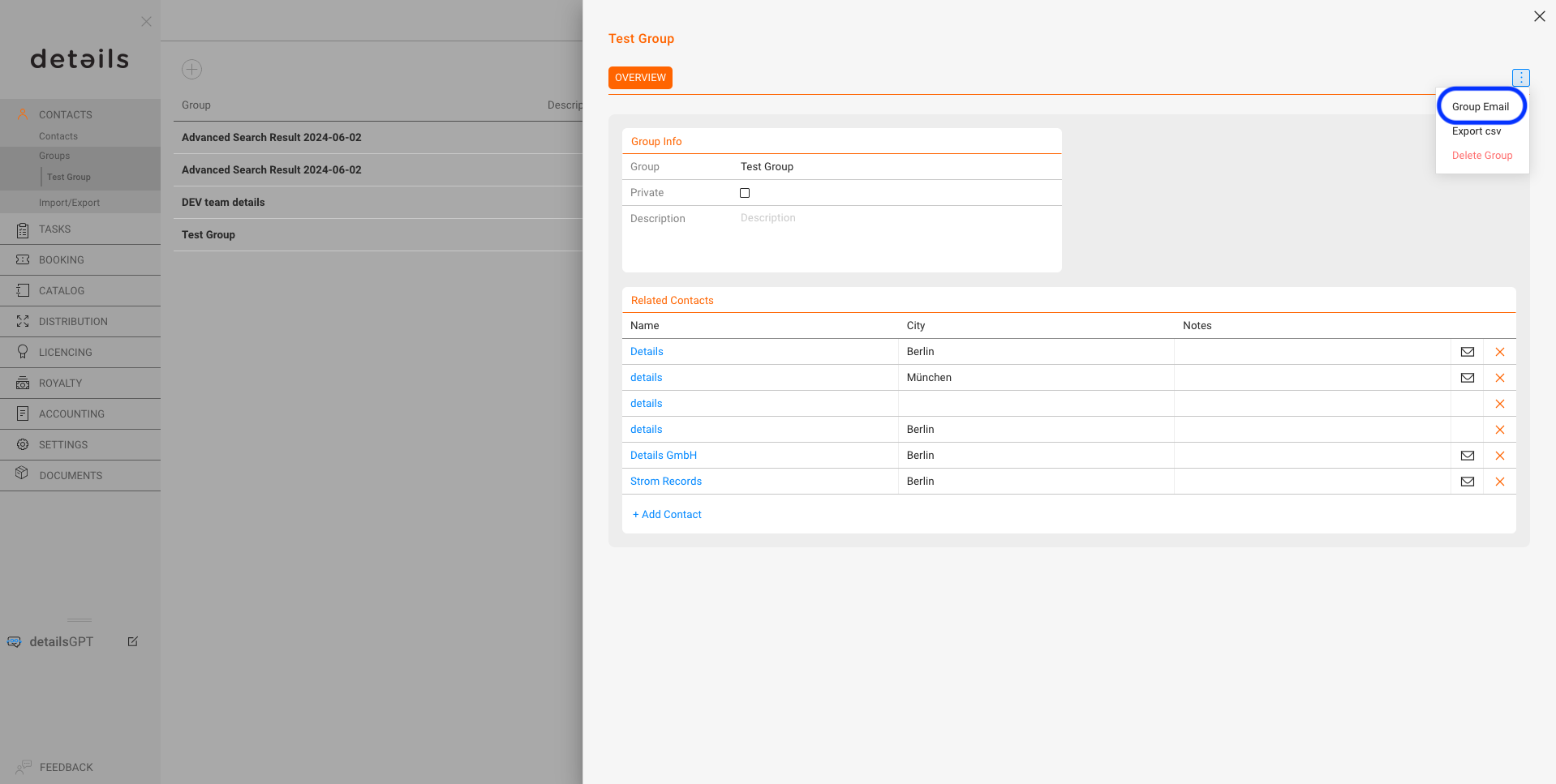
You can display the selected contacts as plain text to copy their email addresses for group messages.
Therefore, click [GROUP MAIL] on the group page.
A window will open displaying the available email addresses for the group, which can be easily copied. It is also possible to separate the addresses with commas if necessary.