
Table of contents
This article explains the most common actions for managing tracks in CATALOG / TRACKS. It covers how to create, edit and delete tracks, how to maintain metadata and credits, and how to manage all relations and error handling.
ADDING A NEW TRACK
You can create new tracks directly in the track list or as part of a product setup.
Directly in the TRACK LIST
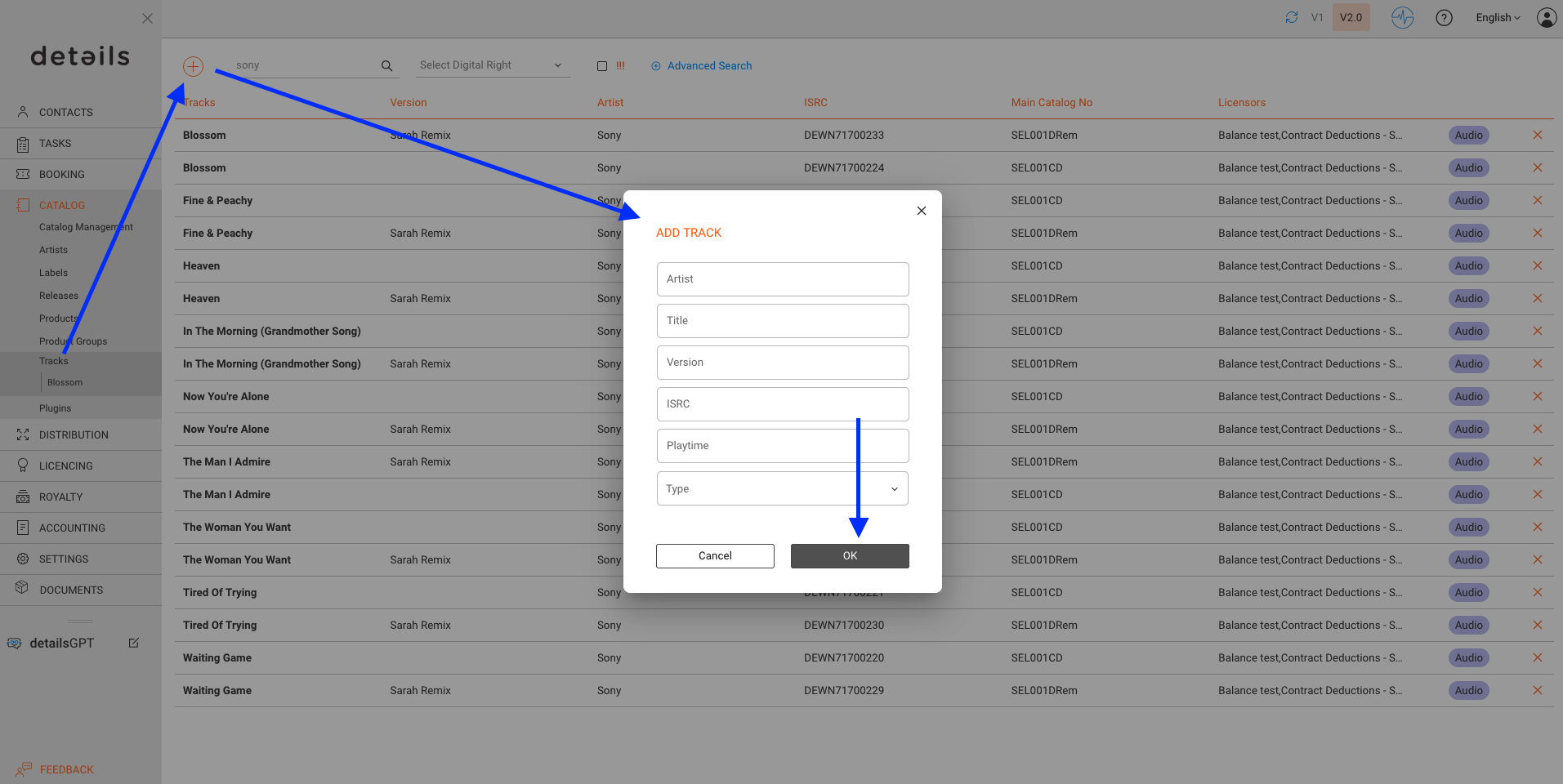
- Click the [+] icon in the top-right corner of the track list.
- Enter Artist, Title and Version.
- Assign a valid ISRC. Without ISRC, the track cannot be matched in statements.
- Optionally, create tracks from inside a product. In this case, the product relation is already pre-filled.
OPENING & EDITING A TRACK
To update track information:
- Click on the track line in the list view to open the Detail View.
- All fields can be edited across the tabs: Overview, Relations, Sales, Metadata.
- Changes are saved automatically.
DELETING A TRACK
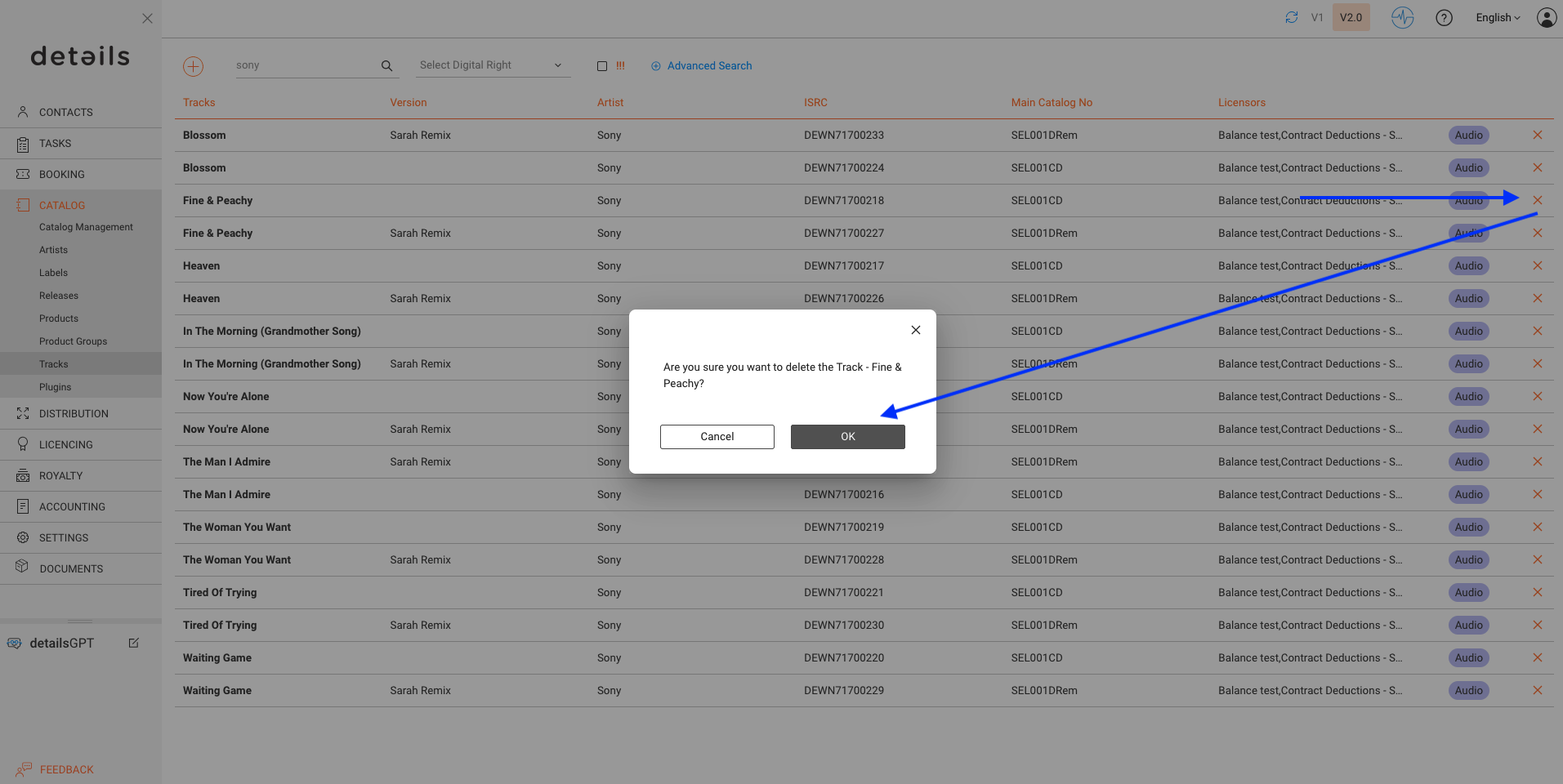
Tracks can be deleted by clicking the [x] icon in the list.
CONNECT TO MAIN PRODUCT
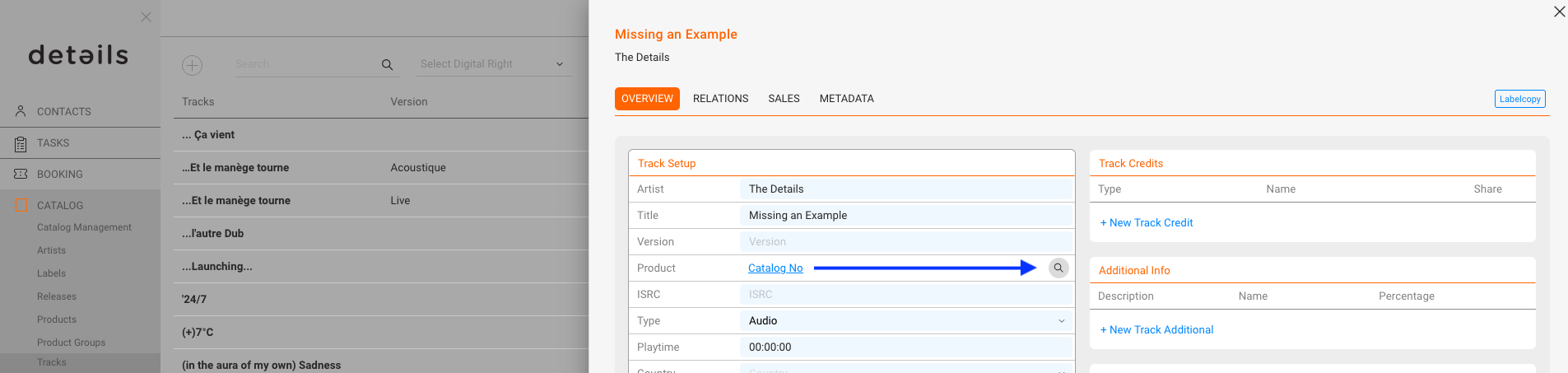
Complete the basic fields for a track in the OVERVIEW tab and make sure it is connected to a Main Product. Only tracks with a Main Product relation are royalty-billable.
ADD GENRES
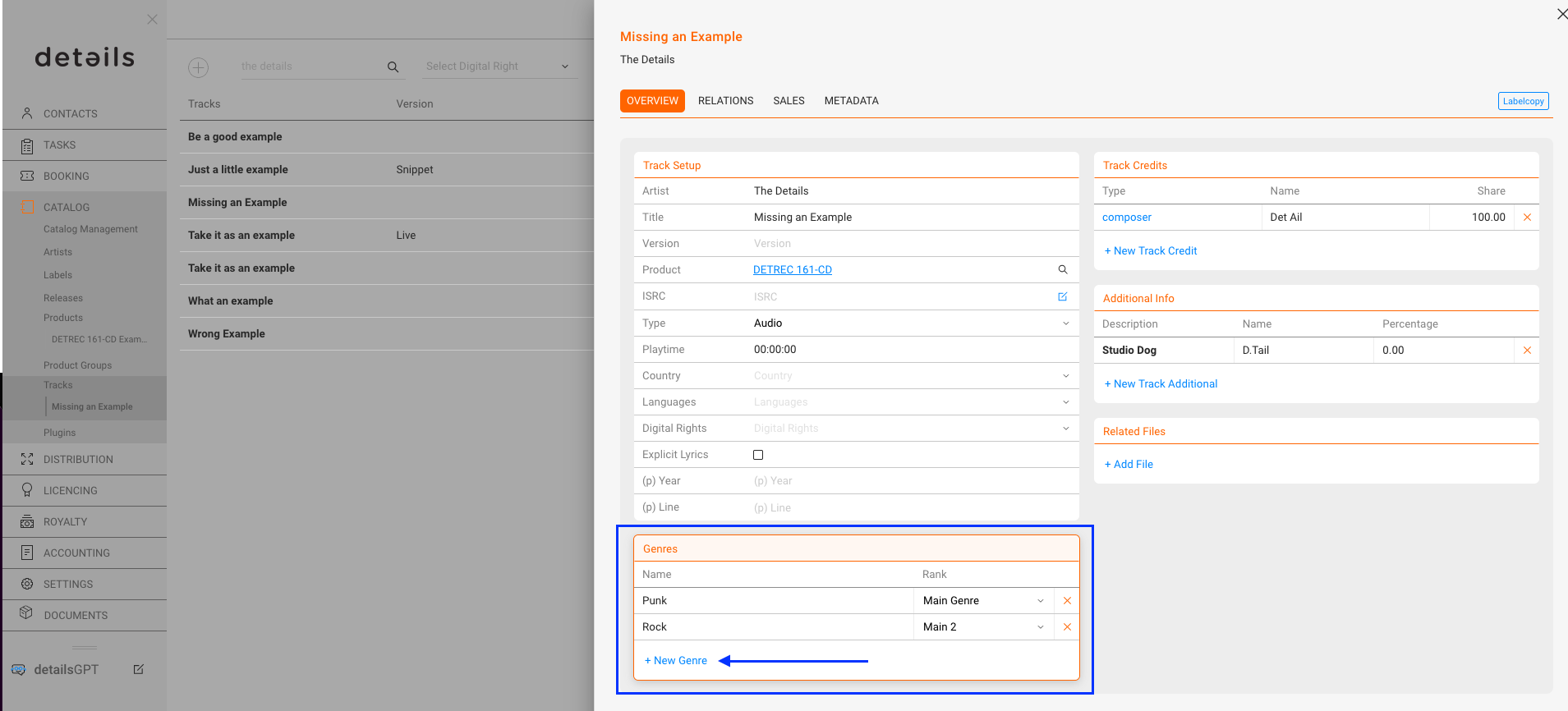
Assign up to four genres to a track:
- Click [+ New Genre]
- Choose a Genre from the list
- Or enter the genre name and confirm with [New Genre]
You can define two main genres and two sub genres. Use this structure to keep reporting consistent.
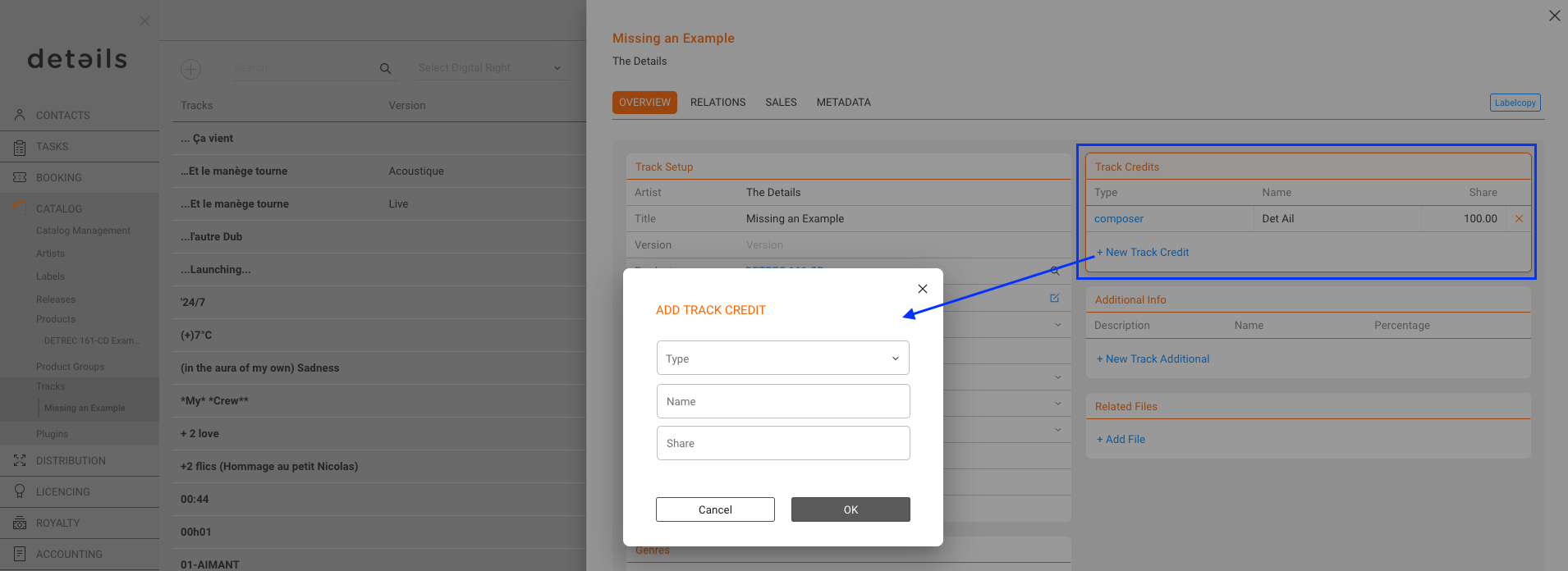
ADD TRACK CREDITS
Add official credits such as Composer, Writer or Publisher:
- Click [+ New Track Credit]
- Select the role
- Enter the name and share if applicable
These credits are part of the official Label Copy. If the RELEASE is connected to an ARTIST, the credits are automatically filled in by default when creating a new track.
ADD ADDITIONAL CREDITS
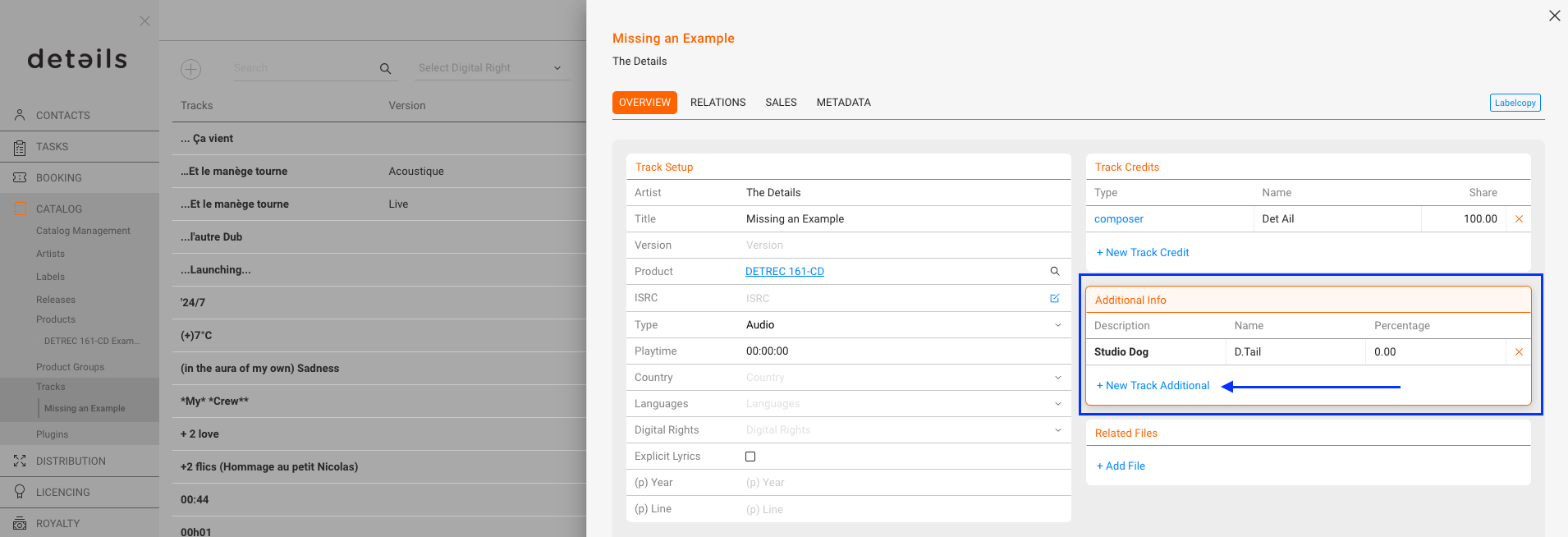
Use the [+ New Track Additional] function to add non-official credits such as remixer, instrumentalist, or arranger. These fields are for internal reference and do not appear in the official Label Copy.
ADD RELATED FILES
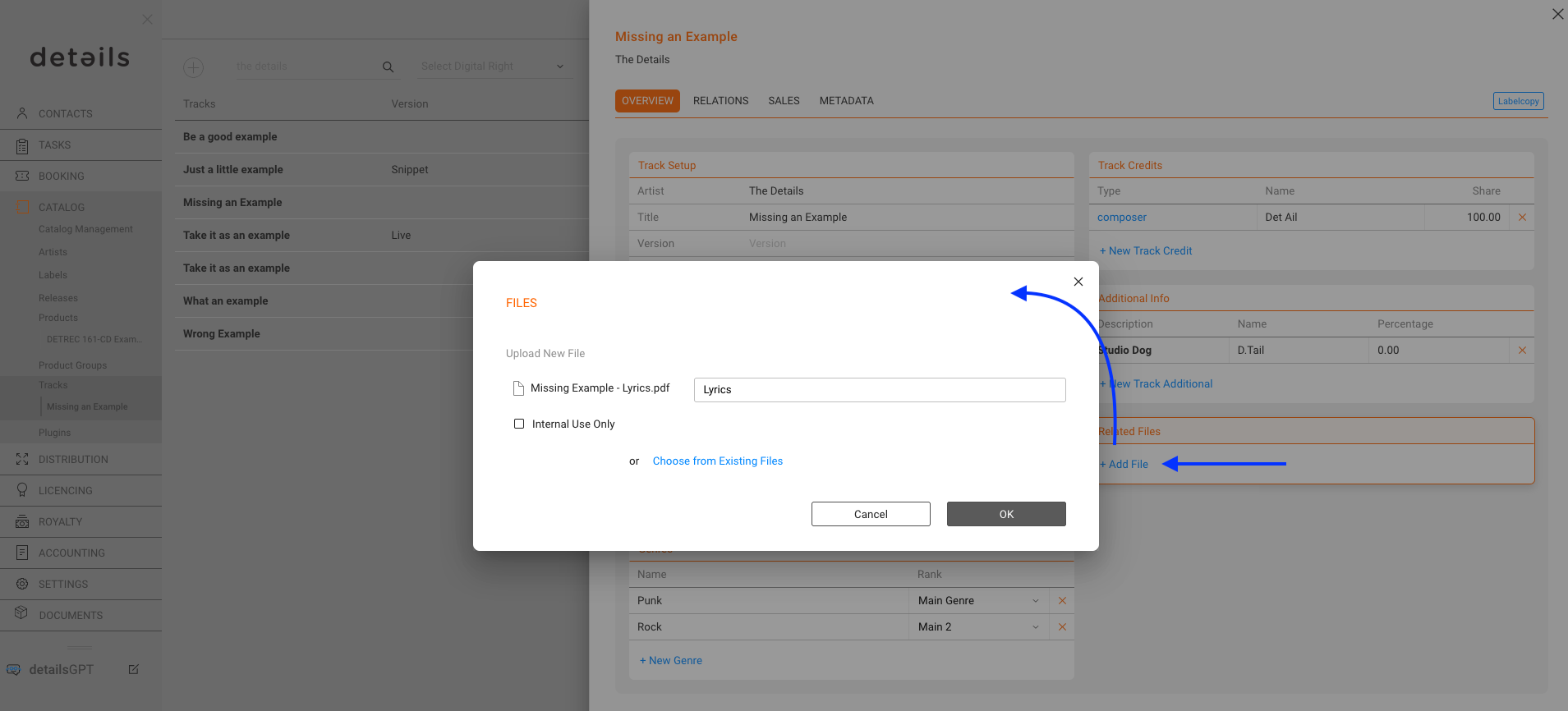
Upload audio or video files to the track in the RELATED FILES section:
- Click [+ Add File]
- Select the file to upload
Files can include masters, previews, or videos. Storage limits may apply for very large catalogs.
CREATE LABEL COPY
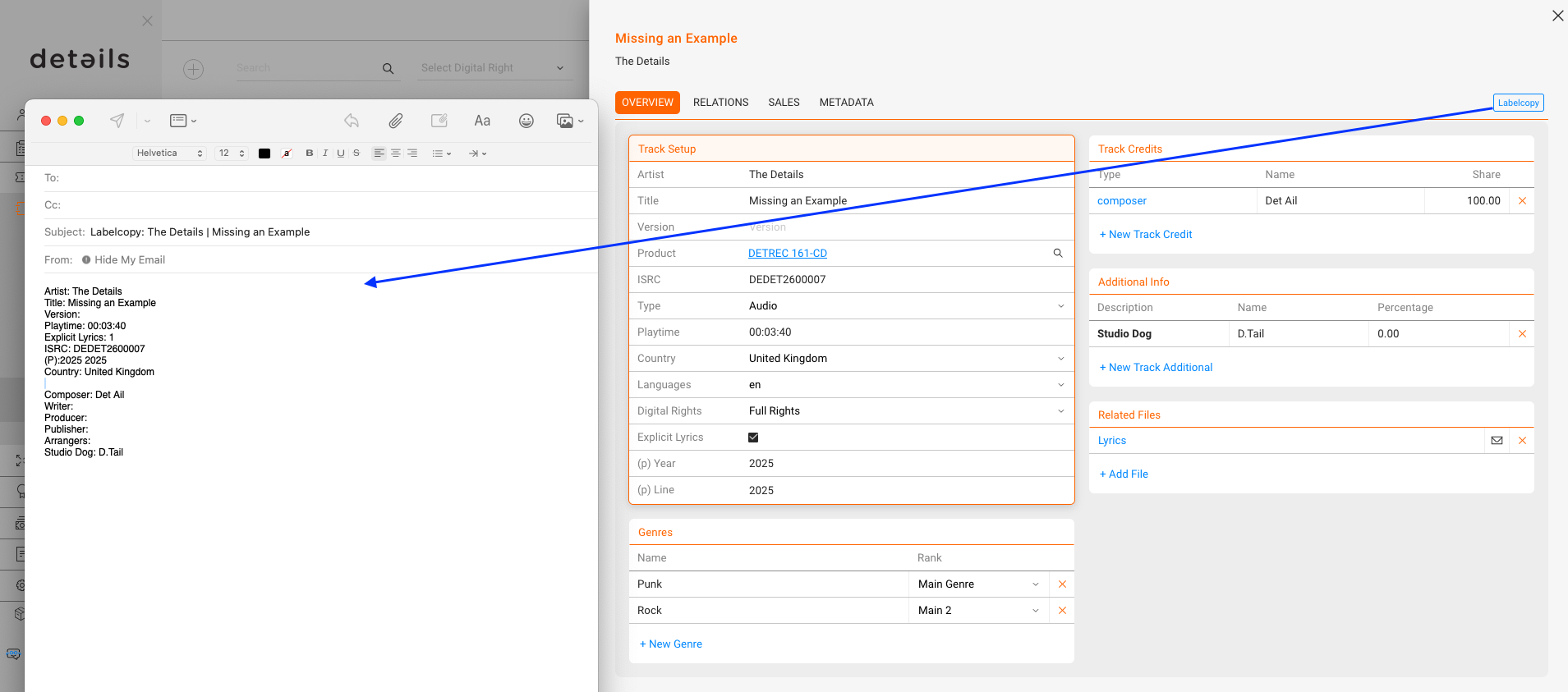
The [Label Copy] gadget lets you quickly send an email with the track’s Overview and Credits. This is useful for providing complete metadata to partners or distributors.
EDIT RELATIONS
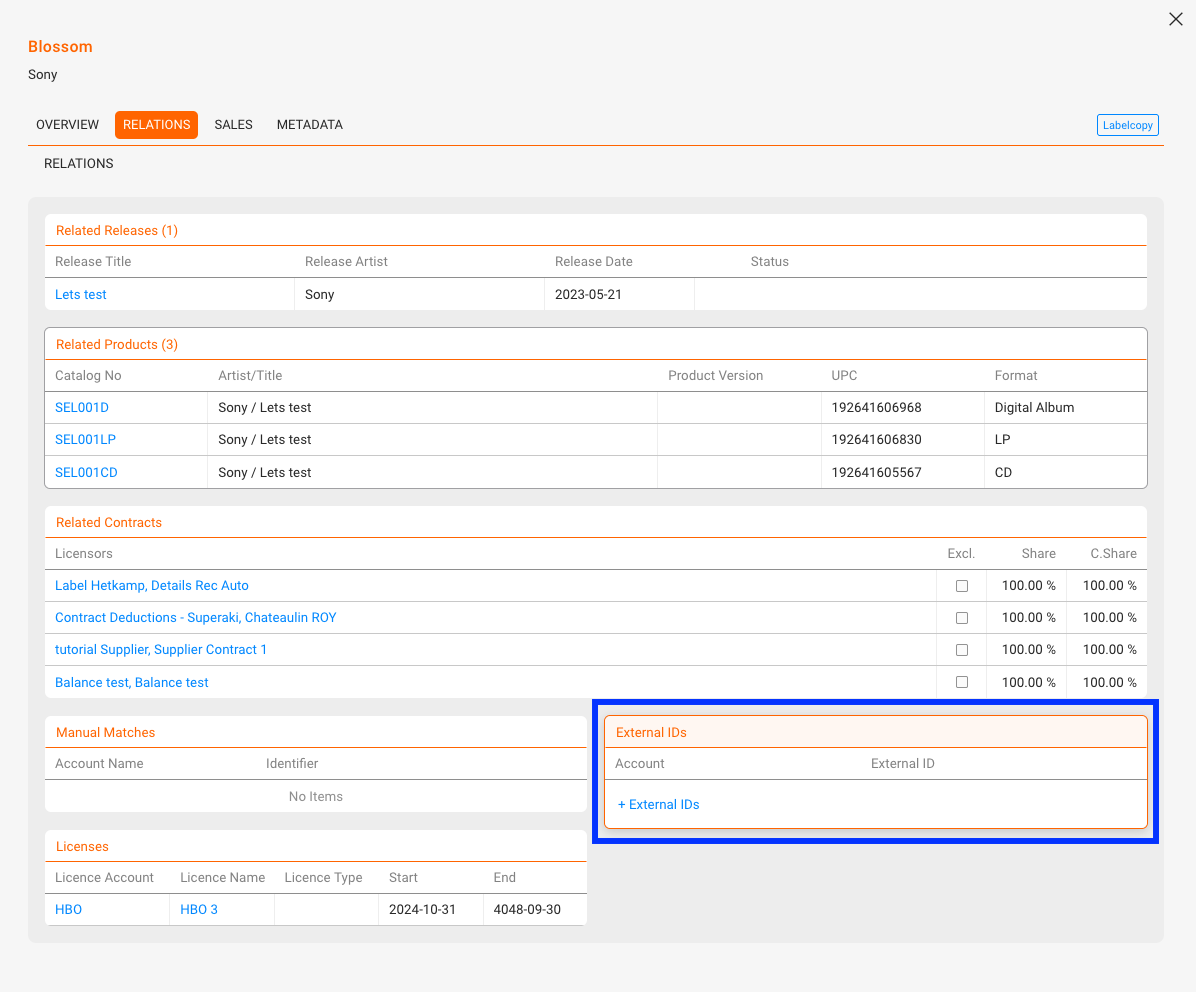
The RELATIONS tab provides an overview of all links between the track and other catalog elements. It is mainly used for control and transparency, since most relations are created through the connected Products.
- Releases & Products: Display all releases and products where the track is included. These links are defined on the product side and shown here for reference.
- Licensors & Contracts: Show the licensors and contracts connected to the track through its products. This allows you to verify that contract shares are correct.
- Manual Matches: Display manual matches that were created during import or mapping processes. They cannot be edited here but are visible for review.
- External IDs: The only field you can actively add or edit in the Relations tab. Use the [+] icon to enter identifiers such as Apple ID, YouTube ID, or other external codes.
- Licences: Overview of third-party licences (e.g. sync licences) that include this track.
Always ensure that one Main Product is linked to the track. Without this relation, the track cannot be billed in royalty statements.
REVIEW SALES
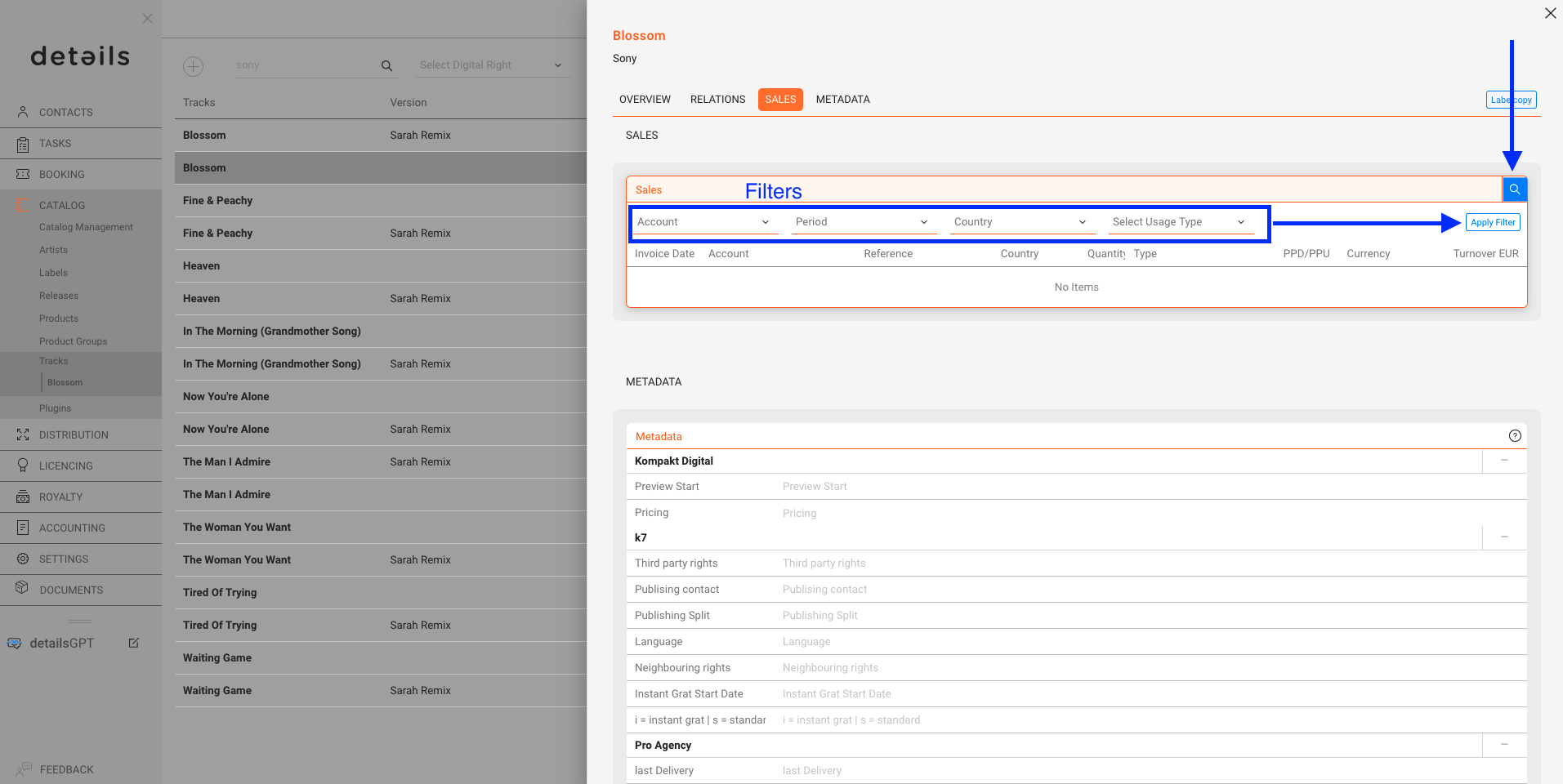
Use the SALES tab to review all sales entries linked to the track. Each entry shows account, statement reference, country, quantity, transaction type, prices, currency and turnover.
Filters are available by period, account, country or transaction type.
ERROR HANDLING (!!!)
Tracks marked with !!! cannot be billed until the error is fixed. Typical issues:
- Missing Main Catalog Number
- Missing or invalid ISRC
See the separate article Error Indicators in Tracks ( !!! ) and How to Fix Them for detailed guidance.